Chatting with Vala
This page describes how to use Vala in your daily work: signing in, asking questions, working with the answers and managing your chats.
Open Vala and sign in
- Search for Vala in Business Central and open the page.
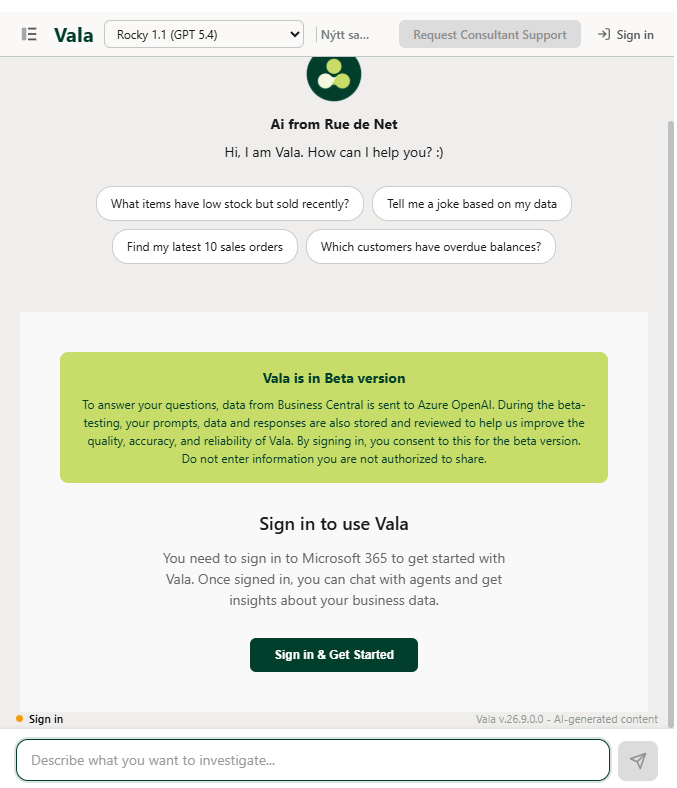
- The first time you open Vala, a panel titled Sign in to use Vala is shown. Read the beta information and choose Sign in & Get Started.
- Sign in with your Microsoft 365 account.
Once you are signed in, you can open the user menu at the top of the page and choose Sign out.
Tip
If you get a message saying that an administrator must approve access, contact your organization's administrator. See Vala Setup.
Ask a question
- Type your question in the Describe what you want to investigate... box at the bottom of the page.
- Choose Send message or press Enter (Shift+Enter adds a new line).
- Vala shows what it is doing while it works on the question. To cancel, choose Stop processing.
In a new chat, Vala suggests a few questions you can click to get started.
Example questions
- Who are my top 10 customers by revenue?
- Find sales orders that haven't been shipped yet
- What items have low stock but sold recently?
- Which customers have overdue balances?
- What extensions are installed in this environment?
The more specific the question, the better the answer. For example, state a period, customer or item number where relevant. You can also ask follow-up questions in the same chat; Vala remembers what was said earlier.
Working with answers
| Action | Description |
|---|---|
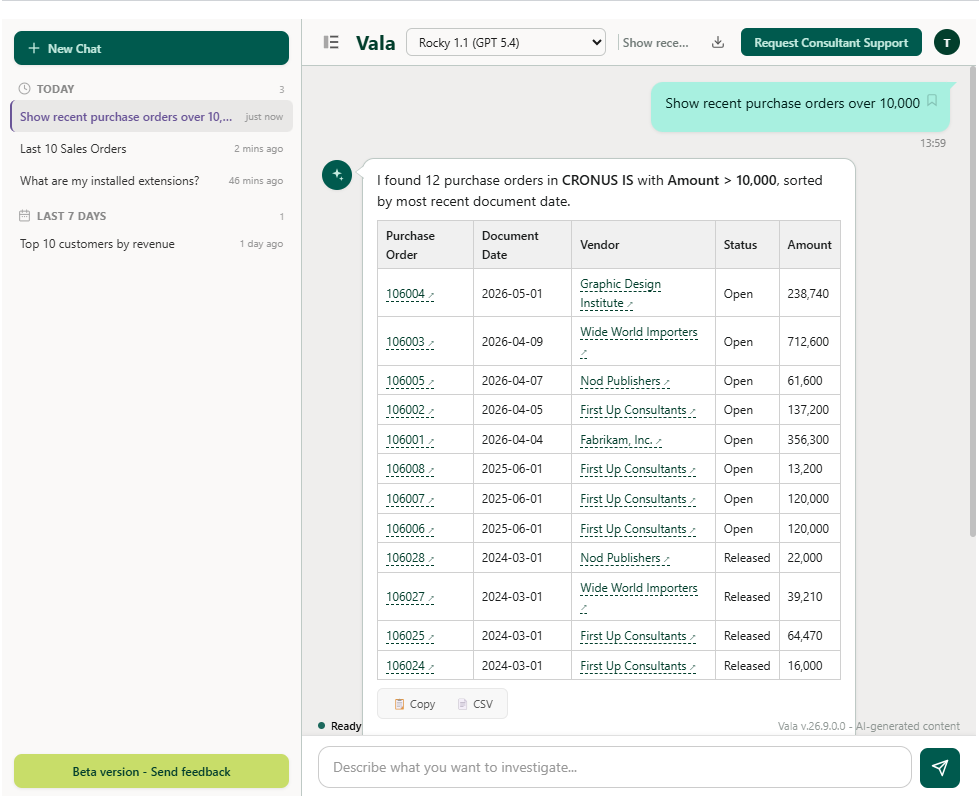
| Record links | Click a link in an answer to open the related record or page in Business Central. If a link does not work, a message is shown and you can ask Vala to look up the record again. |
| Copy | Copies the whole answer or a table from the answer. |
| CSV | Downloads a table from the answer as a CSV file, e.g. to open in Excel. |
| Try again | Shown if an error occurs. Sends the same question again. |
AI-generated content
Vala's answers are generated by AI and can be wrong. If you are unsure about any information, verify it in Business Central or consult a Business Central consultant.
Rate answers
Below answers, the question Was this helpful? is shown. Choose Helpful or Not helpful. If the answer was not helpful, you can describe what you expected and choose Submit, or Skip. The rating can be changed later. Ratings help Rue de Net improve Vala.
Chats
Your chats are listed in the panel on the left, grouped by time (TODAY, YESTERDAY, LAST 7 DAYS, OLDER). You only see your own chats.
| Action | Description |
|---|---|
| New Chat | Starts a new, empty chat. |
| Select a chat | Click a chat in the list to open it and continue. |
| Rename chat | Gives the chat a new title. |
| Delete chat | Deletes the chat and all its messages after confirmation. |
| Toggle chat panel | Hides or shows the chat panel. |
| Download chat | The button at the top of the chat downloads the whole conversation as a Markdown file. |
Saved prompts
Questions you use often can be saved for reuse:
- Click the bookmark (Save as prompt) on a message you sent.
- The prompt appears under MY PROMPTS when you start a new chat.
- Click a saved prompt to use it again. Choose Remove saved prompt to delete it.
Agents
In the Select assistant drop-down at the top of the chat you can choose which agent answers. The list is available after sign-in.
Limitations
- Vala only reads data. It cannot post, create, modify or delete records.
- Vala only sees data you are permitted to view in Business Central.
- You must be signed in to Microsoft 365 to send messages.
- If Vala is under heavy load, the message "Oops, Vala is quite busy at the moment, try again in a minute." is shown. Try again shortly.