Payments - Transfers
Here is described how to perform domestic transfers for payments in the Banking Module.
Actions
1. Vendor Settings:
Before a transfer is made, it is important that all settings on the vendor are correct. You must ensure that the following fields on the vendor card are filled in with correct values: name, address, city, country, currency code.
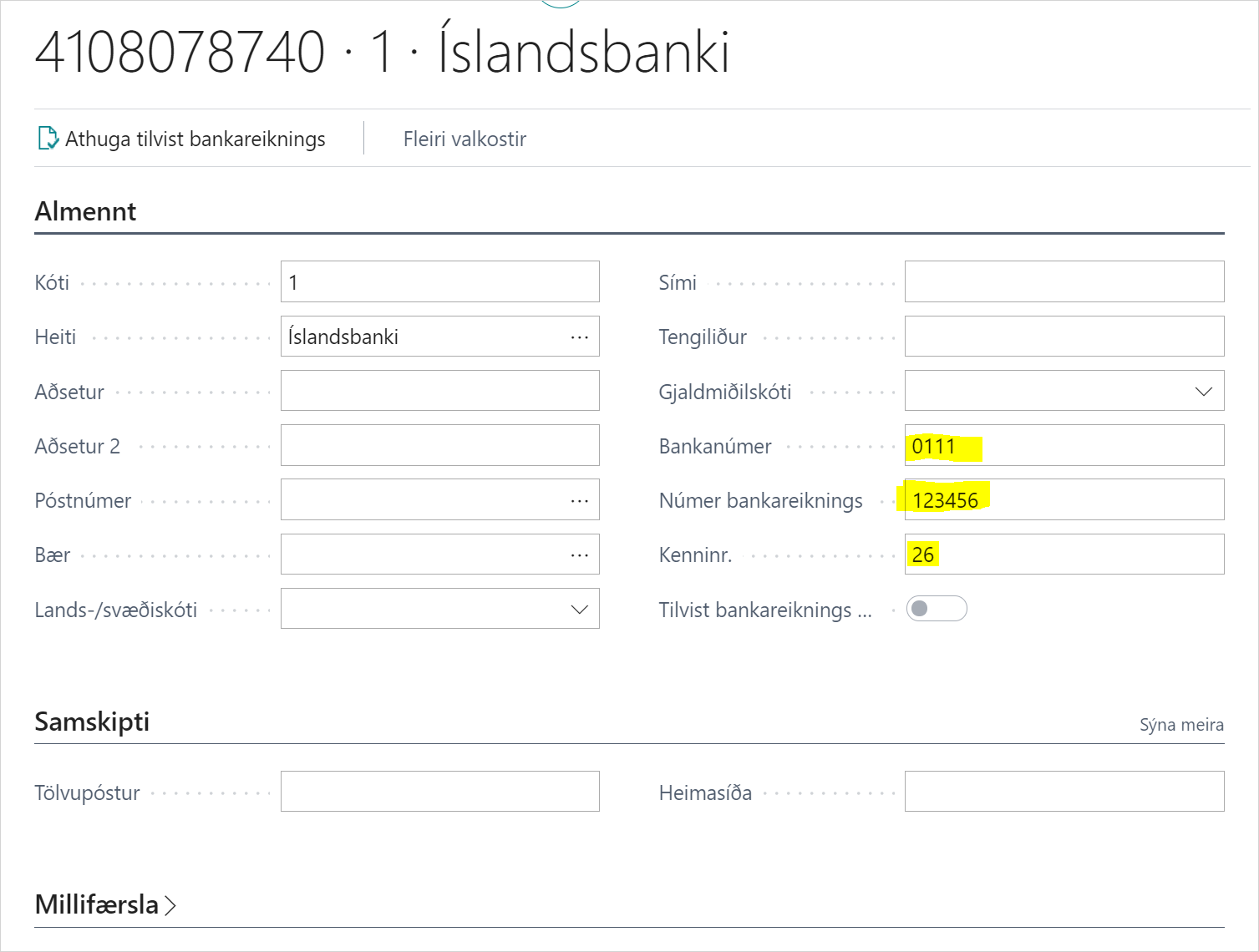
You can use the action "Confirm Bank Account" to confirm that the correct bank account has been entered in the system.
2. Make a Transfer.
2.1. Make a Transfer Manually:
It happens that you need to make a transfer manually without receiving a suggestion from the system. E.g. reimbursement to an employee or payment to a contractor waiting in front of the cashier. This transfer can even be made before an invoice is posted.
This is done under RdN Payment Journal - Payment Journals

To create a transfer you only need to select the vendor, currency and amount.
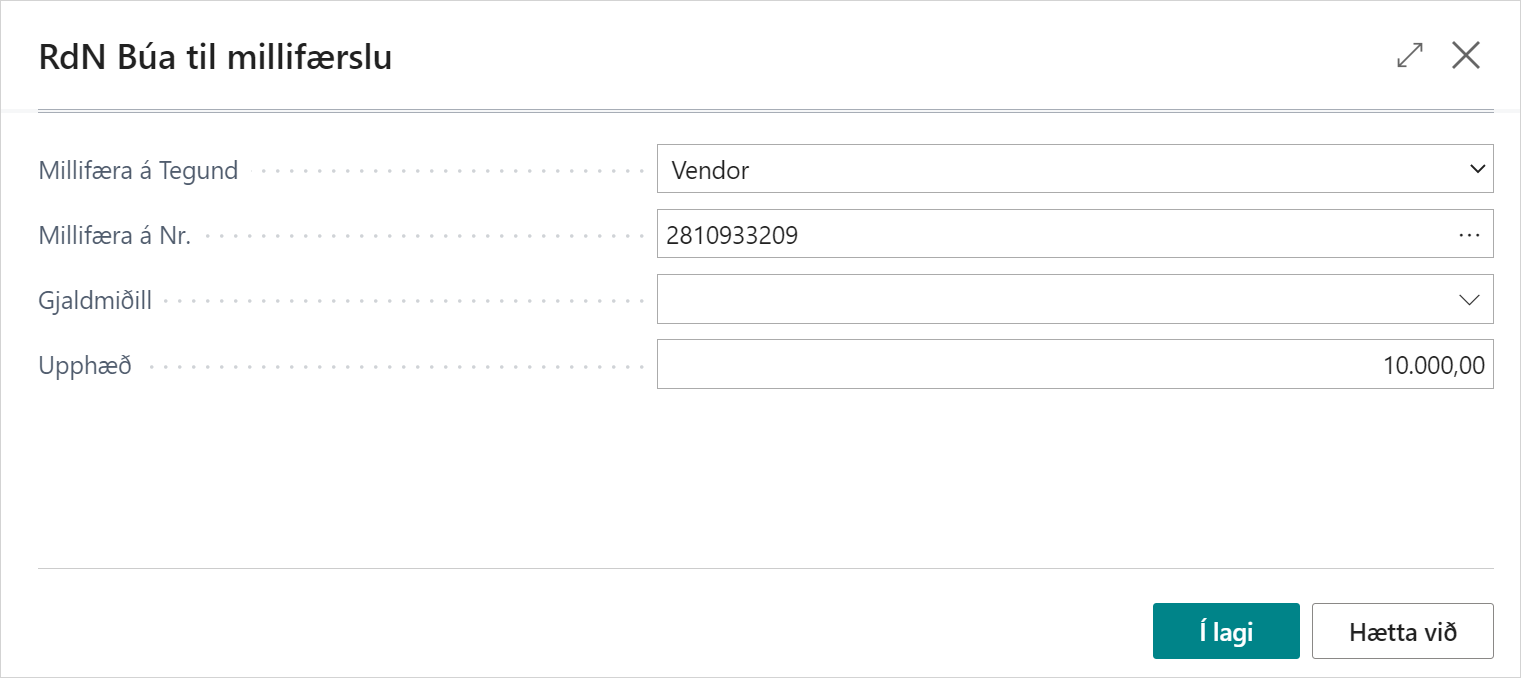
If bank account information is filled in on the vendor card, the system will automatically find it to fill in the payment journal.
The status on the bank account line is "Unsent". It is therefore possible to delete a line while nothing has been sent to the bank.
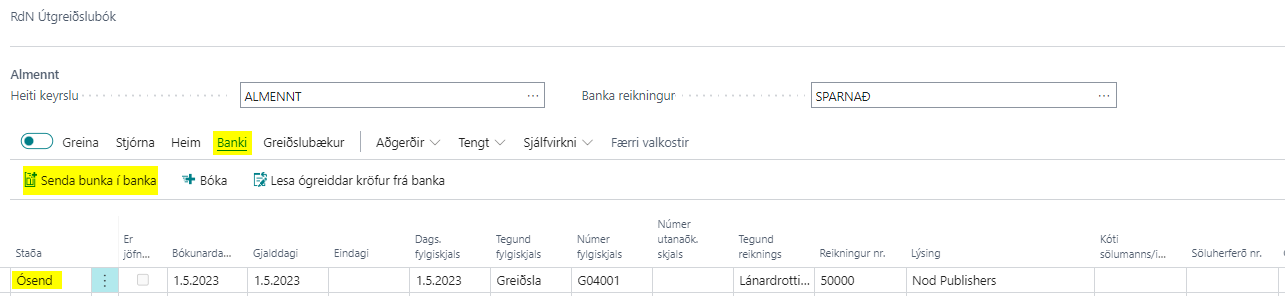
Next, you need to send the batch to the bank and then the status changes to "Sent to bank".
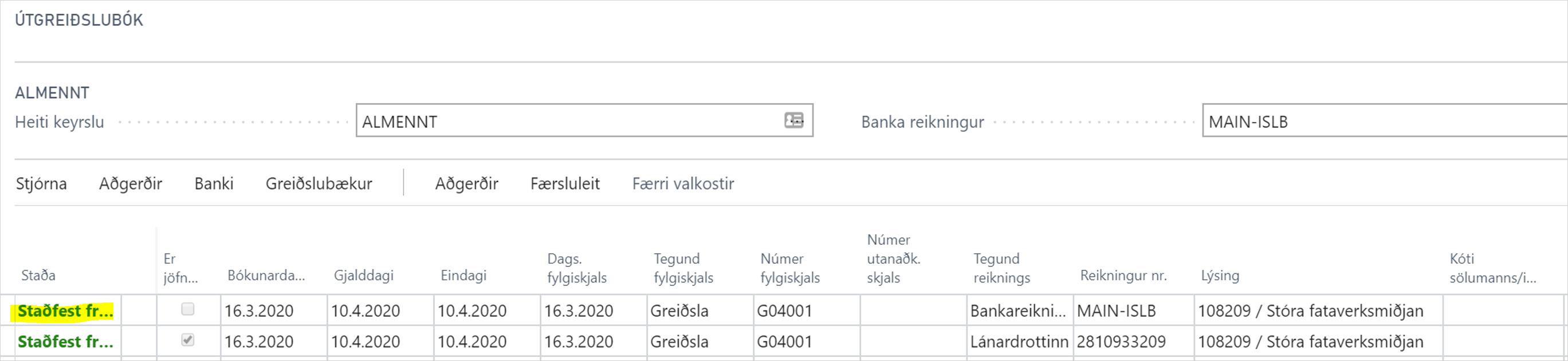
Note that bank settings for bank users may require double confirmation of the payment and therefore you must open home banking, find the payment batch and confirm the payment.
After that, you can select "Check Status" and then the status changes to "Confirmed from bank".
When all lines in the payment journal have the status "Confirmed from bank", you can post the payment journal.
2.2. Use Suggest Vendor Payments to Transfer:
To base payments on posting of invoices on vendors in addition to payment prioritization that can be set up in the system, it is best to use the payment suggestion for vendors in the payment journal.
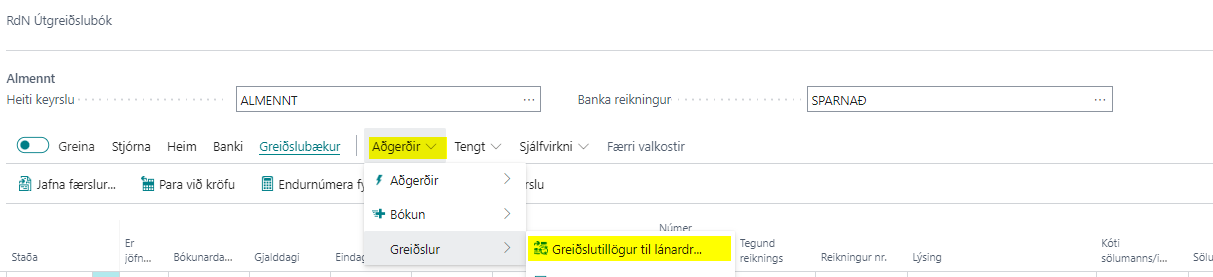
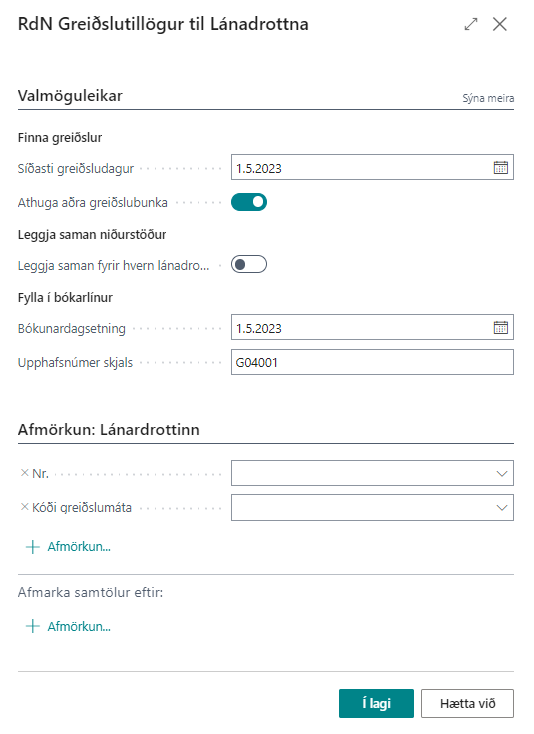
There are many ways to use payment suggestions.
-
Last payment date is the date the system uses to suggest payment of invoices posted on a due date before that date. E.g. if the last payment date is 01.05.23 and invoices are posted on posting date 10.05.23, the system will not suggest paying them.
-
The system suggests the posting date of the payment on today's date plus the starting number of the document that comes from the no. series of the payment journal.
-
You can narrow further, e.g. if you want to get payment suggestions for a specific vendor or for a specific payment method code (e.g. pay all vendors that are paid by transfer).
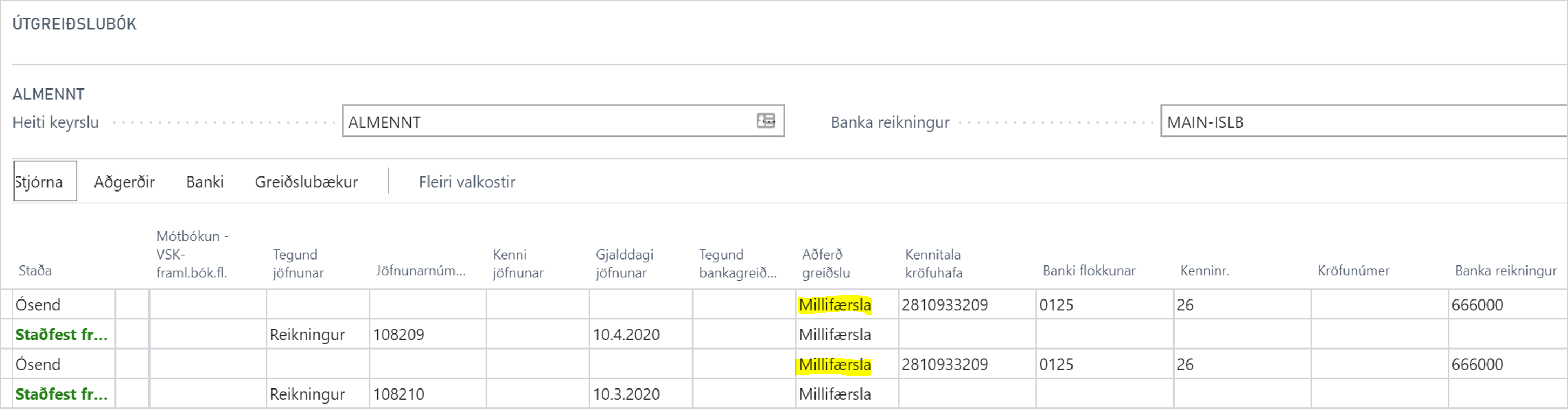
Note that the payment method is "Transfer". If the system is set up to match payment suggestions with a claim and a claim exists in the bank for the same vendor entry, then the system will suggest paying the claim. See below.
When you have completed the payment suggestions and verified that all information is correct, the payments are sent to the bank. It is always possible to delete unsent payments if the result is not as you want. When payments are sent to the bank, they receive the status "Sent to bank".
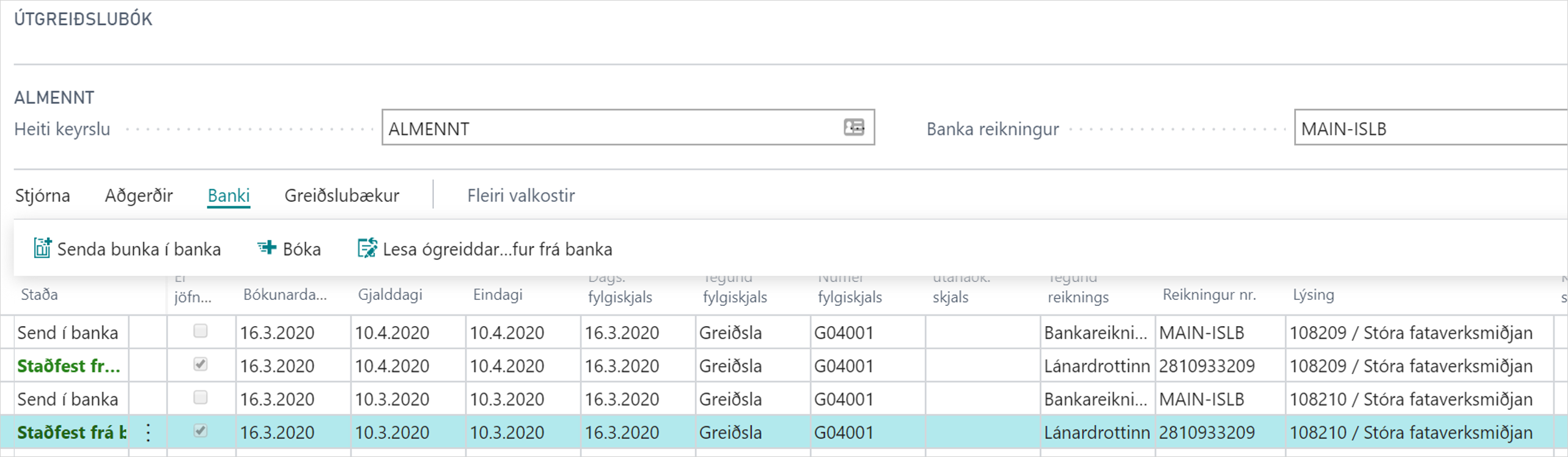
2.3. Check Status:
The "Check Status" action checks whether payments have been confirmed by the bank. If the system is under heavy load, it may take a while for payments to be confirmed.
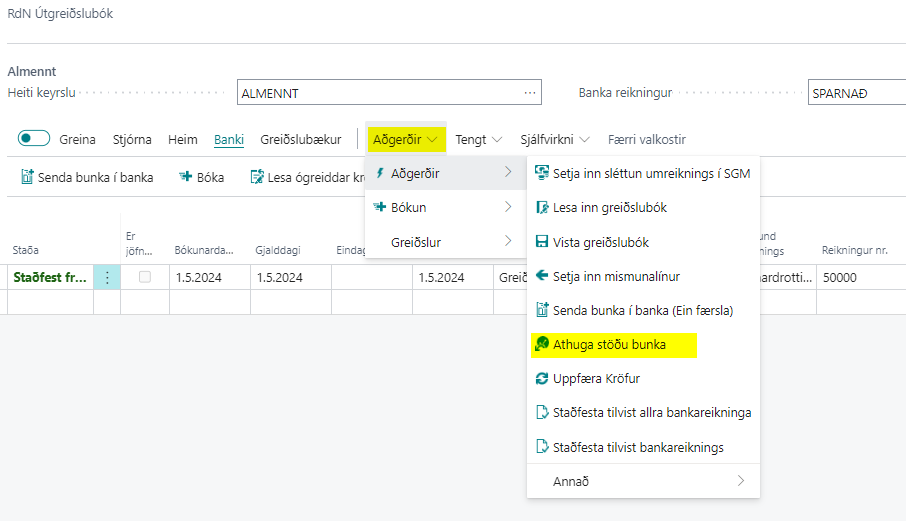
When you have confirmed that the payments are error-free and have reached the bank, the status of the payments changes to "Confirmed from bank".
3. Pay Unpaid Claim from Vendor.
3.1. Fetch Unpaid Claim from Bank:
You can specifically limit to a particular vendor if you only want to pay his claims at this time.
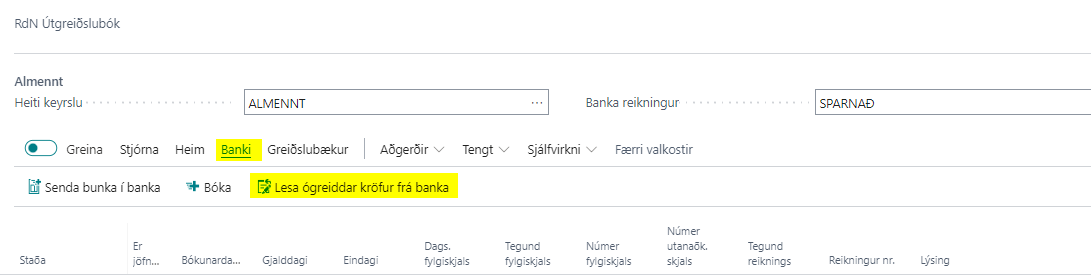
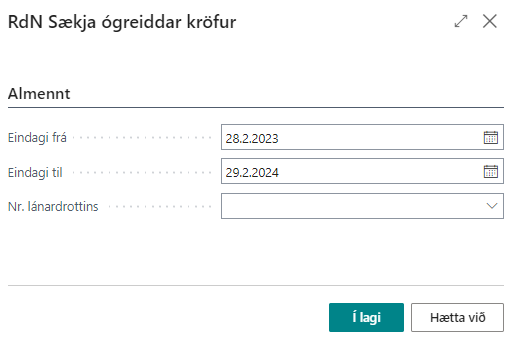
The payment journal is automatically filled with all claims for payment and the payment method is "claim". If a claim has additional fees or late fees, the system automatically creates additional lines for them in the payment journal.
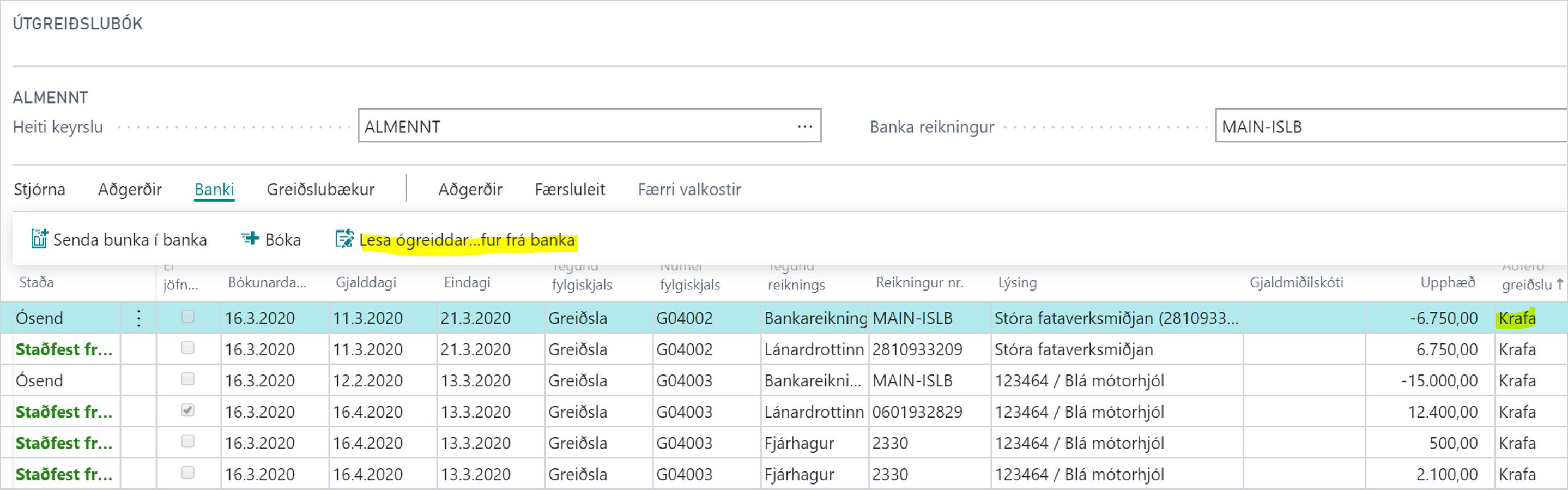
Then you just need to send the batch to the bank and thus pay the claims. The status will then become "Confirmed from bank".
Note that if claims were not created in the Banking Module, the system will not suggest settlement of the purchase invoice. The employee must then settle manually.
3.2. Match Payment Suggestion with Claim:
If the system is set up to match payment suggestions with a claim and a claim exists in the bank for the same vendor entry, then the system will suggest paying the claim. Thus, the payment operation becomes "Claim" in the book. Transfer therefore never occurs if a claim exists in the bank.
The same process then applies as for unpaid claims. The system suggests settlement of the purchase invoice that is behind the claim.
4. Post Payment Journal:

When all payments have been confirmed from the bank, you can post the payment journal.
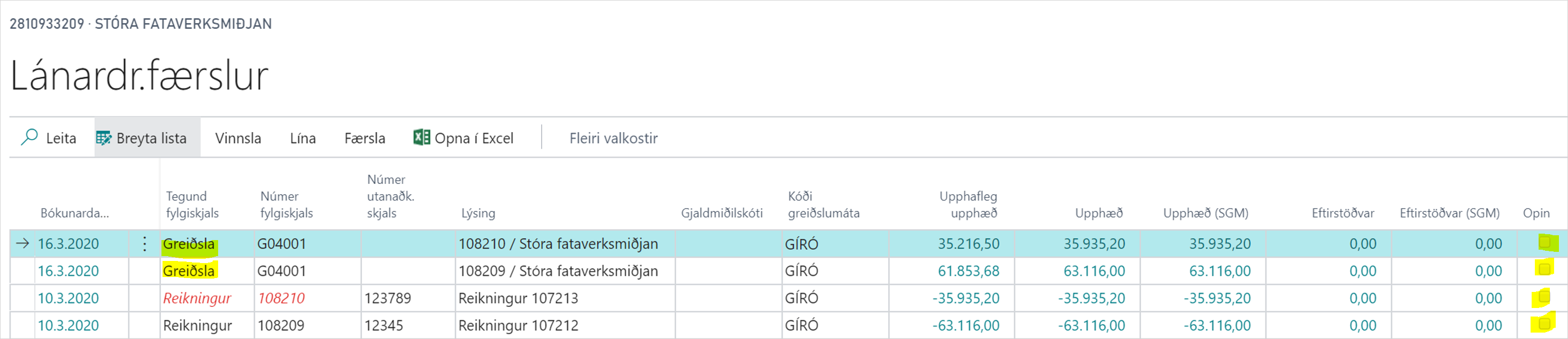
Payments are posted and settled against the respective purchase invoice and they are closed.