Send Payment Slips behind Claims to Home Banking
Introduction
It is possible to send payment slips, which are based on claims, in the form of PDF documents for publication in home banking of the relevant customers.
For this to be possible, you must ensure the following:
- BankDocs, a Rue de Net add-on on top of the Banking Module, must be set up.
- You must contact your bank to activate PDF payment slip submissions for all ID numbers to be used for submissions. The bank will then pass this claim on to the Banking Center (RB), which maintains the system that handles document publication in home banking.
- Bank accounts in BC that are used for this purpose must be linked to bank service setup of Arion, Íslandsbanki, Landsbanki or Kvika (i.e. be of type "arion", "isb", "li" or "kvika"), and set up with an ID number that was used in the above application.
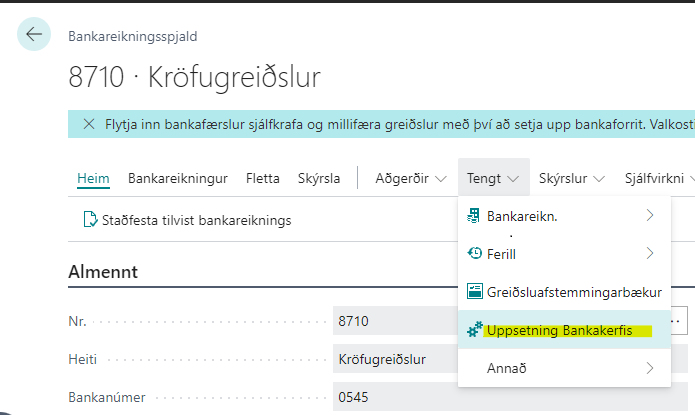
When payment slips are sent for a particular Claim Batch, as when claim operations are performed, we use the bank account taken from the Collection Party field in the Claim Batch. To open the Banking Module Setup for a bank account, click on the Related > Banking Module Setup action on the bank account card.
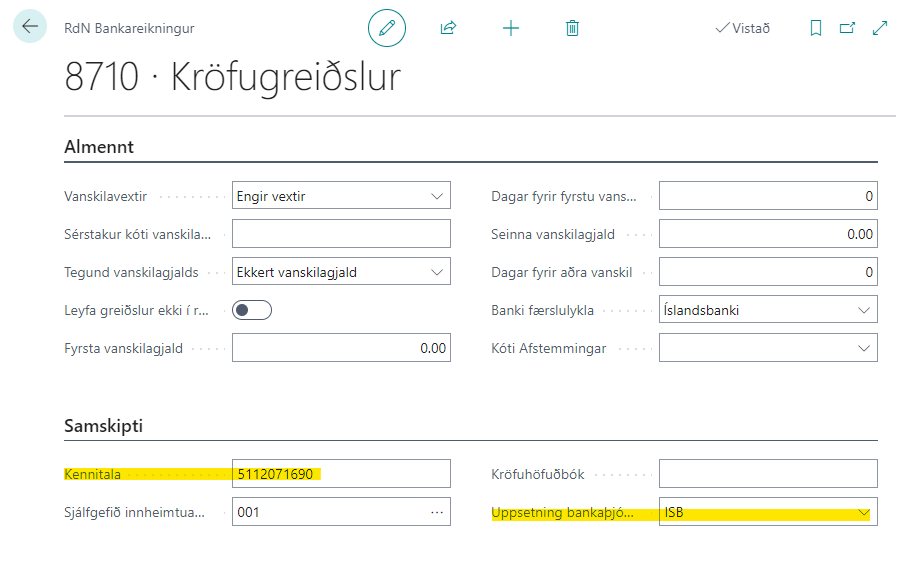
Then the RdN Bank Account page opens, where you can see the ID Number and Bank Service Setup fields that must be set up correctly. Applications must be requested for the ID number specified in the ID Number field and it will then be used as the ID number of the sender of the electronic documents.
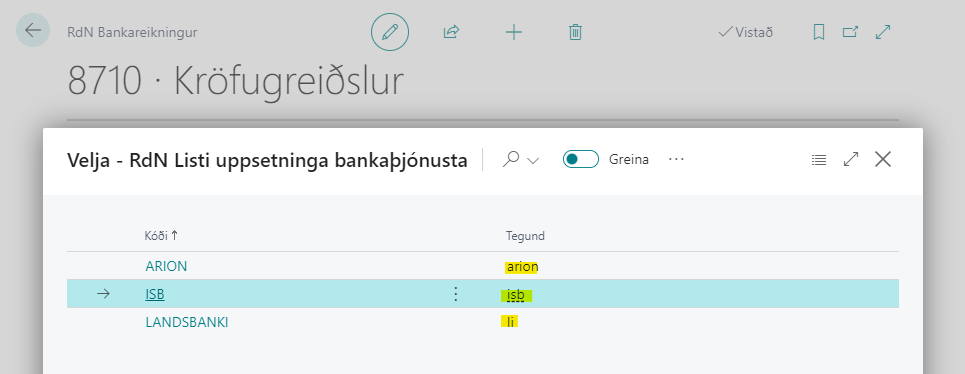
When the list behind Bank Service Setup is opened, a page opens as shown in the image below, where Type must be "arion", "isb", "li" or "kvika".
Send Payment Slips Automatically with Operations
Under Automation > Payment Slips Claims to Bank on the Settings - RdN Claims page, you can find settings related to this function.
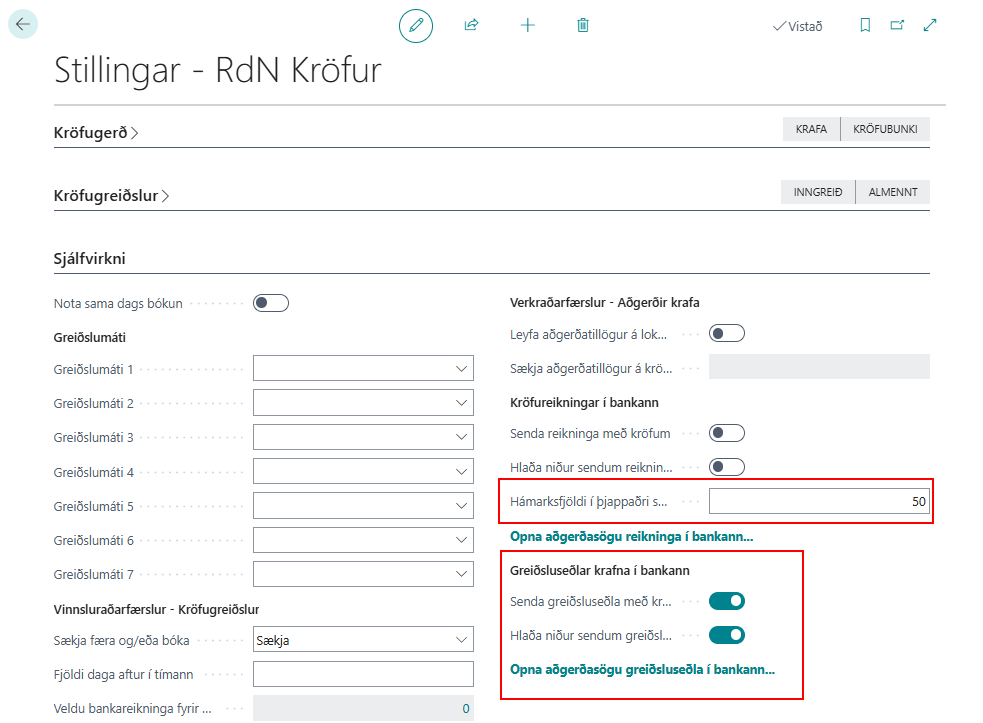
Here you can check the Send Payment Slips with Claims field and then payment slips behind claims will be sent to the bank at the same time as they are created in the bank during the execution of claim operations. If errors occur, they are caught to prevent disruption to the claim operations, but information about the errors is stored in a special operation history instead.
If Download Sent Payment Slips is checked, the zip file that was sent to the bank and contained the payment slips will also be downloaded to the user's computer.
Maximum Number in Compressed File is a shared field between payment slips and invoices and is used to split payment slips to be sent into zip files. The default value is 50 if nothing is entered in this field.
Finally, you can open the operation history of the submission attempts here (see more below).
Send Payment Slips with an Action on the Claim Batch Card
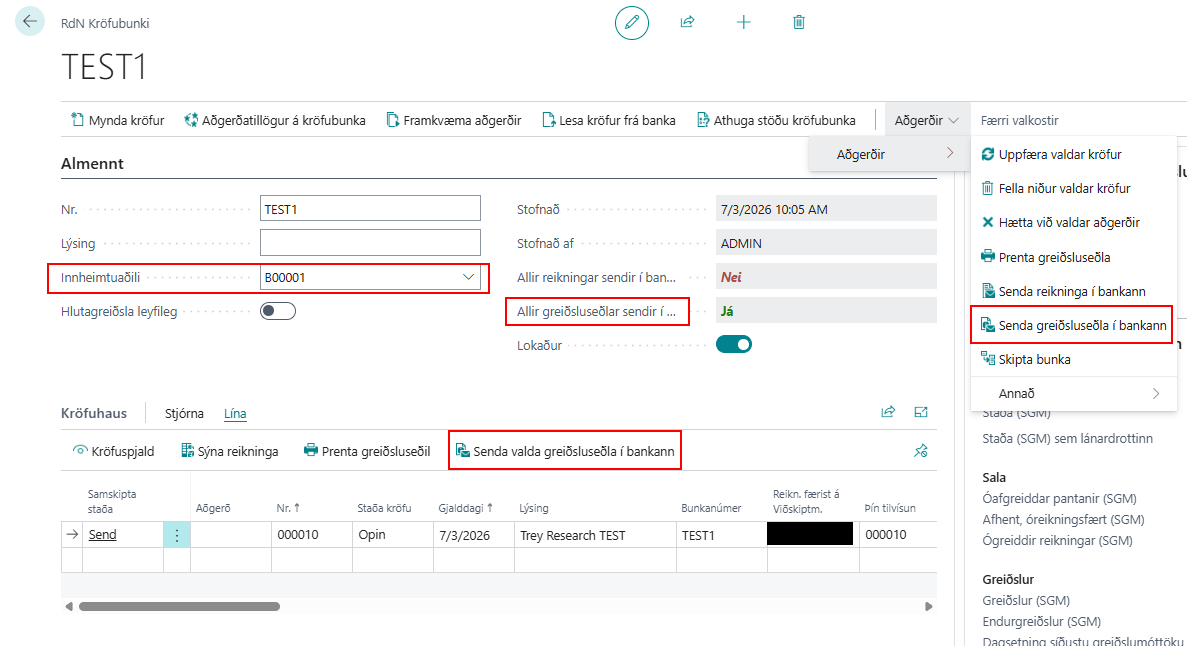
You can send payment slips behind claims manually with a specially created action on the Claim Batch card: Send Payment Slips to Bank. There is also an action on the same page in the claim list under the Actions group Line: Send Selected Payment Slips to Bank.
On the Claim Batch card you can see the All Payment Slips Sent to Bank field. It indicates whether all payment slips were successfully sent by indicating whether an operation history line marked as "Success" exists for all claims in the batch. If you click on the value in this field, the operation history for this batch opens.
Finally, you can see the collection party, which is the bank account that must be set up correctly for this to work.
Operation History for Payment Slips Claims to Bank and Document Status
Information about attempts to send payment slips for claims to home banking can be found on the RdN Operation History Payment Slips Claims to Bank page. As mentioned above, it is accessible on the Claim Batch card through the value in the All Payment Slips Sent to Bank field or through Open "Payment Slip to Bank" Log... under Automation > Payment Slips Claims to Bank on the Settings - RdN Claims page.
For each submission attempt, you can see the status of the attempt (whether all payment slips were sent correctly, some or none) and a breakdown of the payment slips for claims in the attempt.
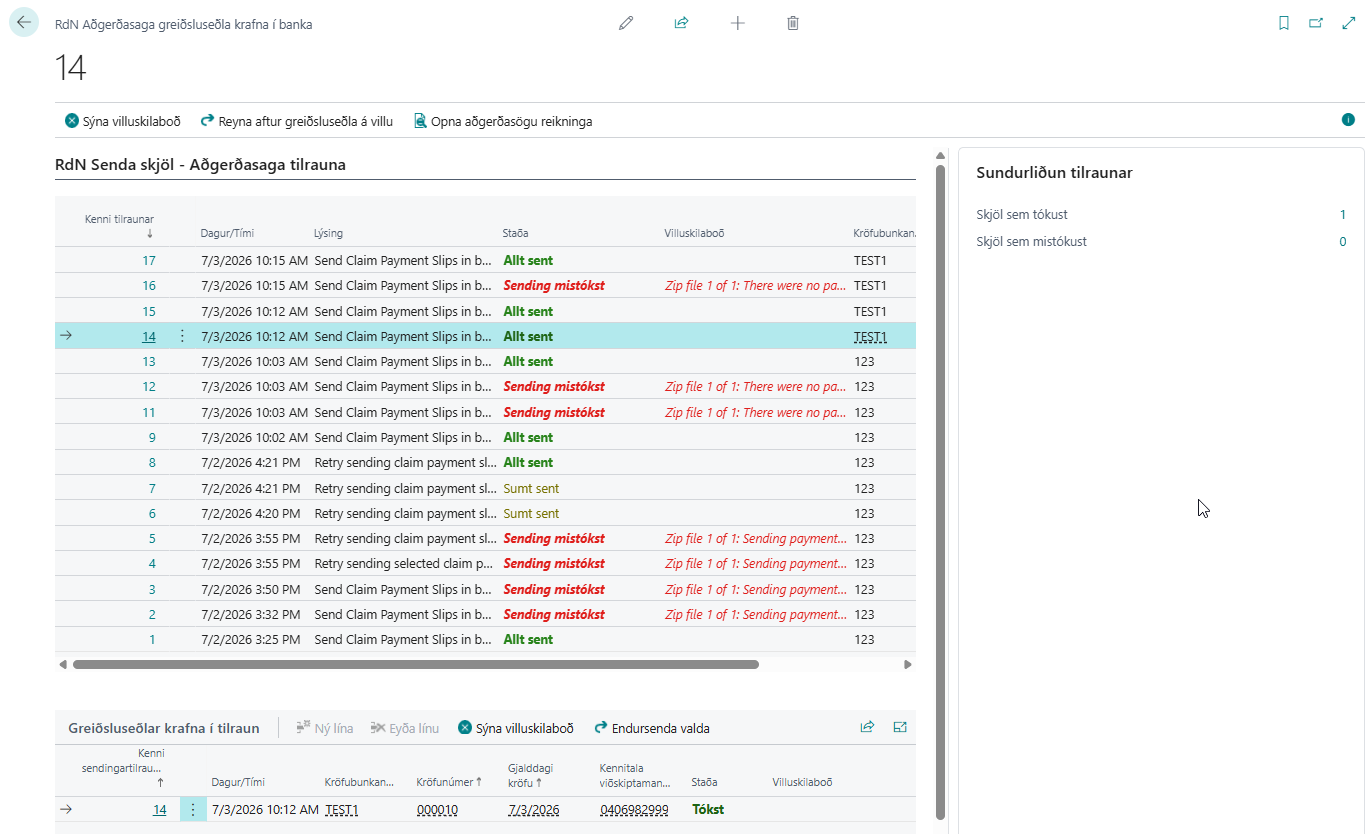
If you click on the ID of the attempt, the card for that attempt will open.
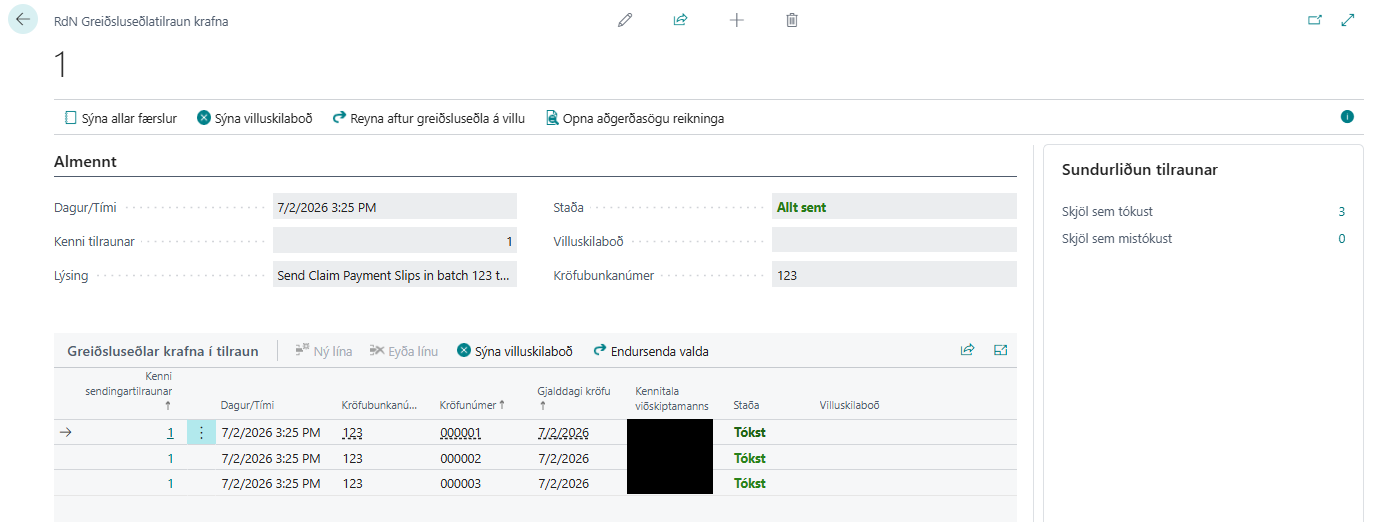
Various actions are available on the pages. For example, you can retry an attempt for payment slips in error, either all in error in the attempt or selected in error through Payment Slips for Claim in Attempt. This will create a new operation history entry for the new attempt.
For a detailed description of individual fields and actions, see here
Disclaimer regarding document status
Please note that if a document is marked as sent, it does not necessarily mean that it has reached home banking but only that it was successfully sent to the web service middleware of the relevant bank.
The bank then has to send the documents on to the Banking Center (RB) which will further process them with its own error checking.
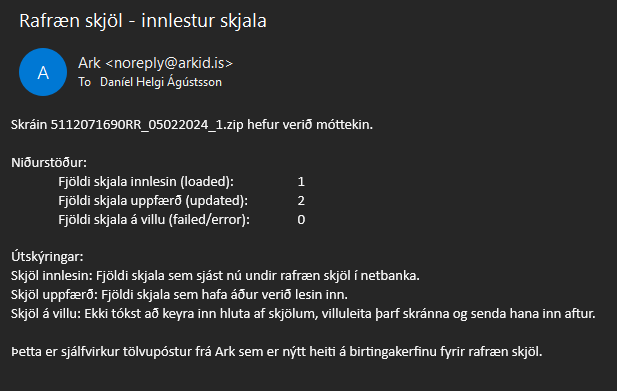
If the documents reach all the way to the RB publication system, the person registered for their posts receives confirmation and a breakdown of the documents read. Updated documents are those documents that have been read more than once if any. If a payment slip has previously been sent to the recipient, it will be overwritten instead of appearing twice in the recipient's home banking.
Disable Functionality for Individual Customers
You can disable this functionality for individual customers with the Skip Payment Slips Claims to Bank field under General on the customer card. That field will be taken into account further down on the claim for the customer specified in the claim field Inv. is posted to customer.