Send Electronic Invoice to Customers
Applies to sales invoices, sales credit memos, service invoices, and service credit memos.
1. The customer requests to receive electronic documents.
You need to know which type of eDocument the customer can receive (BII, NES, EDI).
Then the fields under the "Electronic Documents" FastTab on the customer card must be filled in. See a more detailed description here.
2. Post sales invoice:
Create and post a regular sales invoice.
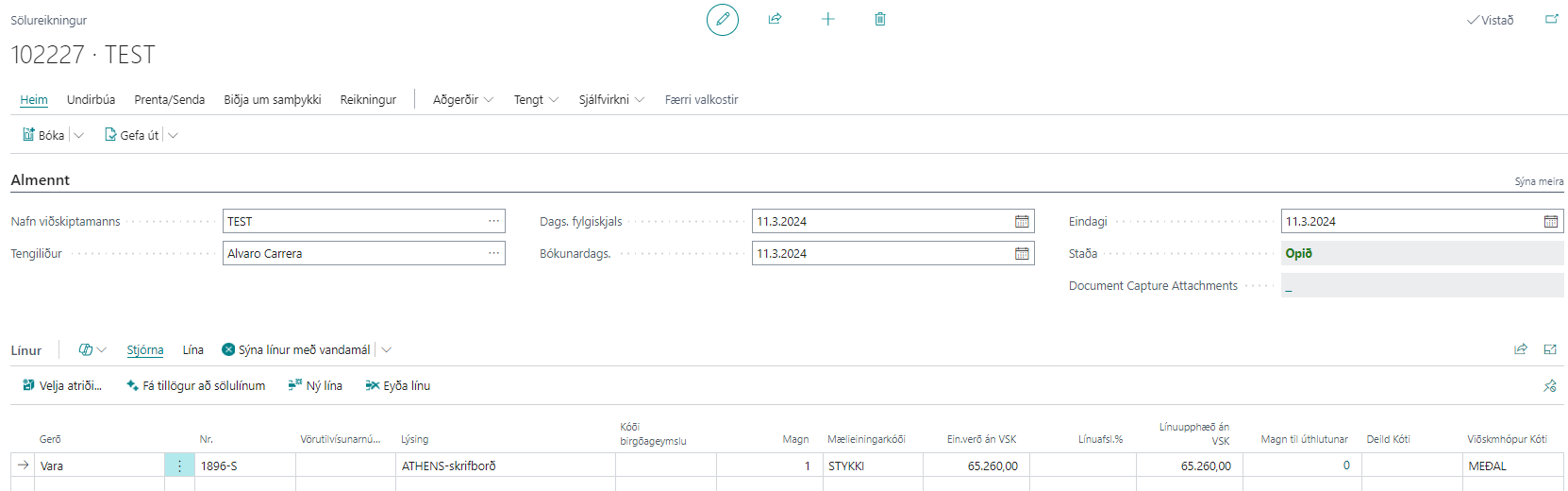
3. The sales invoice is created electronically:
If the customer card has been filled in for electronic documents, an outgoing electronic invoice is created automatically.
It can be viewed in the eDoc Worksheet.
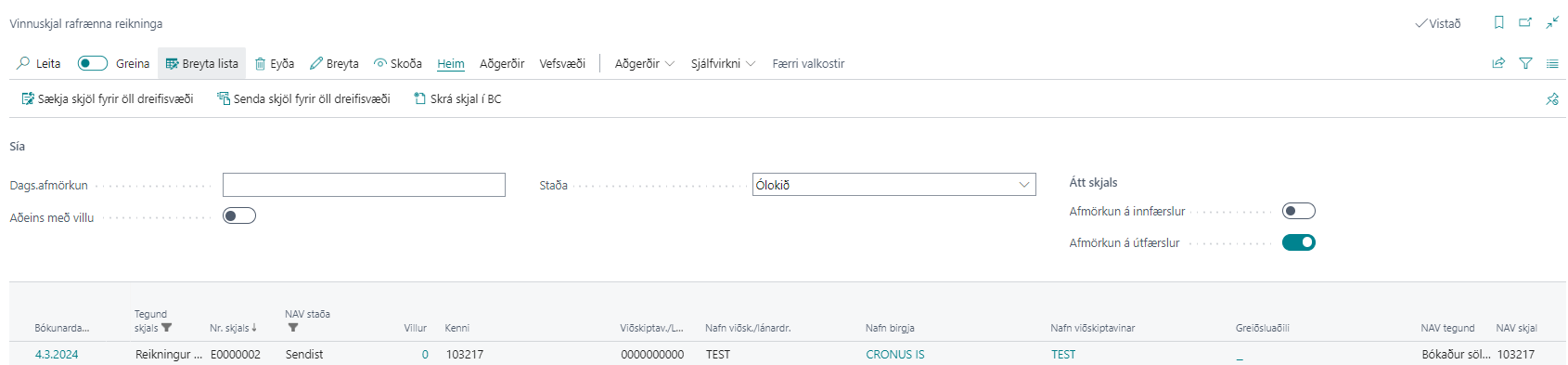
4. Send an electronic invoice:
The invoice is created with the status "To Be Sent".
The user must choose "Home - Send Documents for All Delivery Sites" for the invoice to be sent to the message broker. Automation can be set up in a job queue entry. See a more detailed description here.
The status then changes to "Sending OK", and the electronic invoice moves under the status "Completed" in the worksheet.
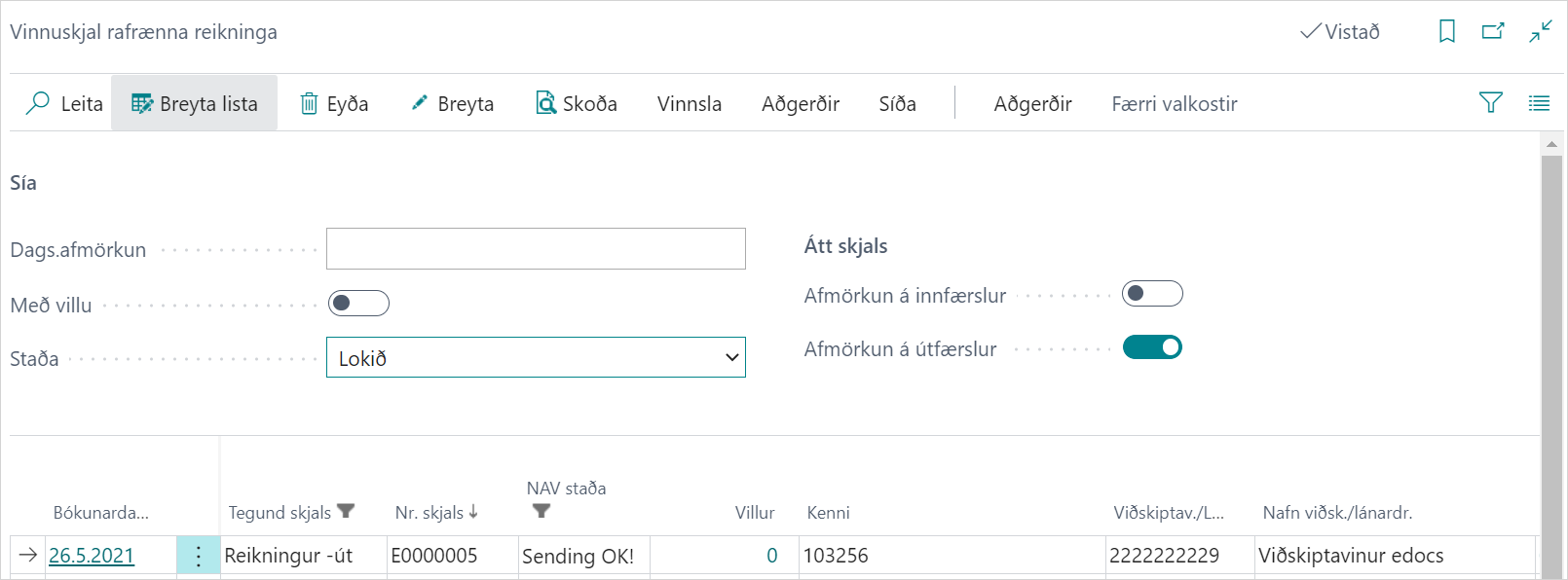
You can open the electronic invoice by choosing Actions - Get Electronic Document.
5. Ensure that all posted invoices are created automatically in the worksheet:
If the volume of posted invoices at any given time is significant, an invoice may not be created electronically. To prevent this, you can set up a job queue entry that regularly checks whether an invoice has been posted but not created electronically.
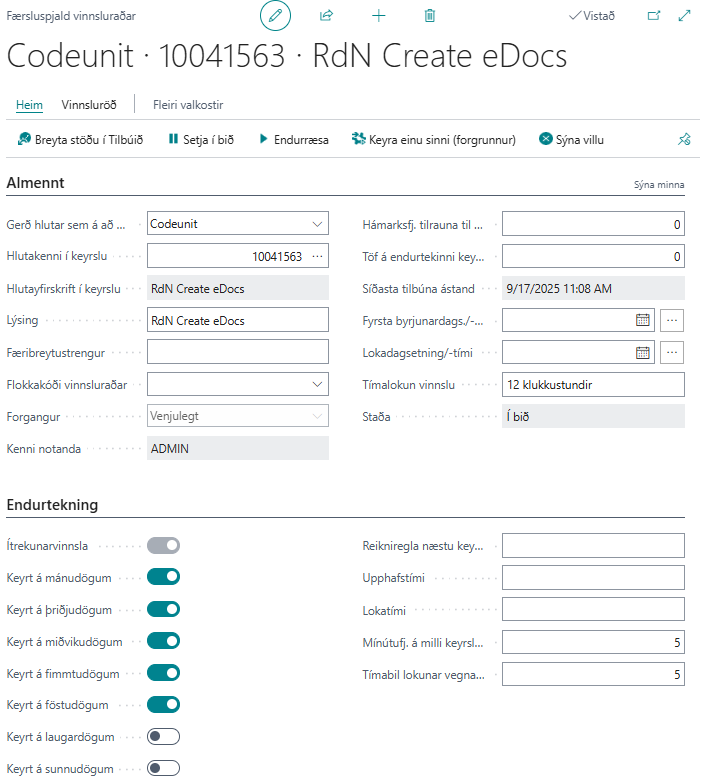
For this, a job queue entry is created on codeunit number 10041563.