Signing in and out
Signing in
- Open the Approvals Web address in a browser, approvals.ruedenet.net.
-
On the front page, click Sign in.
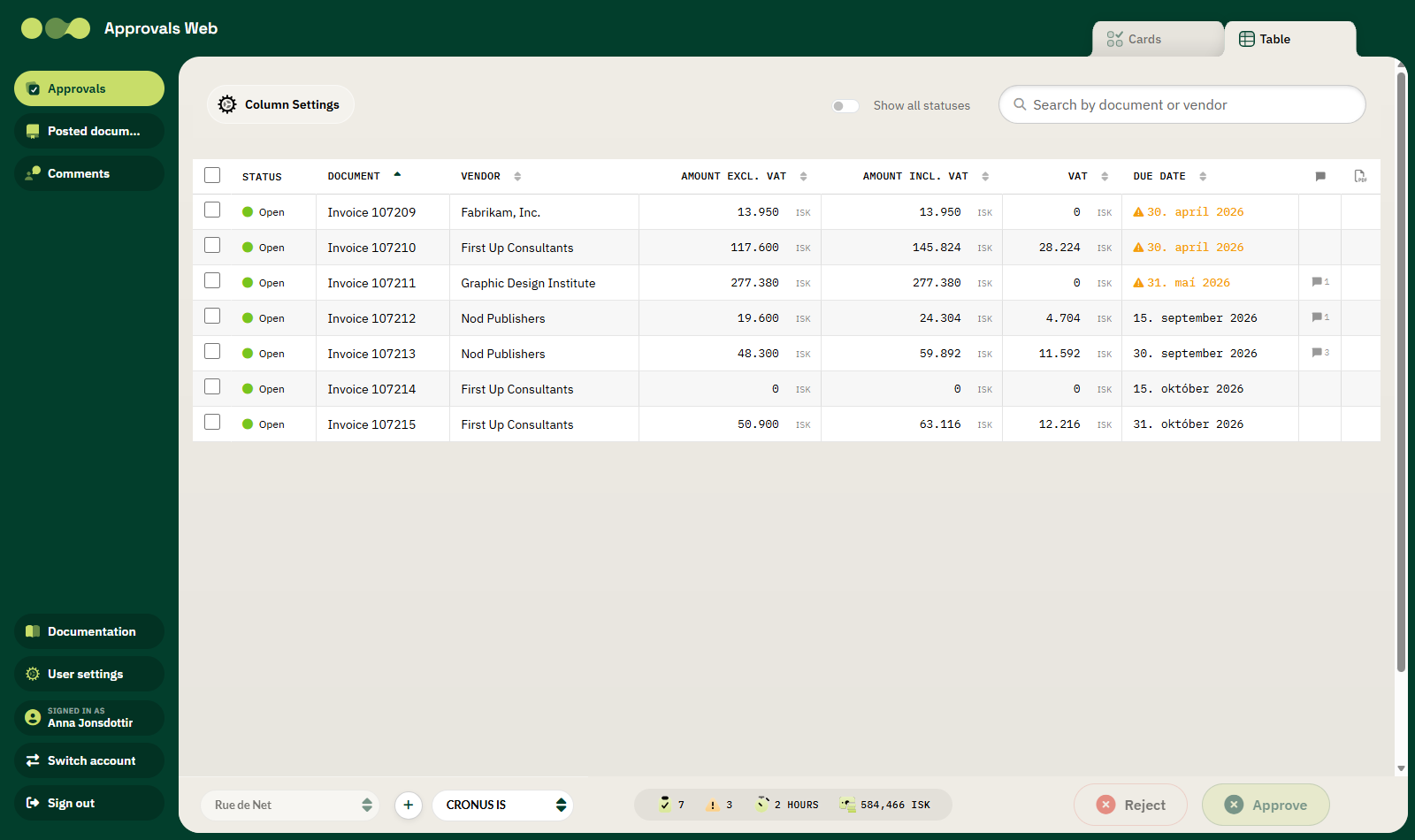
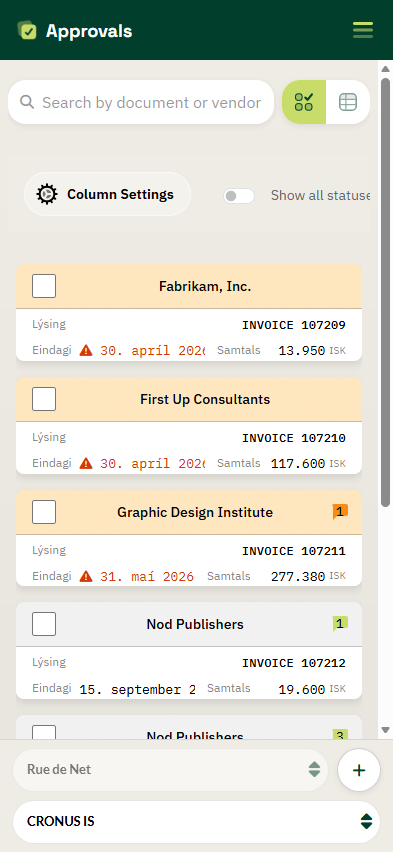
On a phone the same front page appears in a narrower layout.
-
Sign in with your Microsoft account (Microsoft Entra ID). This is the same account you use for Office/Microsoft 365.
- After signing in, the Approval Requests list opens.
No separate password
The Approvals Web uses Microsoft sign-in. There is no separate password for the site and no separate Business Central password. The site retrieves data from Business Central on your behalf and with your permissions.
The sign-in is valid for up to 14 days. If you have signed in before and the session is still valid, you go straight to the list without entering anything.
Switching account
If you have more than one Microsoft account, click Switch account at the bottom of the left-hand menu. A dialog appears where you choose which account to use.
Signing out
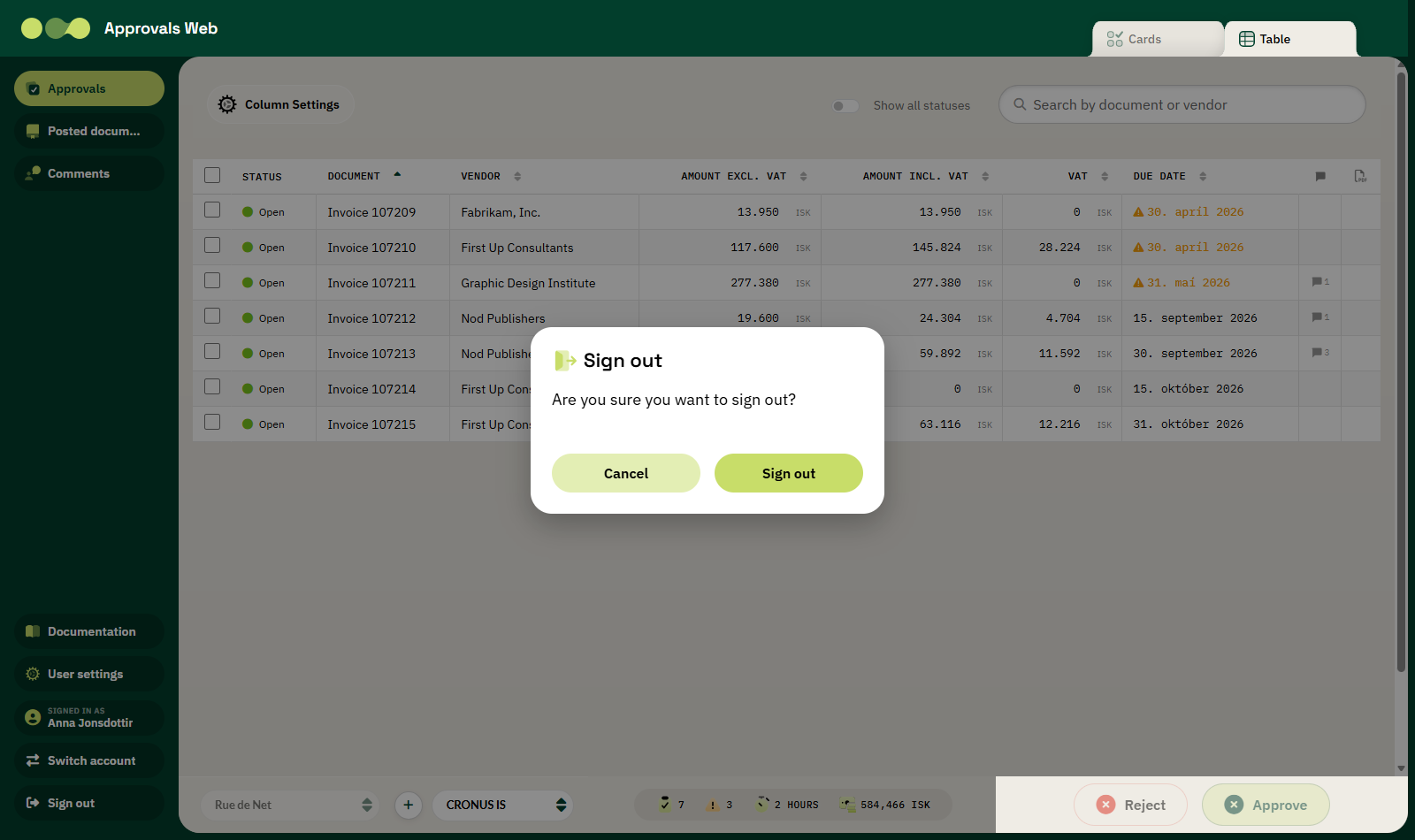
Click Sign out at the bottom of the menu and confirm in the dialog that appears.
Which documents you see
You only see documents awaiting your approval — either assigned directly to you or to an approver group you belong to. Approvers are configured in Business Central, see Approver groups.
Losing connection
The Approvals Web keeps a live connection to the server. If the connection drops (for example if the computer sleeps or the network fails) a message appears and the site tries to reconnect automatically. If it fails, click Retry or reload the page.