Create an Electronic Document
Applies to posted sales invoices, sales credit memos, service invoices, and service credit memos.
1. The customer requests to receive electronic documents.
You need to know which type of eDocument the customer can receive (BII, NES, EDI).
Then the fields under the "Electronic Documents" FastTab on the customer card must be filled in. See a more detailed description here.
2. Create an electronic document from a posted sales invoice:
Select a posted sales invoice and then Actions - Create Electronic Document.
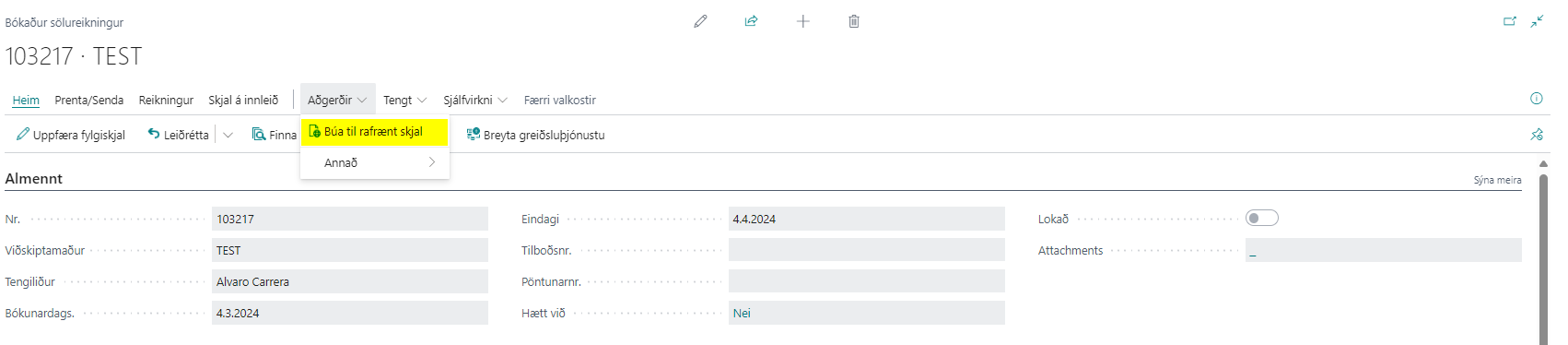
3. The sales invoice is created electronically:
If the customer card has been filled in for electronic documents, an outgoing electronic invoice is created automatically. If the customer is not registered for electronic documents, the user is offered the option to open the customer card and register the customer for electronic documents. When the user chooses OK, the process continues and creates an electronic document from the posted sales invoice.
It can be viewed in the eDoc Worksheet.
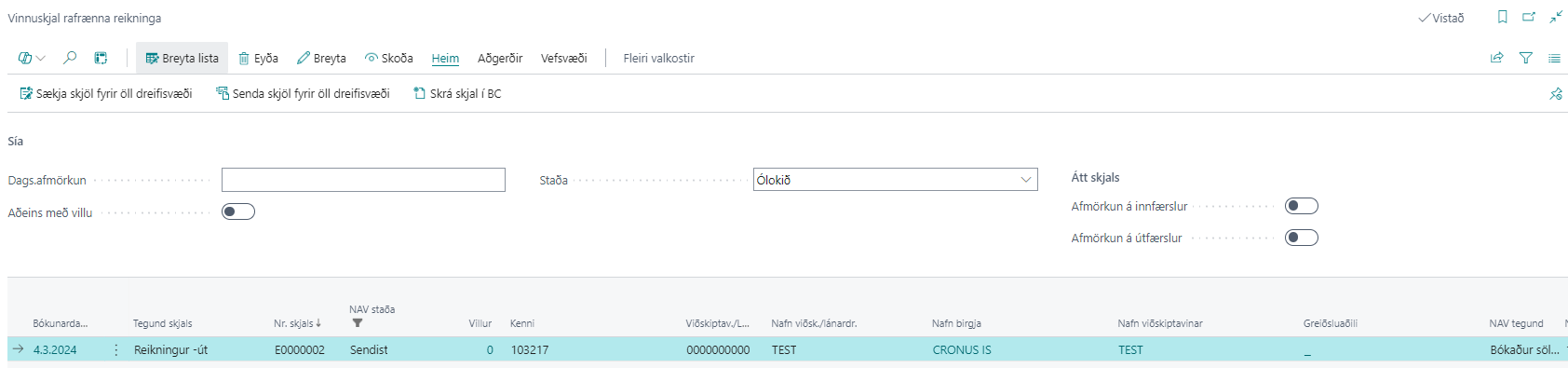
4. Send an electronic invoice:
The invoice is created with the status "To Be Sent".
The user must choose "Home - Send Documents for All Delivery Sites" for the invoice to be sent to the message broker. Automation can be set up in a job queue entry. See a more detailed description here.
The status then changes to "Sending OK", and the electronic invoice moves under the status "Completed" in the worksheet.
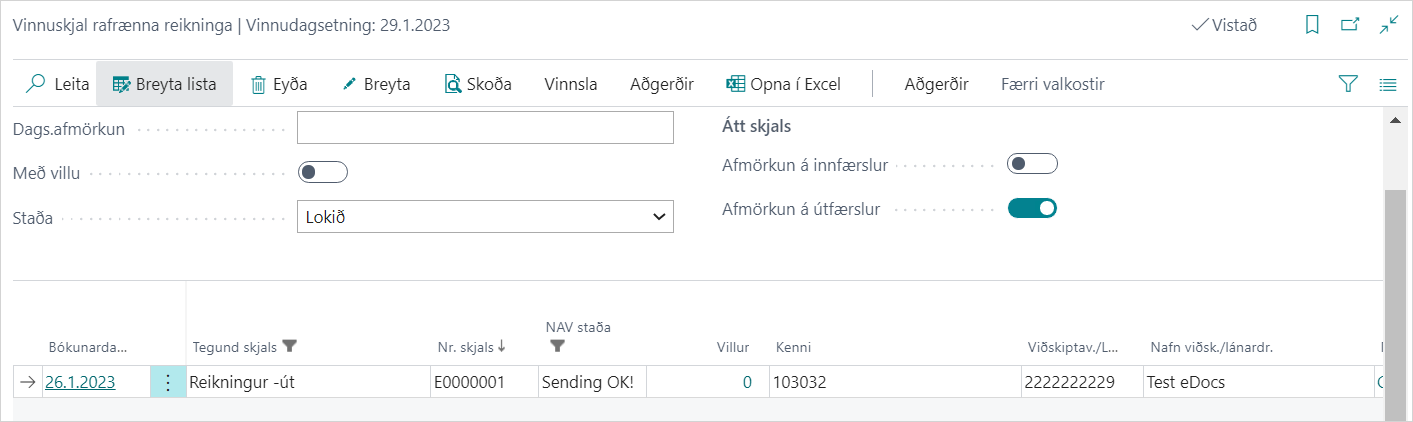
You can open the electronic invoice by choosing Actions - Get Electronic Document.