Feature Activation
Time Registration includes three optional features that can be enabled or disabled by an administrator:
- Jira Integration — Register time against Jira issues instead of manually selecting projects and tasks
- AI Suggestions — Get AI-powered time entry recommendations based on your calendar, emails, and Jira activity
- Goals — Set and track monthly performance goals for resources
All three features are enabled by default when the app is installed, but an administrator can turn them on or off at any time.
Enabling and Disabling Features
- Open the Time Registration Setup page
- Scroll down to the Feature Management section
- Toggle the Enabled checkbox for each feature you want to activate or deactivate
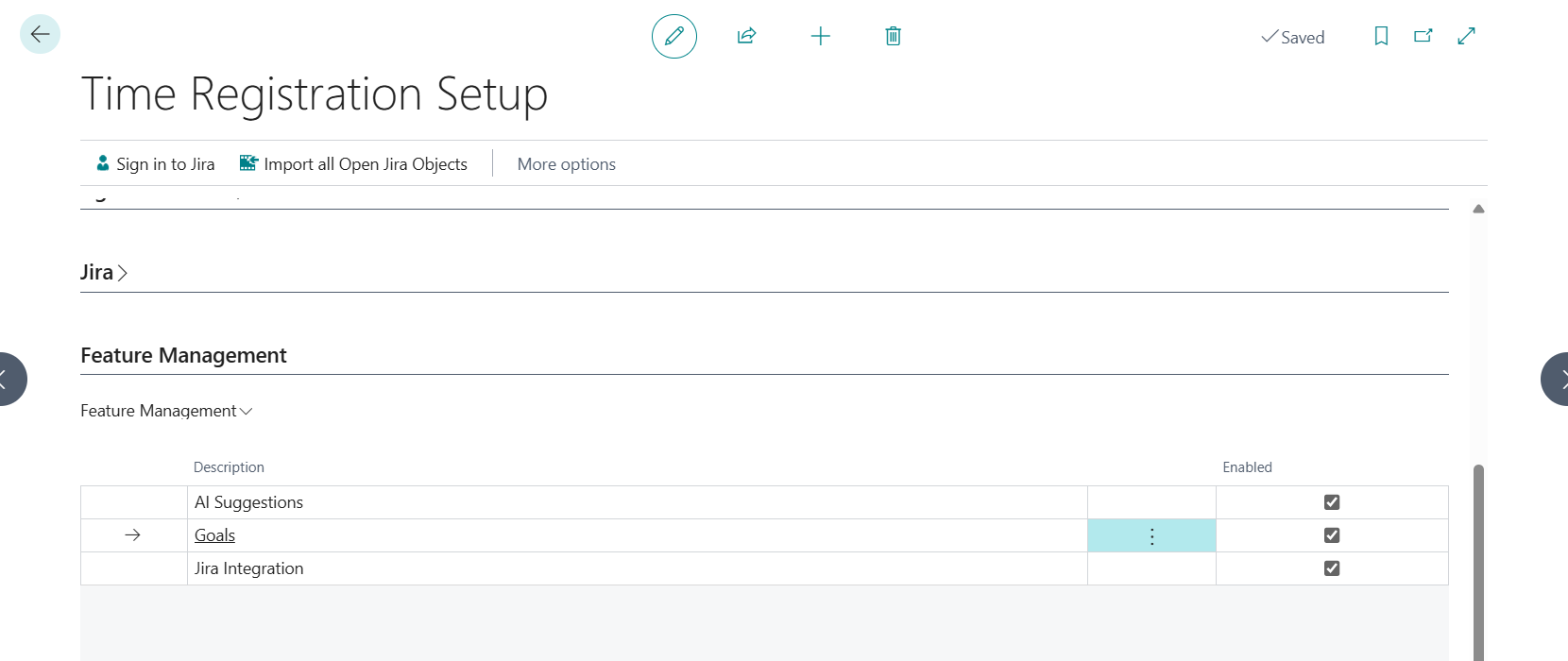
When a feature is disabled:
- Its setup fields and actions are hidden from the Time Registration Setup page
- Users cannot access the feature's pages (e.g., Jira Mappings, Suggestions, Goals)
- The feature's actions are hidden from the calendar and list views
When a feature is enabled, its configuration section appears on the Time Registration Setup page for further setup.
Permission Sets
In addition to enabling a feature, users need the correct permission set assigned to access the feature's pages and actions.
| Feature | Permission Set |
|---|---|
| Jira Integration | RdN Jira Feature |
| AI Suggestions | RdN Suggestions |
| Goals | RdN Goals Permission |
Only users with the RdN Time Reg. Admin permission set can enable or disable features in the setup page.
Note: Enabling a feature without assigning the corresponding permission set to users means they will not be able to access the feature. Make sure to do both.
Feature-Specific Setup
Once a feature is enabled, additional configuration sections appear on the Time Registration Setup page. Each feature has its own setup requirements:
Jira Integration
When Jira is enabled, a Jira section appears on the setup page with the following fields and actions:
- Jira Base URL — Your Jira instance URL, used for hyperlink features
- Custom Fields — Up to 3 custom Jira fields can be configured with a path and caption
- Sign in to Jira — At least one user must sign in to their Atlassian account
- Import all Open Jira Objects — Imports open issues and projects into Business Central
For full details, see Jira Setup.
AI Suggestions
When Suggestions is enabled, an Automatic Suggestions section appears with:
- Suggestion Interval (Hours) — How often the system fetches new suggestions for all signed-in users
- Suggestion Starting Time / Suggestion Ending Time — The time window of the day in which the job may run
- Suggestion Run on Weekends — Whether suggestions are also fetched on Saturdays and Sundays
- Job Queue Status — Shows whether the automatic suggestions job is currently running
The section also contains the Initialize Automatic Suggestions and Stop Automatic Suggestions actions, plus View Signed-In Users for managing user logins. See Suggestions — General Setup.
Note: No AI model, URL or token needs to be configured. All AI processing is handled server-side by the Time Registration API.
Each user must then sign in to the suggestion service from their own Suggestion Setup page. See Suggestions — User Setup for details.
Goals
When Goals is enabled, a Goals section appears with:
- Base Calendar — The calendar where holidays and non-working days are defined
- Default Work Hours Per Day — Used for calculating monthly goal targets
- Non-Working Tasks — A list of project tasks that should be excluded from goal calculations
See Goals Setup for full configuration details.