Azure Blob Storage
Overview
Electronic documents can store attachments and raw documents (Binary Large Object - BLOB) either in the database or in Azure Blob Storage. The default setting is to store everything in the database, but with Azure Blob Storage you can reduce database size and utilize cheaper storage in Azure.
This feature is especially well suited for environments with a high volume of electronic documents where database space is limited.
Prerequisites
- An Azure Storage Account must exist with support for Blob storage.
- A container must be created in advance in the Azure Storage Account.
- A Shared Access Key or SAS token must be available for authentication.
Setup
1. Open the eDoc Setup page
Navigate to eDoc Setup (search for "eDoc Setup" in the search bar).
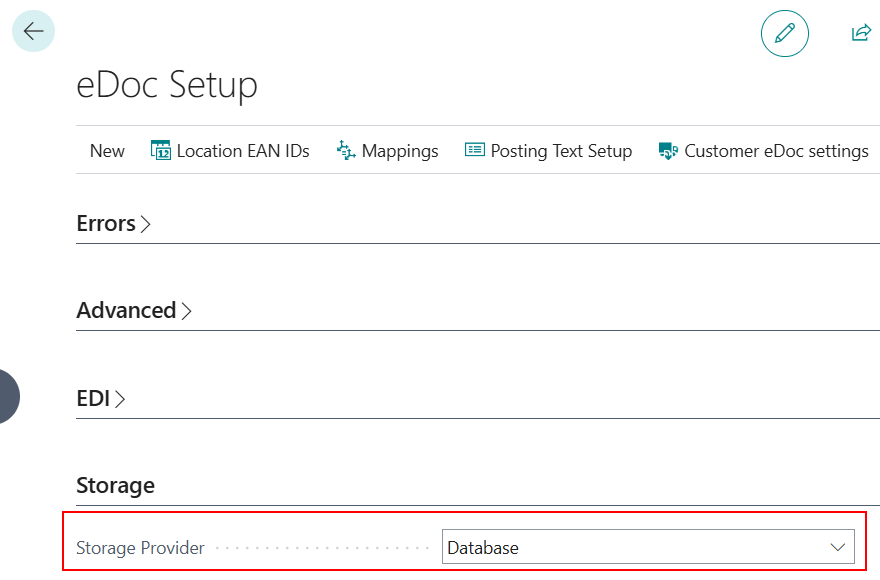
2. Select the document storage provider
Under the Storage section there is a field called Storage Provider. Choose from the following options:
| Value | Description |
|---|---|
| Database | Default setting. Attachments and raw data are stored directly in BC tables. |
| Azure Blob Storage | Attachments and raw data are stored in Azure Blob Storage. |
3. Configure Azure Blob Storage
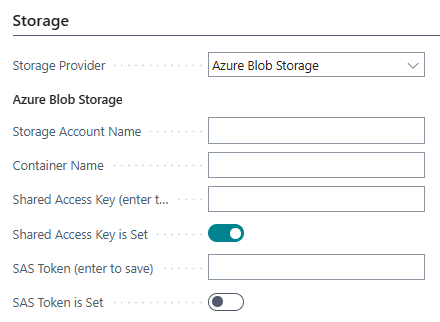
For Azure Blob Storage the following fields are used for setup:
| Field | Description |
|---|---|
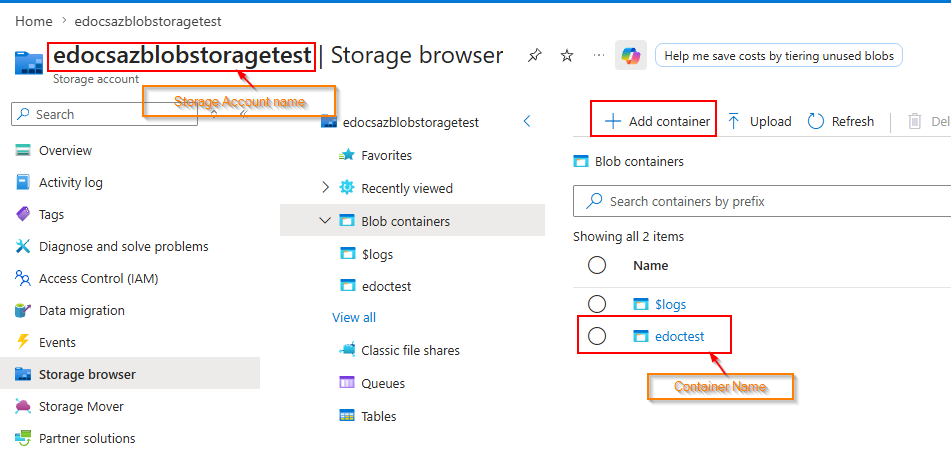
| Storage Account Name | Name of the Azure Storage Account (e.g. mystorageaccount). |
| Container Name | Name of the container in the Azure Storage Account (e.g. edocs). |
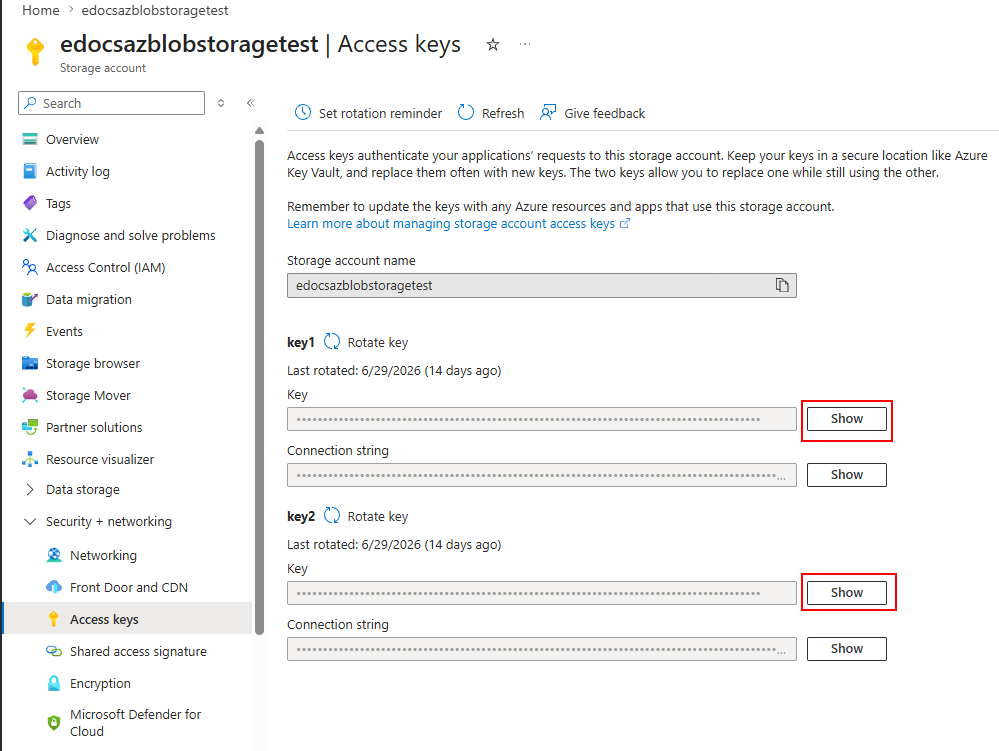
| Shared Access Key (enter to save) | Password for authenticating with Azure. The value is write-only and is never displayed after saving. Either a Shared Access Key or SAS token is required — not both. See more here. |
| Shared Access Key is Set | Shows whether an access key has been set. You can uncheck the field to delete the key. |
| SAS Token (enter to save) | Alternative authentication method. The value is write-only and is never displayed after saving. See more here. |
| SAS Token is Set | Shows whether a SAS token has been set. You can uncheck the field to delete the token. |
Note that you do not need to fill in both an access key and a SAS token — either one is sufficient.
The following image shows the storage account in Azure:
Access keys can be found under Security + networking > Access keys:
4. Test the connection
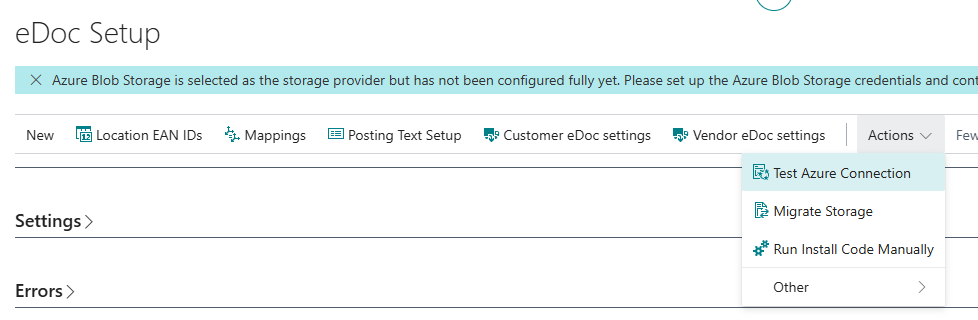
After setup, you can use the Test Azure Connection action to confirm that the connection works correctly. The system attempts to connect to Azure Blob Storage and returns a message indicating whether the connection succeeded. This action is only visible when Azure Blob Storage is selected as the storage provider.
System Behavior
New attachments
When the storage method is set to Azure Blob Storage, all new attachments and raw data are stored in Azure. Older data that was stored in the database remains there unless specifically migrated (see Data Migration).
Reading attachments
Each attachment and raw document (BLOB) record has a Storage Provider field that indicates where its data is stored. The system always reads from the provider specified by this field.
This means you can switch to Azure Blob Storage without migrating older data — older records retain their storage provider and remain readable.
Deleting attachments
When an attachment is deleted (e.g. by a cleanup job), the system attempts to delete data from all storage providers (both the database and Azure Blob Storage). This ensures no data remains even if a record was migrated between providers.
Data Migration Between Storage Providers
You can migrate older attachments and raw data (BLOB) from one storage provider to another, e.g. from the database to Azure Blob Storage or vice versa. Records that already exist at the destination are automatically skipped.
Open the migration page
On the eDoc Setup page there is the Migrate Storage action.
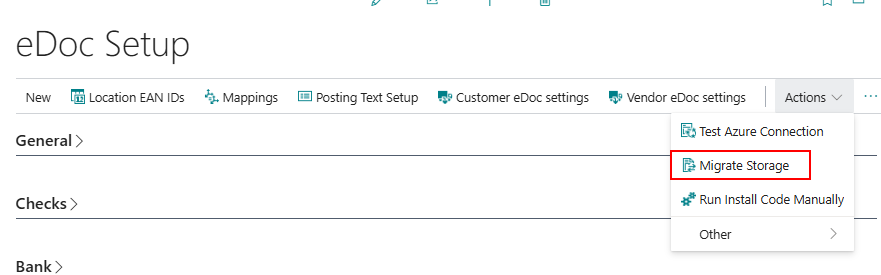
When clicked, the eDoc Storage Migration page opens.
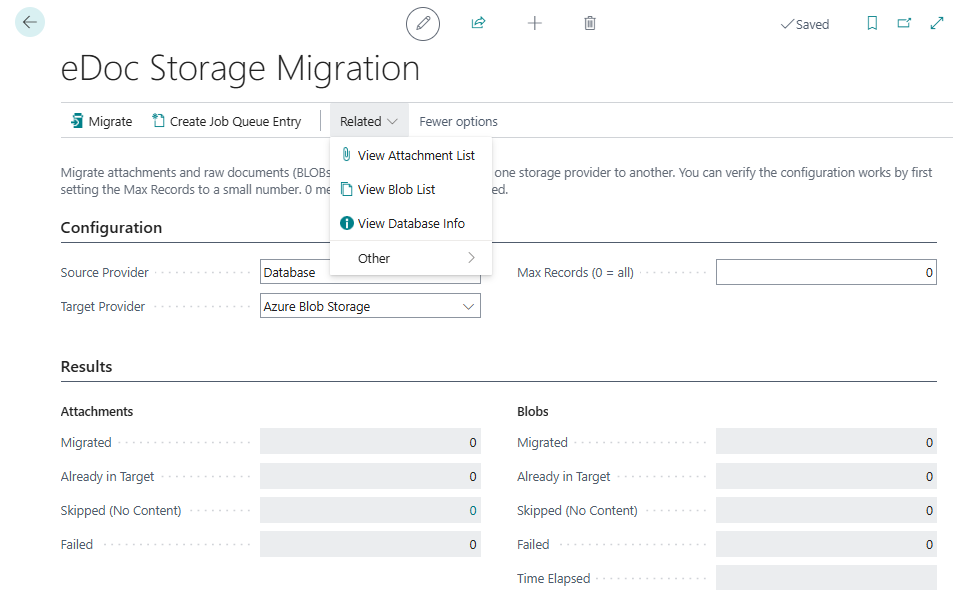
The system automatically sets the source and destination based on the current storage provider:
- If Azure Blob Storage is active → Source: Database, Destination: Azure Blob Storage.
- If Database is active → Source: Azure Blob Storage, Destination: Database.
You can change these settings on the page before starting the migration.
Migration page settings
| Field | Description |
|---|---|
| Source Provider | The storage provider to migrate data from. |
| Target Provider | The storage provider to migrate data to. |
| Max Records (0 = all) | Maximum number of attachments and raw data to migrate. Set to 0 to migrate all records. Use a lower number to test the setup. |
Run migration
Click the Migrate action to start the migration. The system asks for confirmation before the migration begins.
After migration, results are displayed:
| Section | Field | Description |
|---|---|---|
| Attachments | Migrated | Number of attachments successfully migrated. |
| Already in Target | Number of attachments skipped because they already exist at the destination. | |
| Skipped (No Content) | Number of attachments skipped because they have no content in the source. Examples include links. You can click the number to see a list of these attachments. | |
| Failed | Number of attachments that failed to migrate. | |
| BLOB Records | Same fields as for attachments. | |
| Time Elapsed | Total time of the migration. |
Run migration in the background
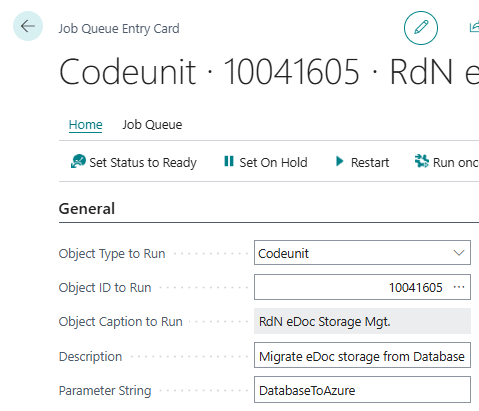
For large data volumes, you can create a Job Queue Entry that runs the migration in the background. Click the Create Job Queue Entry action on the migration page. The system asks for confirmation and then creates a Job Queue Entry that can be viewed and managed in Job Queue Entries. If it runs successfully, it is deleted upon completion.
To create the Job Queue Entry manually, go directly to Job Queue Entries and create one with settings Codeunit - 10041605 and parameter string DatabaseToAzure or AzureToDatabase as applicable.
File Structure in Azure
Attachments and raw documents are stored with the following naming structure in Azure Blob Storage:
Attachments:
{Environment name (Production or Sandbox name)}/{Company}/attachments/{Document No.}/{Attachment No.}-{Name}.{Extension}
Raw documents (Binary Large Objects - BLOBs):
{Environment name (Production or Sandbox name)}/{Company}/blobs/{In/Out}/{Date}-{Number}
Limitations
- The storage method applies to the entire company — it is not possible to select different storage methods per document type.
- The container and Storage Account in Azure must be created in advance — the system does not create them automatically.