External Dimensions for Incoming Invoices
Electronic invoices support importing and processing external dimensions based on the Peppol standard (see here). As things stand today, this functionality is only supported for incoming BII invoices and credit memos.
Setup
Enable functionality
To enable support for external dimensions, select the "Use External Dimensions" field under "Settings" on the "eDoc Setup" page.
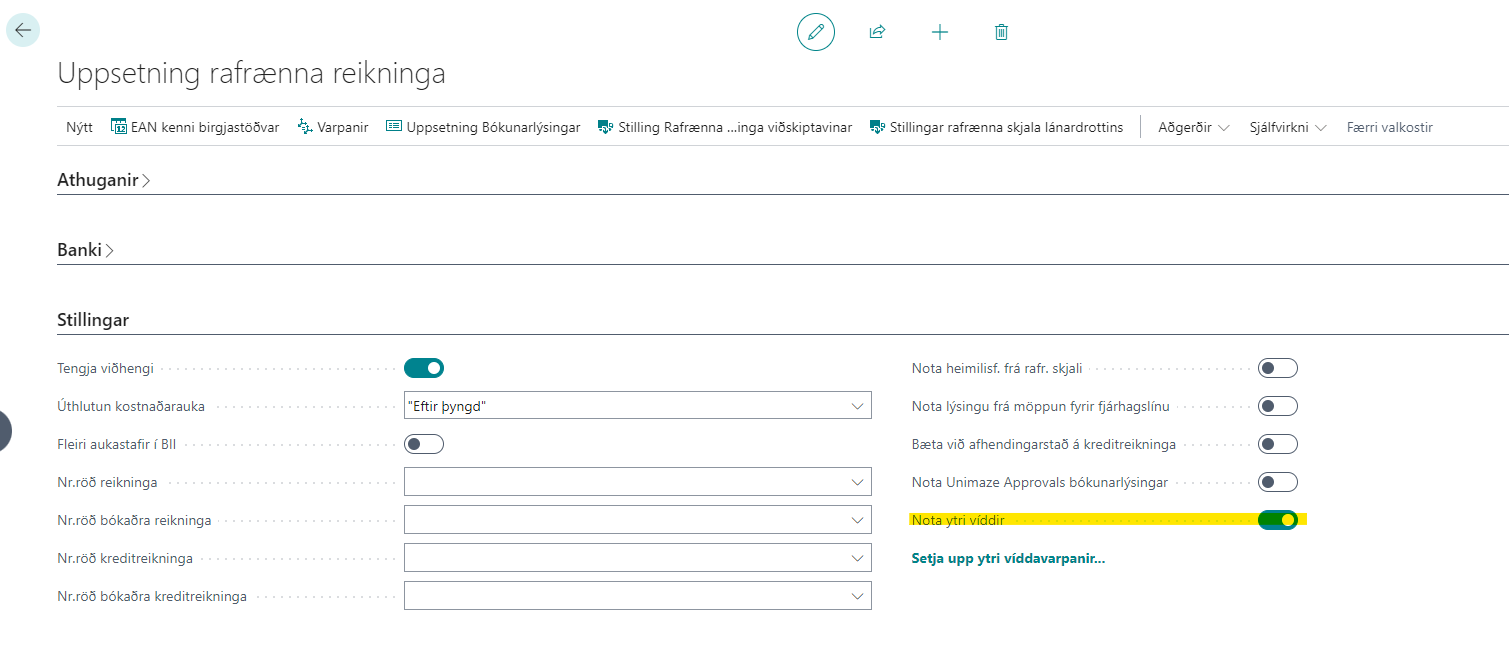
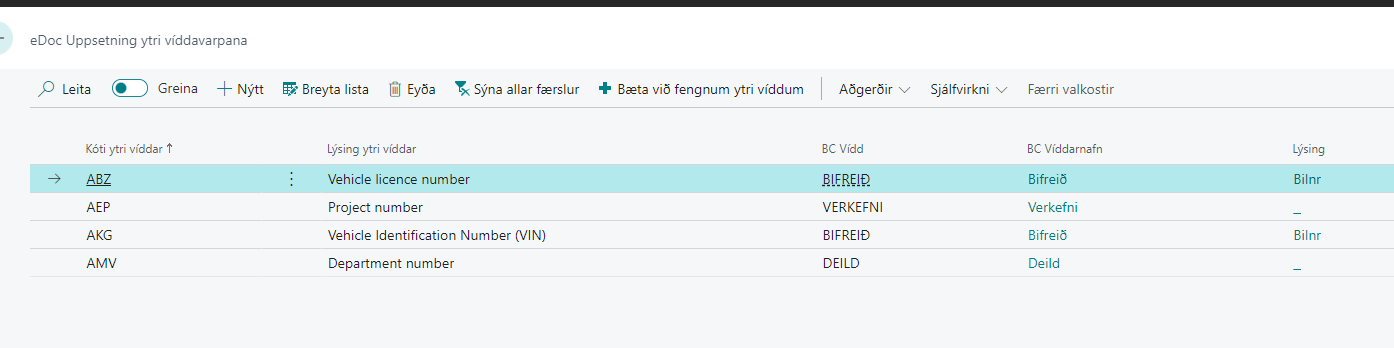
Under that field, you can also click "Set up external dimension mappings..." to open the "eDoc External Dimension Mapping Setup" page. It is used to manage the correspondence between external dimensions and BC dimensions. On that page, an entry must exist for each external dimension that should be supported (see more under Workflow below).
Workflow
If the functionality has been enabled (see Setup above), the External Dimensions that accompanied an electronic invoice can be accessed on the Electronic Invoice page (which opens when an invoice is clicked in the eDoc Worksheet).
The dimensions are then available in the External Dimensions field, and line dimensions can also be seen on each line through External Line Dimensions.
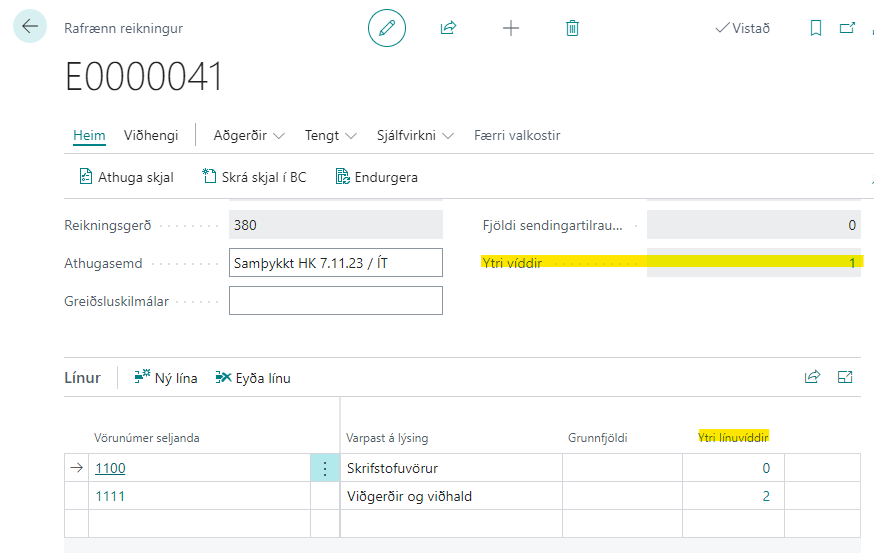
There should be no need to open the line dimensions directly (although it is possible for informational purposes), because an overview of them is also available on the page that opens when the value in External Dimensions is clicked.
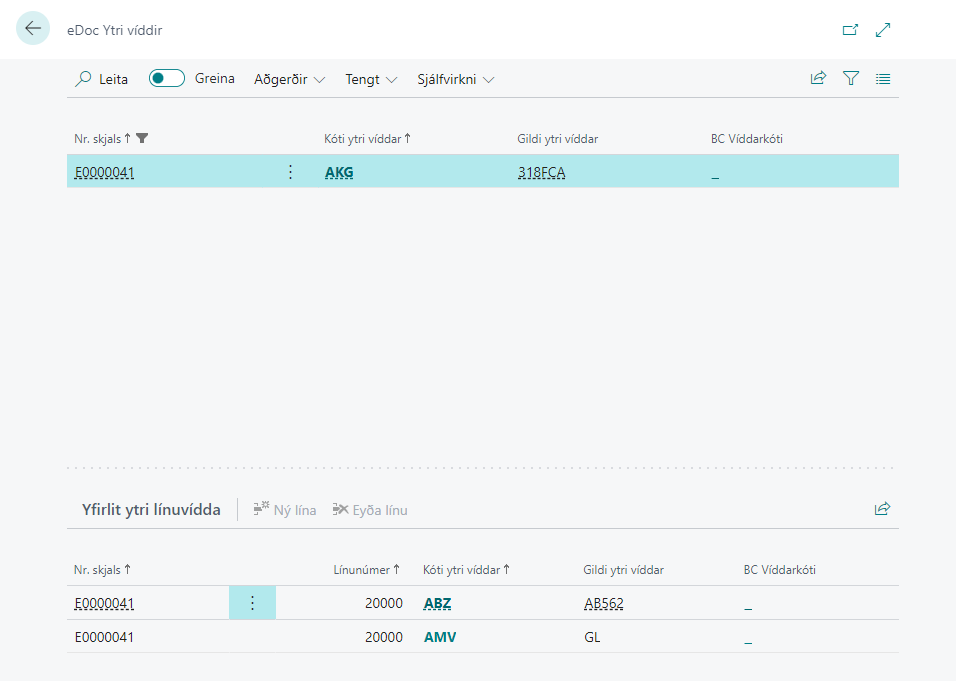
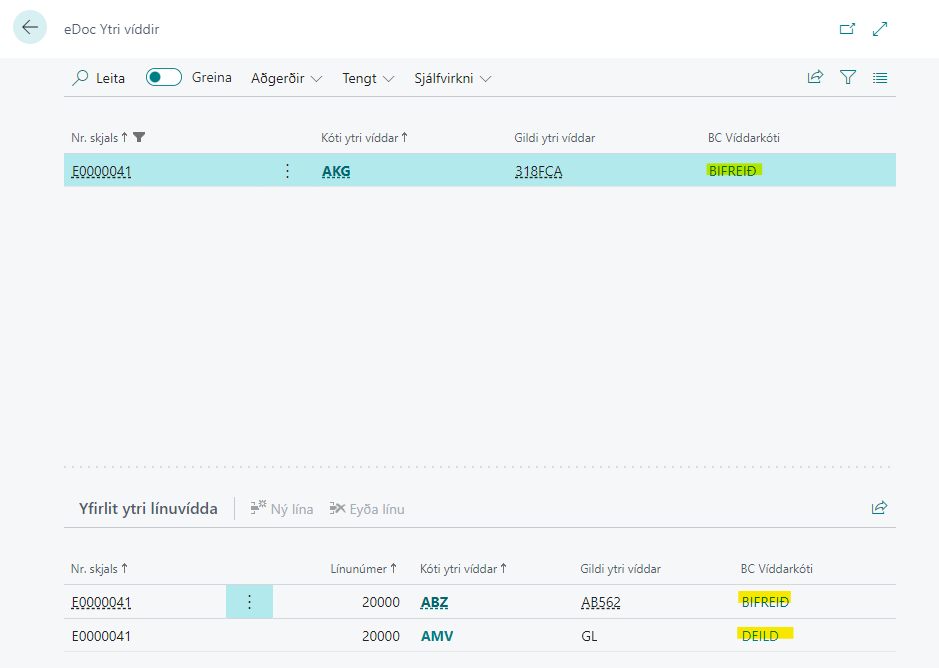
As shown in the image above, all BC dimension values are missing, but they are necessary for mapping to take place and for the dimensions to be carried all the way through. This is because setup entries still need to be added for these dimensions. Messages to that effect are shown in the eDoc Errors.

Setup of individual external dimensions
For each external dimension, a setup entry must be defined to manage its correspondence with a BC dimension.
To make the setup work easier, functionality was implemented that adds empty entries to the setup table for the external dimensions that do not already have an entry.
First, this can be done in connection with a single document for the dimensions that accompanied that document. This is the Add Dimension Setup Entries action (Shortcut: Ctrl + Shift + E) on the page that opens when the External Dimensions value is clicked on the Electronic Invoice.
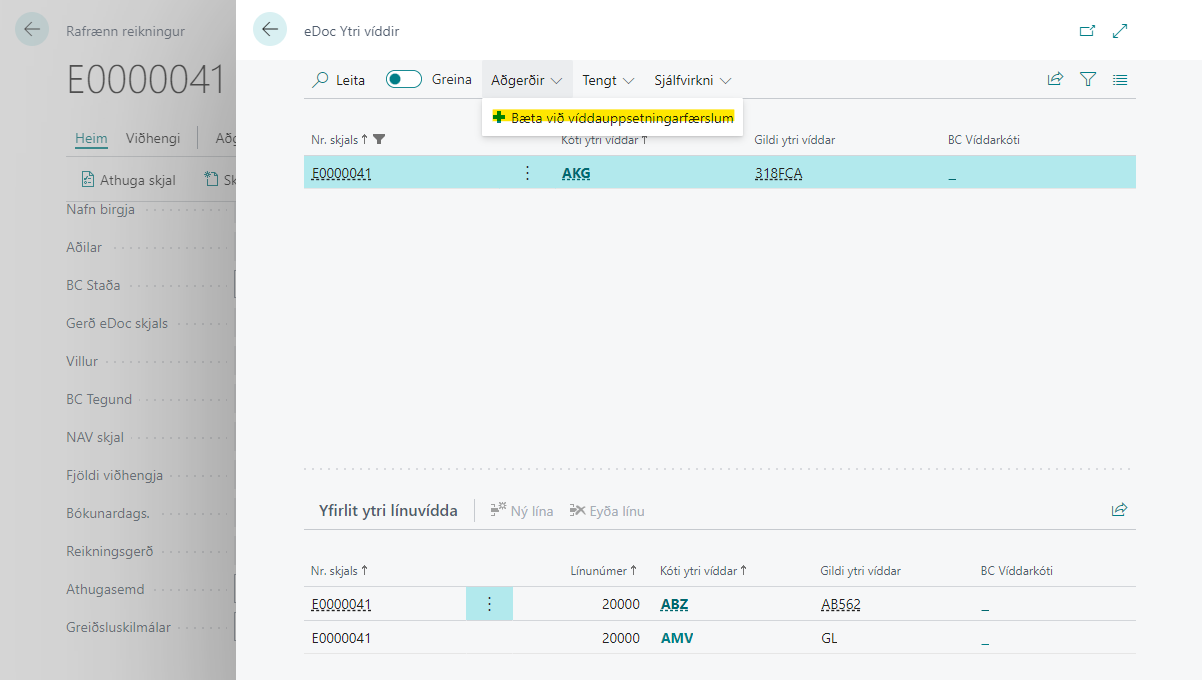
Note that on the same page, the "External Dimension Mapping Setup" action (Shortcut: Ctrl + Shift + R) can be found under Related, which is another way to open "External Dimension Mapping Setup" (the first way is to open it from eDoc Setup, as shown in the Enable functionality section above).
Another way to add these entries can be found on the setup page itself ("eDoc External Dimension Mapping Setup"). There, the action is Add Received External Dimensions. It does the same as the Add Dimension Setup Entries action above, except that it is not tied to one electronic invoice; instead, it goes through all received external dimensions in all electronic invoices and adds those that are missing to the setup table.
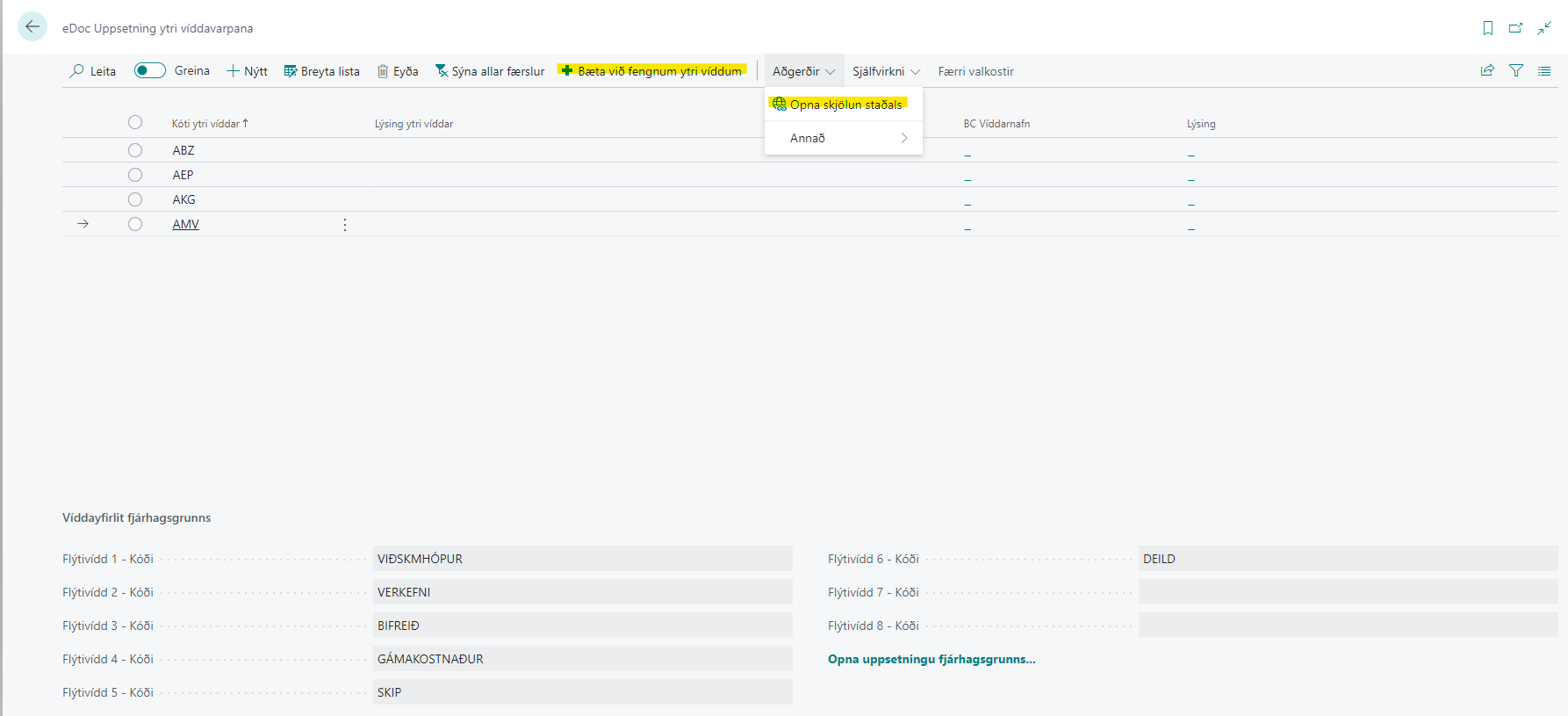
The page also includes the Open Standard Documentation action, which opens the documentation for the Peppol standard that the dimensions are based on.
Once the missing entries have been created, they must be linked to BC dimensions. The External Dimension Description field is optional and intended as additional information if desired. For example, the Peppol description from the dimension standard documentation could be entered here.
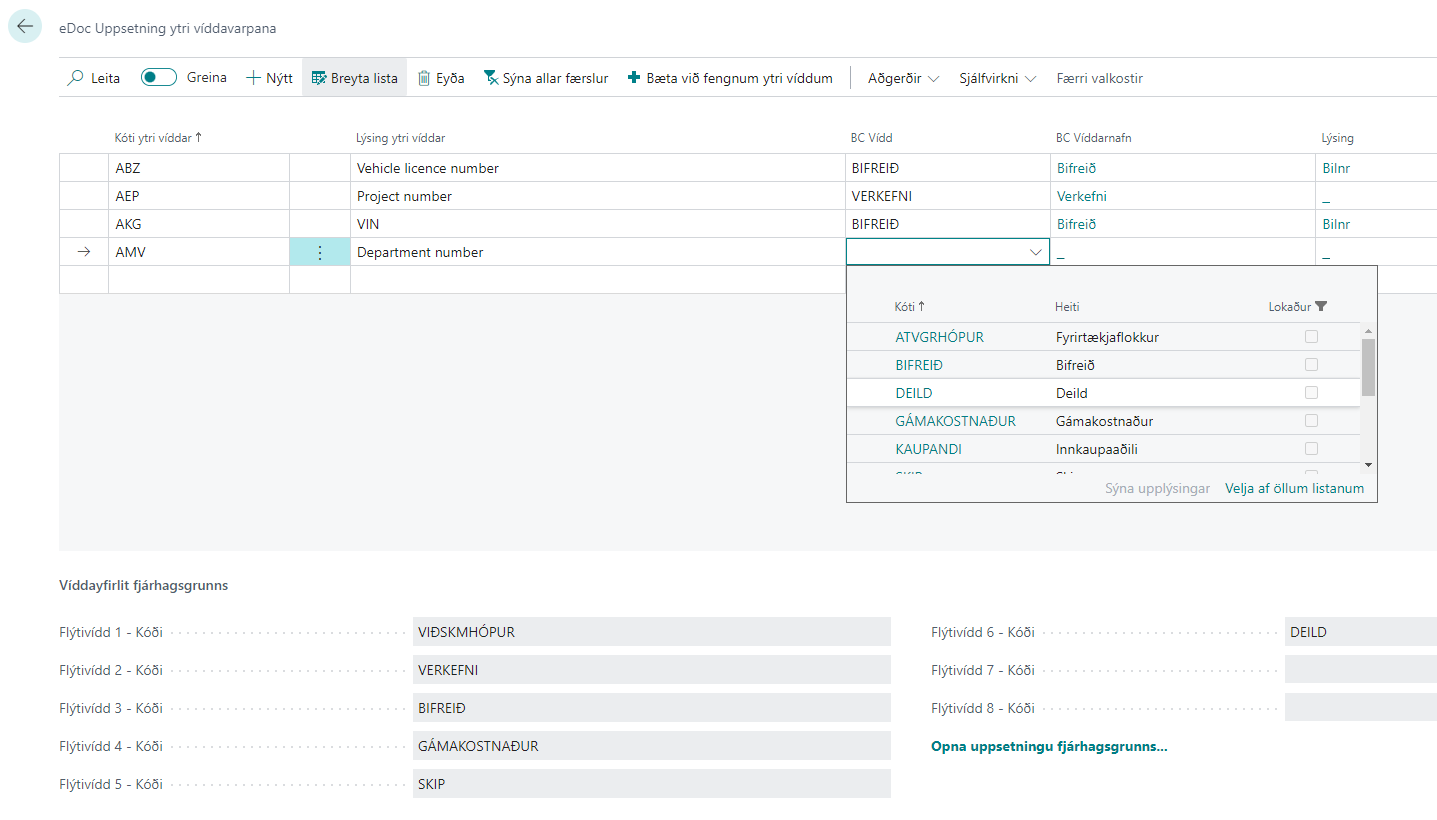
After setup is complete, the BC Dimension Codes for external dimensions should appear on the eDoc External Dimensions page that opens from the Electronic Invoice.
Errors
If no errors starting with "(External Dimensions)" are found in the eDoc Errors, it indicates that all external dimensions are correctly set up in BC and no further attention is needed. When the document is registered in BC, they will be included on the relevant invoice header and lines.
Suppose we receive an external dimension with code ABC and value 123, and we want the dimension to correspond to the BC dimension XYZ.
Errors related to this external dimension that may appear in the eDoc Errors are the following:
1. "(External Dimensions) eDoc External Dimension Mapping Setup does not exist for External Dimension Code ABC"
Indicates that a setup entry is missing for the external dimension ABC that accompanied the invoice. It must be added, whether manually or with the help of the actions mentioned under Setup of individual external dimensions above.
2. "(External Dimensions) eDoc External Dimension Mapping Setup ABC has an empty BC dimension value. Please specify which BC dimension should correspond to the external dimension ABC."
A setup entry on the eDoc External Dimension Mapping Setup page exists for the external dimension ABC, but the corresponding BC dimension still needs to be entered in the entry.
3. "(External Dimensions) Dimension XYZ does not exist in BC."
This is an unlikely case, since BC dimensions in the setup entry are configured using lookup to BC dimensions. However, the error indicates that the BC dimension specified in the setup entry linked to a particular external dimension cannot be found in BC. It has probably been deleted.
4. "(External Dimensions) Dimension value with code XYZ and value 123 does not exist in BC."
The error indicates that the dimension value of the received external dimension cannot be found as a dimension value in BC.
As stated above, XYZ is the BC dimension code here, and it is specified in the setup entry for the external dimension. 123 is then the dimension value on the received external dimension, which is expected to exist in the same way in BC; if it does not, the error occurs.
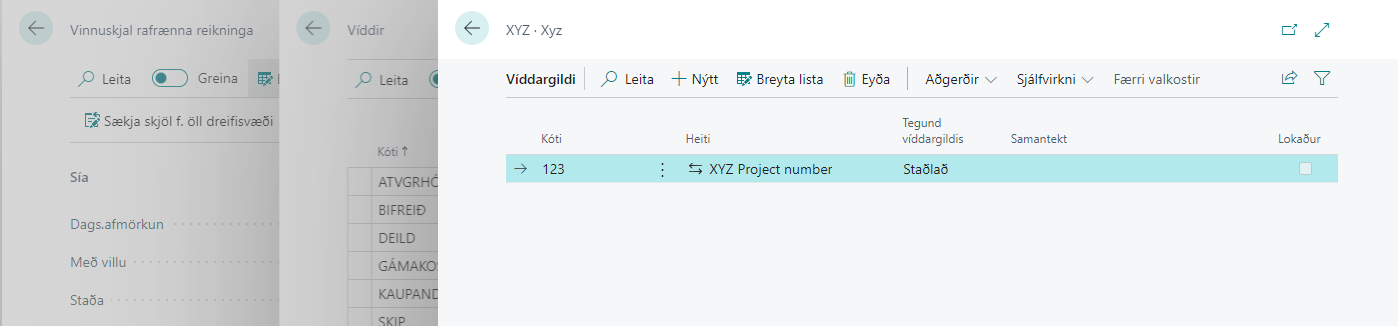
The solution is then to add the received value 123 to the dimension XYZ in BC, as shown in the image:
Skip functionality for individual invoices
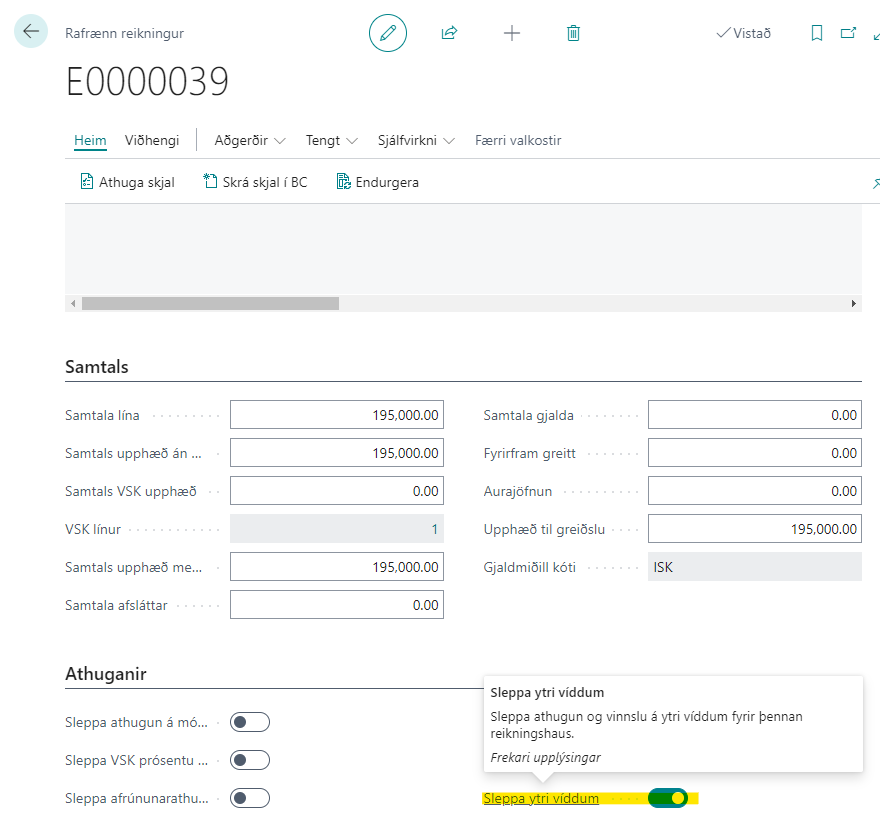
If error checking and processing of external dimensions should be skipped for individual invoices, select the Skip External Dimensions field under Validations on the Electronic Invoice page.