Create Claims
Here is described how claims are created and sent to the bank.
Actions
1. Set Up Payment Method Code on Customer:
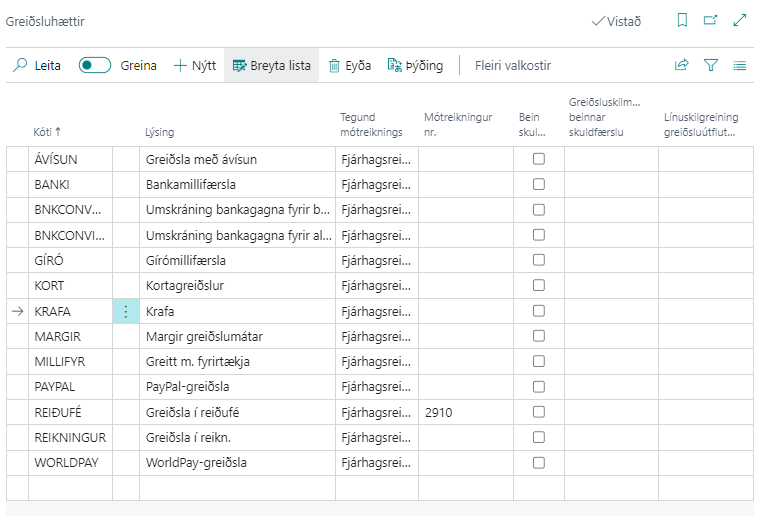
It may be useful to create a payment method code for claims to distinguish customers who receive a claim from those who make a transfer. This is done under Payment Practices and the code is created by clicking "New".
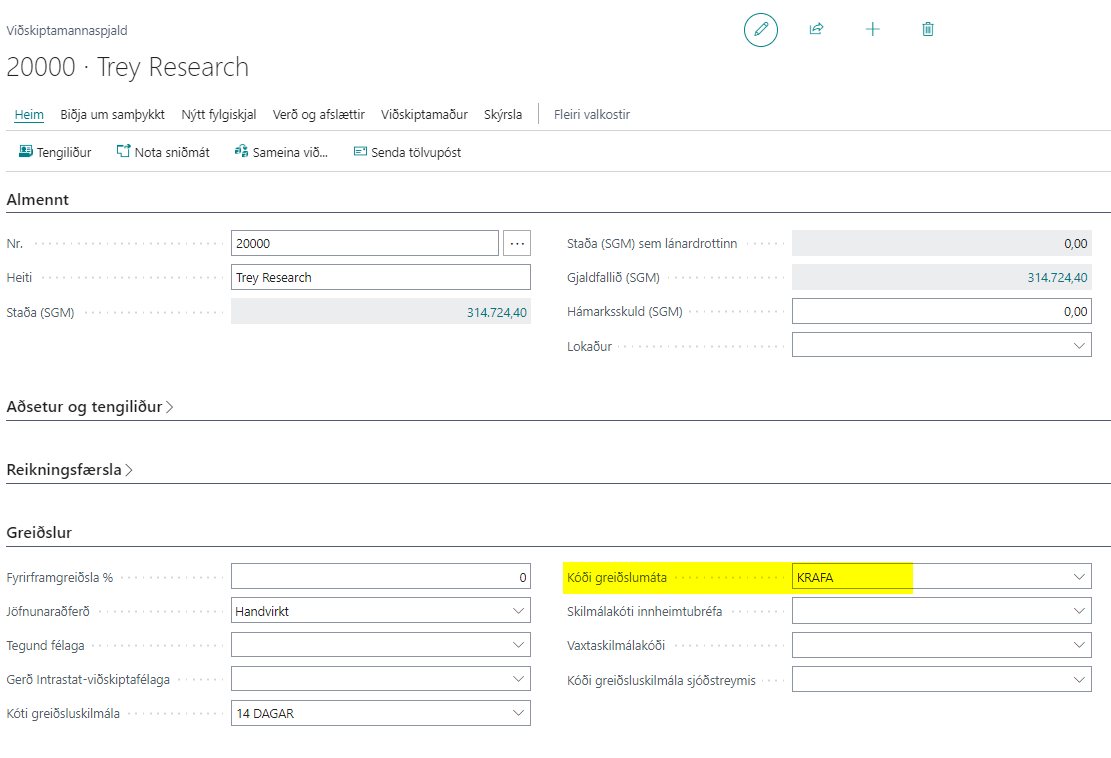
Subsequently, the payment method code is registered on the customer card so that it is inherited between invoices.
2. Create and Post Sales Invoice:
A sales invoice is created and posted to the customer. Then a customer entry is created which is open and has outstanding balance.

3. Create Claim for Sales Invoice:
Note that if claims are created automatically in the system when invoices are posted, then you do not have to do this manually.
3.1. Create Claim Batch:
The system assigns a number automatically. Then you need to fill in a description and select a bank account for the collection party.
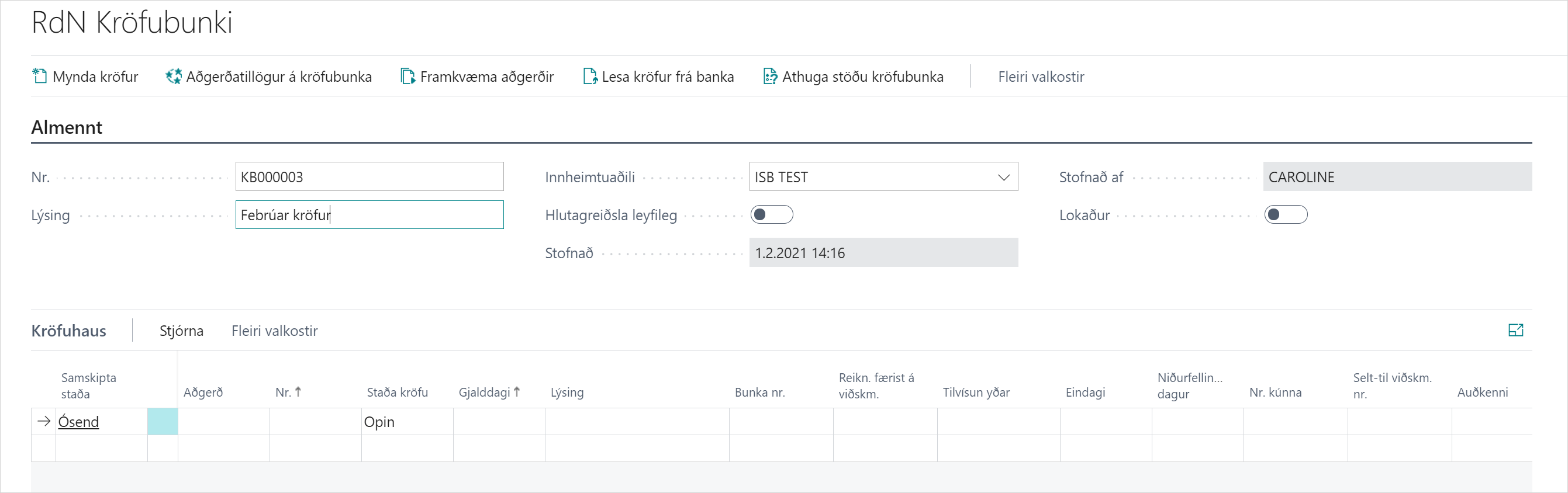
Then everything is ready to create claims in the Claim Batch.
3.2 Create Claims:
If you want to create a claim on all open customer entries, then you don't need to fill anything in on this form. However, if you want to create a claim on a specific customer, you need to enter his number in "Customer No.".
The system will create a claim on all open customer entries of type "Invoice" according to the filter set on the form.
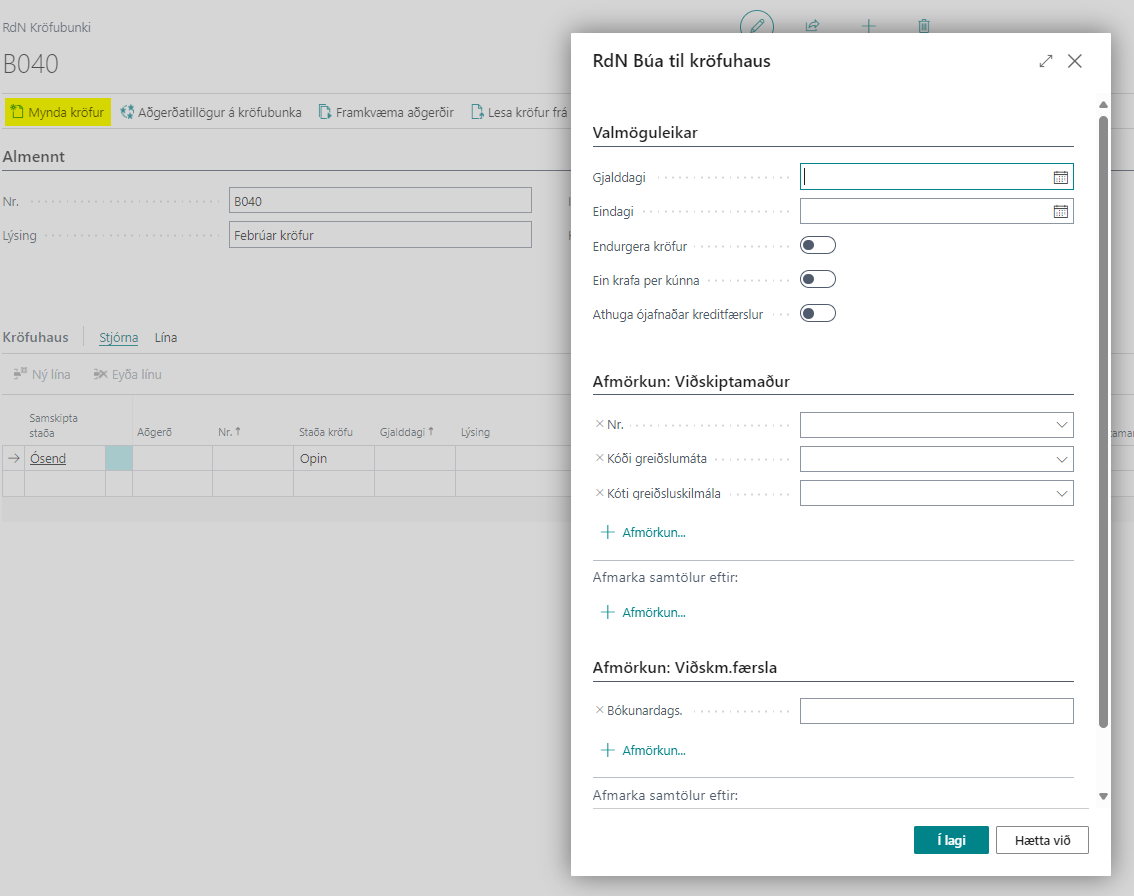
If you want to create one claim per customer, you can select that but then the system will combine all open customer entries into one claim. Note that this may be inconvenient later for reconciling payments against invoices.
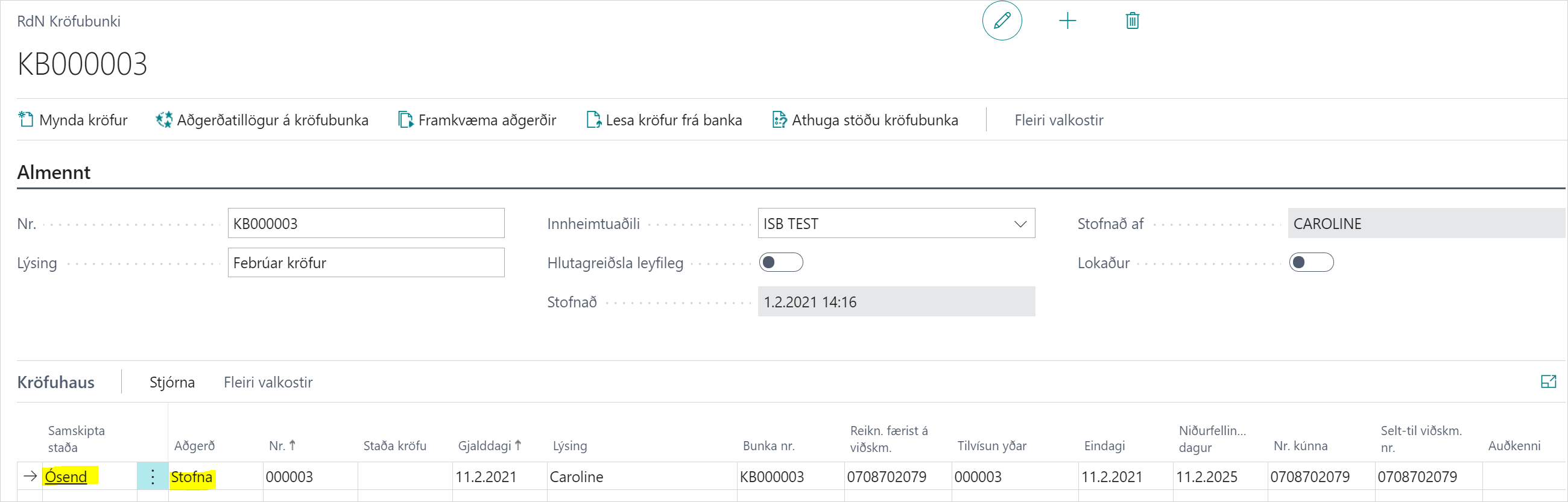
The claim is created with status in the bank "Unsent" and the action is automatically "Create". As long as the status of the claim is "Unsent", you can change it, delete it and start over without any problems because nothing has been sent to the bank.
If everything looks good, you can select Perform Operations to create the claim in the bank.
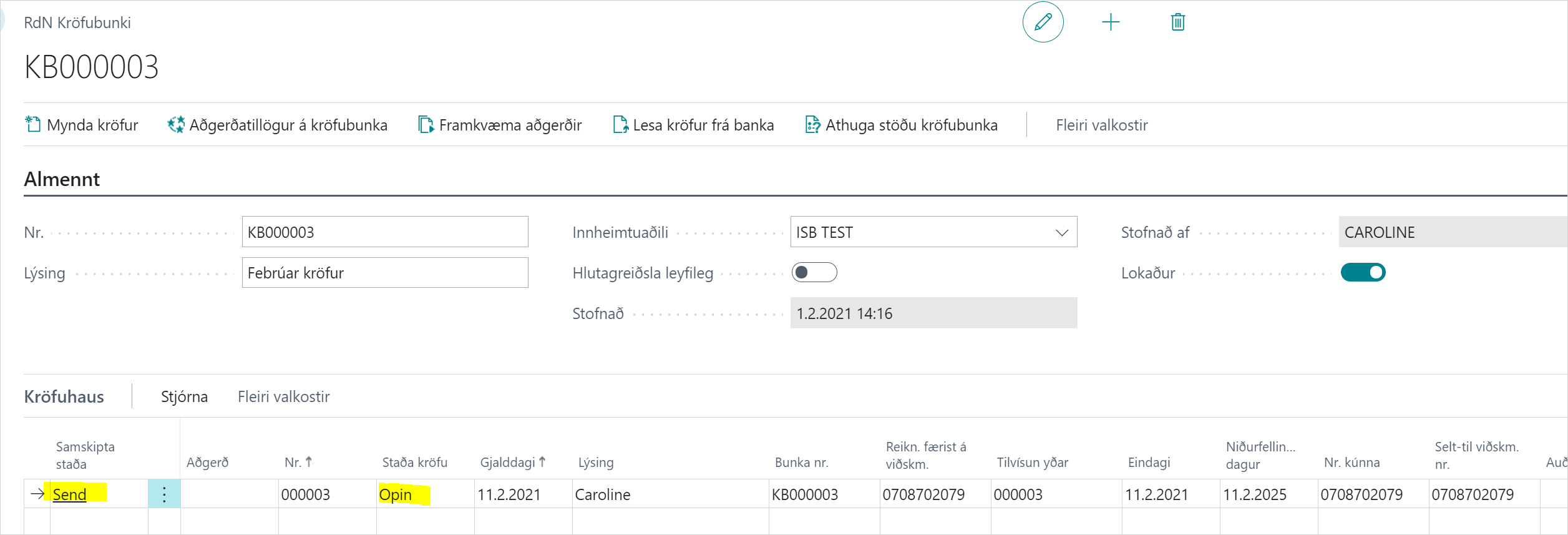
Then the status of the claim changes to "Sent".
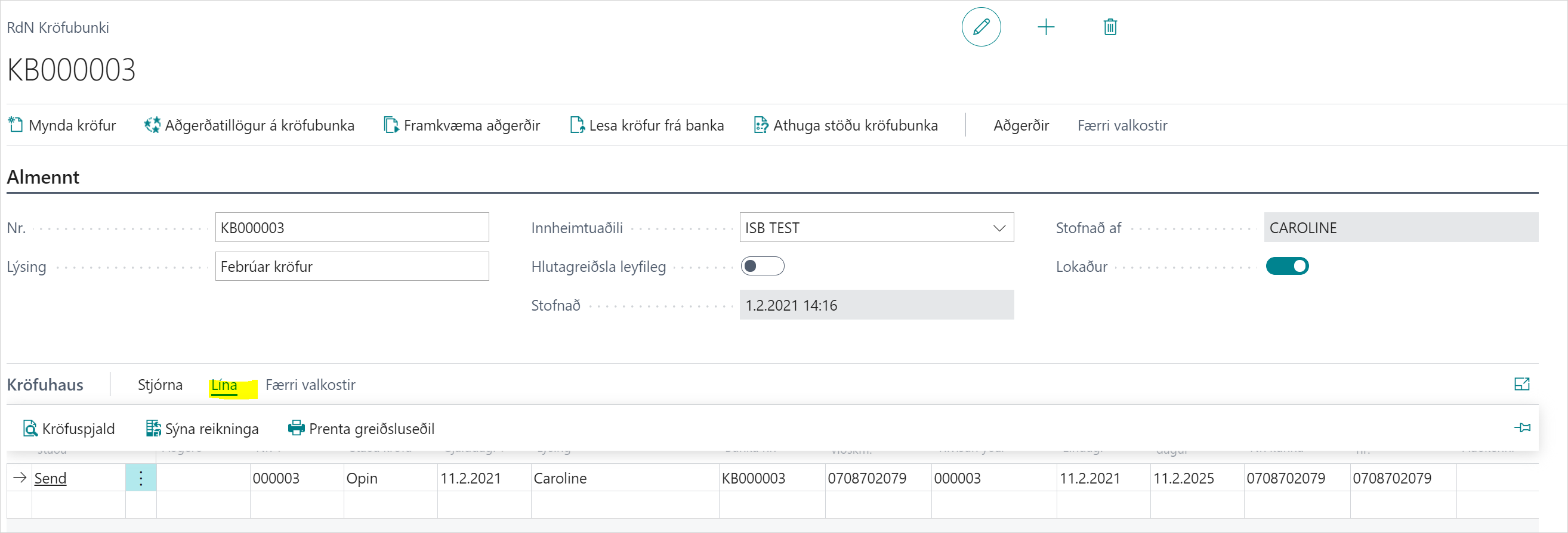
In the Claim Batch there are several actions that can be performed on a line.
Let's look at the claim card to see how a claim is created.
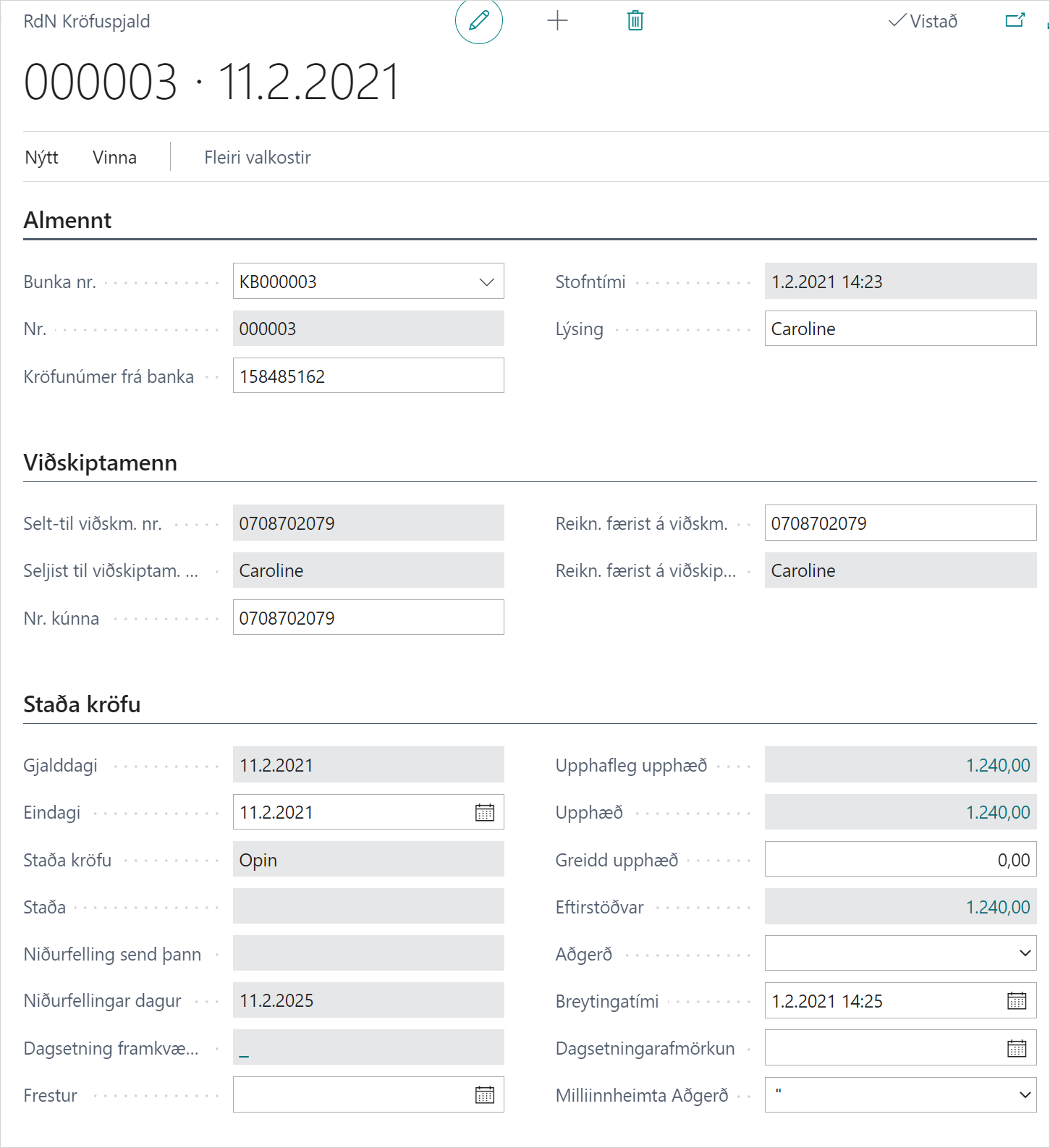
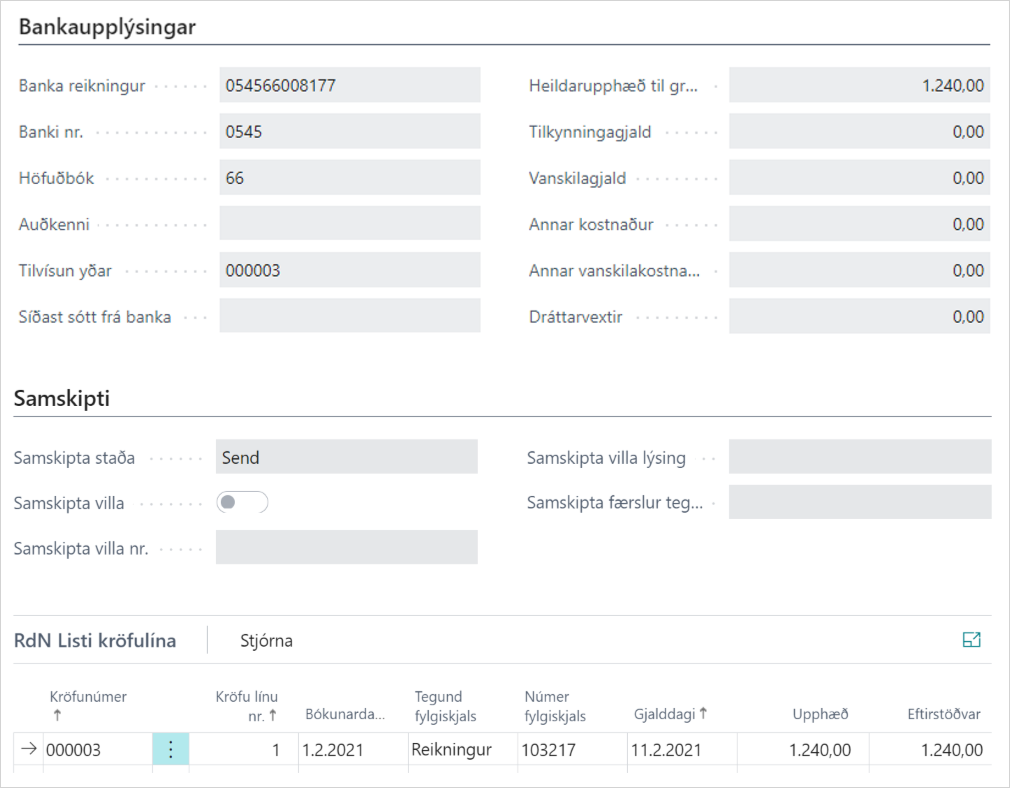
All information about the claim is on the card, such as due date, final date, original amount, amount, amount paid, etc. At the bottom is a claim line showing which invoices the claim is based on.
If you select Line - Show Invoices in the Claim Batch line, the sales invoice that the claim is based on opens. Note that this only works if there is one sales invoice per claim.
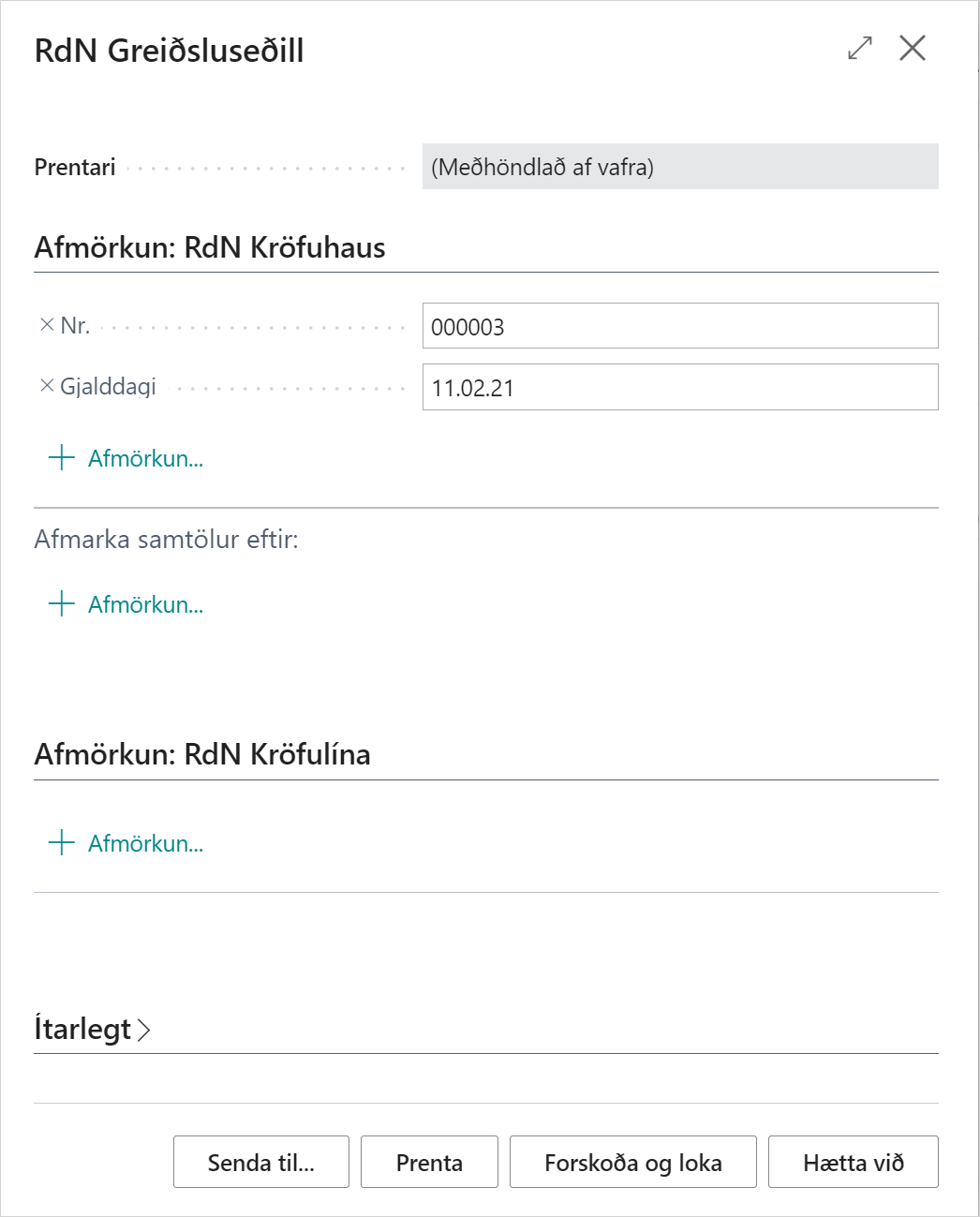
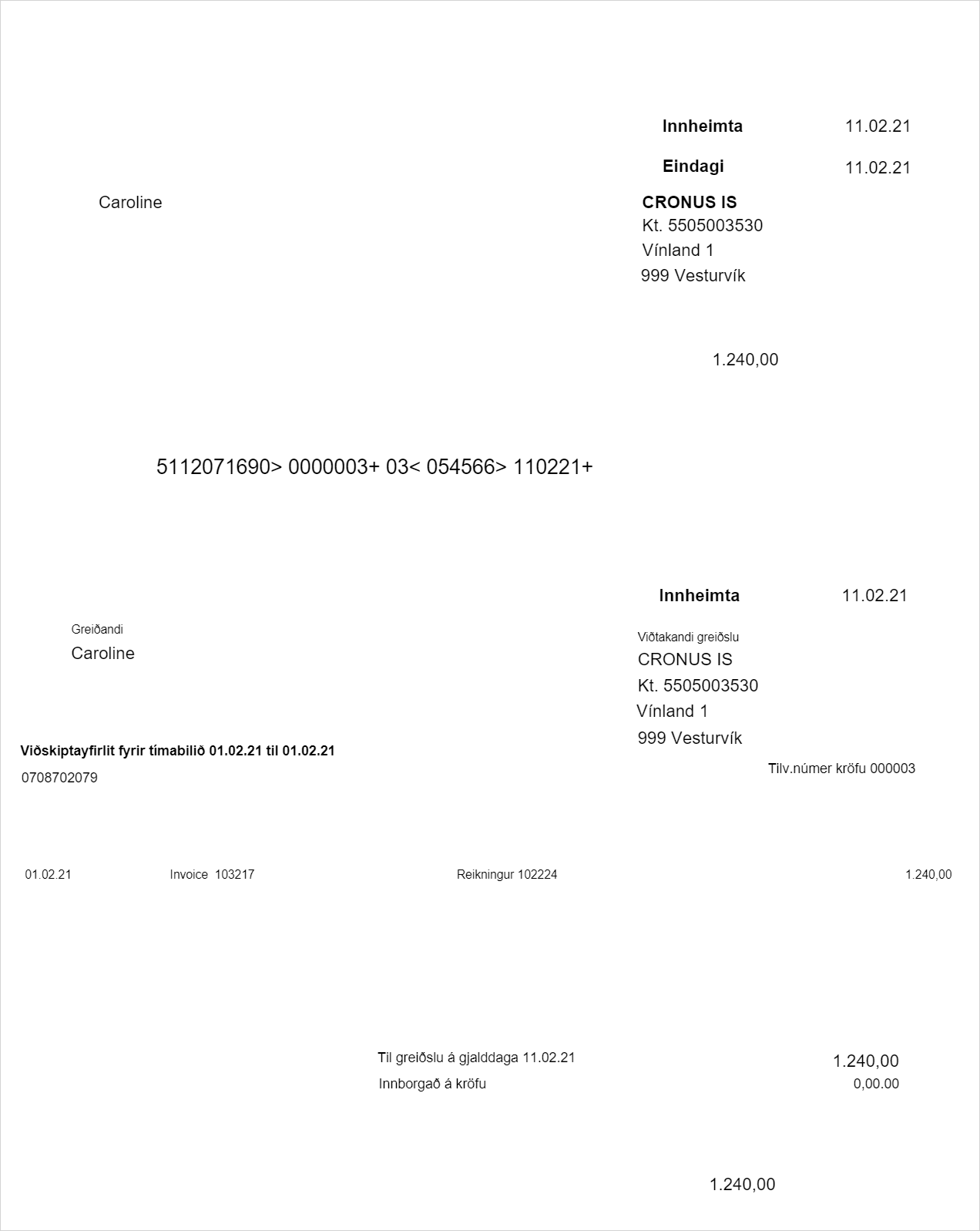
If you select Line - Print Payment Slip, you can choose which payment slip to print and it will be printed on pre-printed paper for payment slips.
3.3. Claim Number on Customer Entry:
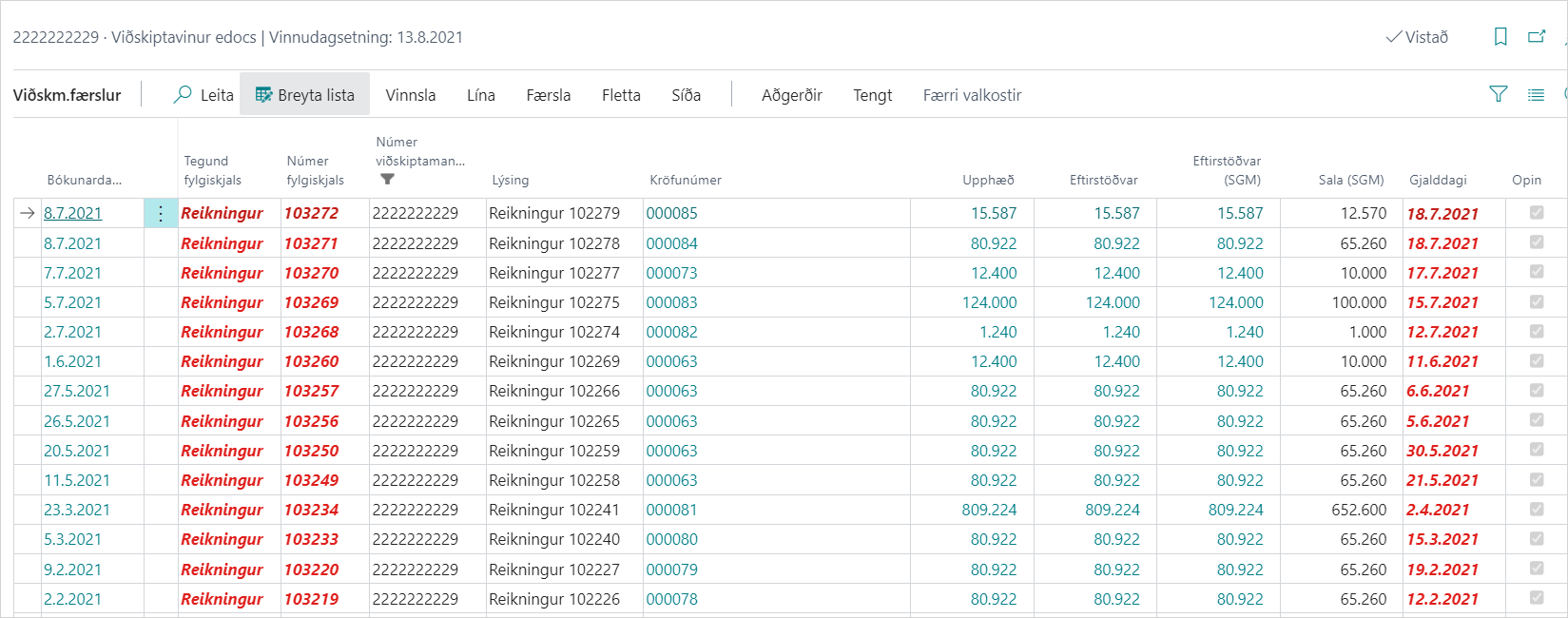
The claim number is filled out per customer entry.
If you click on the claim number, the claim card opens. See a more detailed description here.