Mappings with filters
In the eDocument ID column of a mapping, you can enter not only an exact item number but also a filter, using the same rules Business Central uses elsewhere (for example, when filtering lists). This lets a single mapping line cover many item lines and greatly reduces the number of mappings you need.
This guide explains filters in mappings, the order in which the system selects a mapping, and how to use Tax Category and Posting Information to distinguish further.
Note
Filters only work on the first-level value (eDocument ID) of item mappings. Secondary values (eDocument ID 2 — Posting Information, Additional Document Reference, Item Property) require an exact item-number match and do not support filters.
Filters in eDocument ID
The value in eDocument ID is applied as a BC filter against the item number that arrives on the electronic invoice. You can therefore use any valid BC filter expression — not just *.
| Filter | Meaning |
|---|---|
* |
Matches everything — any item number without a more specific line |
100* |
Starts with 100 |
*100 |
Ends with 100 |
*MAT* |
Contains MAT |
A*\|B* |
Starts with A or B |
V001*&*B |
Starts with V001 and ends with B |
100..200 |
In the range 100 to 200 |
<>0 |
Anything except 0 |
Selection order
For each invoice line, the system looks for a mapping in the following order and uses the first one that matches:
- Exact match on the item number (
eDocument IDequals the item number exactly). Within an exact match, a line with a secondary value (eDocument ID 2— Posting Information, Additional Document Reference or Item Property) is preferred over a line without one, and a line with a matching Tax Category is preferred over a line with a blank Tax Category. - Filter — the system goes through lines that have a filter in
eDocument IDand uses the first one that matches. Lines with a matching Tax Category are searched first, then lines with a blank Tax Category. - If nothing matches, the system attempts to create a mapping automatically based on the vendor item number on the item in BC.
Important — priority between filters
When more than one filter could match, the system picks the first line in sort order by eDocument ID — not the "most specific" one. The * character sorts before digits and letters, so a lone * line can shadow more specific patterns within the same Tax Category. To distinguish reliably, use Tax Category (see below) or exact lines for exceptions, rather than relying on priority between patterns.
Three VAT rates with Tax Category
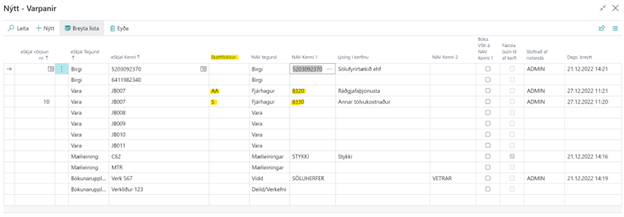
In eDocs, a Tax Category accompanies every item line from the XML document. You can therefore use the Tax Category column to create one * line per VAT rate. No specific item lines are needed — eDocs automatically routes to the correct G/L account based on the item's Tax Category.
This works reliably because the Tax Category narrows each line to exactly one VAT category, so no ambiguity arises.
| Tax Category | VAT% | Meaning |
|---|---|---|
Z |
0% | Exempt / groceries |
AA |
11% | Reduced rate |
S |
24% | Standard rate |
Example — three * lines, one per VAT rate:
| eDoc Partner | eDoc Type | eDocument ID | BC Type | BC ID 1 | Tax Category |
|---|---|---|---|---|---|
| Vendor A | Item | * |
G/L Account | 5610 | Z |
| Vendor A | Item | * |
G/L Account | 5611 | AA |
| Vendor A | Item | * |
G/L Account | 5612 | S |
When an invoice arrives, eDocs reads the Tax Category from each line and finds the matching mapping. Three lines are enough for the entire vendor instead of hundreds of individual lines.
Combining filters and Tax Category
You can mix the two — for example, if a certain item group should always go to a specific account regardless of VAT:
| eDoc Partner | eDoc Type | eDocument ID | BC Type | BC ID 1 | Tax Category |
|---|---|---|---|---|---|
| Vendor A | Item | 076* |
G/L Account | 5620 | S |
| Vendor A | Item | * |
G/L Account | 5610 | Z |
| Vendor A | Item | * |
G/L Account | 5611 | AA |
| Vendor A | Item | * |
G/L Account | 5612 | S |
Caution when mixing
Because Tax Category is evaluated first, a * line with a Tax Category can take precedence over a more specific pattern without a Tax Category. If the 076* line should apply to 24% items, give it the same Tax Category (S) so it is searched in the same pass as the 24% * line. The safest approach for genuine exceptions is an exact item line.
Posting Information as a secondary filter
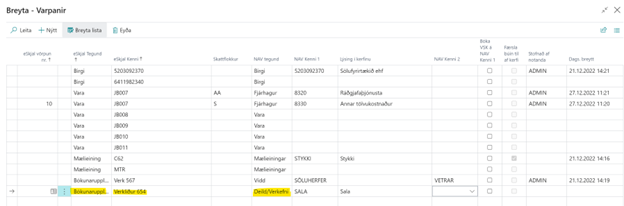
You can add a second dimension to exact item lines using Posting Information (Accounting Cost) — the cost object that arrives on the invoice line from the XML. This lets the same item number go to different G/L accounts depending on the vendor's cost object.
On the mapping line, fill in:
- eDocument Type 2 =
Posting Information - eDocument ID 2 = the cost object code (for example,
MKT,IT)
A line with Posting Information takes precedence over a line without it.
Example — the same item to different accounts by cost object:
| eDoc Partner | eDoc Type | eDocument ID | BC Type | BC ID 1 | eDoc Type 2 | eDocument ID 2 |
|---|---|---|---|---|---|---|
| Vendor A | Item | 30017391 | G/L Account | 5620 | Posting Information | MKT |
| Vendor A | Item | 30017391 | G/L Account | 5610 | (blank — applies to everything else) |
When an invoice arrives with item number 30017391:
- If the line has Posting Information =
MKT→ goes to 5620 - Otherwise → goes to 5610
Limitation
Posting Information only works with an exact item-number match. It cannot be used with filters such as * or 30017*.