Assisted Setup
The assisted setup guides the user through the first-time setup of SQL Connector. To open it you can search for Assisted Setup and find Rue de Net SQL Connector in the list that opens, or find it in the menu under Setup if the user has been assigned the "SQL Connector Synchronization Administrator" role.

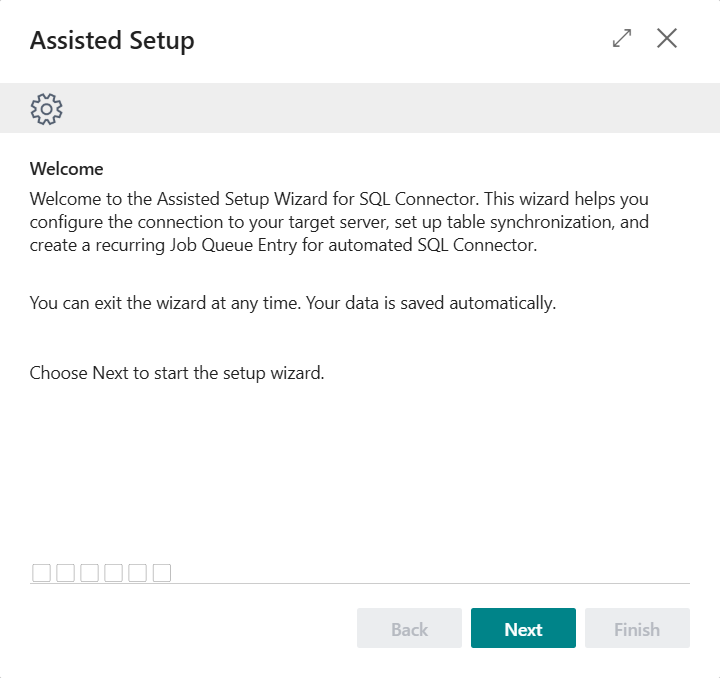
When the assisted setup opens, a welcome page is displayed that describes what the wizard does. It helps you configure a connection to an external server, set up table synchronization and create a recurring job queue for automatic SQL Connector. Data is saved automatically and you can quit at any time.
Step 1: Server Connection
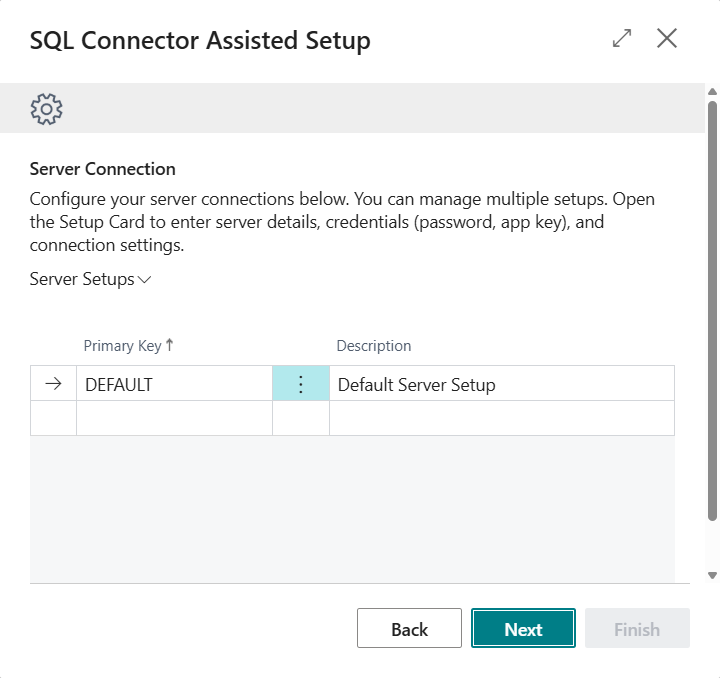
In the first step a list of configured server connections is displayed. If no connection exists, the system automatically creates a DEFAULT entry. Click on each connection to open the setup card and enter information about the server, credentials (password, app key) and connection settings.
You can set up multiple connections to synchronize data to different databases.
Step 2: Test Connection
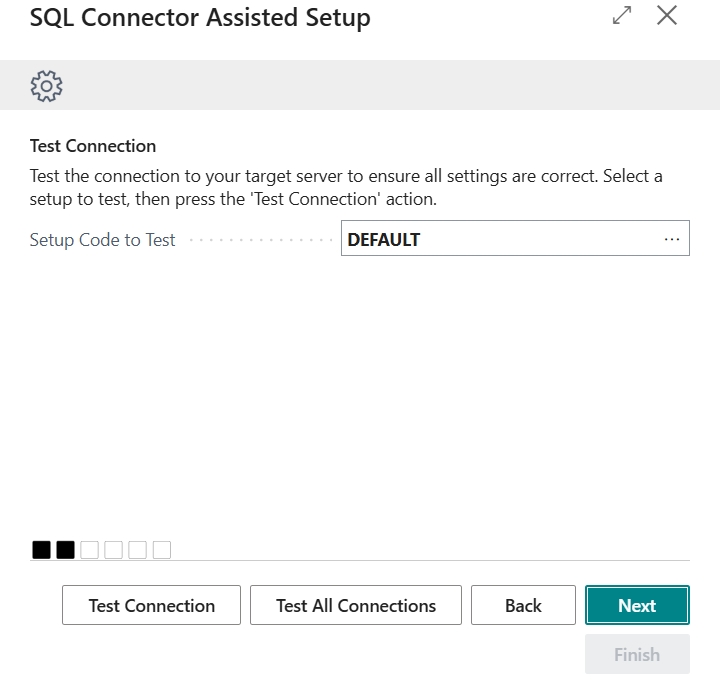
In the second step you can test the connection to the external server to ensure all settings are correct. Select a setup to test and click "Test connection".
| Field | Description |
|---|---|
| Setup code to test | Select a server setup from the list |
| Action | Description |
|---|---|
| Test connection | Tests the connection to the selected server setup |
| Test all connections | Tests all configured connections in sequence |
Results are displayed as green (succeeded) or red (failed) with error messages where applicable.
Step 3: Tables for Synchronization
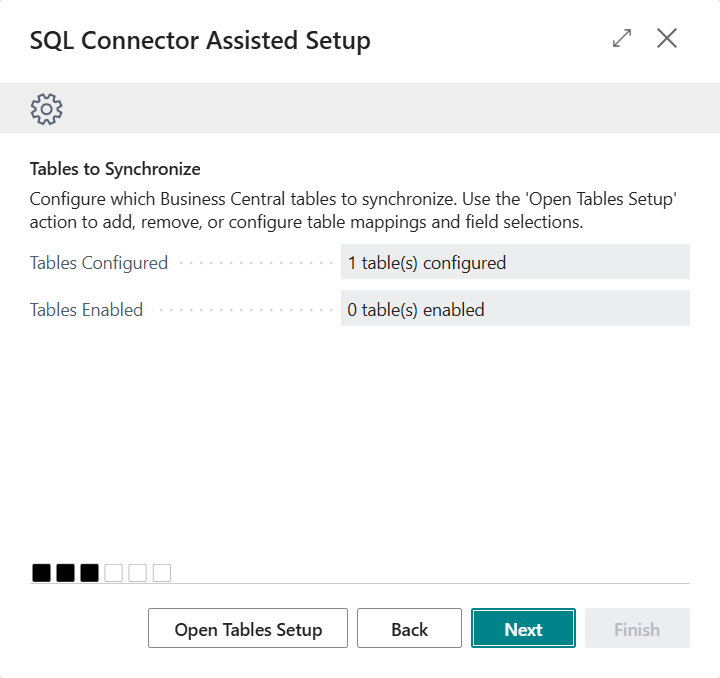
The third step shows the number of configured and active tables. The Open table setup button opens the table setup page where you can add, remove or configure table mappings and field selections.
| Information | Description |
|---|---|
| Tables configured | Number of tables configured in the system |
| Active tables | Number of tables active for synchronization |
Step 4: Job Queue
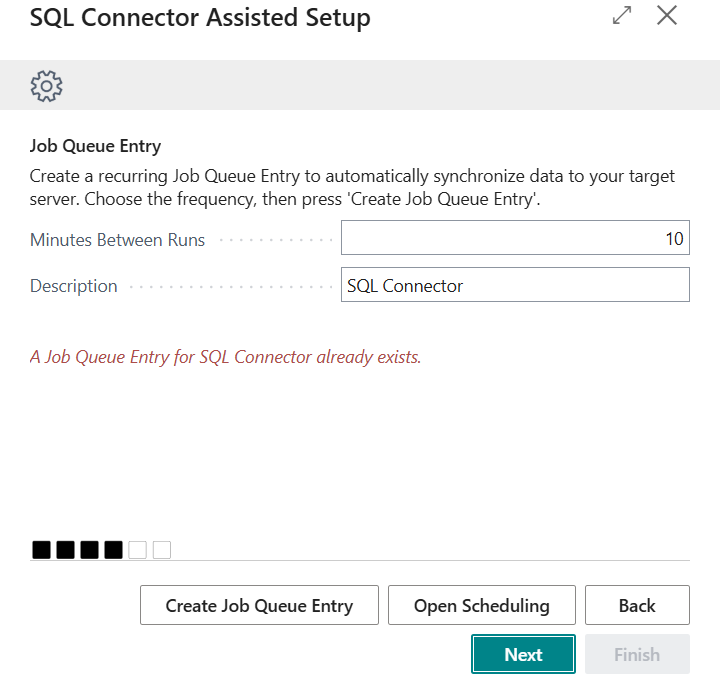
In the fourth step you can create a recurring job queue that runs synchronization automatically with the external server.
| Field | Description |
|---|---|
| Minutes between runs | How often synchronization runs (default: 10 minutes) |
| Description | Description of the job queue (default: "SQL Connector data synchronization") |
| Action | Description |
|---|---|
| Create job queue | Creates a recurring job queue on hold |
| Open automation page | Opens the automation page for more detailed settings |
A warning is displayed if a job queue for SQL Connector already exists.
Step 5: Setup Summary
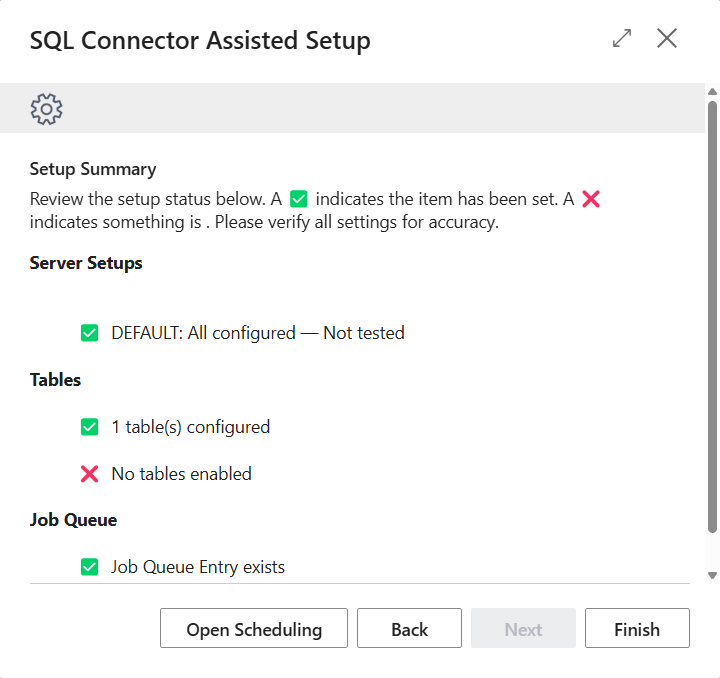
The final step shows an overview list of the setup status. ✅ means the item has been configured. ❌ means something is missing.
- Server setups: status of each server setup, whether everything is configured and whether the connection test succeeded.
- Tables: number of configured and active tables.
- Job queue: whether a job queue exists.
The Finish button marks the wizard as complete and closes the window.
Requirements for server setup
For a server setup to be considered complete, the following fields must be filled in (unless a connection string is used):
- Server
- Database
- App Path (Azure Function URL)
- App Key (Azure Function key)