Delegating
If an invoice does not belong to you — or you are on holiday — you can forward the approval to another user.
Delegating an approval
- Open the invoice.
-
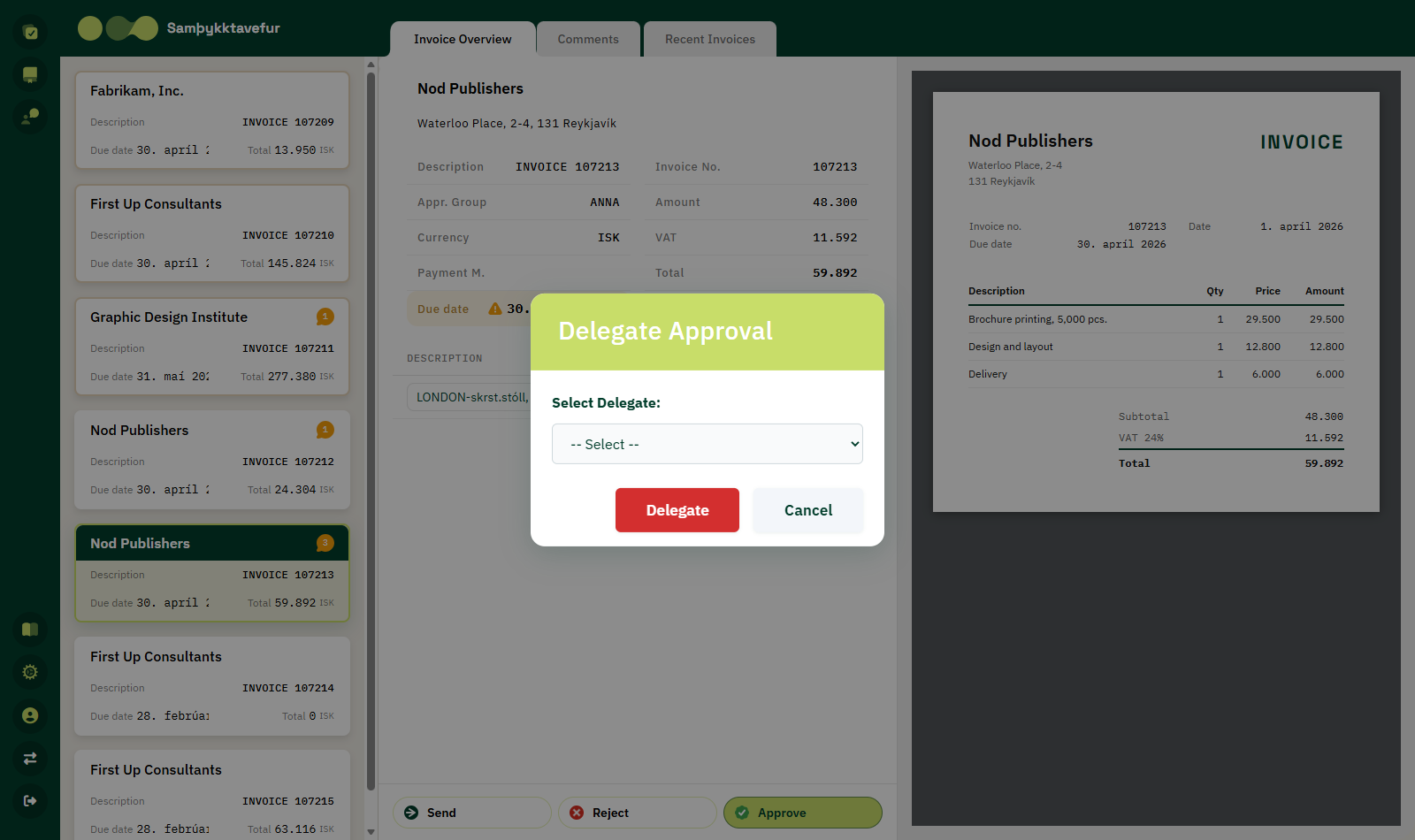
Click Send at the bottom left.
-
Choose a user from the Select Delegate: dropdown.
- Click Delegate.
- Confirm in the dialog that appears by clicking Yes.
The document disappears from your list
Once you delegate an invoice you can no longer see it. The confirmation dialog reminds you of this.
If you do not choose a user, the message No user selected. appears.
Who can be chosen?
The dropdown shows the users that the approval can be delegated to in Business Central. The setup is done there, see Forwarding an invoice.
If delegation fails
| Message | Explanation |
|---|---|
| Error delegating approval | Business Central rejected the delegation. |
| Approval has been delegated | The delegation succeeded. |
The Send button is disabled if the document does not have the status Open.