Approvals Setup
It is best to use assisted setup.
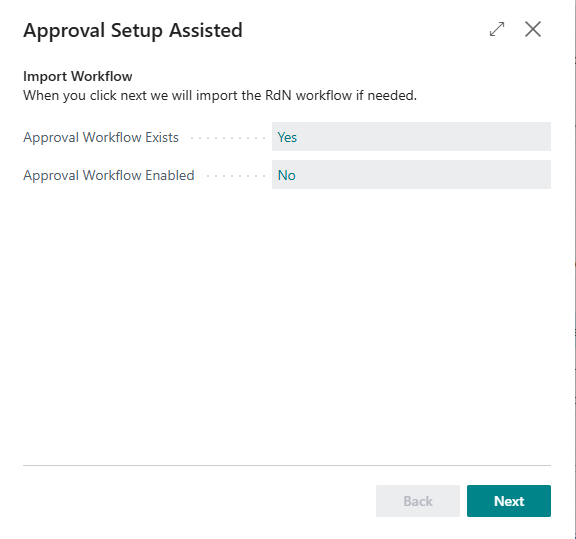
Information
| Name | Description |
|---|---|
| Approval workflow exists | The system automatically suggests the answer "Yes", which means that the approval workflow has been imported into the system. |
| Approval workflow is enabled | The system automatically suggests the answer "Yes", which means that the approval workflow has been enabled in the system. |
| RdN workflow category | The default value is PURCHDOC. |
| Create approval response exists | The default value is "Yes". |
| Send for approval response exists | The default value is "Yes". |
| Approve approval workflow response | The default value is "Yes". |
| Reject approval workflow response | The default value is "Yes". |
| Reject on approval workflow response | The default value is "Yes". |
| Warning on empty lines | It is possible to receive a warning before an invoice is sent for approval if a line has empty values. The default value is "No". |
| Unlinked image folder | Specify the folder from which the system should retrieve scanned documents to import into Microsoft Dynamics 365 Business Central. |
| Use client folder | Select this field if a folder on the client machine should be used instead of a folder on the server. |
| Email Language | Select whether emails use Icelandic, English, or the recipient's language from User Personalization. |
| Use Legacy Web | Turn on to make email links open the legacy Approvals web app entered in Web URL. |
| Use Custom Web Path | Turn on to use Custom Web Path instead of the default address of the current Approvals web app. |
| Send email on approval request | If this field is selected, the approver receives an email notification when an approval request is sent. |
| Send email on approval | If this field is selected, the person who sent the approval request receives an email when it is approved. |
| Send email on rejection | If this field is selected, the person who sent the approval request receives an email when it is rejected. |
| Store comments in RL notes | It is best to select this field so that comments entered during the approval process are stored in Notes on the purchase invoice. |
| Force comment on rejection | Select this field to require users to enter a comment when rejecting invoices. |