User Setup
Each user configures their own suggestion preferences from the Suggestion Setup page: which accounts to connect and which activity data the AI may use.
Prerequisite: An administrator must have started the automatic suggestions job. See General Setup.
Opening Suggestion Setup
You open Suggestion Setup in two ways:
- From the Time Registration Calendar, click the Suggestion Setup action.
- From the Time Registration Setup page, click Open Suggestions Setup.
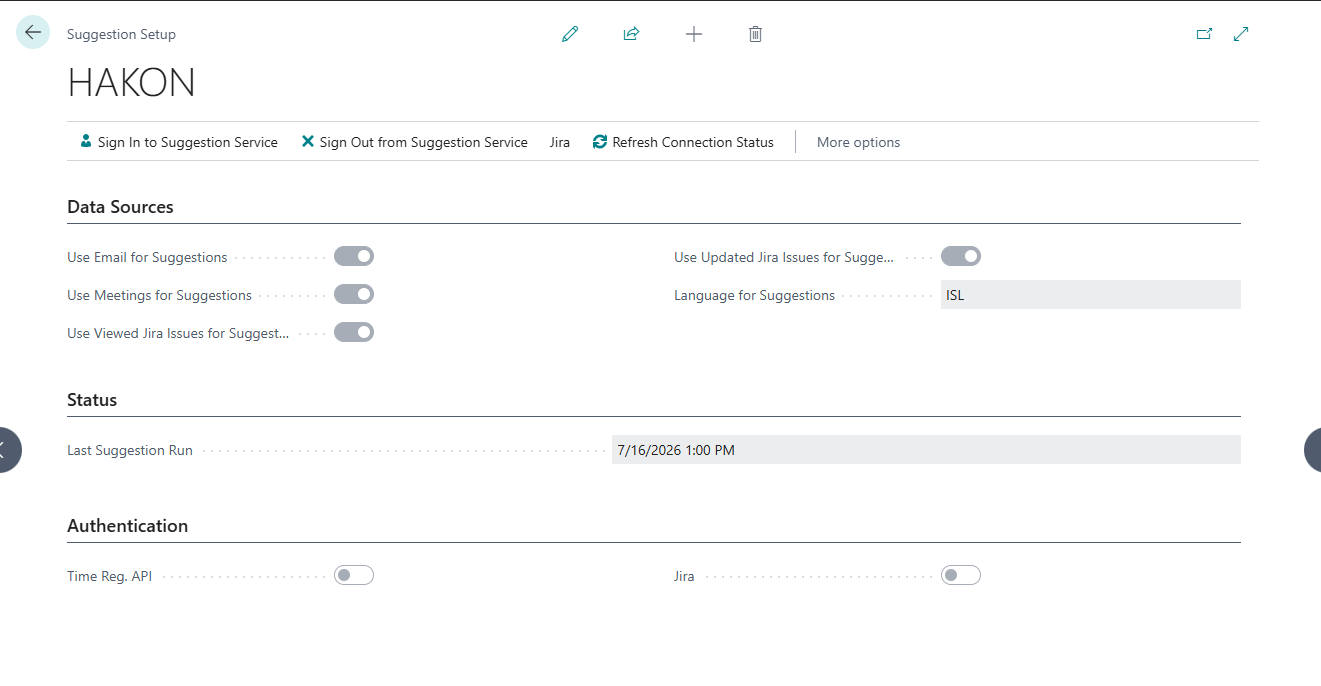
Data Sources
Choose which activity data the AI uses to generate your suggestions:
| Option | Description |
|---|---|
| Use Email | Include your sent emails from the period |
| Use Meetings | Include your Outlook Calendar meetings |
| Use Viewed Jira Issues | Include Jira issues you viewed |
| Use Updated Jira Issues | Include Jira issues with comments or changes |
Language
Select the language the AI should use when generating suggestion descriptions.
Authentication
Before suggestions can be generated, you must sign in to the required services.
Time Reg. API
Click Sign In to Suggestion Service to authenticate with the Time Registration API. This is required for all suggestions.
Jira (Optional)
If you want Jira issues included in your suggestions, click Connect Jira Account. This opens a browser window where you complete the Jira authorization. After completing it, click Refresh Connection Status on the setup page.
To remove the Jira connection, click Disconnect Jira Account.
Signing Out
Click Sign Out from Suggestion Service to remove your authentication. This also stops automatic suggestions from being generated for you.
Status
The Last Suggestion Run field shows when suggestions were last fetched for you.
Next Step
Once you are signed in, suggestions start appearing on your calendar. See Using Suggestions.