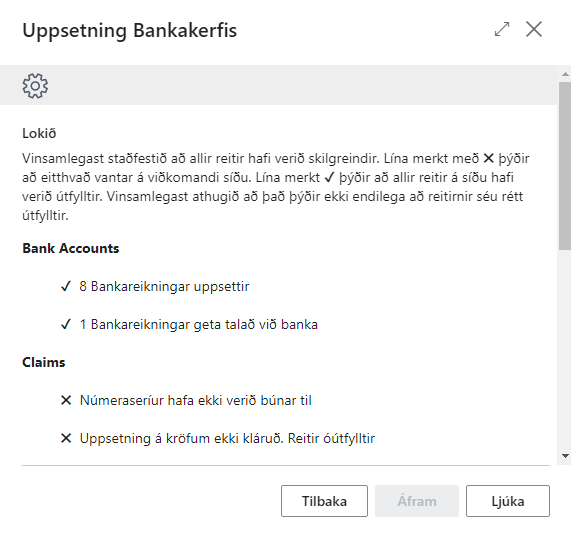
Banking Module Setup with Assistance
This setup process brings together the setup of all the functionality that the Banking Module offers. I.e. connection with credential setup, bank accounts, claims, payments, reconciliation, bank connections and banking module users.
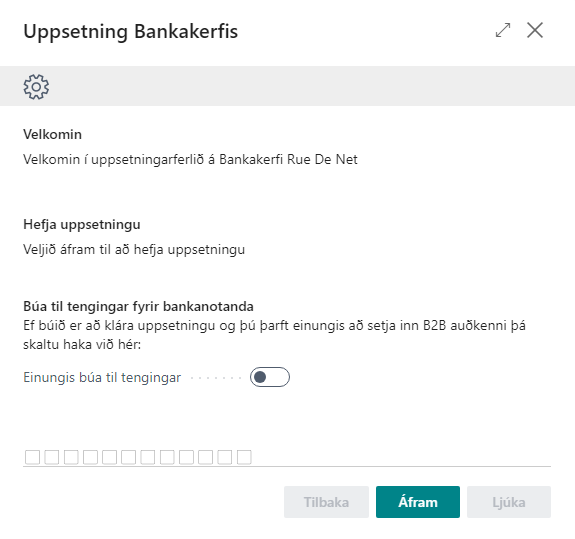
Start Page
Here you can choose to create only a connection to a bank and skip other settings. Each user will need to sign in with their own B2B bank credentials.
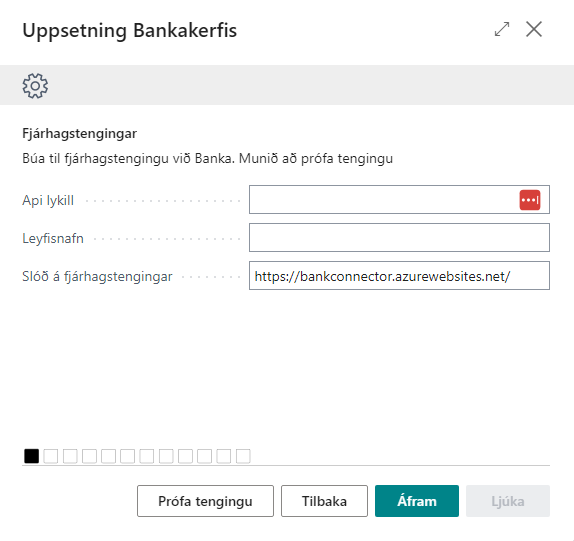
Financial Connections
Here you need to enter credential setup and license name.
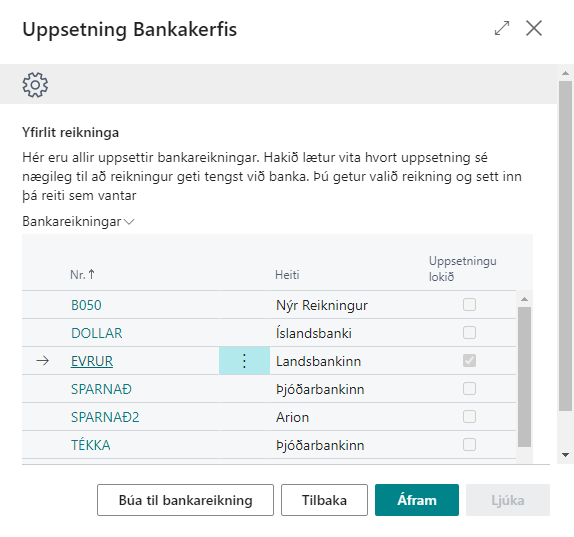
Account Overview
Here you can see all set up bank accounts. On the side is a check indicating whether the bank account setup is sufficient to be able to connect to the correct bank. Click 'Create Bank Account' to add an account. Clicking on an account opens the quick setup of bank accounts.
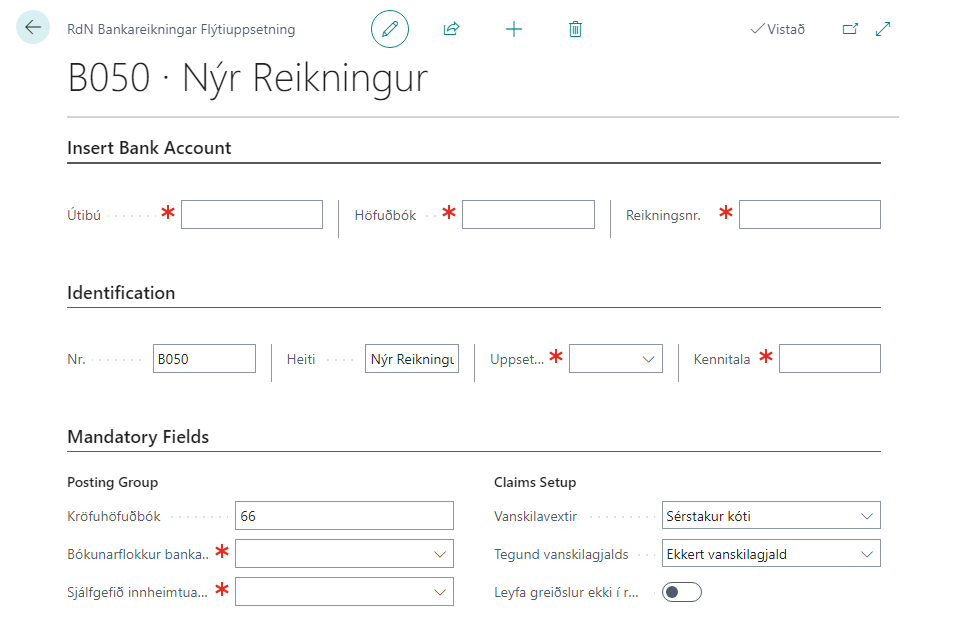
Quick Setup Bank Accounts
Red-marked fields are necessary for the BC bank account to be able to talk to an account from the bank. When the setup is complete, the setup completed checkbox will be checked in the list of bank accounts.
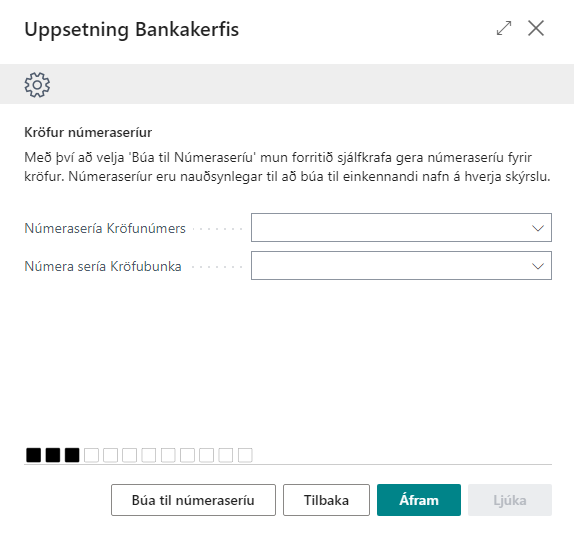
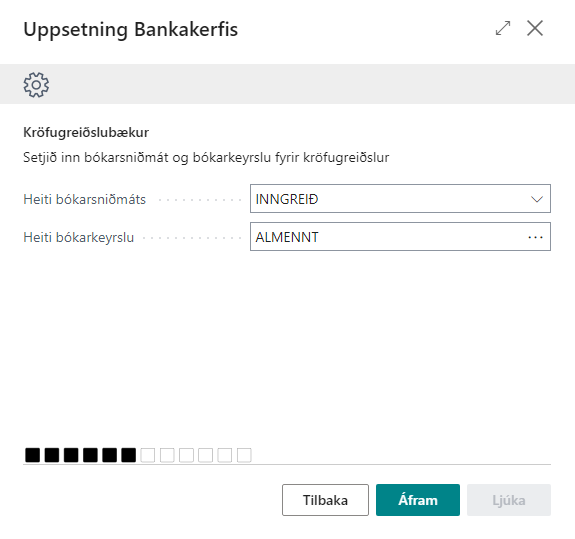
Claims No. Series
The system can create a no. series for you by clicking on the appropriate button
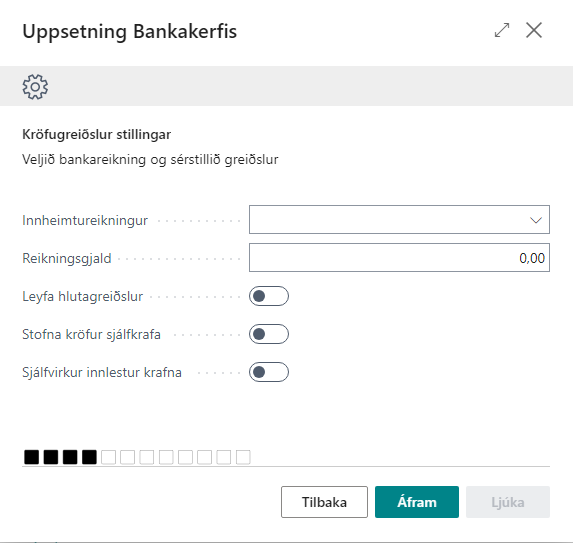
Claims Settings.
Select the collection account for claims and customize other functions
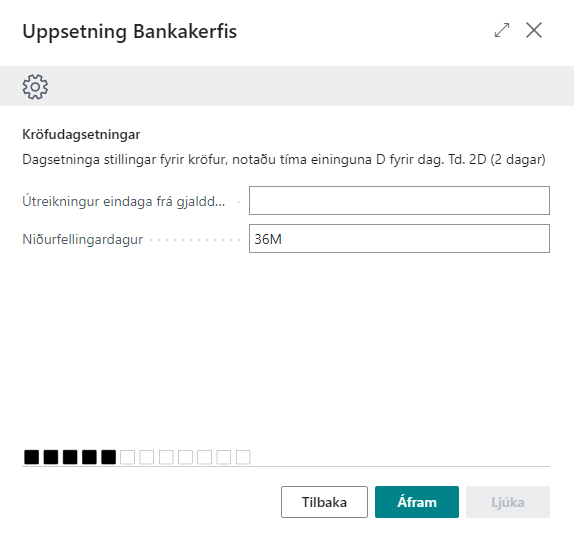
Claim Dates
Select the number of days between final date and due date and when the claim will be written off. Usually 36M or 48M
Claim Payment Journals
The system automatically creates a journal template and journal batch for the user.
Claim Invoice
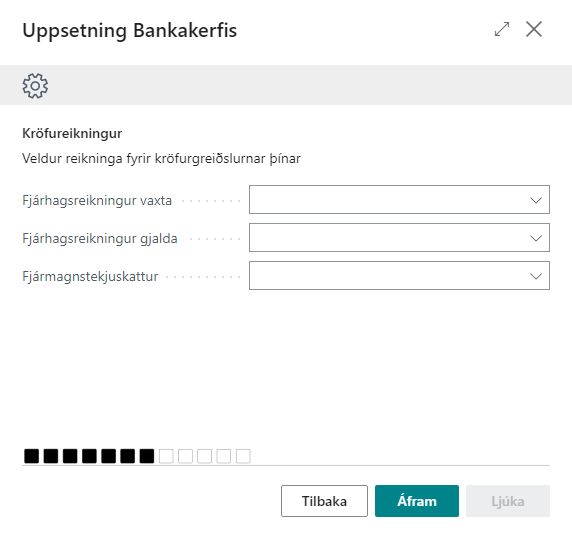
Select the following:
Interest Account:
Specifies which account interest is posted to in the income journal.
Fee Account:
Specifies which account fees are posted to in the income journal.
Income Tax:
Specifies which account income tax is posted to in the income journal.
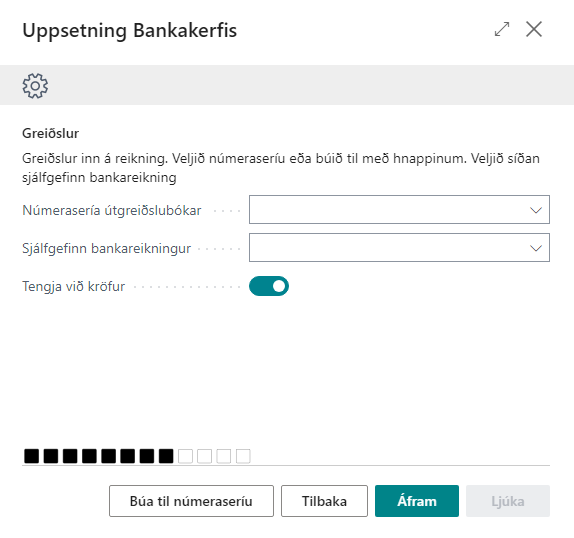
Payments
Payments use their own no. series but can be created automatically by clicking the appropriate button. Then select the default bank account.
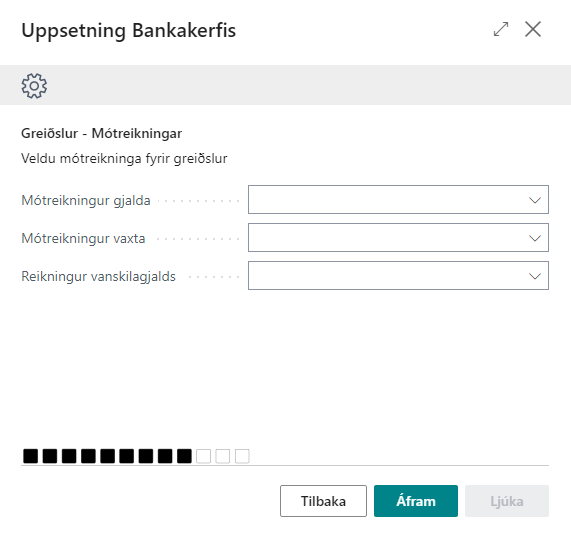
Counter Accounts for Payments
Select fee counter account, interest counter account and default fee account.
Reconciliation
Reconciliation uses its own no. series but can be created automatically by clicking the appropriate button.
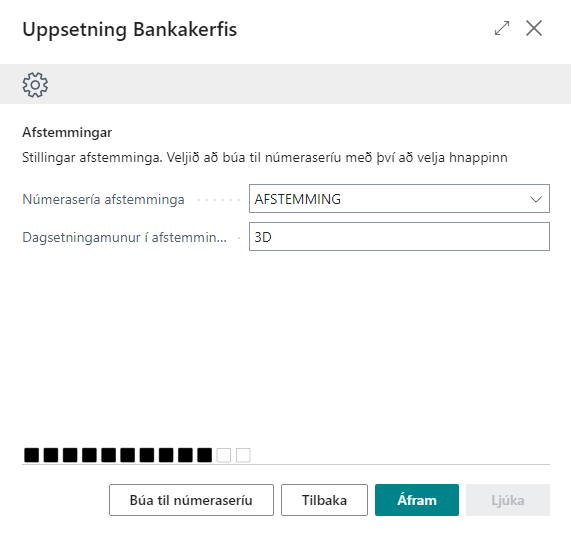
Date Difference in Reconciliation
Maximum allowed difference in settled entries. E.g. 3D for 3 days.
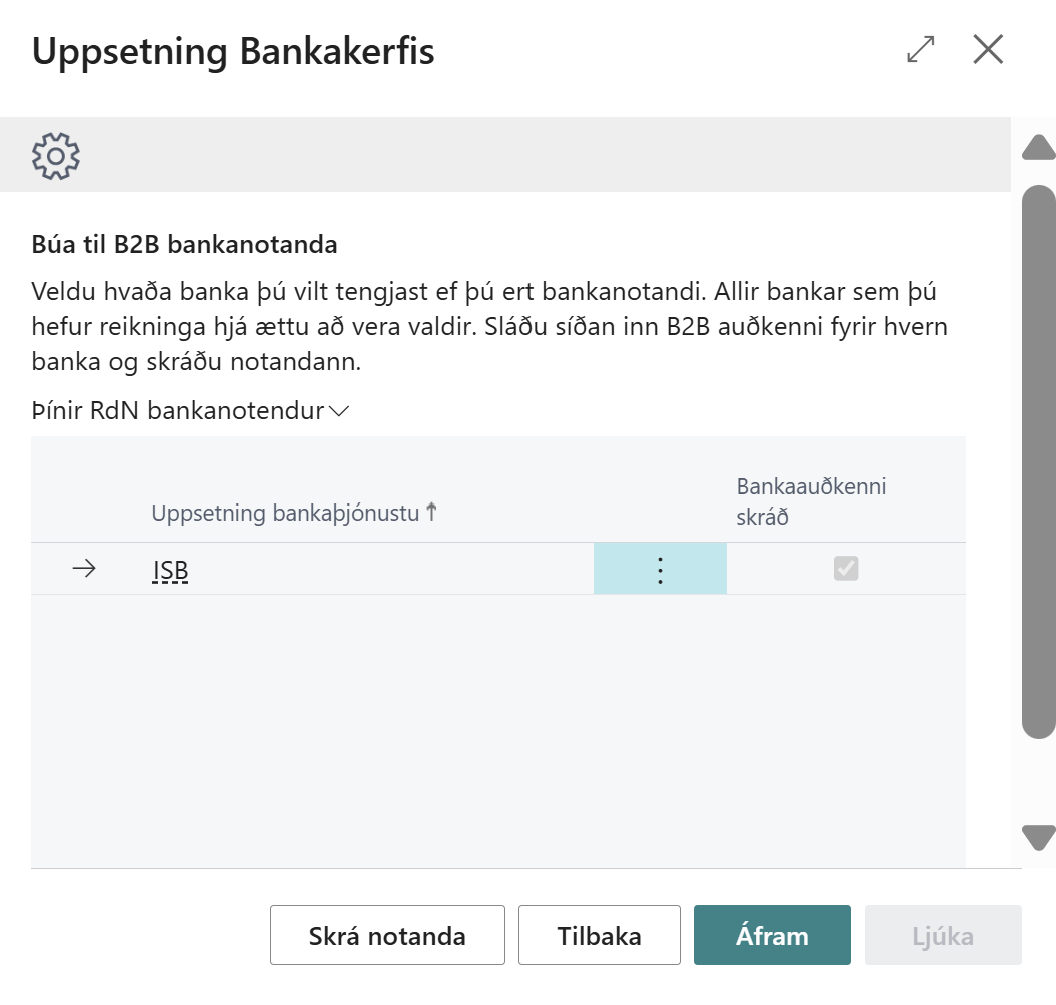
Create B2B Bank User
Here you should register a bank user for all banks you do business with using the "Register User" action. Other users can sign up on the "Your RdN Bank Users" page. See here.
Summary
Here you can see a summary of the setup. Select Finish when everything is complete