Invoice overview
When you open a document from the list, the invoice overview appears.
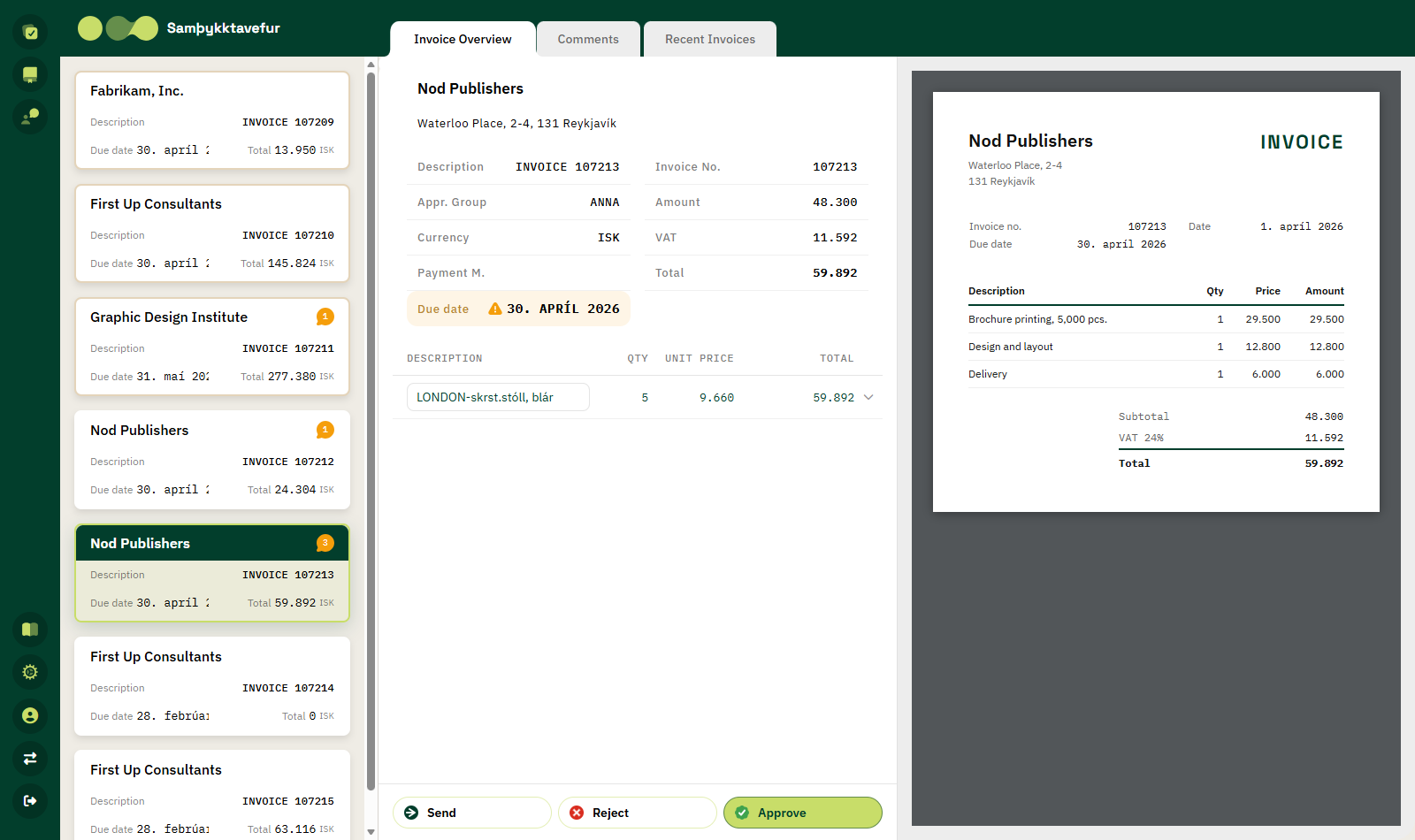
Three areas
| Area | Description |
|---|---|
| Left column | A list of all your open documents as cards. Click a card to switch to it without going back to the list. |
| Middle | Tabs with the invoice overview, comments and recent invoices, plus the action buttons at the bottom. |
| Right column | The document's attachments. |
Tabs
| Tab | Description |
|---|---|
| Invoice Overview | Header, amounts, dimensions and lines. |
| Comments | Comments on the document. See Comments. |
| Recent Invoices | Previously posted invoices from the same vendor. |
| Attachments | Phone only. See Using a phone. |
Header information
The vendor name and address appear at the top.
| Field | Description |
|---|---|
| Description | The document description. |
| Appr. Group | The approver group the request was sent to. |
| Currency | The currency of the invoice. |
| Payment M. | The payment method. |
| Due date | The due date. Marked with a warning if it has passed. |
| Invoice No. | The invoice number. |
| Amount | Amount excluding VAT. |
| VAT | Value added tax. |
| Total | Total amount including VAT. |
Local currency amounts
If the invoice is in a currency other than the company's local currency, an extra block appears at the bottom with Amount Excl. VAT (LCY), VAT Amount (LCY) and Total Amount (LCY).
Dimensions
The invoice dimensions appear in the right-hand column below the invoice number. The dimension names come from Business Central, for example Department or Project. Only dimensions that are in use are shown.
While the document is open for approval you can change a dimension value:
- Click the arrow next to the dimension value.
- Choose a new value from the list that opens.
The change is saved immediately in Business Central.
Recent invoices
The Recent Invoices tab shows previously posted invoices from the same vendor with invoice number, date and amount. The icon on the left indicates whether any request was rejected during the process.
Click a row to open a dialog with details of the posted invoice — header, lines and totals.
If no previous invoices are found, the message No previous documents found appears.
Moving between invoices
- On a computer: click a card in the left-hand column.
- On a phone: use the arrows at the top right.
- Going back: use the back link at the top or your browser's back button.