Column settings
Click Column Settings at the top of the approvals list to choose which columns appear and in what order.
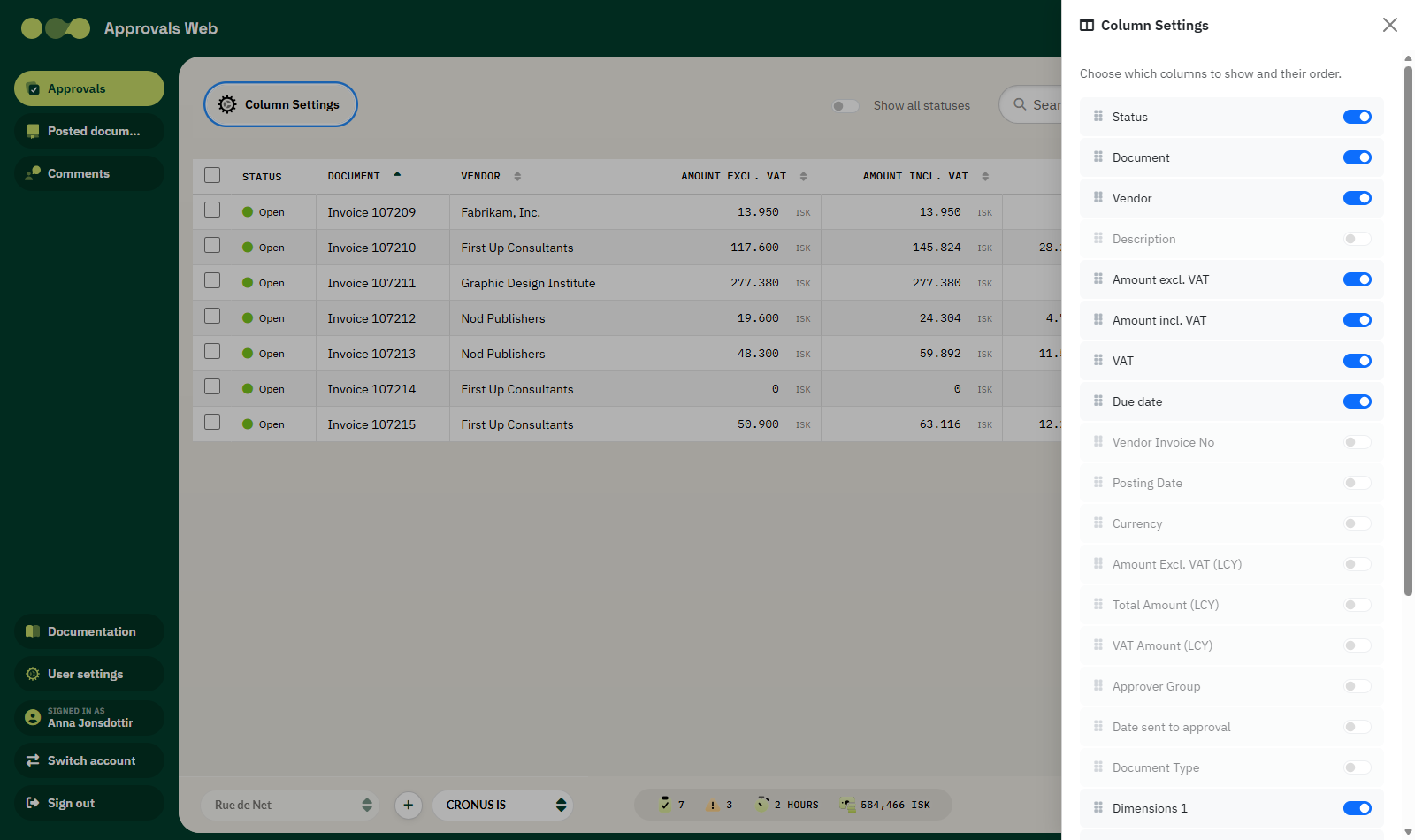
Showing or hiding a column
Use the switch to the right of each column. Columns that are switched off appear greyed out in the list.
Changing the order
Drag the column by the handle on the left (Drag to reorder) and drop it where it should be. The order applies to the table view.
Dimensions
At the bottom of the list are Dimensions 1 through Dimensions 8. These columns show Business Central dimensions, for example Department or Project.
Dimensions only appear when they are in use
Even if a dimension column is switched on, it only appears if one of the documents in the list uses that dimension. The column heading comes directly from Business Central.
Reset
Click Reset to defaults to return to the default columns and order.
Fixed columns
These columns are always visible and cannot be hidden:
| Column | Description |
|---|---|
| Checkbox | First — selects the document for bulk handling. |
| Comments | Speech bubble with the comment count. |
| Attachment | PDF icon that opens the attachment. |
Where are the settings stored?
The settings are saved against your user and follow you between devices and browsers.