Check and Assign Delivery Site (Recipient Verification)
The Check and Assign Delivery Site action on the Customer List under Home can be used to verify whether customers can receive electronic documents through Unimaze, and to assign or remove a Delivery Site directly based on the results.
This action is only available when a Delivery Site exists that supports recipient verification, for example a Unimaze Delivery Site with the Document Content (REST) or JSON Metadata (REST) sending mode.
Note
The same Delivery Site is used to verify customers. Individual customer Delivery Site settings are not taken into account during the verification itself.
Workflow
1. Start the verification
From the customer list
- Open the Customer List.
- Click Check and Assign Delivery Site in the action bar under Home.
- If more than one Delivery Site supports recipient verification, a Delivery Site selection window opens. Select the appropriate Delivery Site.
From search
The eDoc Recipient Verification page can be opened directly from Business Central search by searching for (edoc verify or eDoc recipient verification).
2. Interpret the results
The results page shows each customer with the following information:
| Column | Description |
|---|---|
| Customer | The customer code and name. |
| Support Level | The verification result. See the values below. |
| Fallback E-Mail | The customer's fallback email address (which can be edited directly in the list). Required when the Delivery Site uses JSON Metadata (REST). |
| Delivery Site | The customer’s current Delivery Site assignment. |
Support level
| Value | Meaning |
|---|---|
| Full | The customer can receive all document types: invoice, credit memo, and order. |
| Full (email missing) | Full support, but the fallback email address is missing — required by this Delivery Site. |
| Partial | The customer can receive at least one document type, but not all. |
| Partial (email missing) | Partial support, but the fallback email address is missing — required by this Delivery Site. |
| Email only | The customer does not support electronic documents through Unimaze, but Unimaze will forward the documents by email. |
| Email only (missing) | Same as above, but the fallback email address that Unimaze should use is missing. |
| None | The customer cannot receive electronic documents and cannot receive them by email either. |
Summary figures are shown at the top of the page, including whether the Delivery Site requires a fallback email address and the current status, for example “X customers are missing a fallback email address”.
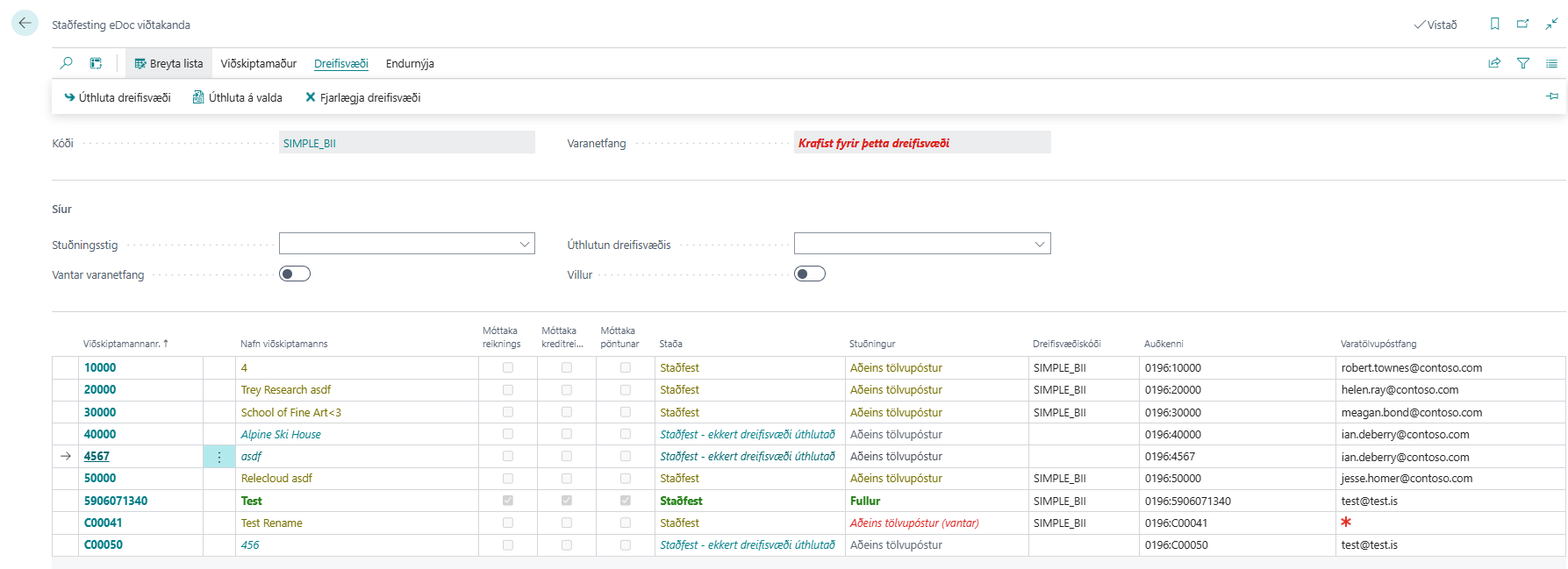
3. Assign or remove a Delivery Site
After reviewing the results:
- Delivery Site/Assign Delivery Site: Click Assign Delivery Site to assign the selected Delivery Site to the customers within the filter, meaning the customers visible in the list. The system asks for confirmation.
- Delivery Site/Assign to Selected: Click Assign to Selected to assign the selected Delivery Site to the customers selected on the page, highlighted in blue. The system asks for confirmation.
- Delivery Site/Remove Delivery Site: Click Remove Delivery Site to remove the Delivery Site from customers within the filter, meaning the visible customers in the list, or from selected customers. When the action is clicked, a menu opens where you choose what the action should apply to. If customers can receive documents, the system asks for confirmation before the Delivery Site is removed.
Fallback Email Address and JSON Metadata Sending
When the Delivery Site uses the JSON Metadata (REST) sending mode, each customer that would receive documents through that Delivery Site must have a valid email address — either in the Fallback Email Address field or in the standard Email Address field on the customer card.
The results page shows an overview of customers that are missing an email address, and addresses can be added directly on the page. See ./UnimazeJSONLysigogn.md for more information.
Change Delivery Site
You can click the Delivery Site value to change the selected Delivery Site used for the verification.