Using a phone
The Approvals Web is designed for both computers and phones. You use the same address and the same sign-in.
What is different
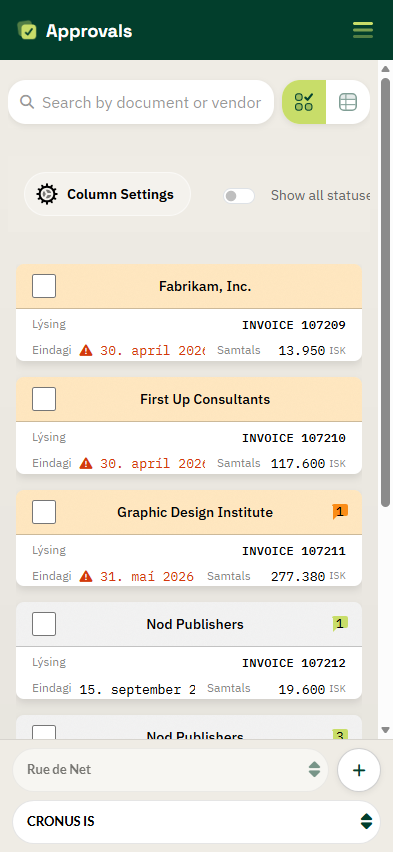
| Item | On a phone |
|---|---|
| Menu | Hidden. Tap the hamburger icon at the top right. |
| Top bar | Shows the icon and name of the section you are in. |
| Search box | At the top, full width. |
| Cards/table | Icon buttons next to the search box. Cards are the default. |
| Cards | Full width, stacked. |
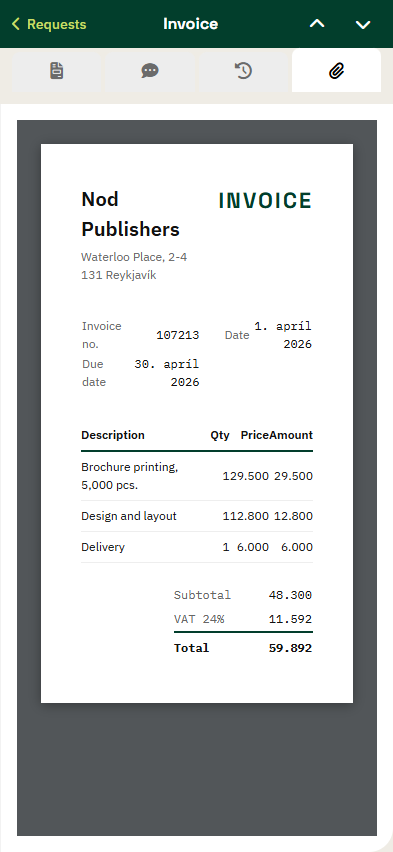
| Attachments | A dedicated tab instead of the right-hand column. |
| Bottom bar | Environment and company selection on two rows. |
The menu
Tap the hamburger icon at the top right.
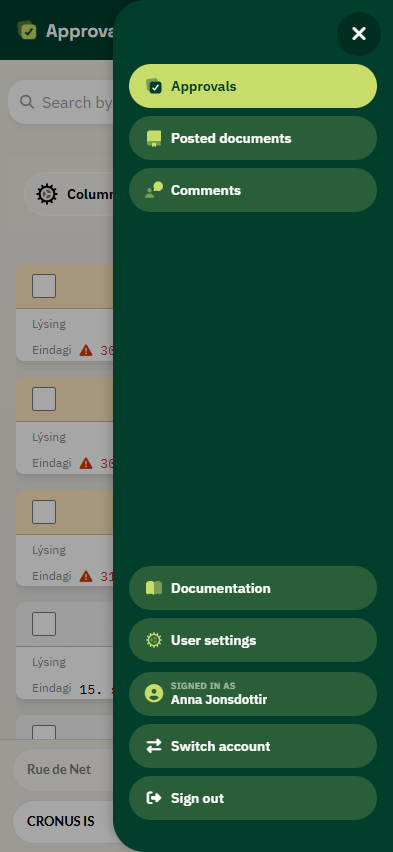
The menu contains the same buttons as on a computer. It closes automatically when you choose something, and also via the × at the top right.
Handling an invoice on a phone
-
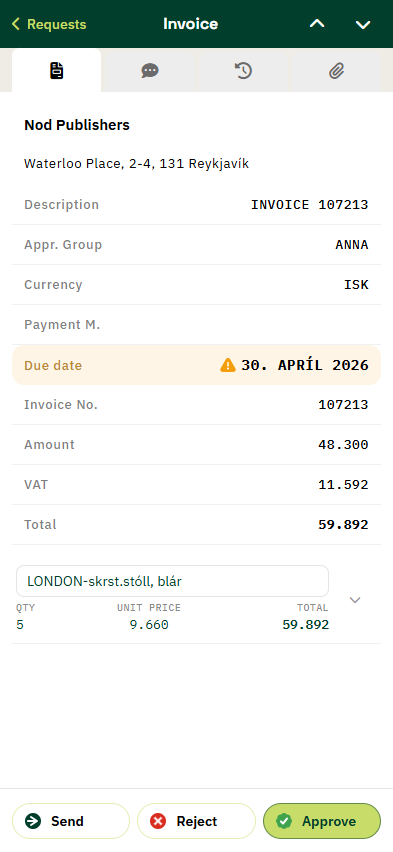
Tap a card to open the invoice.
-
Use the tabs to view Invoice Overview, Comments, Recent Invoices and Attachments.
- Tap Approve or Reject at the bottom.
At the top there is a Requests back link and arrows to move to the next or previous invoice without returning to the list.
Bulk handling on a phone
Above the list is a bar with Select all and a counter showing how many documents are selected. Tick the documents to handle and use the action buttons.
Viewing attachments
Open the Attachments tab in the invoice. The first attachment loads automatically.