Foreign Payments
This guide covers how to perform foreign payments in the bank through the Banking Module
Actions
1. Vendor Settings:
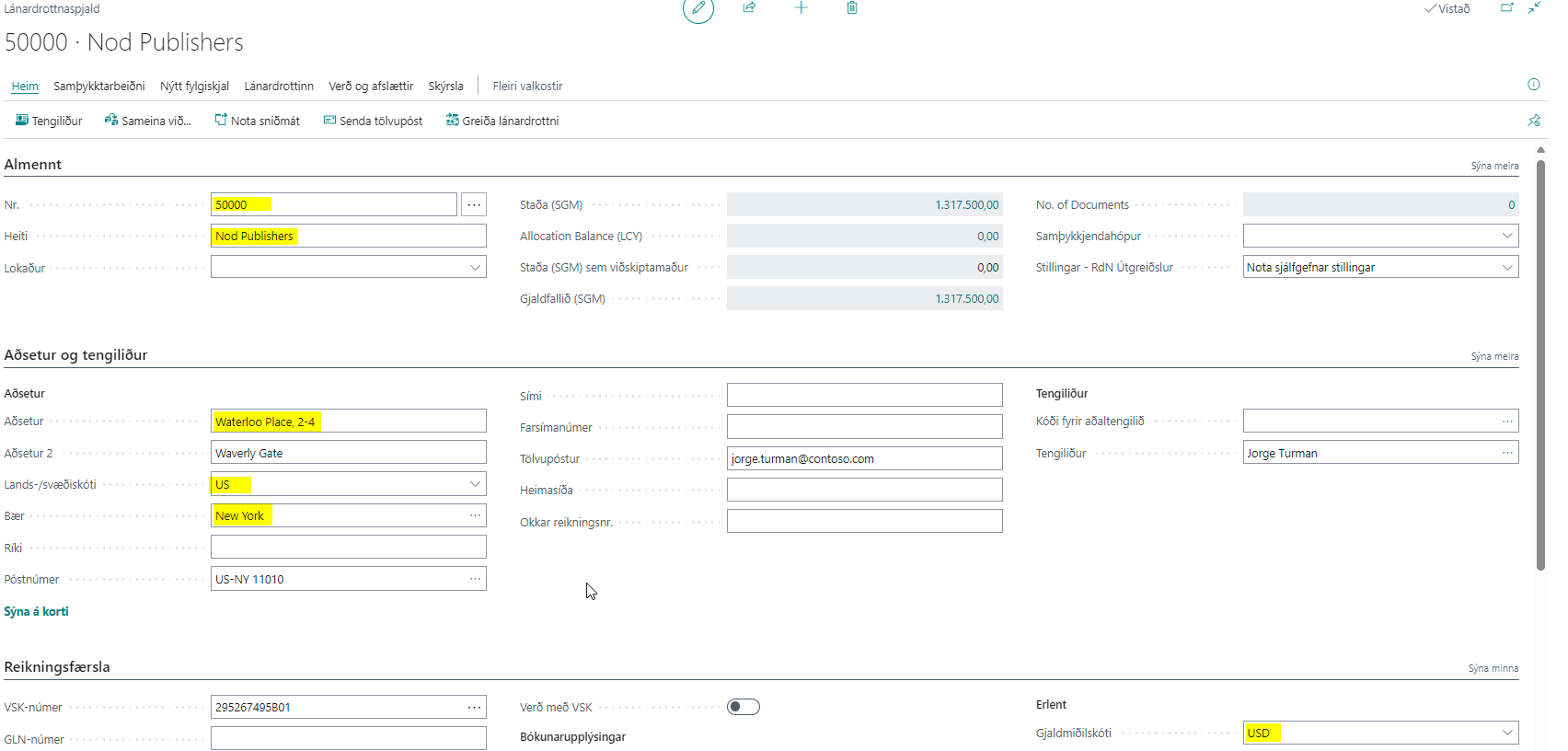
Before making a foreign payment, it is important that all settings on the vendor are correct. On the vendor card, you must ensure that the following fields are filled out with correct values: name, address, city, country, currency code.
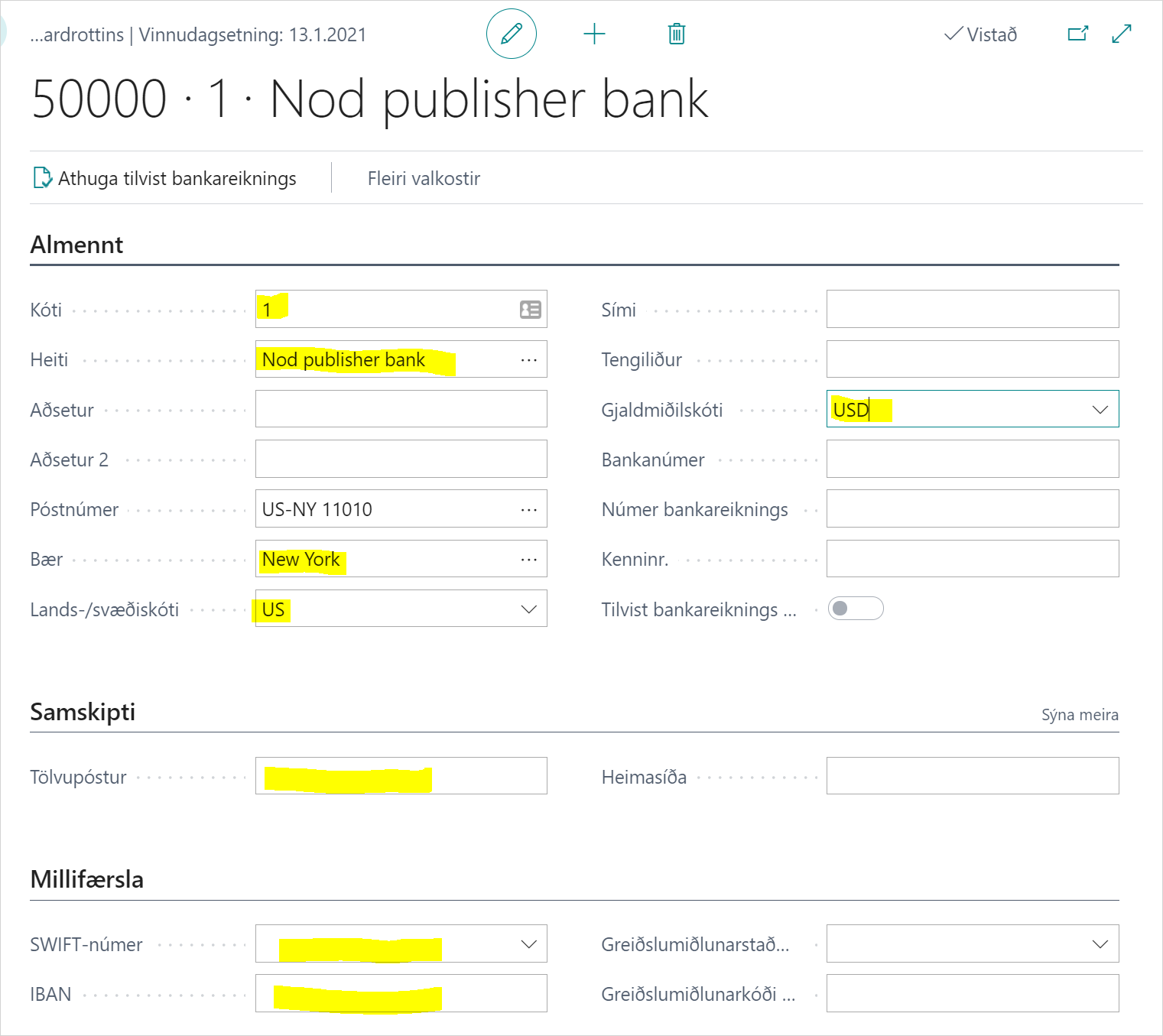
You also need to ensure that the vendor's bank account information is correct. Here you need to fill in the following fields: name, city, country, SWIFT and IBAN. If this information is not available, the user will receive an error when trying to make a foreign payment.
If an email is filled in and a checkmark is set in Settings - Payments to send email, then the bank will send a payment confirmation to the vendor at this email address.
2. Make a Foreign Payment:
You should keep in mind that foreign payments can only be sent to banks at certain times of the day. For example, if paying from an ISK account, you can only pay between 9:15-16:00 at most banks.
2.1. Payment Suggestions for Vendors:
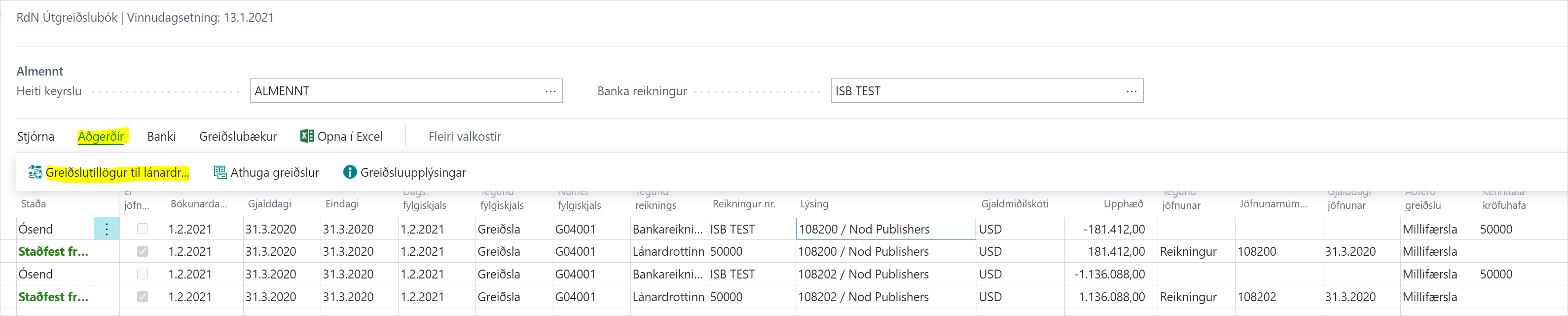
Foreign payments in Dynamics 365 Business Central are made in the same way as other payments. First, you perform payment suggestions for vendors in the payment journal. Here we want to limit ourselves to specific vendor(s) for which we want to make a foreign payment or to the currency code of the payment. Note that you cannot mix foreign and Icelandic payments.
2.2. Send Batch to Bank:
When you have completed the payment suggestions and verified that all information is correct, the payments are sent to the bank. When payments are sent to the bank, they receive the status "Sent to bank".

2.3. Check Status:
The "Check Status" action checks whether payments have been confirmed by the bank. If the system is under heavy load, it may take a while for payments to be confirmed.
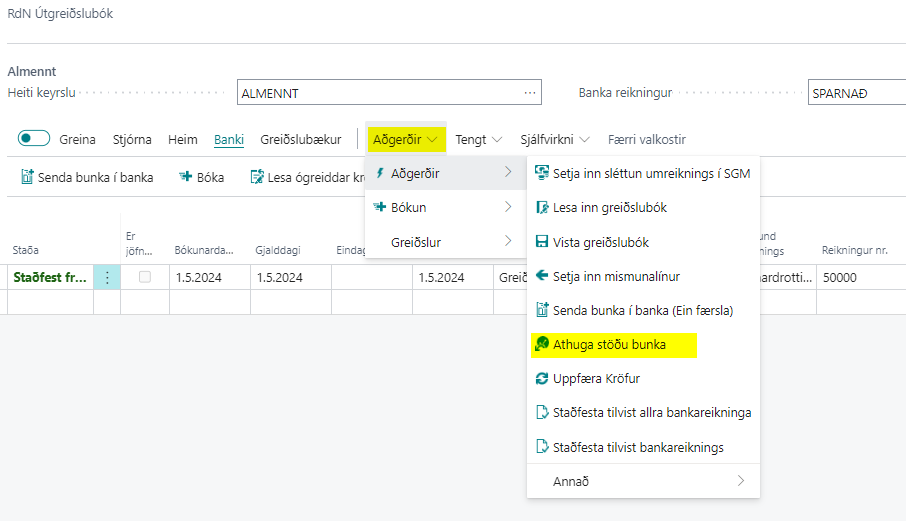
When you have confirmed that the payments are error-free and have reached the bank, the status of the payments changes to "Confirmed from bank".
2.4 Cost of Foreign Payments
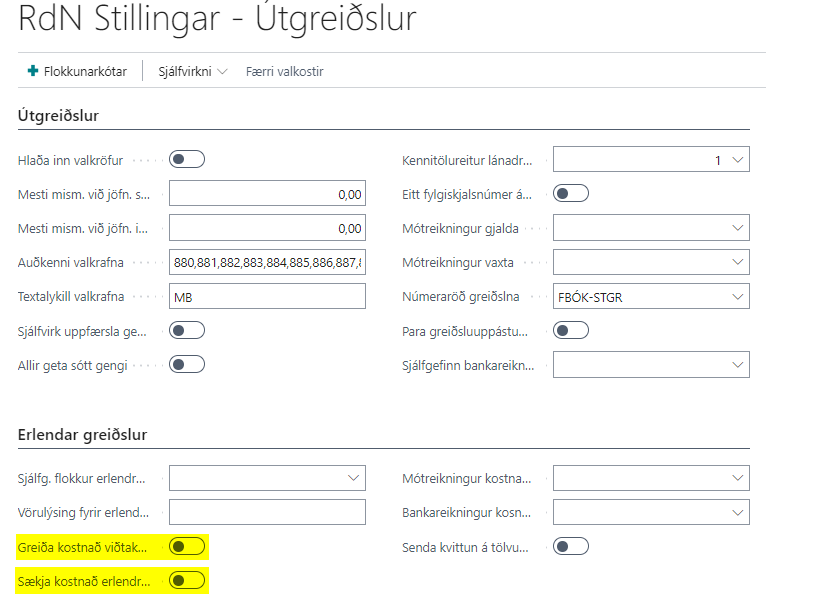
If "Pay recipient's cost of foreign payments" and "Retrieve cost of foreign payments" are checked in "RdN Payment Setup", two cost lines will be created for each payment to be posted. It is possible to set the cost account and bank account in "RdN Payment Setup".
3. Post Payment Journal:
When all payments have been confirmed from the bank, you can post the payment journal.