Process Errors
1. Receive electronic documents:
All incoming electronic documents encounter an error the first time they are received. Once the correct mappings have been registered, the system will learn from them, and the next time the same document will not encounter an error.
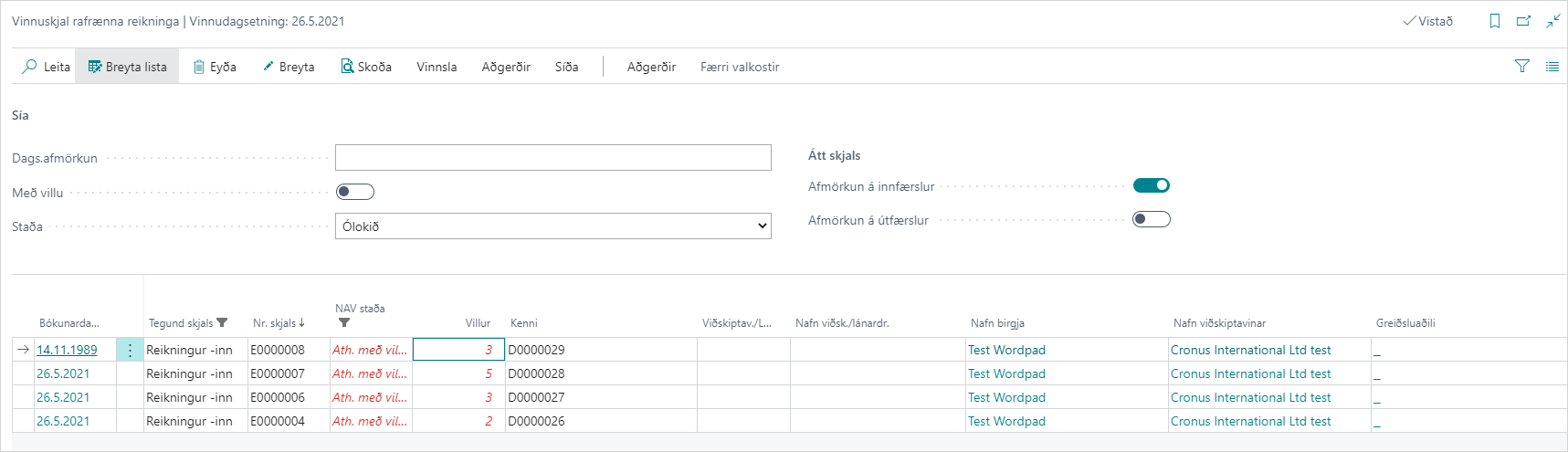
2. Click the number of errors:
The error list shows which errors are on which electronic document. This is most often because a mapping is missing.

3. Open the electronic document and register mappings:
Open Related - Mappings.
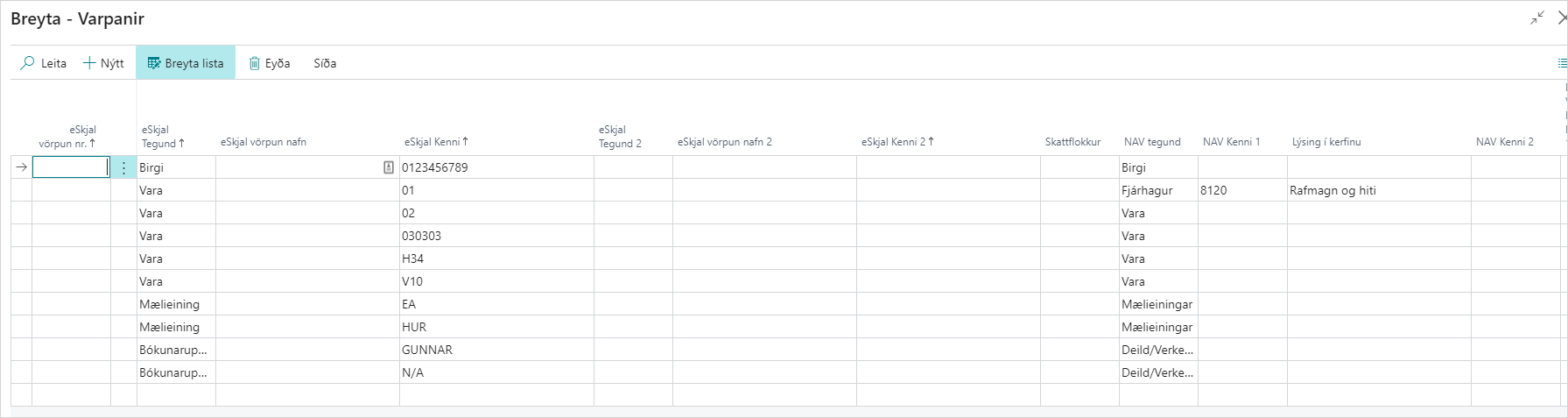
Here, the NAV ID must be filled in to map from the electronic invoice.
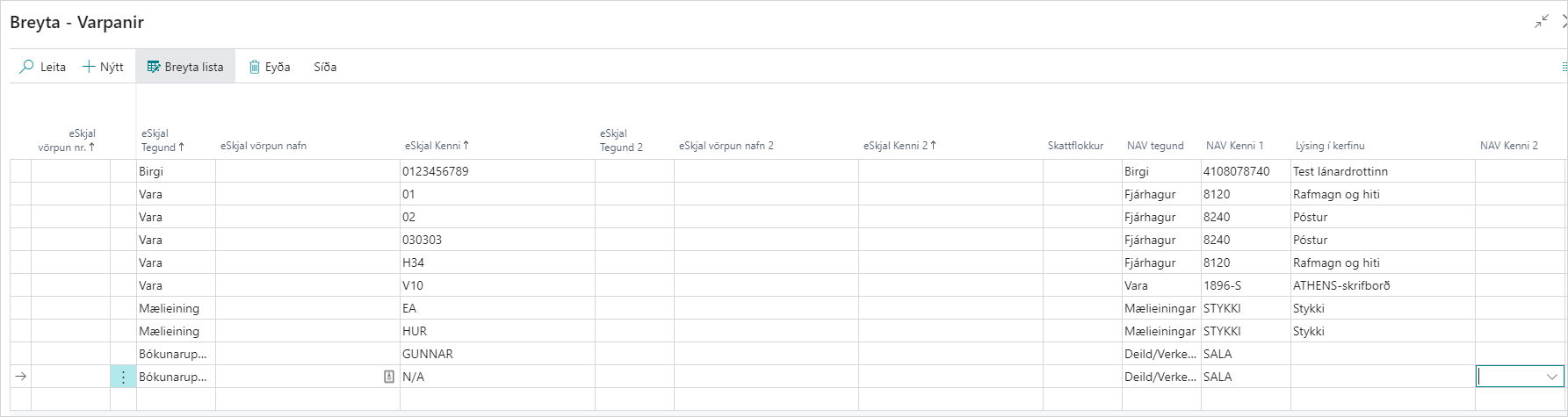
You need to select, for example, the vendor, item number, or G/L account that the item maps to, as well as the unit of measure and department.
Here is an example of what mappings look like once they have been registered.
4. Register document in NAV:
See a more detailed description here.