Payment Journal
The payment journal can be used for both transfers and claim payments. In addition, the payment journal can be used for foreign payments.
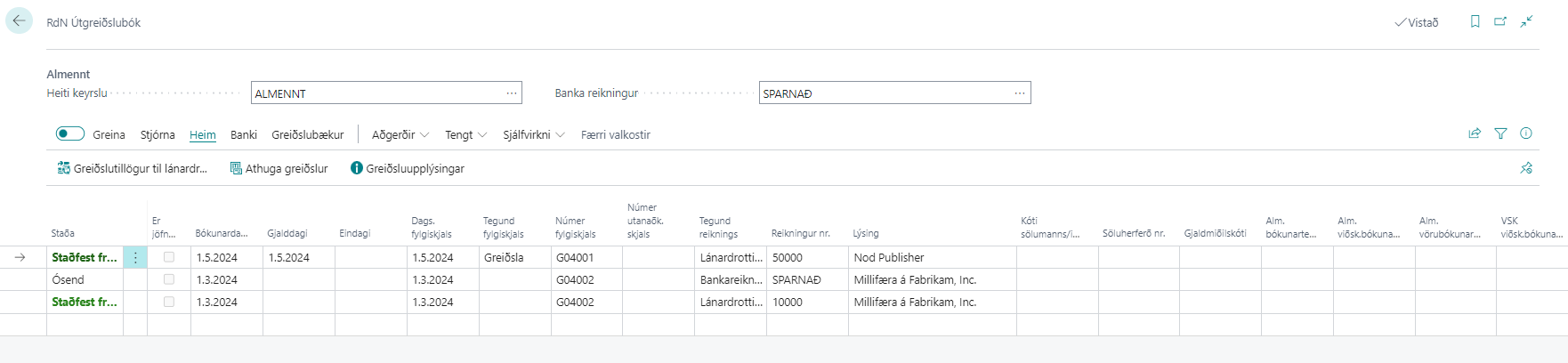
The payment creates a line in the payment journal and the account being paid is automatically placed on the settlement number.
Information
| Field | Description |
|---|---|
| Status | Describes the status of the payment in the bank. "Unsent" while the payment has not been sent to the bank, "Sent to Bank" after submission. |
| Is Settled | Indicates that the payment is settled against a vendor entry. |
| Posting Date | Posting date of the payment to use when posting to the accounts. |
| Due Date | Due date of invoice or claims being paid. |
| Final Date | Final date of invoice or claims being paid. |
| Document Date | Document date of invoice or claims being paid. |
| Document Type | Here always the type Payment. |
| Document Number | Number that comes automatically from the no. series specified on the accounting journal batch. |
| External Document Number | External document number for payment. |
| Account Type | Always Bank Account on a line going to the bank. |
| Account Number | Bank account number from which the payment is made. |
| Description | Description that comes with the payment. User can change to free text. |
| Currency Code | Currency code on the payment. If the code is empty, it is the base currency of the system. |
| Gen. Posting Type | Inherited from account number. |
| Gen. Business Posting Group | Inherited from account number. |
| Gen. Product Posting Group | Inherited from account number. |
| VAT Business Posting Group | Inherited from account number. |
| VAT Product Posting Group | Inherited from account number. |
| Amount | Amount of payments. |
| Bal. Account Type | Counter account for payment. In the payment journal we create a counter entry so that we use the counter account type and counter account number on the payment line. |
| Bal. Account No. | Counter account for payment. Same as above. |
| Bal. Gen. Posting Type | Inherited from counter account number. |
| Bal. Gen. Bus. Posting Group | Inherited from counter account number. |
| Bal. Gen. Prod. Posting Group | Inherited from counter account number. |
| Bal. VAT Bus. Posting Group | Inherited from counter account number. |
| Bal. VAT Prod. Posting Group | Inherited from counter account number. |
| Settlement Type | Specifies which settlement has been recorded on the payment. |
| Settlement ID | Document number of the document settled against the payment. |
| Settlement Due Date | Due date of the document settled against the payment. |
| Type of Bank Payment | Filled out with electronic payment automatically. |
| Payment Method | Selected between transfer or claim. The system automatically selects it when the payment is created in the batch. |
Actions on Payment Journal
| Action | Description |
|---|---|
| Suggest Vendor Payments | Fills the payment journal with payment suggestions for vendors. See a more detailed description here. |
| Check Payments | Checks whether payments are valid before they are sent to the bank. E.g. whether the amount is negative, whether the amount is not definitely greater than 0, etc. |
| Payment Information | Displays payment information recorded for the payment (bank number, general ledger and bank account number among others). See a more detailed description here. |
| Send Batch to Bank | Sends the payment batch to the bank and then the status of the bank account line changes to Sent to Bank. |
| Post | Post the payment journal. You can only post the payment journal when all lines have the status Confirmed from Bank. |
| Read Unpaid Claims | The system reads all unpaid claims in the bank. See a more detailed description here. |
| Settle Entries | It is possible to manually settle entries in the payment journal if the system has not found a settlement number. |
| Match with Claims | If the "Match with Claims" is not checked in Settings - Payments, the system will suggest a transfer. You can select this action afterwards in the payment journal and then the payment method will change from transfer to claim if a claim exists in the bank for the same vendor entry. See a more detailed description here. |
| Renumber Documents | If the user has deleted any lines in the payment journal, then the document numbers are no longer in the correct order. Then it is possible to select the "Renumber Documents" action to renumber in the correct order and then you can post the journal. |
| Create Transfer | An action to create a simple transfer. See a more detailed description here. |
| Check Status | When the payment journal has been sent to the bank, it receives the status "Sent to Bank" unless there is a bank setting to pay the batch immediately. If the batch waits for confirmation to pay in home banking, you need to first confirm it there and then check the batch status to get the status "Confirmed from Bank". |
| Insert Difference Lines | If any charges have been added to the claim in the bank, the payment is higher than the amount of the vendor entry. Therefore, it is possible to insert difference lines to post additional charges (late fees, default fees, etc.) to the correct accounting codes, according to Settings - Payments. The system will attempt to set them in automatically but if it doesn't, you can select the action afterwards. |
| Update Claims | If the payment journal has been created and entries saved in the journal between days, it is possible to update the claims in the journal so that if charges have been added to the claim, it will be updated in the journal. |
| Confirm Existence of All Bank Accounts | Runs on all bank accounts in the payment journal (due to transfer) and confirms their existence. This prevents an error from the bank if any bank account is wrong. |