Vala Setup
This page is intended for administrators. It describes what needs to be done before users can start using Vala and how to use the Vala Setup page.
Prerequisites
- Rue de Net must activate Vala for your organization's Microsoft 365 tenant. If this has not been done, the message "Rue de Net has not yet activated Vala in your Microsoft 365 Tenant. You should contact Rue de Net to have it activated." is shown.
- The Rue de Net Vala AI extension must be installed in the Business Central environment. The connection settings (API Base URL, API Scope, MCP Scope, Entra Client ID and Client Secret) are filled in automatically when the extension is installed.
- A Microsoft 365 administrator must approve the use of Vala on behalf of the organization (see the Microsoft 365 consent section below).
Permissions
Assign users one of the following permission sets:
| Permission set | Description |
|---|---|
| Vala UI - User | For regular users. Gives access to the chat, chats and saved prompts. |
| Vala UI - Admin | For administrators. Same access as a user, plus access to the Vala Setup page. |
The Setup action in Vala's user menu is only shown to users who have the Vala UI - Admin permission set.
Vala only sees what the user sees
Vala reads data on behalf of the signed-in user. If a user is not permitted to view certain data in Business Central, Vala cannot read it for them either.
Microsoft 365 consent
Before regular users can sign in, a Microsoft 365 administrator must approve the use of Vala for the organization. This is done in one of the following ways:
- The administrator opens Vala, signs in, and approves access on behalf of the organization when Microsoft asks.
- Or: the administrator opens Vala Setup and chooses the Consent for M365 Tenant action. The Microsoft Entra consent page opens in a browser.
If consent is missing, users are told that an administrator must approve access before they can sign in.
First sign-in
- Search for Vala in Business Central and open the page.
- Choose Sign in & Get Started and sign in with your Microsoft 365 account.
- Vala fetches the list of agents and prepares a description of your environment (which extensions are installed). Meanwhile the messages "Loading agents..." and "Preparing environment..." are shown.
- When this is done, Vala is ready to use.
If the installed extensions change later, Vala updates the description automatically. The message "Updating Vala to match your Business Central environment…" is then shown.
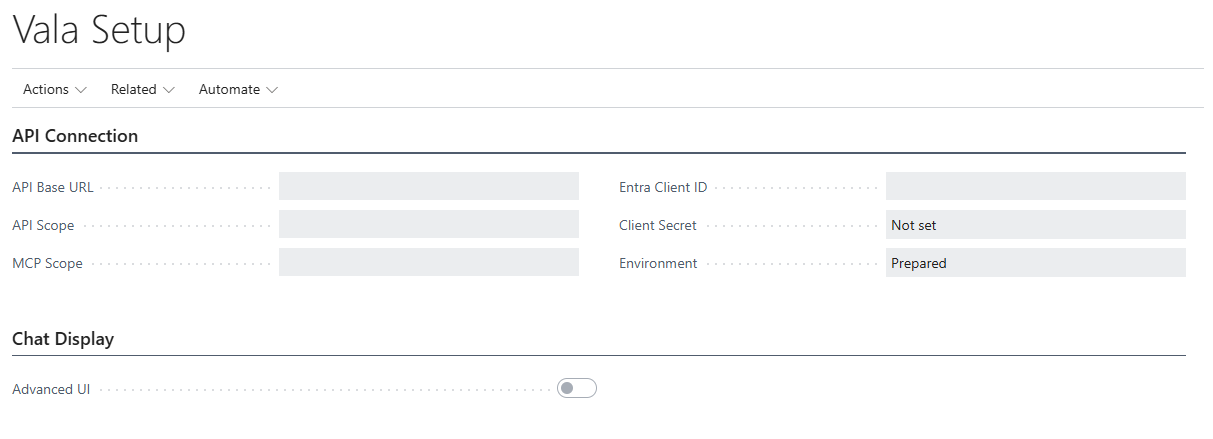
The Vala Setup page
Open Vala, click the user button in the top corner and choose Setup.
API Connection
| Field | Description |
|---|---|
| API Base URL | Base URL of the Vala AI service. Filled in automatically. |
| API Scope | Scope requested for the service. Filled in automatically. |
| MCP Scope | Scope for the MCP service. Filled in automatically. |
| Entra Client ID | ID of the Microsoft Entra app registration used for sign-in. Filled in automatically. |
| Client Secret | Shows whether the client secret has been set (Set / Not set). It cannot be typed directly in the field. |
| Environment | Shows whether the environment description is ready (Prepared / Not prepared). The chat window stays locked until it is. |
Chat Display
| Field | Description |
|---|---|
| Advanced UI | When enabled, the chat window shows tool results, the resource usage for each answer, and a download-format menu on the download button. When disabled (default), only Vala's answer text is shown and the download button saves a Markdown file directly. |
Actions
| Action | Description |
|---|---|
| Set New Client Secret | Opens a dialog where the client secret is pasted. It is stored encrypted and never displayed again. Vala then verifies the connection, fetches the agents and prepares the environment description. |
| Fetch Latest Config | Replaces the connection settings and client secret with the latest values from Rue de Net. If this fails, the current settings are kept. |
| Clear Environment Info | Clears the cached environment description. It is regenerated the next time Vala is opened. |
| Consent for M365 Tenant | Opens the Microsoft Entra consent page so an administrator can approve the use of Vala for the whole organization. |
| Reset | Clears all Vala data: signs out and deletes agents, the environment description, all chats and saved prompts. The connection settings are kept. |
| M365 Auth Tokens | Shows the cached sign-in tokens for the current user. |
| Agents | Shows the list of available agents and which one is the default. |
Reset
The Reset action deletes all chats and saved prompts for all users. It cannot be undone.
Troubleshooting
| Message | What to do |
|---|---|
| Vala is not configured yet. Status: ... | Open Vala Setup and check which setting is missing. Try Fetch Latest Config. |
| To use Vala, access must first be approved in Microsoft 365... | A Microsoft 365 administrator must grant consent, see the Microsoft 365 consent section above. |
| Rue de Net has not yet activated Vala in your Microsoft 365 Tenant. | Contact Rue de Net. |
| Sign-in completed, but preparing the assistant failed: ... | Try again. If the error persists, open Vala Setup, choose Clear Environment Info and then open Vala again. The description is then regenerated. |