Attachments
Attachments are the documents that have been linked to the invoice in Business Central — usually a PDF image of the invoice itself.
Attachments beside the invoice
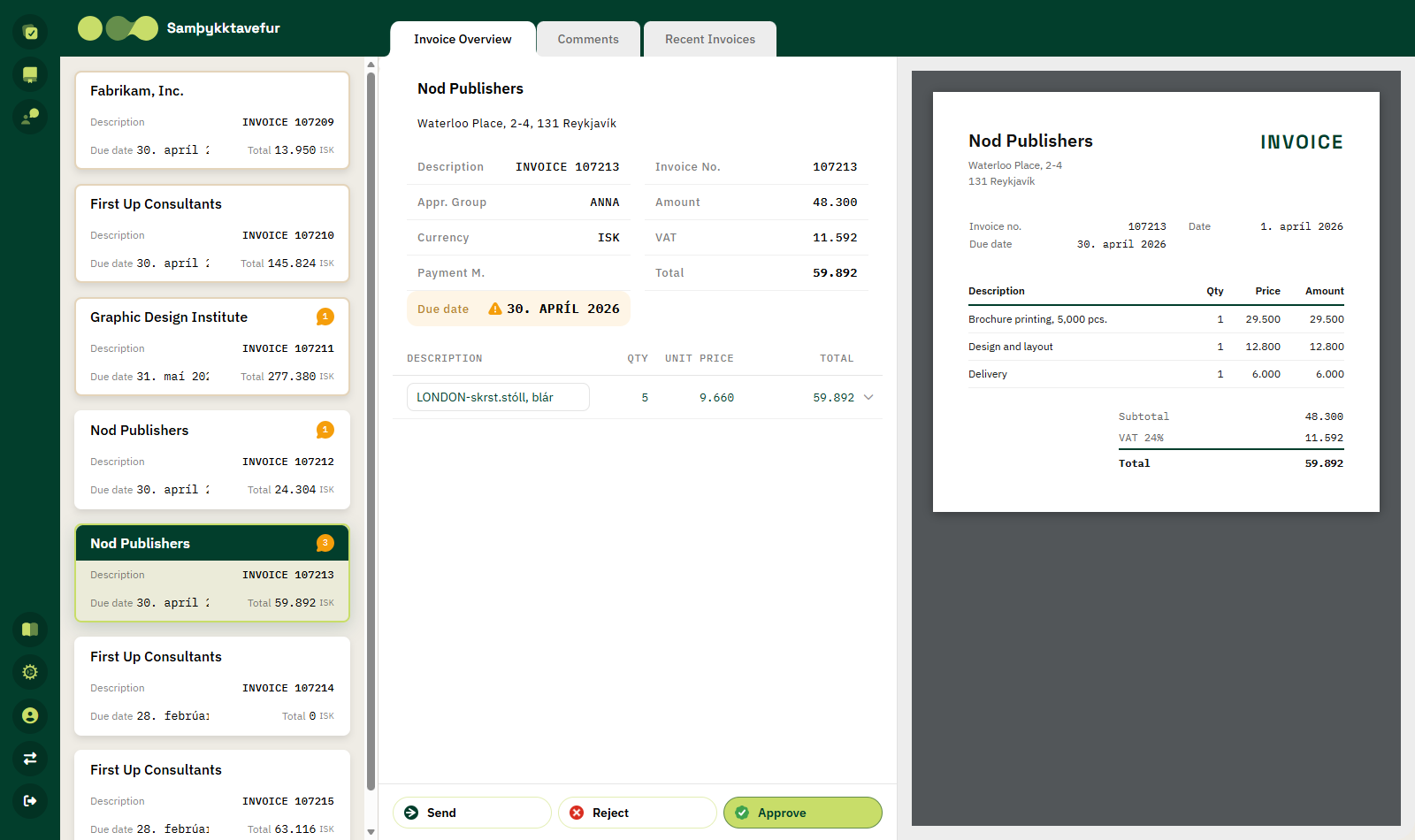
On a computer, attachments appear in the right-hand column of the invoice overview, next to the information. This lets you compare the invoice and the registration without switching windows.
If the document has more than one attachment, a tab appears for each of them at the top of the column. The tab is named after the document type. Attachments are ordered so that PDFs come first, then images, then other files.
| Message | Meaning |
|---|---|
| No attachments | The document has no attachment. |
| Select attachment | Attachments exist but none is selected — click a tab. |
| It is not possible to preview this file | The file type does not support preview. The file is downloaded instead. |
Supported file types
| Type | Display |
|---|---|
| Opens in the built-in PDF reader with paging and zoom. | |
| Images (JPG, PNG, GIF, BMP, WEBP, SVG, TIFF) | Displayed directly. |
| HTML | Displayed in a frame. |
| XML | Displayed as text. |
| Other | Downloaded. |
Opening a PDF straight from the list
In the table view, the right-most column contains a PDF icon. Click it to open the document's first PDF attachment in a dialog, without opening the invoice.
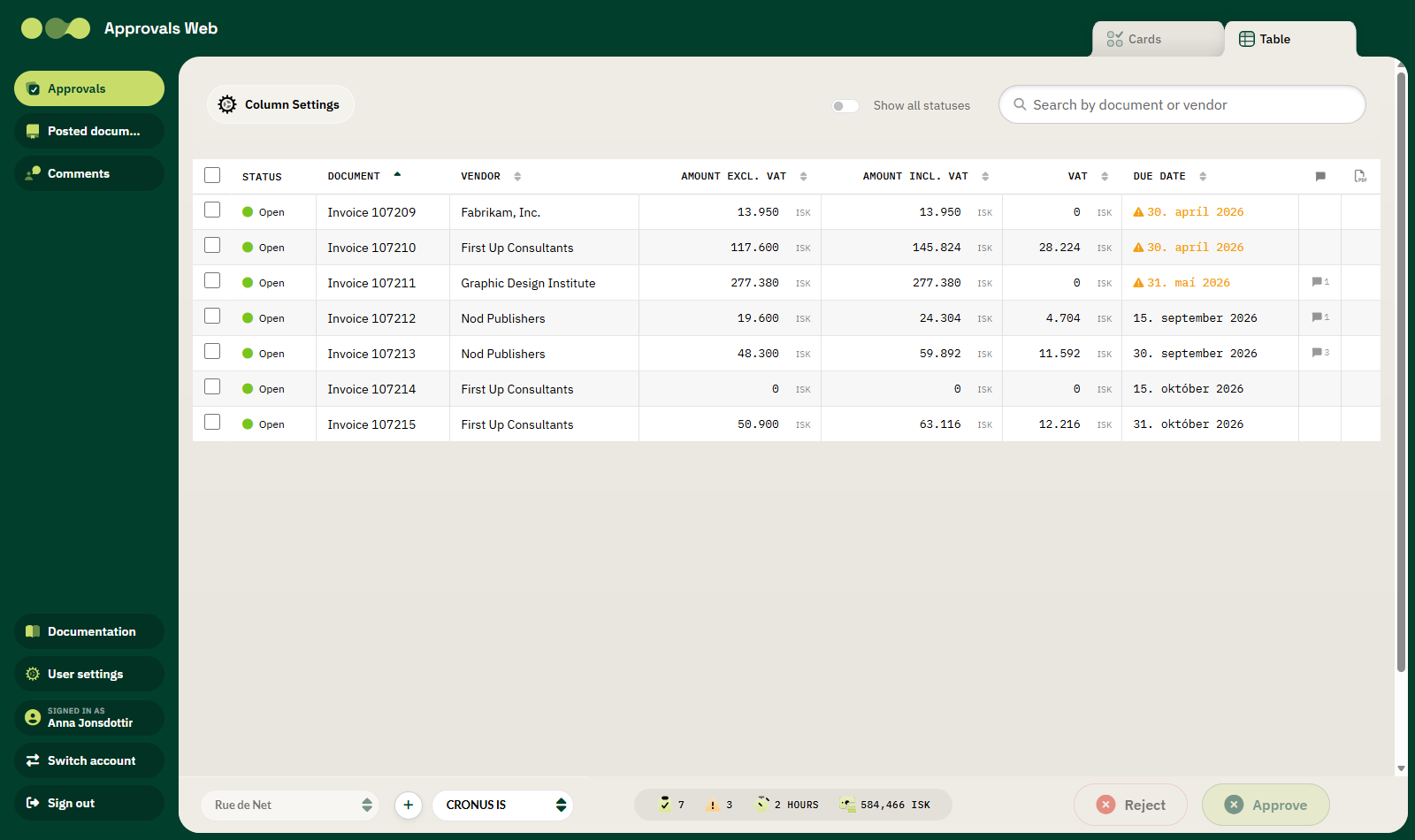
The dialog has these buttons:
| Button | Description |
|---|---|
| Show Large / Side by Side | Switches between showing the attachment full screen or next to the invoice. |
| × | Closes the dialog. |
Attachments on a phone
On a phone there is a dedicated Attachments tab in the invoice overview. The first attachment loads automatically when you open the tab.
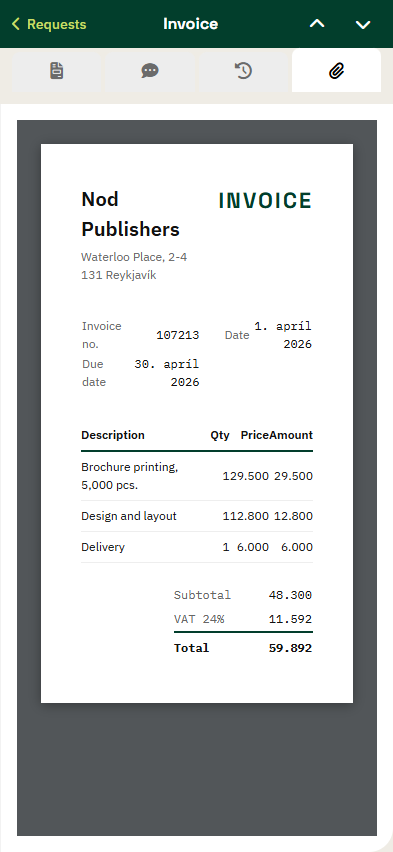
See also Using a phone.
How do attachments get onto the invoice?
Attachments are linked to the invoice in Business Central, for example by dragging a document onto the invoice or from the list of scanned images. See Drag and drop and List of scanned images.