The approvals list
The approvals list (Approval Requests) is the start page of the site and shows every document awaiting your approval.
Cards or table
At the top right you choose how the list is displayed.
Cards
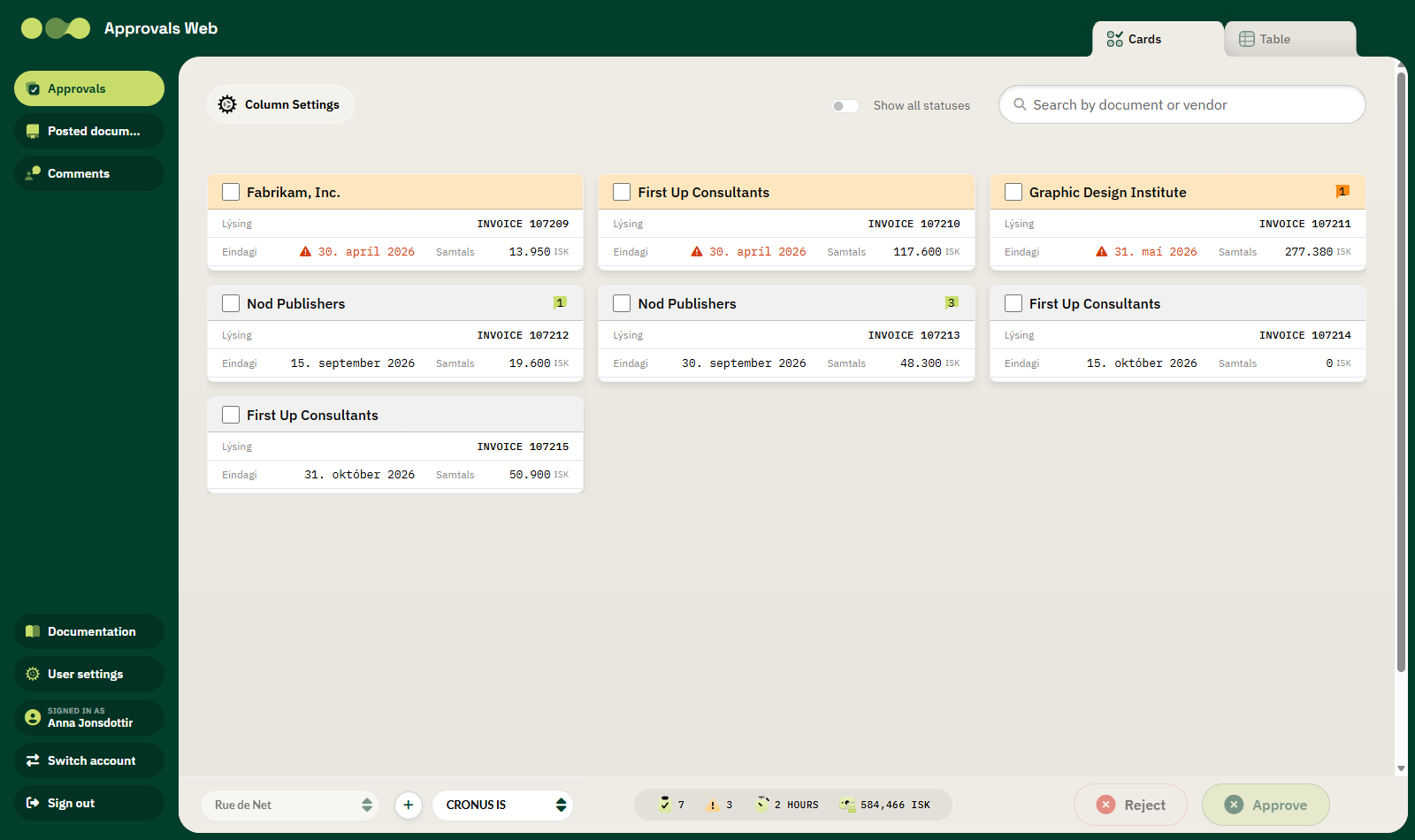
Each card shows:
| Field | Description |
|---|---|
| Heading | The vendor name. |
| Badge with a number | The number of comments on the document. |
| Description | The document description, otherwise the document number. |
| Due date | The due date. A warning icon and orange background if it has passed. |
| Total | The total amount with currency. |
| Checkbox | Selects the document for bulk handling. |
Table
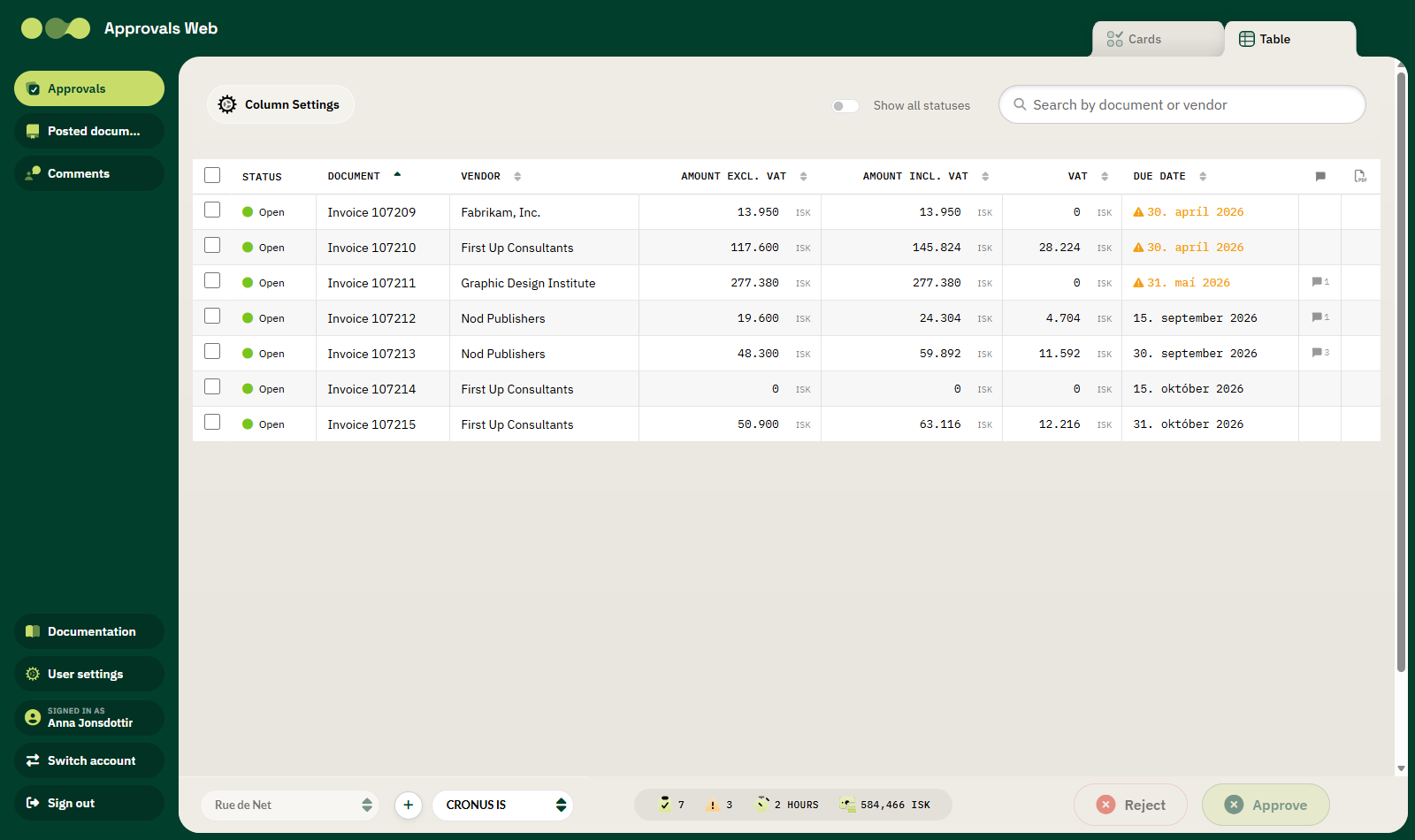
The table shows the same documents but with more columns and the ability to sort.
Your choice is remembered
The site remembers whether you last used cards or the table. On a phone, cards are always used unless you explicitly choose the table.
Search
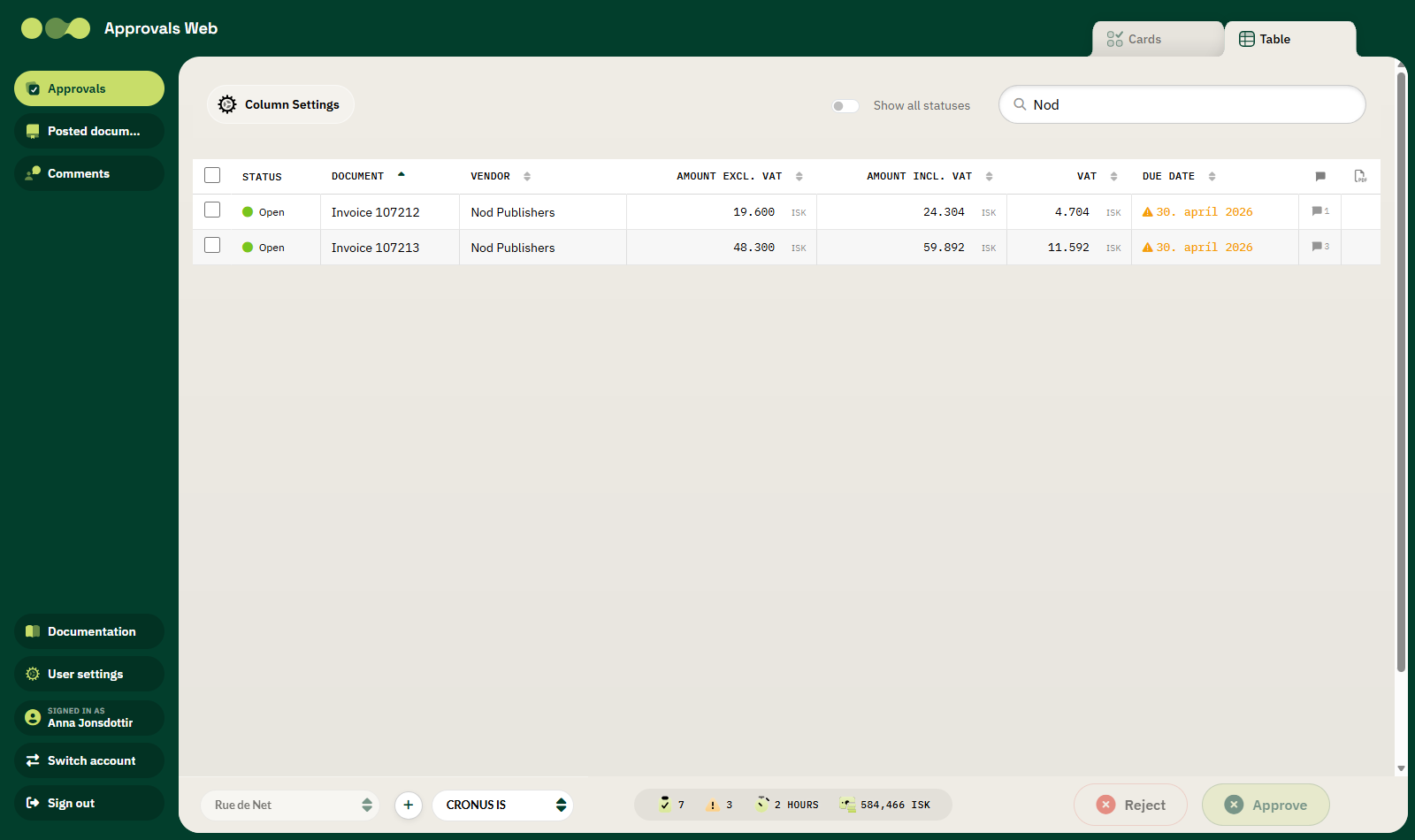
The search box at the top right filters the list as you type. It searches the document number and the vendor name.
Show all statuses
By default the list only shows documents with the status Open. Turn on Show all statuses to also see documents that have been approved, rejected or cancelled.
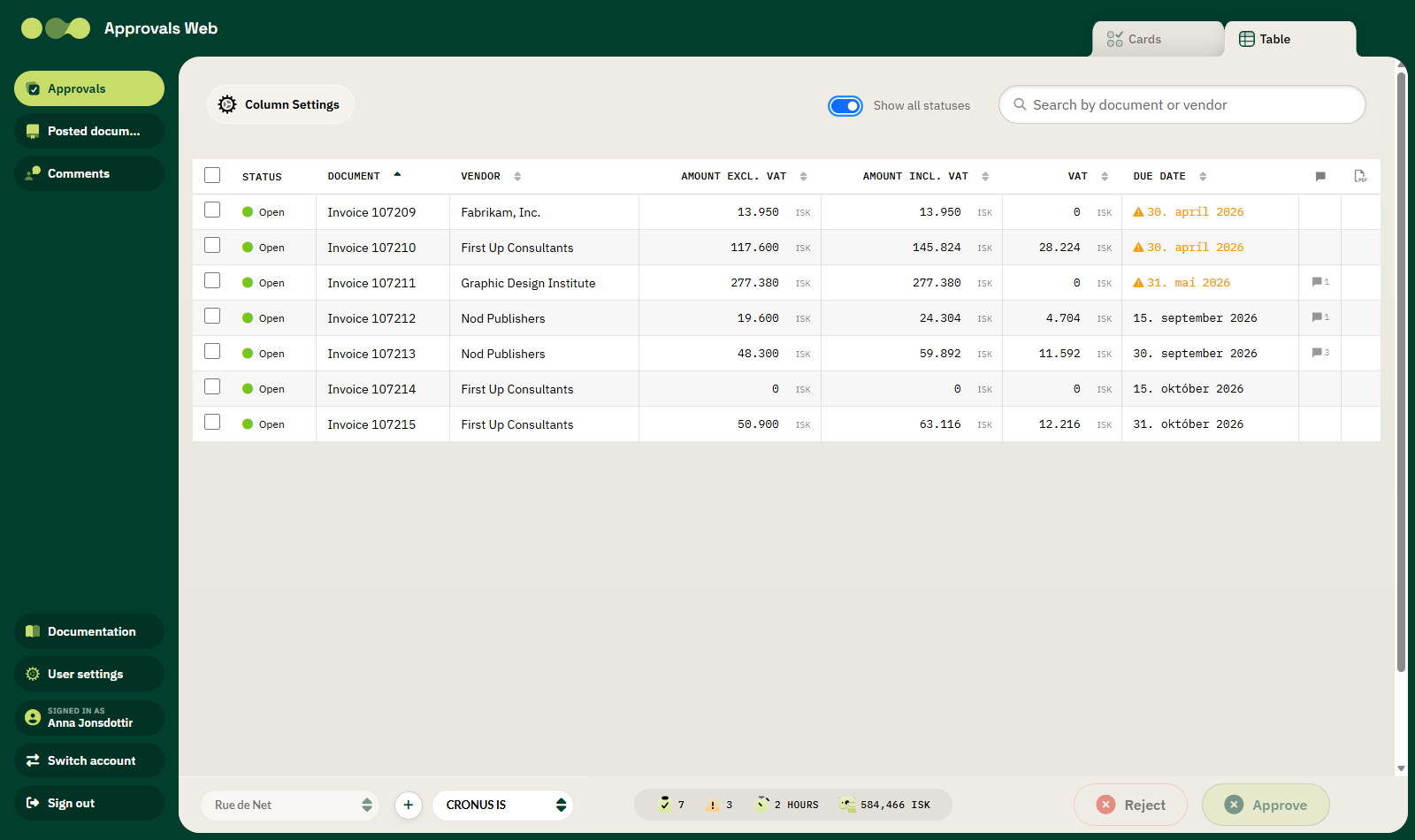
Documents that are not open cannot be selected — the checkbox is disabled.
Sorting
Click a column heading in the table to sort by it. Click again to reverse the order. The arrows next to the heading show the current sort.
These columns are sortable: Document, Vendor, Description, Amount excl. VAT, Amount incl. VAT, VAT, Due date, Vendor Invoice No, Posting Date, Currency, the local-currency amounts, Approver Group, Date sent to approval and Document Type.
Columns
Click Column Settings to choose which columns appear and in what order. See Column settings.
Icons in the list
| Icon | Description |
|---|---|
| Speech bubble with a number | The number of comments. See Comments. |
| PDF icon | The document has a PDF attachment. Click to open it immediately. |
| Warning triangle next to the due date | The due date has passed. |
Opening a document
Click anywhere on the card or row (except the checkbox) to open the invoice overview.
Duplicate documents
If the same document has more than one approval entry, it appears only once in the list. The open entry is shown if there is one, otherwise the most recent.
If the list is empty
The message No documents for approval appears. Check that the correct company is selected in the bottom bar.