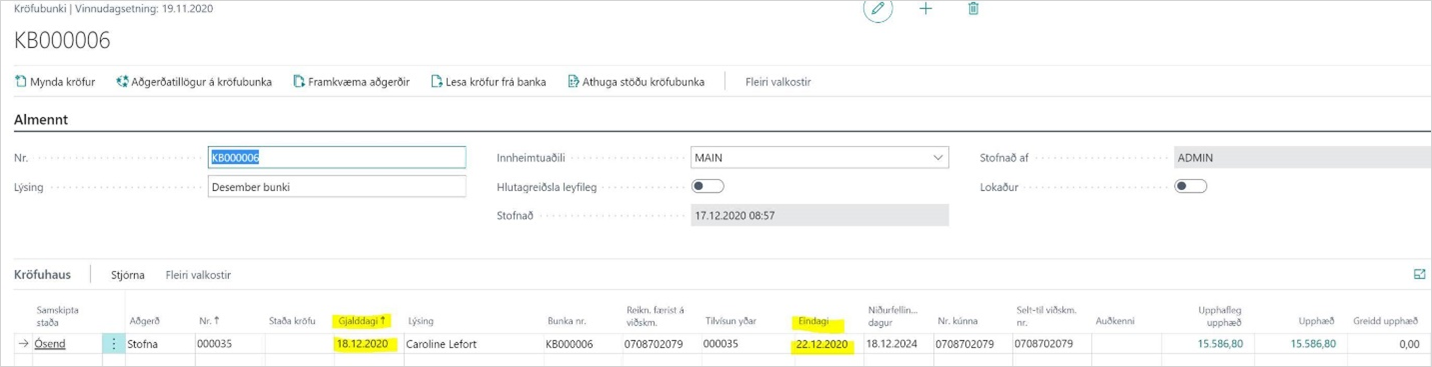
Set Dates on Claims
Here is described how to set due date and final date on claims.
Actions
1. Create Sales Invoice and Calculate Due Dates:
Under Payment Terms (found in search) you can find the main payment terms but it is also possible to set up new ones.
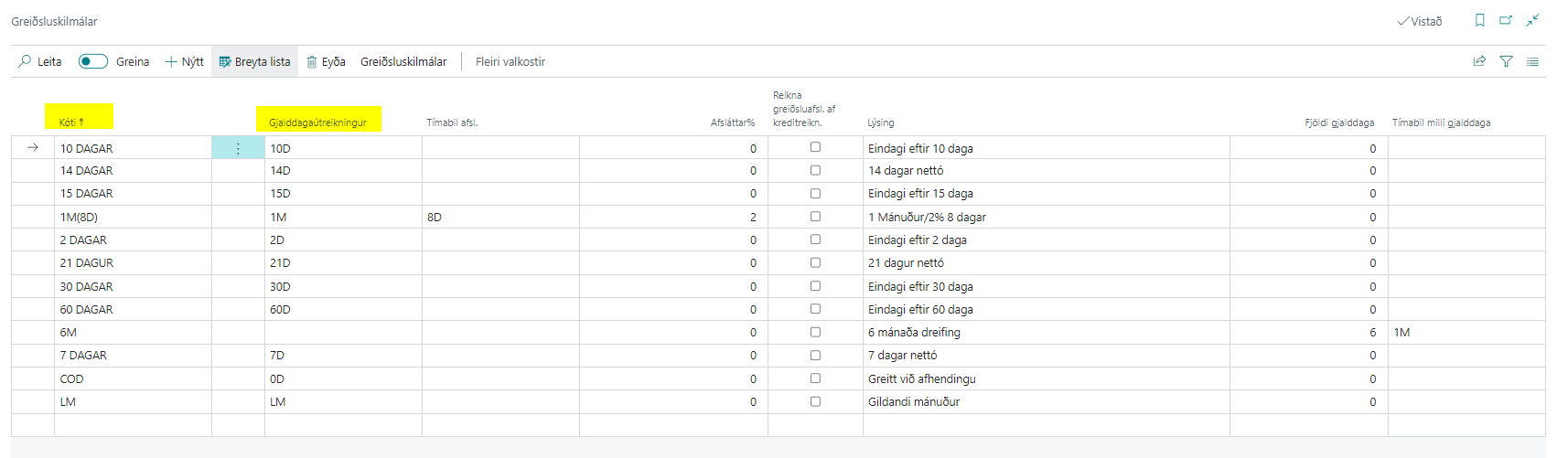
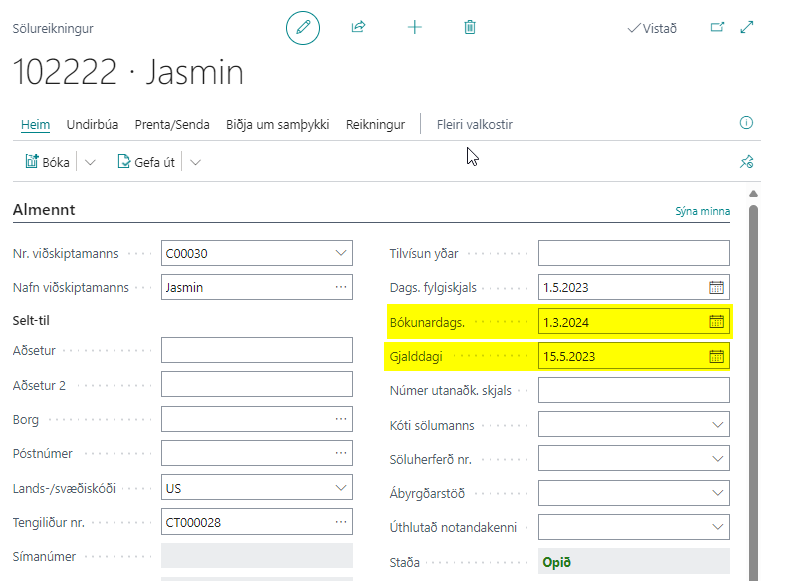
The due date on a sales invoice is calculated based on the payment terms code of the invoice (inherited from the customer card). The calculation of the due date is entered (e.g. 1D or 7D or LM).
When a posting date is entered on a sales invoice, the due date is calculated automatically.
Final date does not exist in Microsoft Dynamics 365 Business Central as it is an Icelandic phenomenon, only due date.
2. Create Claim and Calculate Final Date.
2.1. Calculation of Final Date for the Entire System in Settings - Claims:
If you want the system to calculate the final date the same way for all customers, it is best to set it in Settings - Claims.
- Final date should be the same as the due date of the invoice.
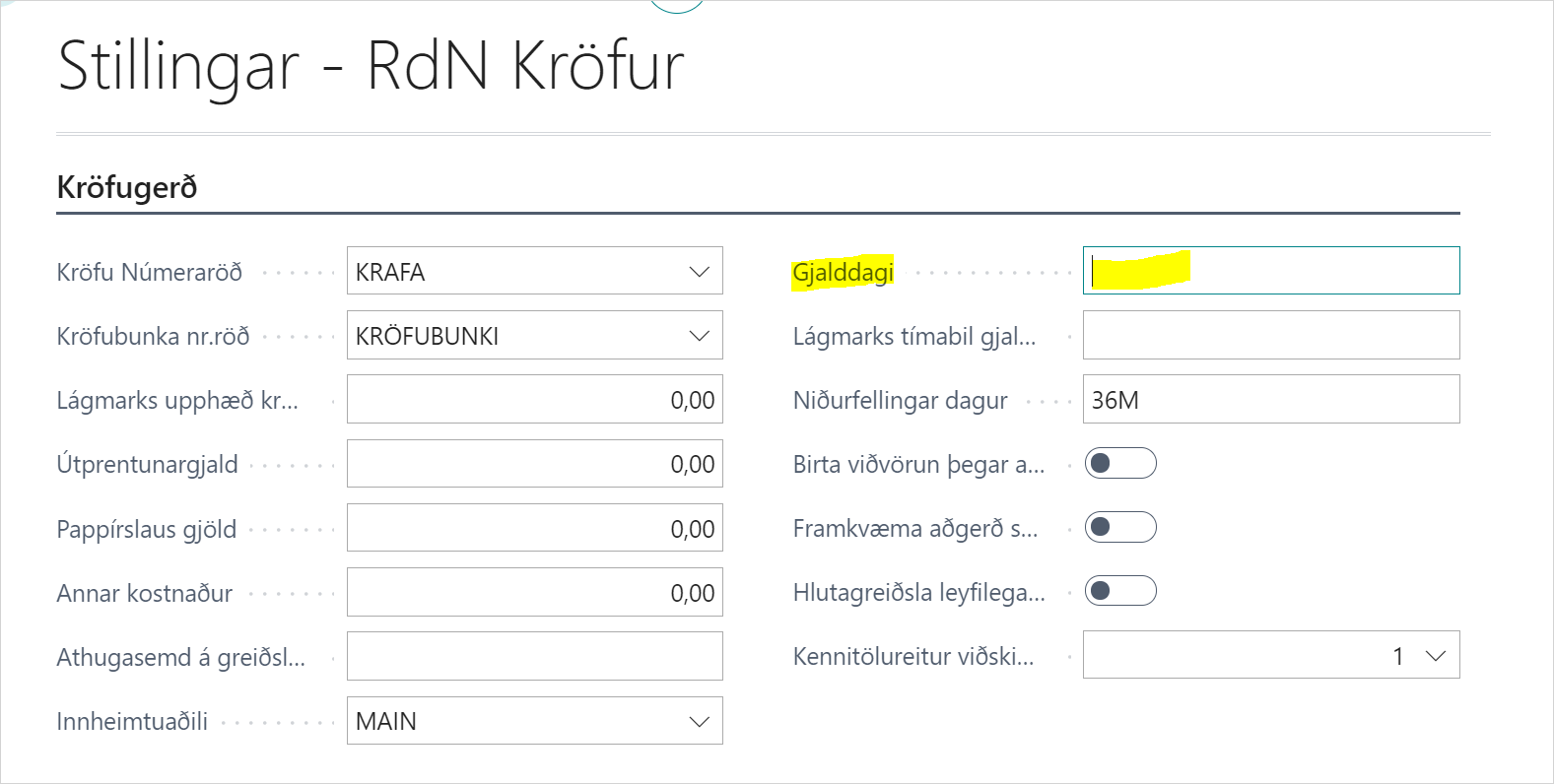
If the Due Date field in Settings - Claims is left empty, the due date of the invoice will apply as the final date of the claim.
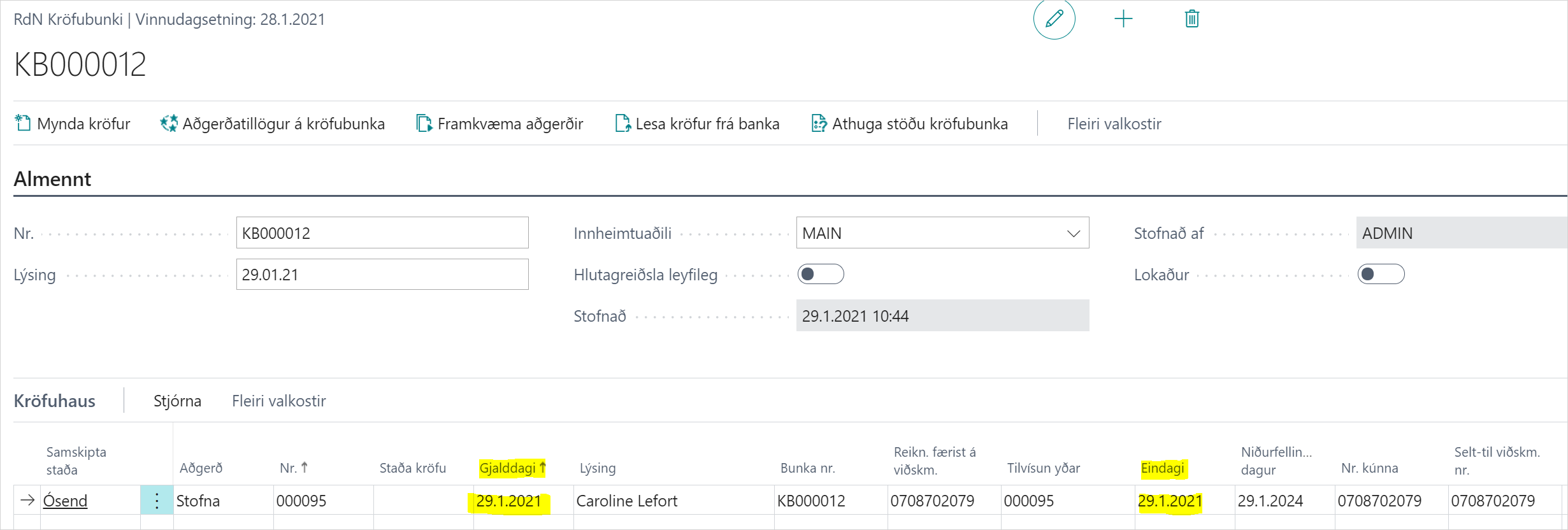
- Final date is to be calculated based on due date.
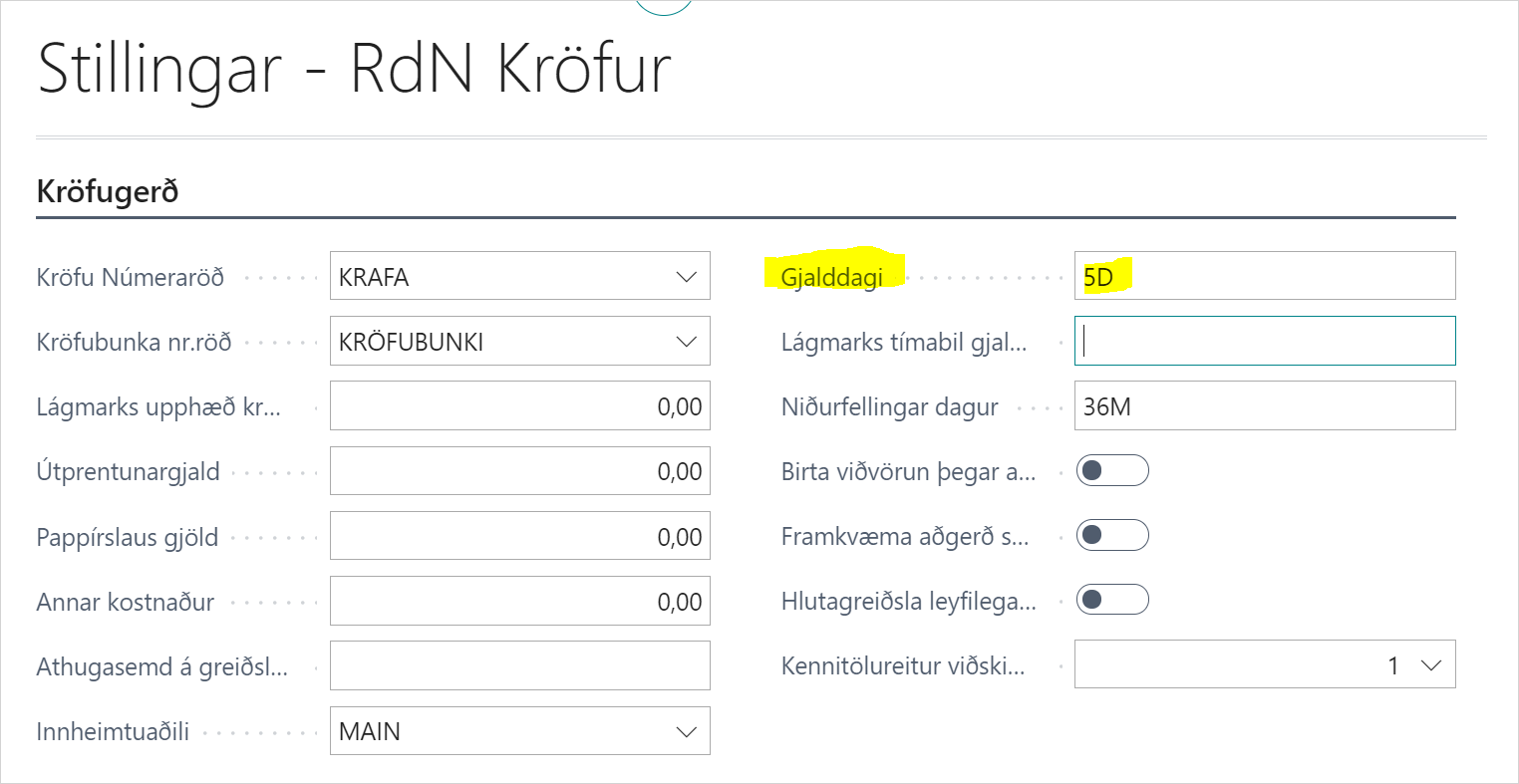
If the "Due Date" field in Settings - Claims is filled in, the final date of the claim is calculated according to the calculation, e.g. 5D is 5 days after the due date.
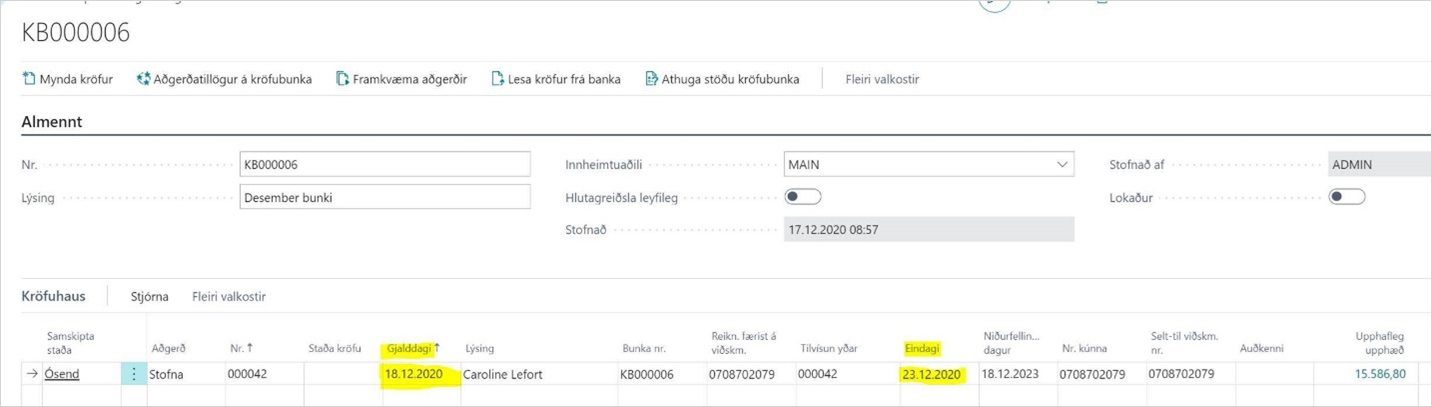
2.2 Calculation of Final Date per Customer:
It is possible to set up special settings on the customer card so that the calculation of the due date is only for him (or for a group of customers). That setting takes precedence over all Settings - Claims.
This is done under "Customer Settings".
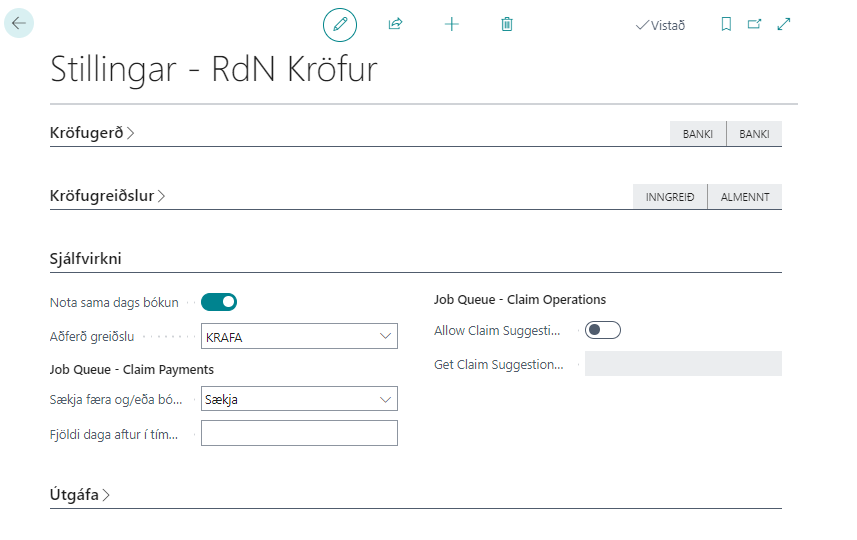
When a claim is created, the final date is calculated based on the due date according to the customer's bank settings.