Credit Card Attachments
This guide describes the full credit-card attachment flow: from connecting Business Central to the bank and importing cards, until the card entry, receipt, and purchase invoice have been reviewed.
Before you begin
An administrator or employee responsible for bank connections must ensure the following:
- The company has access to the credit cards at the relevant bank.
- The bank user is permitted to view the cards and their entries.
- Each user who processes card entries is registered with their own bank connection in Business Central.
Bank access is personal. If a card is missing during import, confirm with the bank that the bank user has access to that card.
Connect the user to the bank
- Search for My RdN Bank Users.
- Create a new bank user or update the existing connection.
- Select the bank service, enter the bank username and password, and complete the connection.
- For Íslandsbanki credit cards, also complete the electronic-ID sign-in.
For detailed bank-user instructions, see Bank user setup.
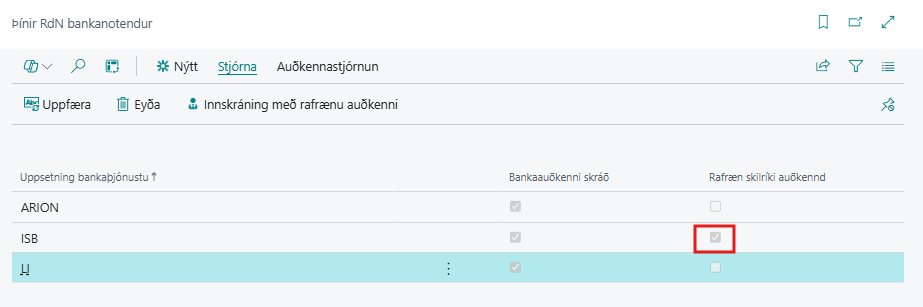
Configure credit-card attachments and API access
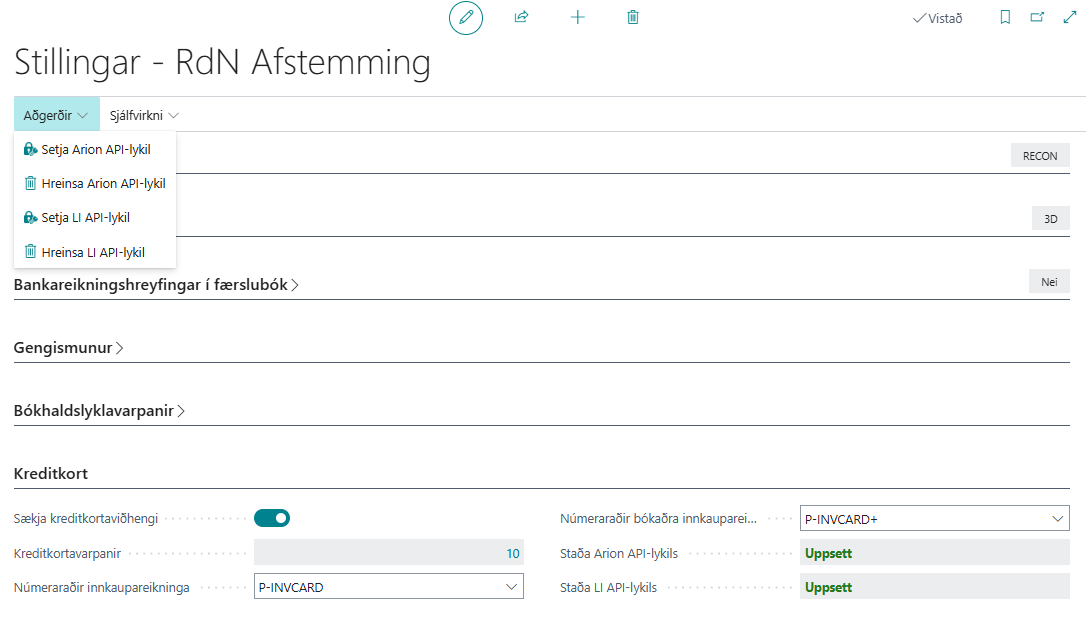
- Search for RdN Reconciliation Setup.
- Enable Get Credit Card Attachments when receipts entered by cardholders should be imported from the bank.
- In the credit-card FastTab, choose number series for unposted and posted purchase invoices when they differ from the general purchase setup.
- For Arion, select Set Arion API Key and enter the key supplied by the bank.
- For Landsbankinn, select Set LI API Key and enter the key supplied by the bank.
Do not share API keys in descriptions, comments, or documents. If importing fails, verify that the correct API key is stored and obtain a replacement from the bank when required.
| Bank | Description |
|---|---|
| Arion | Contact Rue de Net for an API key. |
| Landsbanki | You can create access and obtain an API key in the online bank: fbl.is/adgangsstyring/kerfisadgangar, or contact Landsbankinn. |
| Íslandsbanki | Open the My RdN Bank Users page and sign in with an electronic ID. Further instructions here |
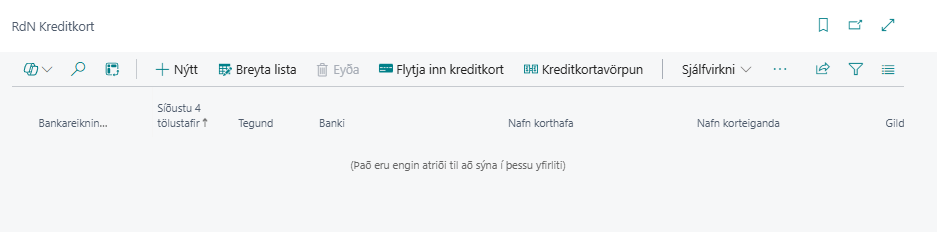
Import and create credit cards
- Search for RdN Credit Cards.
- Select Import Credit Cards.
- Select the cards to create and confirm the creation.
- When prompted, open the bank-account posting groups and complete the required posting accounts for the new cards.
The system creates a credit card, bank account, and payment method for each new card. Existing cards are not created again.
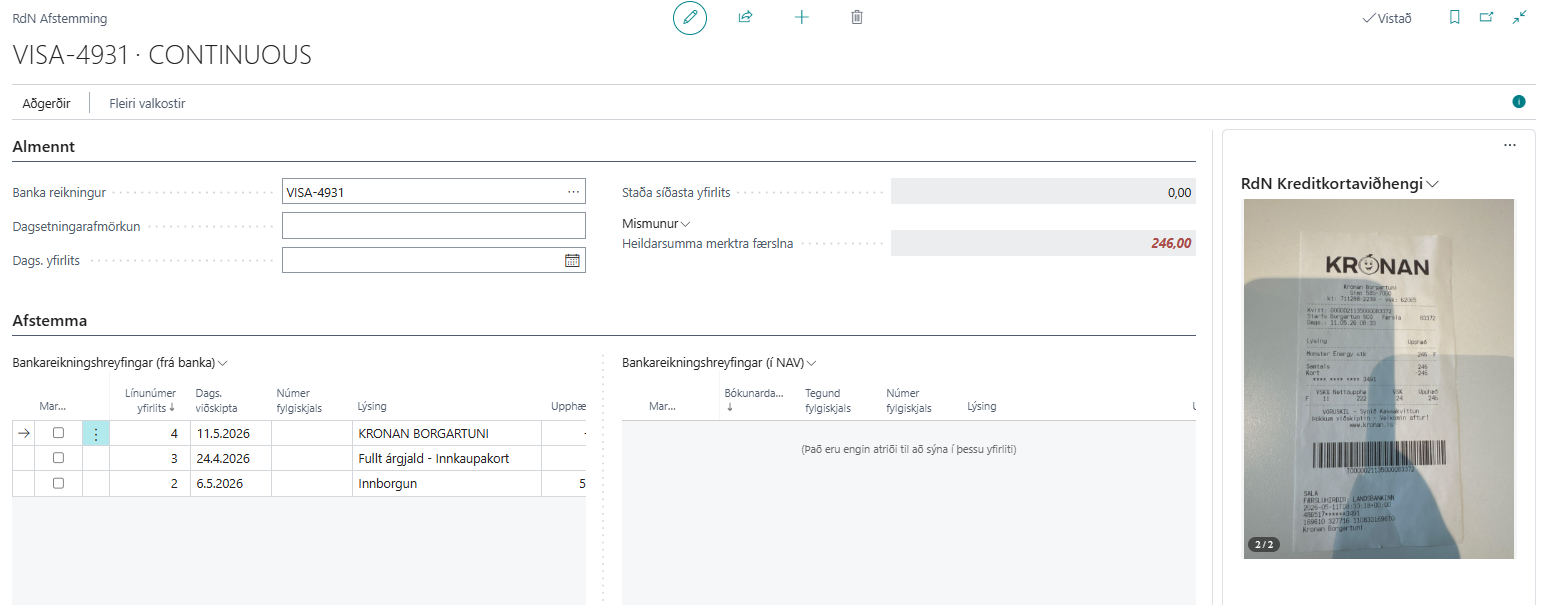
Import card entries and receipts
- Open the reconciliation page and select the credit-card bank account.
- Run the entry import and select the start and end dates.
- Review the G/L account, amount, description, and cardholder information before creating a purchase invoice.
- Open the attachment for the selected entry to view the receipt when available.
When attachment retrieval is enabled, the receipt is included with the entry as soon as it is available from the bank. The attachment can also include the category and comment entered by the cardholder.
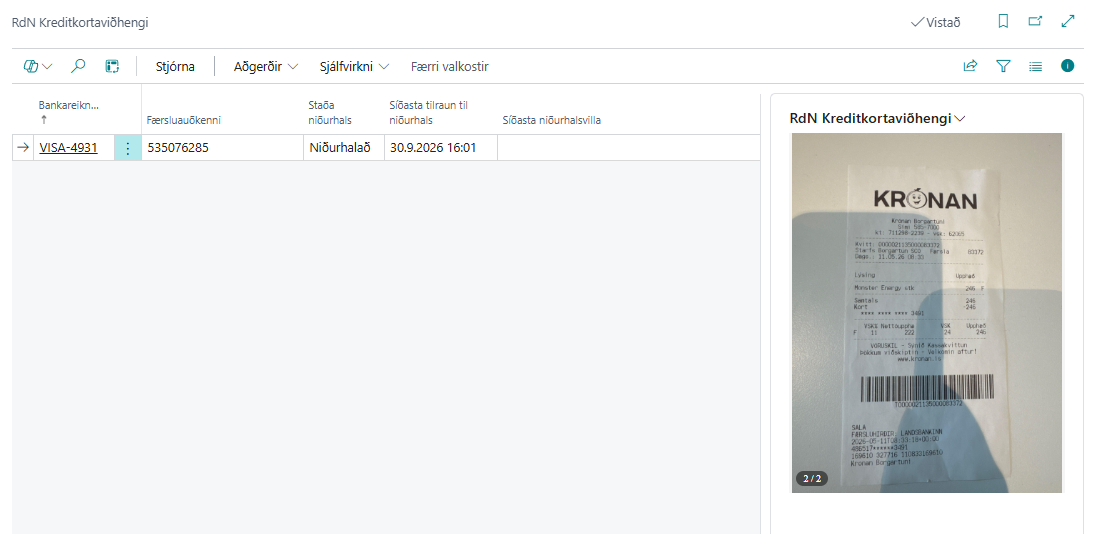
Attachment status
| Status | Meaning |
|---|---|
| Downloaded | The receipt is ready to use. |
| Pending | The system is waiting for the receipt from the bank. |
| Failed | The receipt could not be retrieved. |
| Not Available | The bank cannot provide the image. |
A missing receipt should not prevent creating a purchase invoice. Create the invoice when the other information is ready and attach the receipt later when it arrives.
Work with credit-card mappings
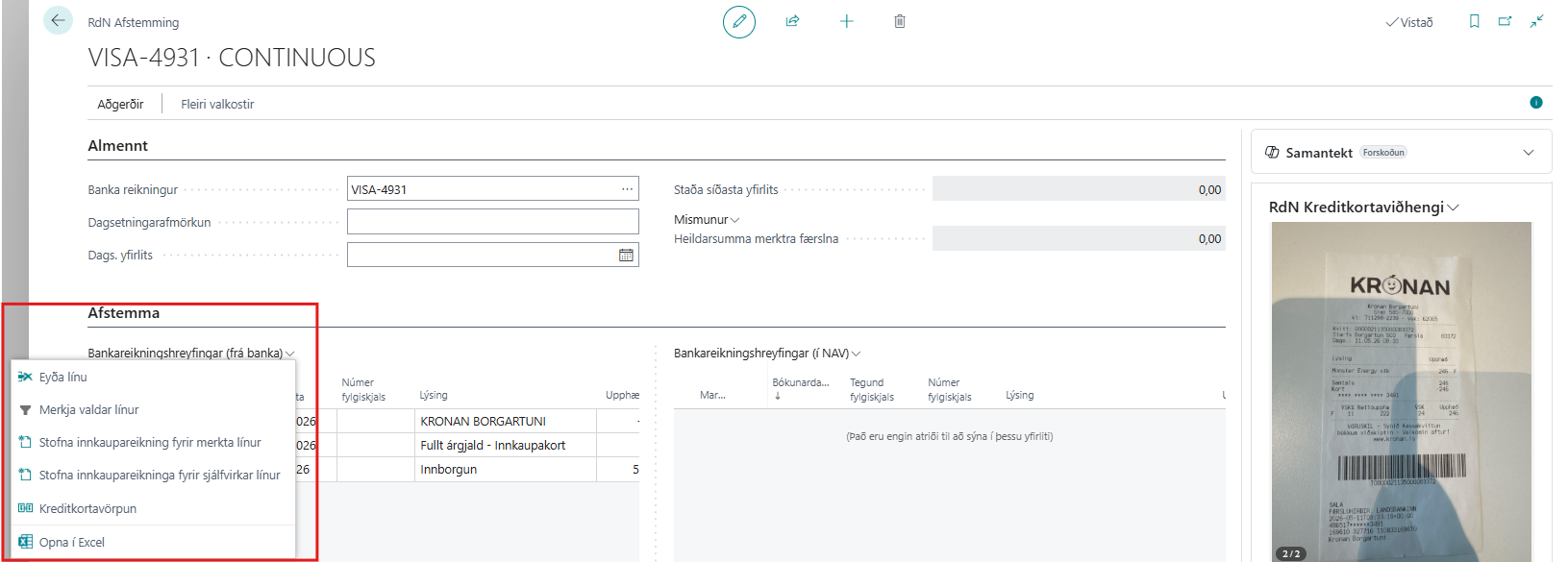
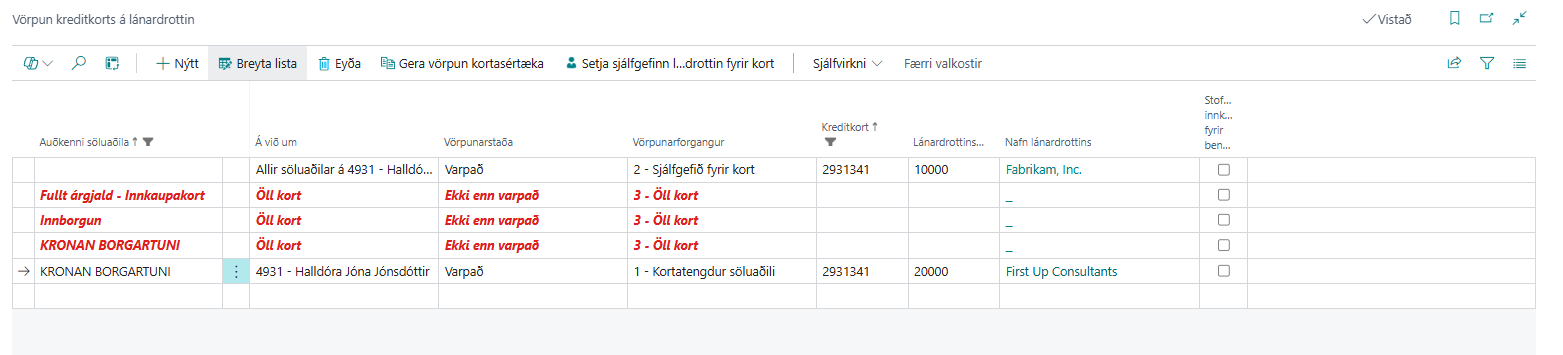
A mapping links the Card Acceptor ID on a card entry to a vendor in Business Central. It is best to create or correct mappings from the reconciliation page. It then shows only Card Acceptor IDs from entries for the selected card, along with * mappings that match one or more of them. The mapping can therefore be reviewed without unrelated merchants from other cards.
- Open the reconciliation for the credit card.
- Open Credit Card Mapping from the bank entries.
- Find the merchant by its Card Acceptor ID and select the correct vendor.
- Enable automatic purchase-invoice creation when all future entries from this merchant should create invoices automatically.
A new mapping that you create from the reconciliation applies to all cards. It is a master mapping and is suitable when the same vendor should apply regardless of which card was used.
Choose Make Card-Specific when the same merchant should be linked to a different vendor for this card.
Use Set Card Default Vendor when every entry on the card should go to the same vendor.
To group entries where the suffix of the Card Acceptor ID changes, add * at the end of the value, for example ICELANDAIR*. The mapping then applies to every Card Acceptor ID starting with ICELANDAIR. A value consisting only of * is not allowed. An exact mapping always takes precedence over a * mapping. The resolution order is:
- Exact card-specific mapping.
- Card-specific
*mapping. - Card default vendor.
- Exact master mapping for all cards.
- Master
*mapping for all cards.
Create and review purchase invoices
You can create a purchase invoice for selected entries after reviewing them, or for all entries that meet the conditions for automatic creation.
- Review the entries, vendor, G/L account, amount, and receipt.
- Create a purchase invoice for selected entries, or run automatic creation for entries with completed mappings.
- Open the invoice, review its lines and attachments, and post it using the normal purchase process.
When the receipt is ready, it is attached to the purchase invoice. The system does not create a duplicate purchase invoice for the same card entry.
Attach a receipt later
When a purchase invoice was created before the receipt became available, first confirm that the attachment status is Downloaded. Then open the purchase invoice and attach the receipt from the invoice actions. Do not attach it again if it is already present on the invoice.
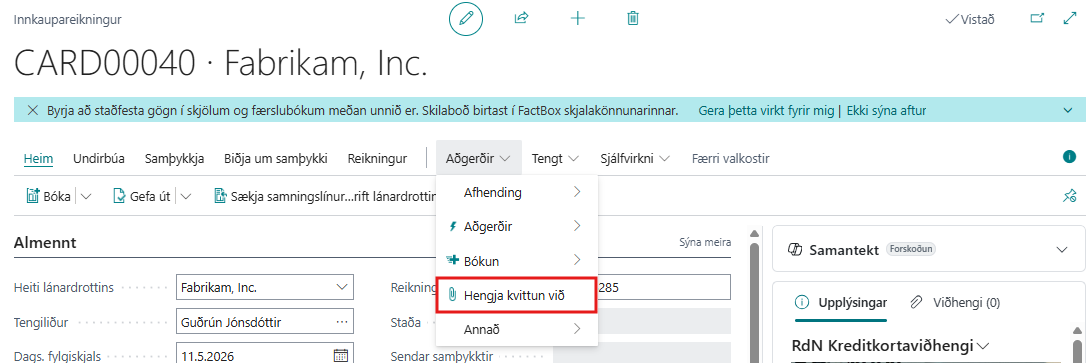
Review before posting
- Confirm that the correct vendor is returned by the mapping.
- Confirm the G/L account, description, and amount.
- Confirm that the receipt is available or that there is a plan to obtain it.
- Confirm that a purchase invoice has not already been created for the entry.
- Post only invoices that have been reviewed under the company purchase process.
Common exceptions
| Situation | What to do |
|---|---|
| A card is not shown during import | Confirm with the bank that the bank user has access to the card. |
| No vendor is found | Add or correct the mapping for the merchant. |
| The wrong vendor is selected | Check whether a card-specific or default mapping has higher precedence. |
| A receipt is missing | Wait for the status to change or retry retrieving the image; create the invoice when the other information is ready. |
| An automatic invoice is not created | Confirm that the mapping, vendor, and automatic creation settings are ready for the entry. |