Approving and rejecting
Approving a single document
- Open the document from the list.
- Review the invoice overview and the attachments.
- Click Approve at the bottom right.
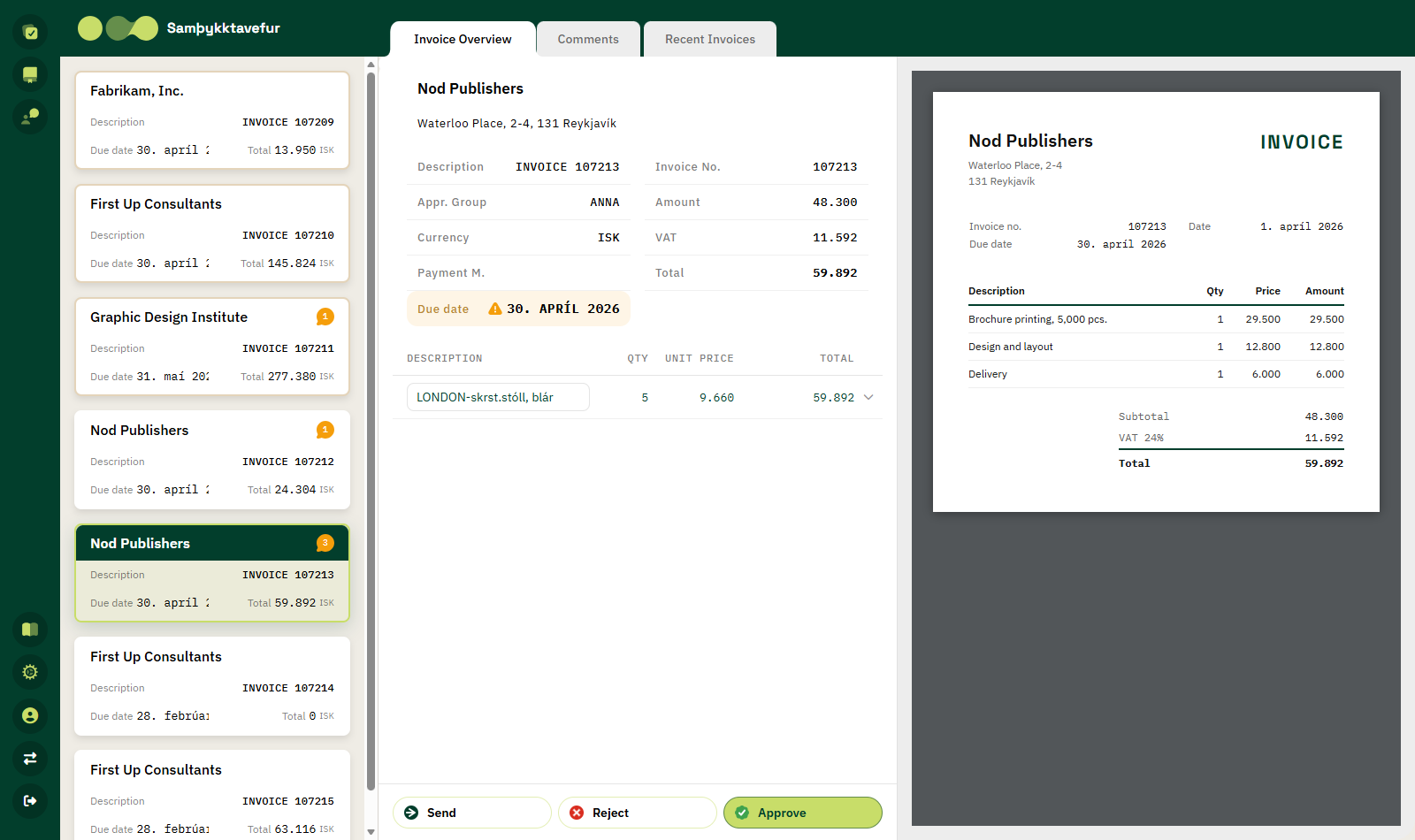
While the action runs the message Processing action.. appears. When it finishes the document disappears from the list and the next invoice opens automatically. If no documents remain you return to the approvals list.
Rejecting a single document
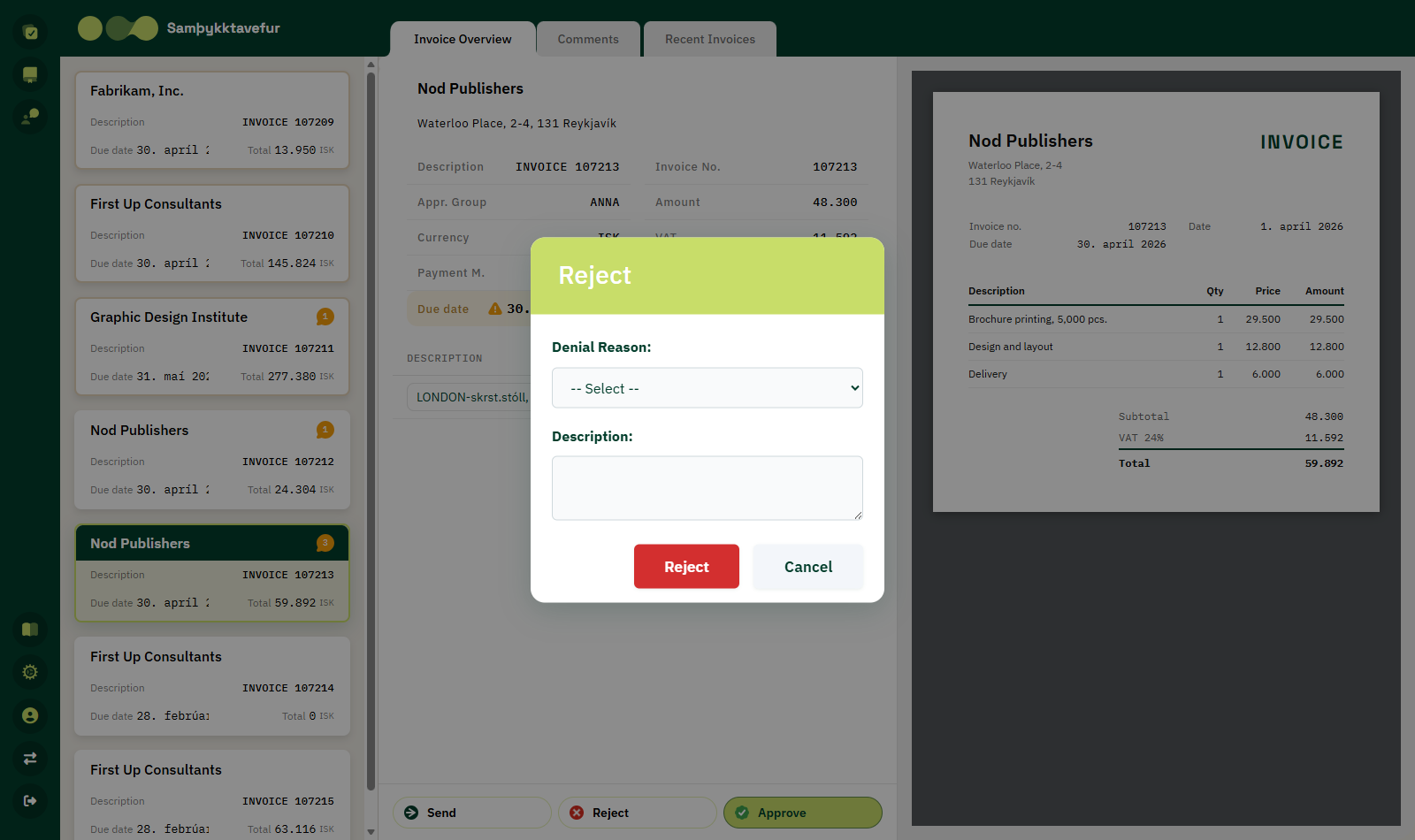
- Click Reject.
-
In the dialog, choose a denial reason from the dropdown and optionally write a description.
-
Click Reject to confirm, or Cancel.
The reason becomes a comment
The reason and description are saved as a comment on the document, so the accountant can immediately see why it was rejected. See Comments.
The list of reasons is defined in Business Central. If no list exists you can simply write the description.
Bulk handling
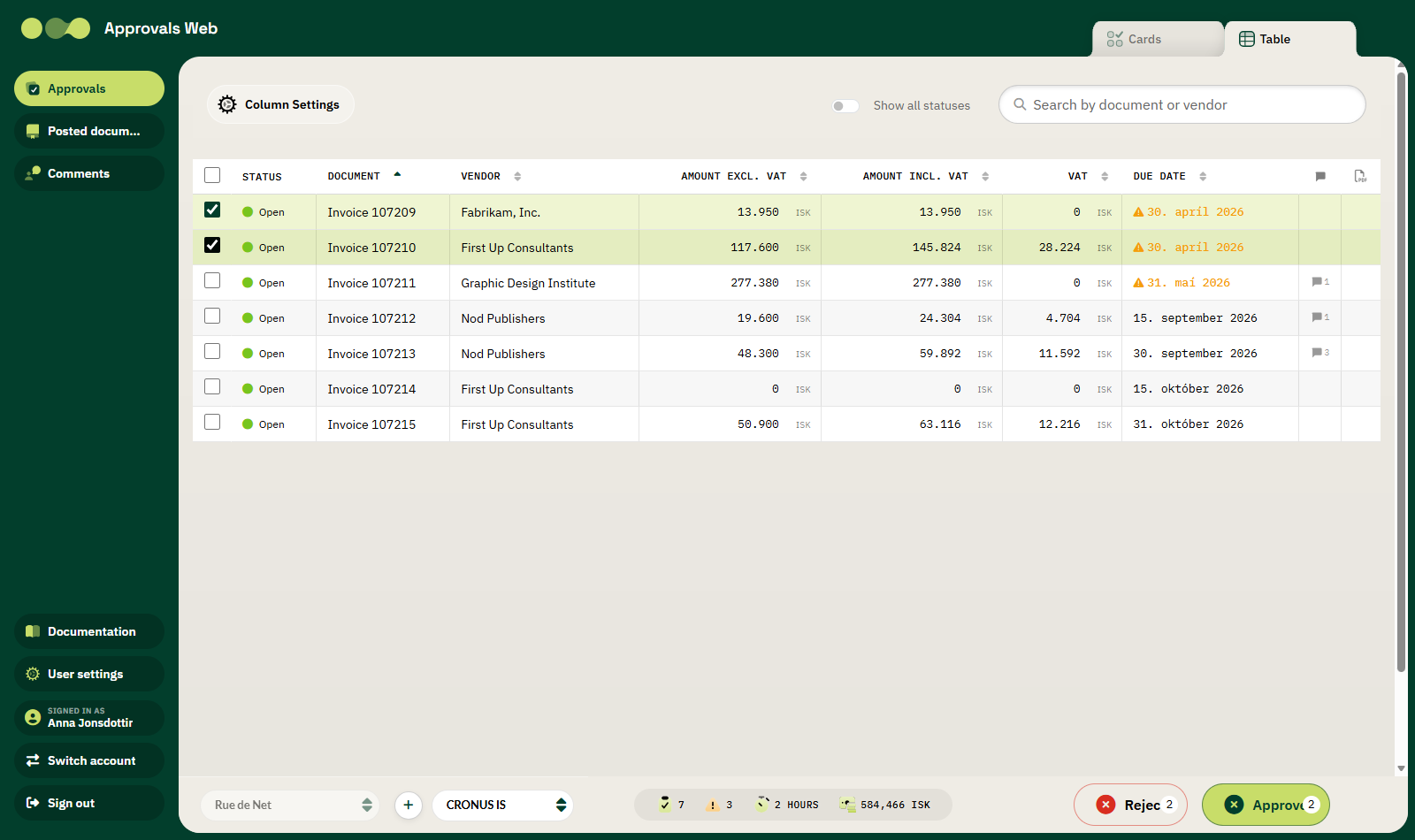
You can approve or reject several documents at once.
-
Tick the checkboxes of the documents to handle. The checkbox in the header selects all of them.
-
At the bottom right the Reject and Approve buttons show the number of selected documents.
- Click the appropriate button.
When several documents are handled at once they are processed one after another and a counter shows the progress, for example (2/5).
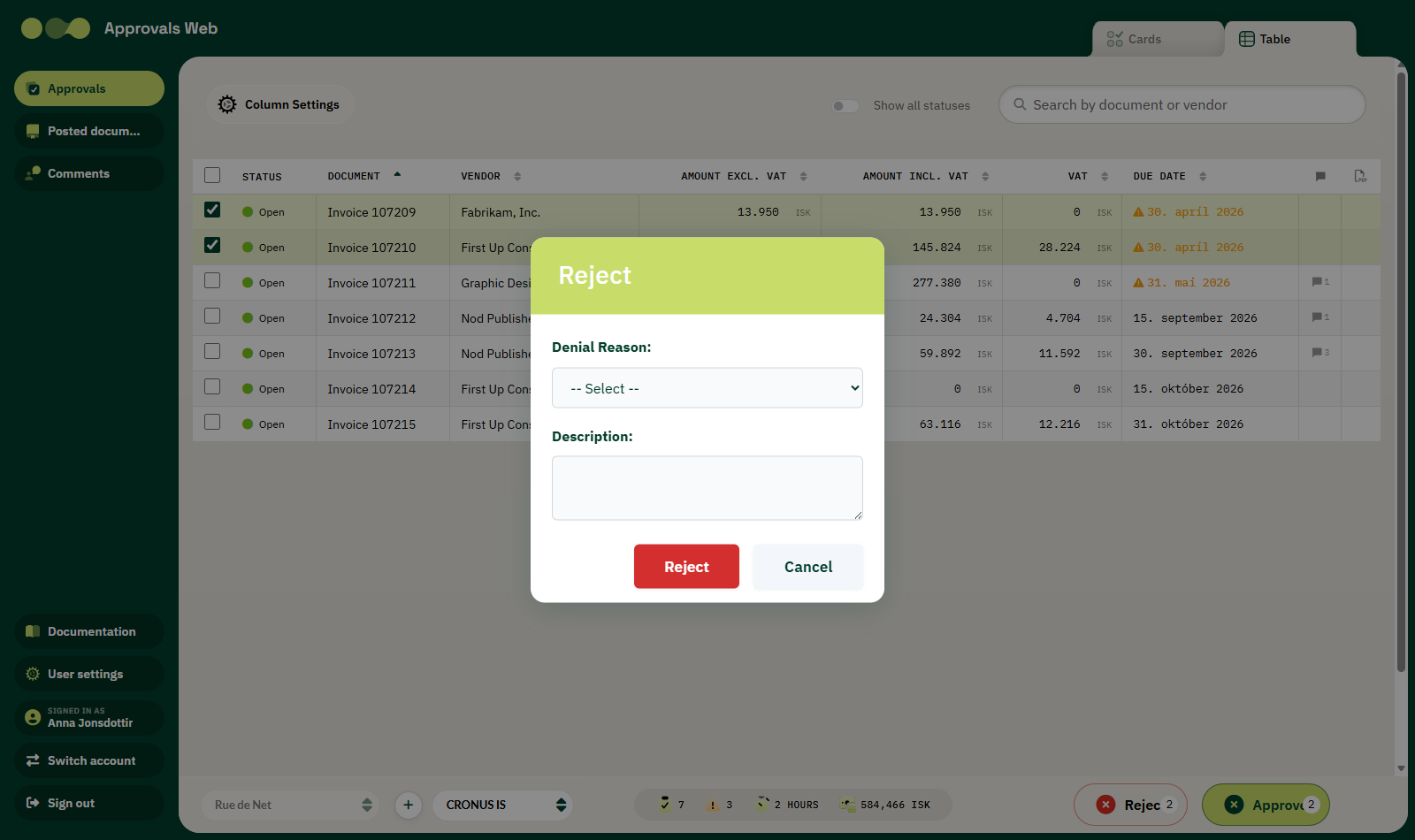
Rejecting several at once
The reject dialog opens once and the same reason and description are used for every selected document.
What happens in Business Central?
Approving or rejecting on the web is exactly the same as doing it in Business Central:
- Approve — the approval request is completed. If you were the last approver, the document becomes ready for posting.
- Reject — the request is rejected and the document goes back to the sender.
See also Approve invoice and Reject invoice.
If the action fails
| Message | Explanation |
|---|---|
| Error: … | Business Central rejected the action. The text that follows comes from Business Central. |
| You do not have the necessary permissions in Business Central… | The user is missing approval permissions. Contact your administrator. |
The action buttons are disabled if the document does not have the status Open — for example if somebody else has already handled it.