Using Suggestions
Viewing Suggestions
Suggestions appear automatically in the Suggestions factbox on the right side of the Time Registration Calendar. They are grouped by date in a tree view.
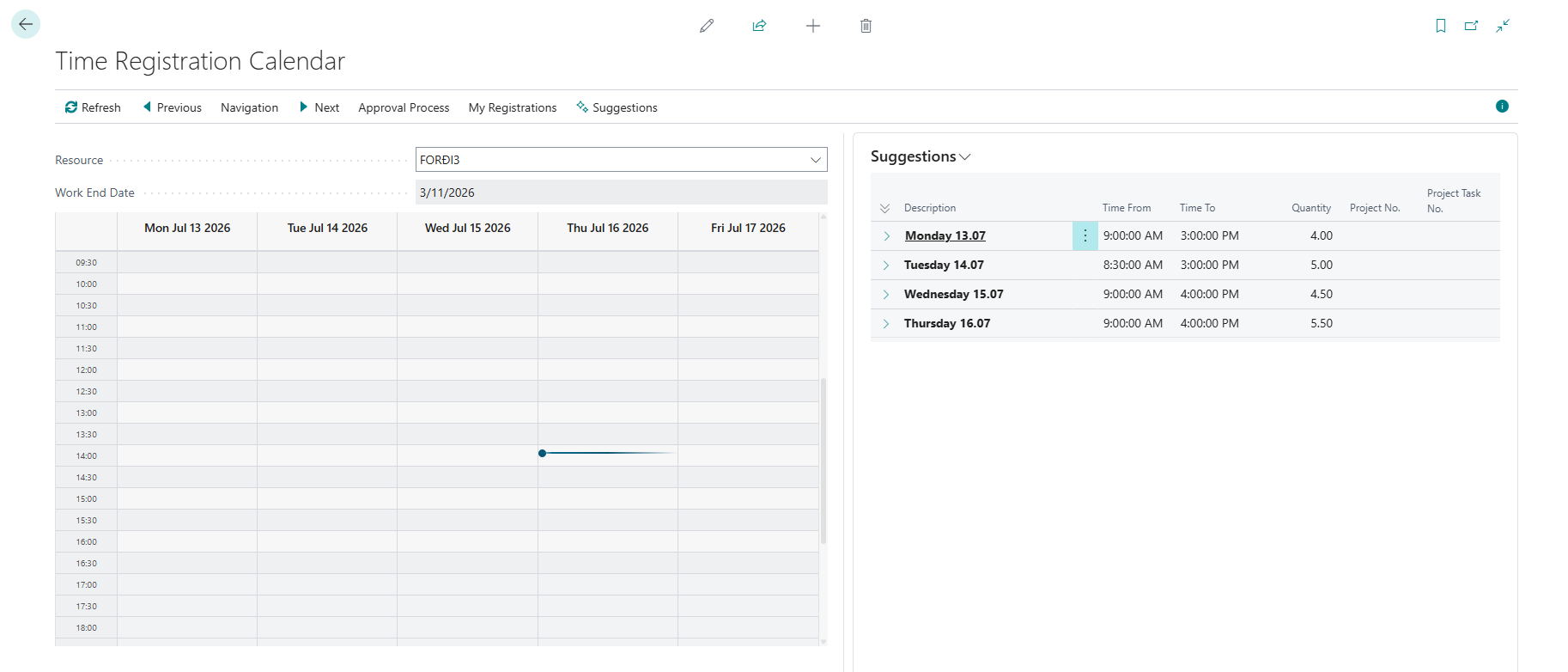
Each suggestion shows:
- Description — What the AI thinks you worked on
- Time From / Time To — Suggested start and end times
- Quantity — Number of hours
- Project No. / Project Task No. — Suggested project assignment (if matched)
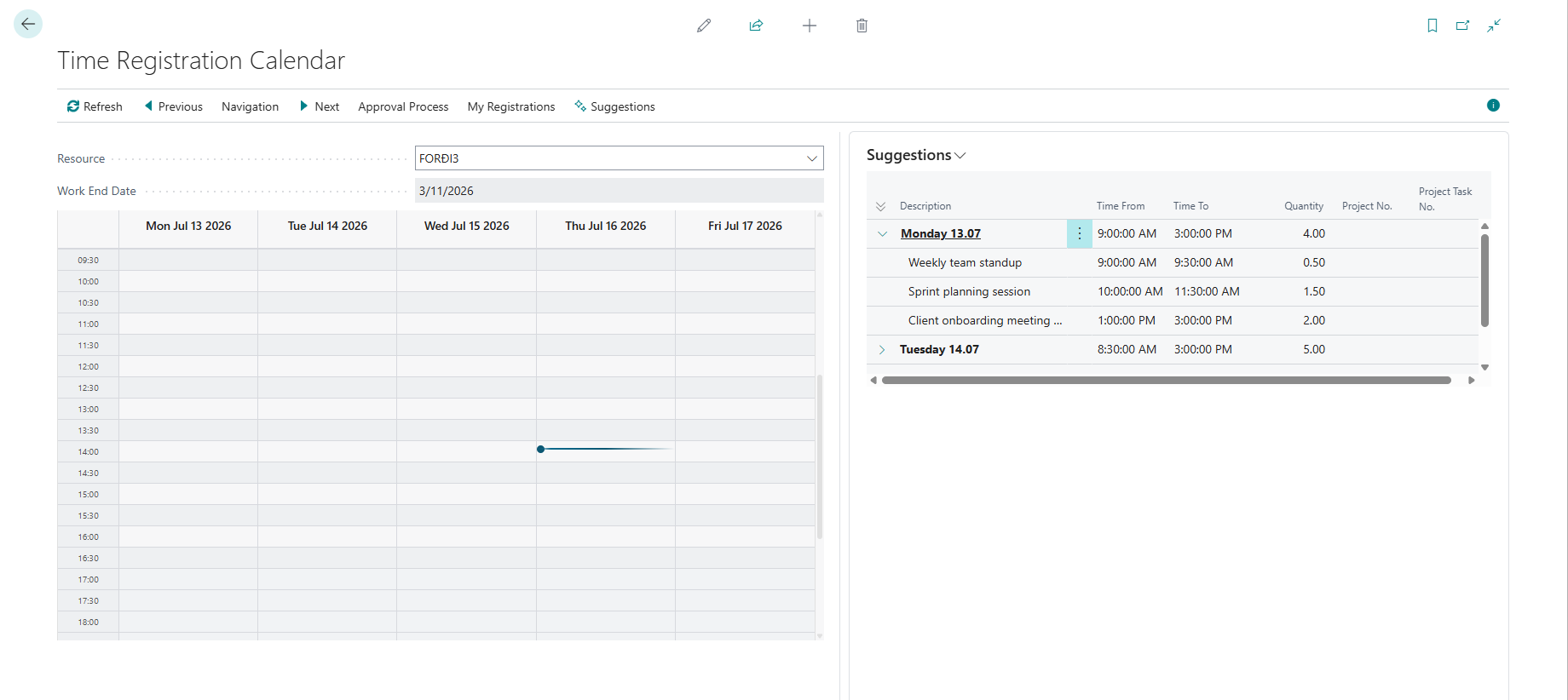
Click a date header to expand or collapse the suggestions for that day. The header shows a summary with total hours and the time span.
Accepting Suggestions
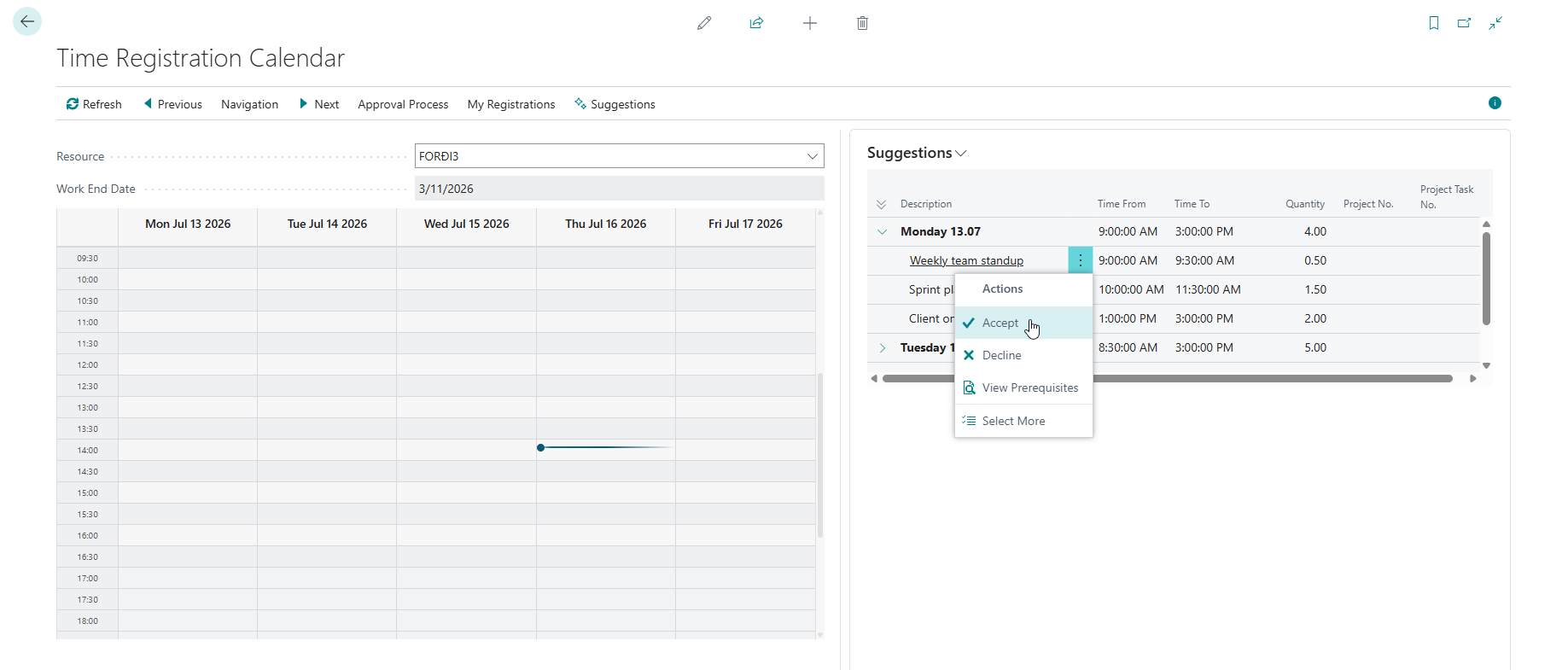
Select a suggestion and click Accept to create a time registration entry from it. The suggestion is removed from the factbox and a new entry appears on your calendar.
You can also accept an entire day's suggestions by selecting the date header and clicking Accept.
Declining Suggestions
Select a suggestion and click Decline to dismiss it. The suggestion is removed from the factbox without creating a time entry.
You can also decline all suggestions for a day by selecting the date header and clicking Decline.
Viewing Prerequisites
To see what data the AI used to generate a suggestion, select it and click View Prerequisites. This shows the raw data sources (emails, meetings, Jira issues) that informed the suggestion.
Suggestion Expiry
Suggestions older than 14 days are automatically cleaned up when the suggestion job runs. Accept or decline suggestions promptly to keep your factbox current.