
Pay claims from your online bank
Many vendors send their invoices as claims that appear in the company's online bank. Instead of paying them in the online bank, you fetch them into RdN Payment Journal, pay them from there and post the payment against the purchase invoice.
Scenario
Prófun hf. sends Dæmi ehf. a claim for rent every month. The bookkeeper fetches all unpaid claims with a final due date this week, pays them and posts. One claim is past its final due date and carries penalty interest, which is posted to a separate account.
Before you start
- Charge Amount Bal. Account and Interest Bal. Account are filled in in the payment setup. Without them the system can't create lines for charges and interest.
- The vendor is registered with the same national ID (kennitala) as the claimant.
Walkthrough
Fetch unpaid claims
-
Open RdN Payment Journal and select the batch and the bank account.
-
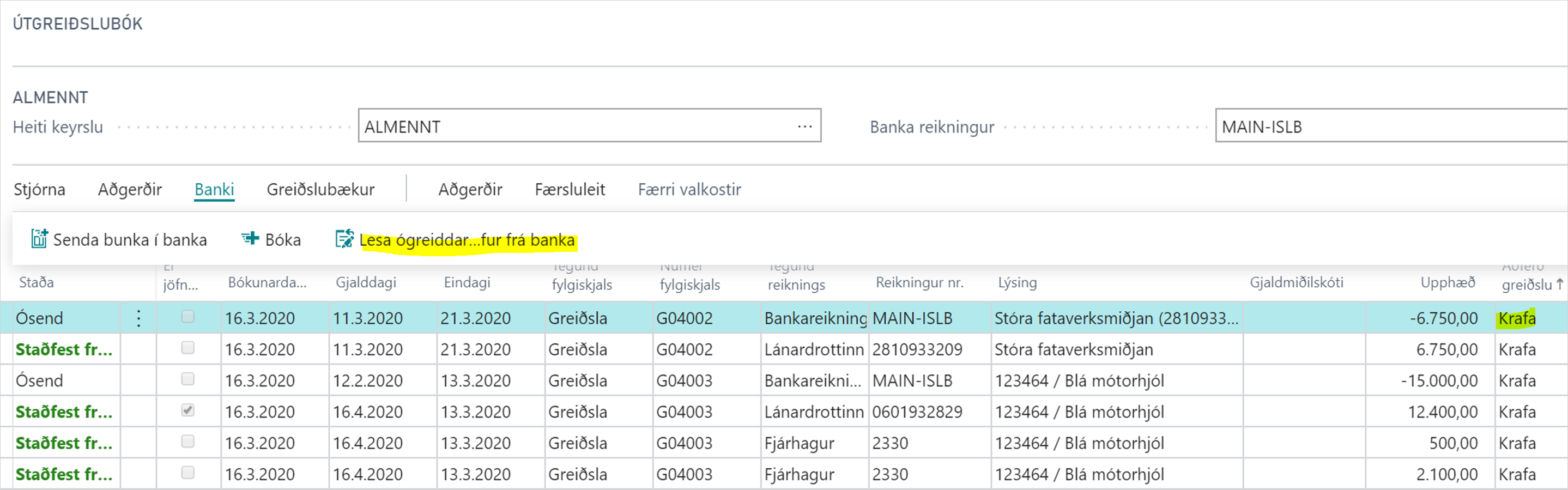
Choose Get Unpaid Claims From Bank and answer yes to Get Claims from Bank?

-
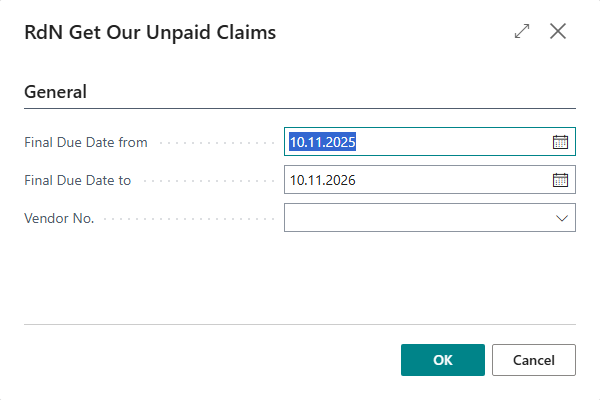
Fill in Final Due Date from and Final Due Date to. Fill in Vendor No. if you only want to pay one vendor's claims.
-
The system asks Get automatic balance lines? Answer yes if charges and penalty interest should get their own lines. Then %1 new payment lines created. appears.
-
Review the lines. Payment Method is Claim and the claim number is in Claim No. A claim line that hasn't been applied to a purchase invoice is highlighted. Apply it with Apply Entries.
-
Choose Send to Bank, then Check Status and finally Post, as in Pay vendors by transfer.


Match a transfer with a claim
If a vendor has sent both an invoice and a claim, you can pay the claim instead of transferring.
- Select a vendor line where Payment Method is Wire Transfer.
- Choose Match With Claim. The RdN Unpaid Claim Temp list opens with claims from the bank.
- Select the claim. The bank account line is replaced by the claim and the vendor line gets the claim's due date, final due date and posting date.
If Pair Payment Suggestions with Claims is on, Suggest Vendor Payments does this automatically when it finds a claim for the same invoice, with the same due date and amount.
Result
The claims are paid in the bank and disappear from the online bank. The payment is posted against the purchase invoice, and charges and interest go to the balancing accounts from the setup.
Next, pay vendors.
What can go wrong
- "Charge Amount Bal. Account" and "Interest Bal. Account" need to be filled out One of the accounts is missing in the payment setup.
- It is only allowed to pay claims for this vendor The vendor is set to Only pay claims. The transfer line gets the status Error. Delete it and fetch the claim.
- If the claim's final due date is after Last Payment Date in the payment suggestion, neither the claim nor a transfer for the invoice comes into the journal. Choose a later date or fetch the claim later.
- Match With Claim is disabled except on a vendor line with Wire Transfer.
All messages are in Help.