
Create claims automatically on posting
If you create a claim for most sales invoices, it pays to let the system do it. When a sales invoice with a given payment method is posted, Banking creates a claim for it in the day's claim batch. Posting does not send the claim to the bank; it waits until you choose Perform Operations or a job queue sends pending operations.
Scenario
Dæmi ehf. sends 40 sales invoices a day and collects all of them with claims. The collections officer doesn't want to create the claims by hand every day. Invoices with the payment method KRAFA should get a claim on posting, and a job queue should send them to the bank regularly.
Before you start
- Claims are set up and a Default Collector is entered.
- The payment method for claims exists and is on the customers that should get claims.
- You have permission to change RdN Claim Setup and job queue entries.
Walkthrough
-
Open RdN Claim Setup.
-
On the Automation FastTab, turn on Use Same Day Booking.
-
Enter the payment method, for example KRAFA, in Payment Method 1. If more payment methods should create claims, use Payment Method 2 to Payment Method 7.
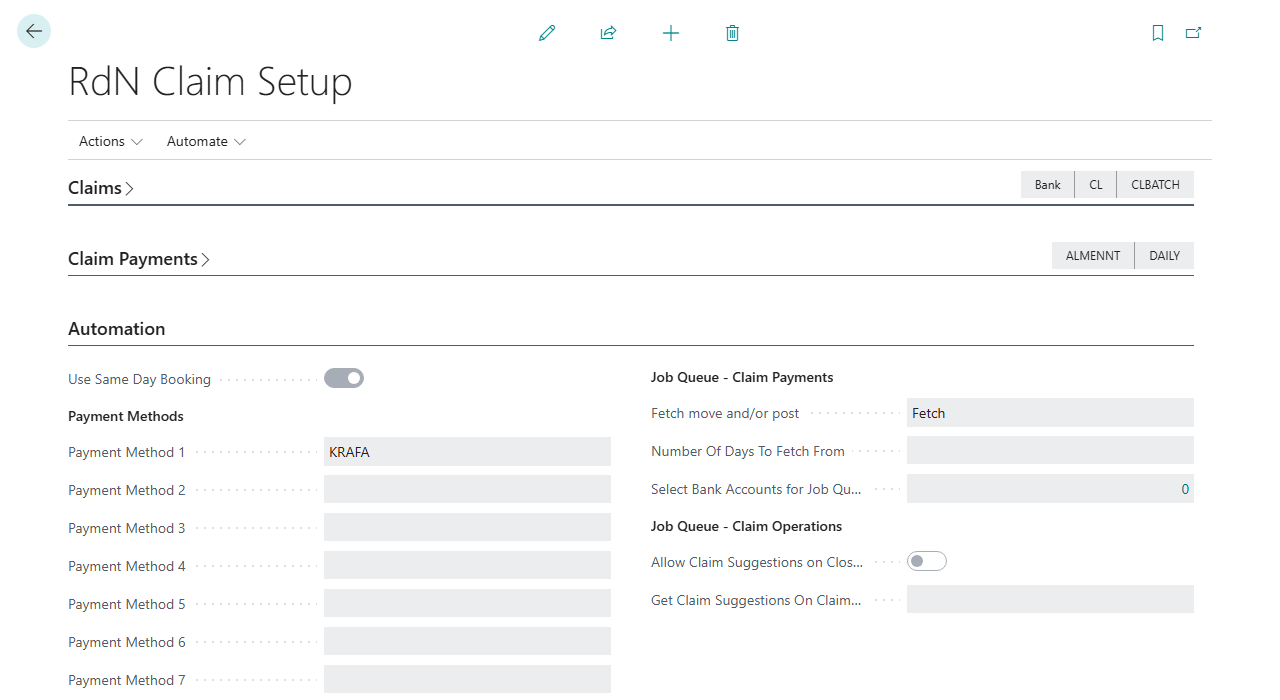
-
Choose how the claims are sent to the bank. Open the batch and choose Perform Operations, or set up a job queue to send pending operations regularly; see Send claims automatically with a job queue. Execute Operation Instantly sends selected updates and cancellations of existing claims immediately; it does not send a claim when it is created.
-
Post a sales invoice with the payment method. The system finds an open claim batch created today for that payment method, or creates one, and creates the claim in it.



Result
Every posted invoice with the payment method gets a claim in the day's claim batch. The batch description is the date, and the batch is marked as automatic. The claim number is stored on the customer ledger entry. The claim has Operation Create until it is sent. Choose Perform Operations or use a job queue to send the pending operation.
Next, send claims automatically.
A job queue instead of posting: RdN Create Claims JOB
The RdN Create Claims JOB job queue (codeunit 10041509) also creates claims automatically, but in a different way. You usually only need one of them.
| On posting | RdN Create Claims JOB | |
|---|---|---|
| When | As soon as an invoice is posted | When the job queue runs |
| Which invoices | Only with a payment method in Payment Method 1 to 7 | All open invoices of customers that aren't blocked, regardless of payment method |
| Claim batch | One a day per payment method | One a day |
| Sends to the bank | No | No |
- Use posting if only some invoices should get a claim, for example by payment method.
- Use RdN Create Claims JOB if every open invoice should get a claim, including older invoices and invoices that weren't created by posting a sales invoice.
- Using both does no harm, because neither creates a claim for an entry that already has one. But the job queue then also creates claims for invoices with other payment methods.
Neither sends the claims. The RdN Perform Operations job queue does, see Send claims automatically with a job queue.

What can go wrong
- No claim was created. Check that the invoice's payment method is in one of Payment Method 1 to Payment Method 7, and that the remaining amount meets the minimum. The customer's Minum Claim Amount replaces the general Minimum Claim Amount when a customer setup is assigned. See Customer setup.
- The claim was created but didn't go to the bank. Choose Perform Operations on the batch or check that the job queue that sends claims is running.
All messages are in Help.