
Pay vendors by transfer
In RdN Payment Journal you create payments to vendors, send them to the bank and post them once the bank has confirmed them. The payments are applied to the purchase invoices, so you don't have to enter them again in the online bank.
Scenario
The treasurer at Dæmi ehf. pays vendor invoices once a week. She lets the system suggest payments for all invoices that are due, reviews the suggestion, sends it to the bank and posts once the bank has confirmed the payments.
Before you start
- Payments are set up and the bank account you pay from is connected to the bank.
- The vendor has a national ID (kennitala) and a bank account (bank, ledger and account number, 12 characters in total). You can confirm the bank account before you pay.
- The purchase invoices are posted.
Walkthrough
-
Open RdN Payment Journal and select the batch and the bank account at the top of the page.
-
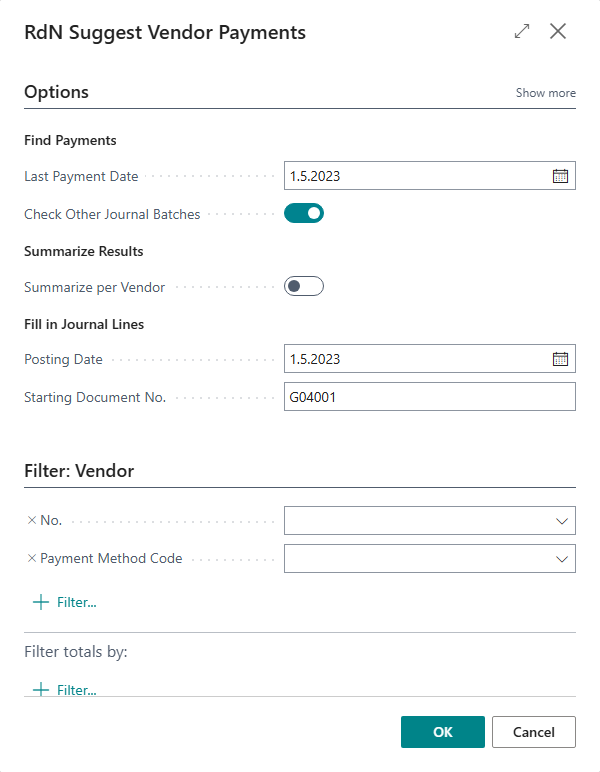
Choose Suggest Vendor Payments.

-
Fill in Last Payment Date. The system suggests payments for invoices that are due on or before that date. Posting Date is today and Starting Document No. comes from the journal's number series.
-
Filter if you like, for example on one vendor or on a payment method code, and choose OK.
-
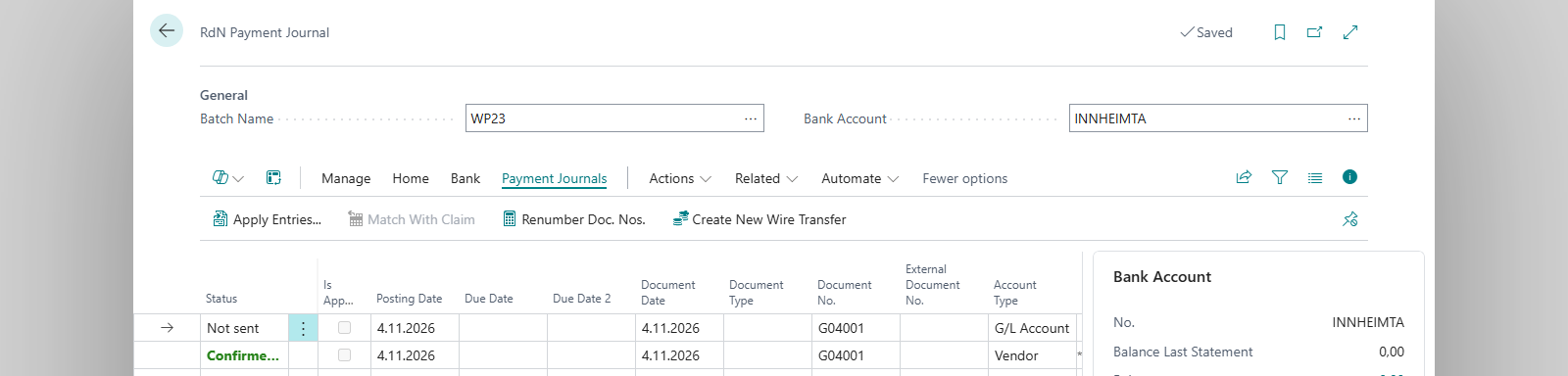
Review the lines. Each payment gets a vendor line and a bank account line with Payment Method Wire Transfer and Status Not sent. You can delete or change lines while they're not sent. If the vendor has sent a claim for the same invoice, the system can pay the claim instead, see Pay claims from your online bank.
-
Choose Check Payments. The system checks, for example, the posting date, the amounts and the bank details, and shows Payments are verified and ready to be sent if everything is in order.
-
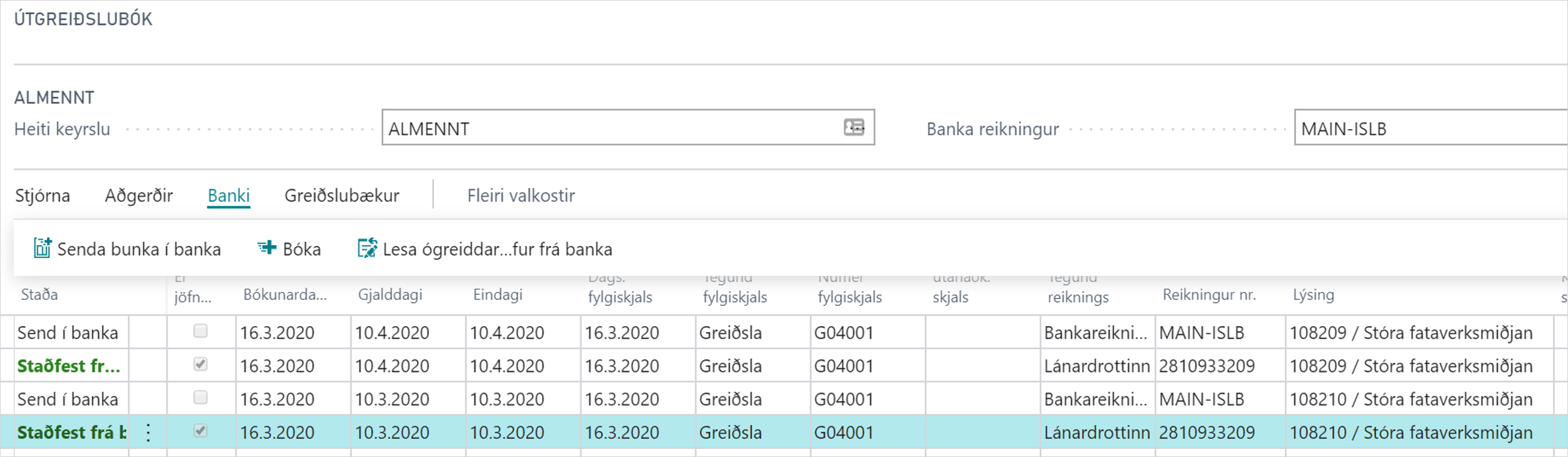
Choose Send to Bank and answer yes to Send payments to bank? The lines get the status Sent to bank. Send to Bank (One Transaction) sends the payments as one transaction out of the account.
-
If the bank requires dual approval, approve the batch in the online bank.
-
Choose Check Status. Payments the bank has accepted get the status Confirmed from bank. If the bank is busy, this can take a little while.

-
When all lines are Confirmed from bank, choose Post.

The system asks whether to renumber the documents before posting.


If you make the same payments regularly, you can save the journal with Save Payment Journal and load it again with Load Payment Journal.
Result
The payments are posted and applied to the purchase invoices, which are closed. The bank account ledger entry shows whether the payment was a transfer or a claim payment.

What can go wrong
- Posting date must be today and not %1 Payments are sent with today's posting date. Change the date on the lines.
- Doc No. %1 for date %2 is not on zero The vendor line and bank account line of a document don't balance. Fix the amount or choose Insert Balance Line.
- Bank Branch No-Transit No.-Bank Account No.; %1 must have length 12 The vendor's bank account isn't entered correctly.
- Posting is not possible because ... lines have errors! or ... lines have not been sent to bank! Fix the lines that are Error or send them. The bank's error is in the Error field.
- ... lines have not been confirmed from bank Choose Check Status and post again.
- Journal has not been sent to bank You chose Check Status before the journal was sent.
- If you send a journal that has already been sent, the system asks whether to send the lines again. Answer no unless you know the bank didn't accept them.
All messages are in Help.