
Cancel a claim
When a claim no longer applies, for example because the invoice was credited or paid by bank transfer, it has to be cancelled in the bank. Otherwise it stays in the customer's online bank. The cancellation is an operation that is sent to the bank, just like creation.
Scenario
Prófun hf. returned goods, and Dæmi ehf. issued a credit memo for the full amount. The claim is still in Prófun hf.'s online bank, and the collections officer cancels it.
Before you start
- The claim has been sent to the bank. You delete an unsent claim directly from the batch.
- If many claims should be cancelled because of payments or credit memos, use Operation suggestions instead. They find claims whose remaining amount is 0.
Walkthrough
-
Open the claim on the RdN Claim Card.
-
Choose Drop Claim. If the system asks Do you want to cancel the claim?, choose Yes. The claim's Operation becomes Cancel.
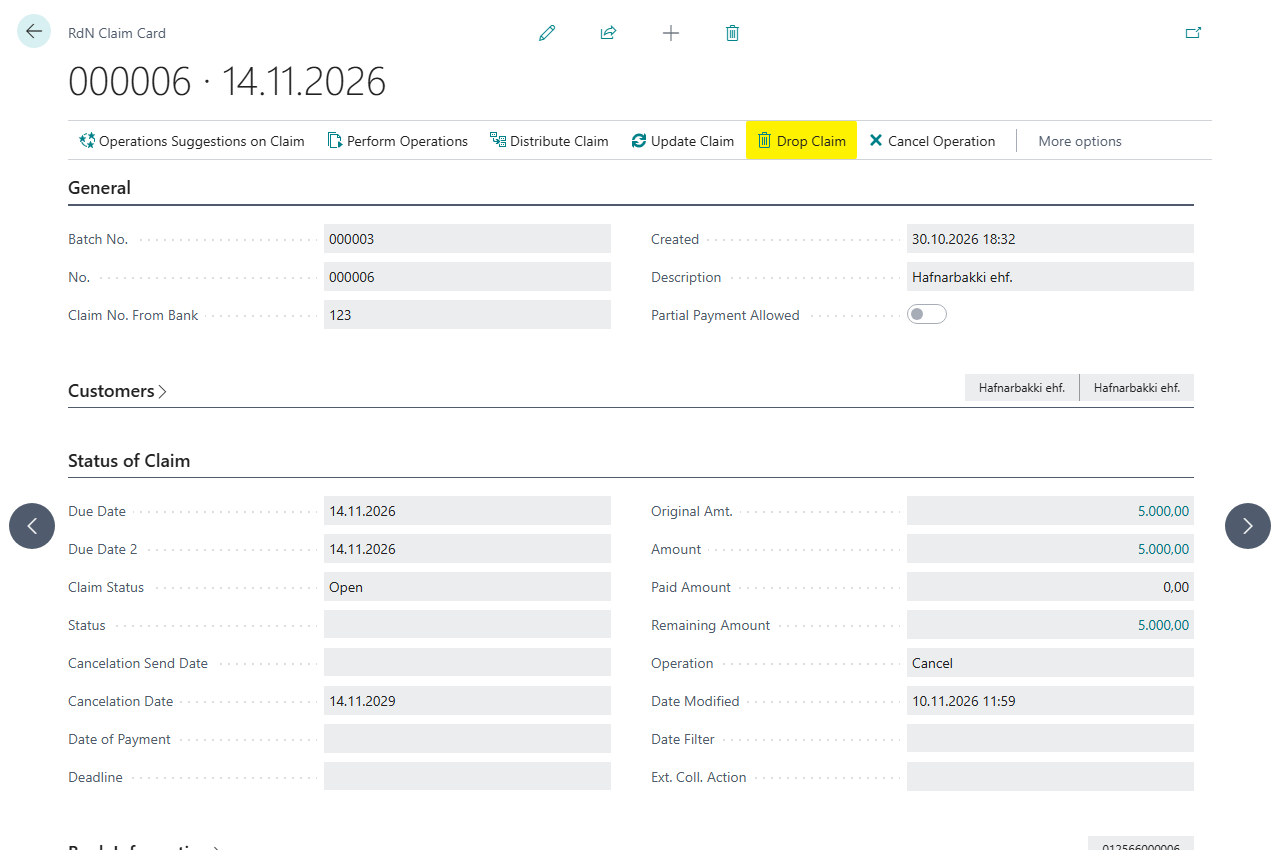
-
Choose Perform Operations to send the cancellation to the bank. If Execute Operation Instantly is on, it is sent right away.

To cancel several claims, select them in the claim batch and choose Drop Selected Claims, or on the RdN Worksheet choose Drop Claims. The system asks %1 claims will be cancelled. Do you want to continue?

Result
Claim Status becomes Cancelled, and the claim disappears from the customer's online bank. Cancelation Send Date shows when the cancellation was sent. The customer ledger entry itself doesn't change. It is applied or credited in the books as usual.
The bank also cancels a claim on its Cancelation Date if it is still unpaid then. That date is calculated from the due date when the claim is created, see Dates on claims.
What can go wrong
- First operation the claim has to be Create The claim hasn't been sent to the bank, so there is nothing to cancel. Delete it from the batch.
- If you chose cancellation by mistake, choose Cancel Operation before the operation is sent.
All messages are in Help.