
Create a wire transfer
Sometimes you need to pay at once without waiting for a payment suggestion, for example to refund an employee or pay a contractor who is waiting. The Create New Wire Transfer action in RdN Payment Journal creates one payment, and you can do it before the invoice is posted. The same action also moves money between the company's own bank accounts.
Scenario
A contractor at Dæmi ehf. has finished a job and is waiting to be paid. The treasurer transfers the money at once, and the bookkeeper applies the payment to the invoice once it has been posted.
Before you start
- If you pay a vendor, the vendor's bank account is registered on the vendor card. The system finds it automatically.
- If you transfer to your own account, it's set up as a bank account in Business Central.
Walkthrough
-
Open RdN Payment Journal and select the batch and the bank account you pay from.
-
Choose Create New Wire Transfer.

-
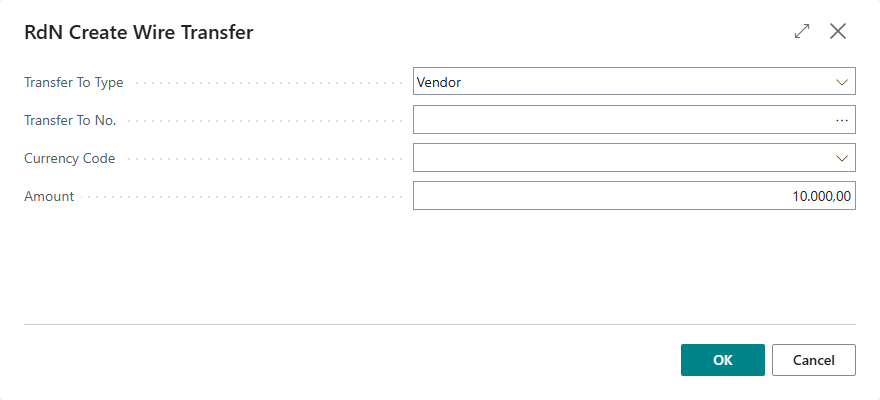
In Transfer To Type, select Vendor or Myself.
-
Select the vendor or bank account in Transfer To No., the currency in Currency Code and the amount in Amount. Choose OK.
-
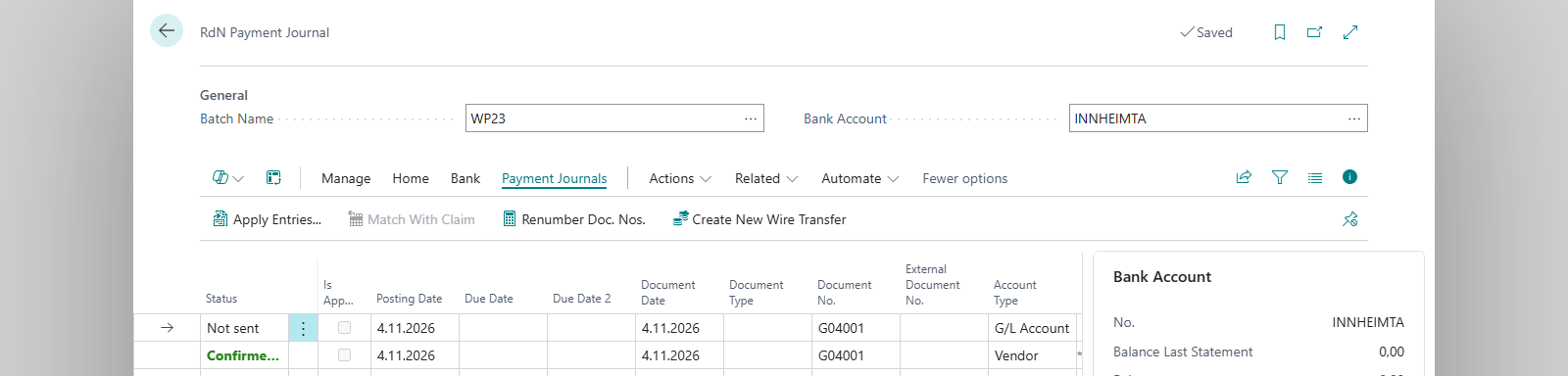
The system creates a line with the description Transfer to and the receiver's name, and a bank account line with the status Not sent. While nothing has been sent, you can delete the line.
-
Choose Send to Bank. The status becomes Sent to bank.
-
If the bank requires dual approval, approve the batch in the online bank.
-
Choose Check Status until the status is Confirmed from bank, and then post.


Result
The money is transferred and the payment posted. A payment to a vendor is an open entry until you apply it to the invoice. A transfer to your own account is posted between the two bank accounts.
Next, pay vendors.
What can go wrong
- Cannot wire transfer money to the same bank account you pay from You selected the same bank account the journal pays from. Select another account.
- If you don't select a receiver or an amount, the system doesn't create a line.
All messages are in Help.