
Foreign payments
Foreign payments go through RdN Payment Journal in the same way as domestic payments. The difference is that the bank needs more information about the receiver, and payments in a foreign currency must be in a journal of their own.
Scenario
Dæmi ehf. buys goods from a supplier in the United States and pays in USD. The treasurer pays his invoices in a separate batch for foreign payments and lets the system fetch the cost the bank charges for the payment.
Before you start
-
The vendor card has the correct name, address, city, country and currency code.
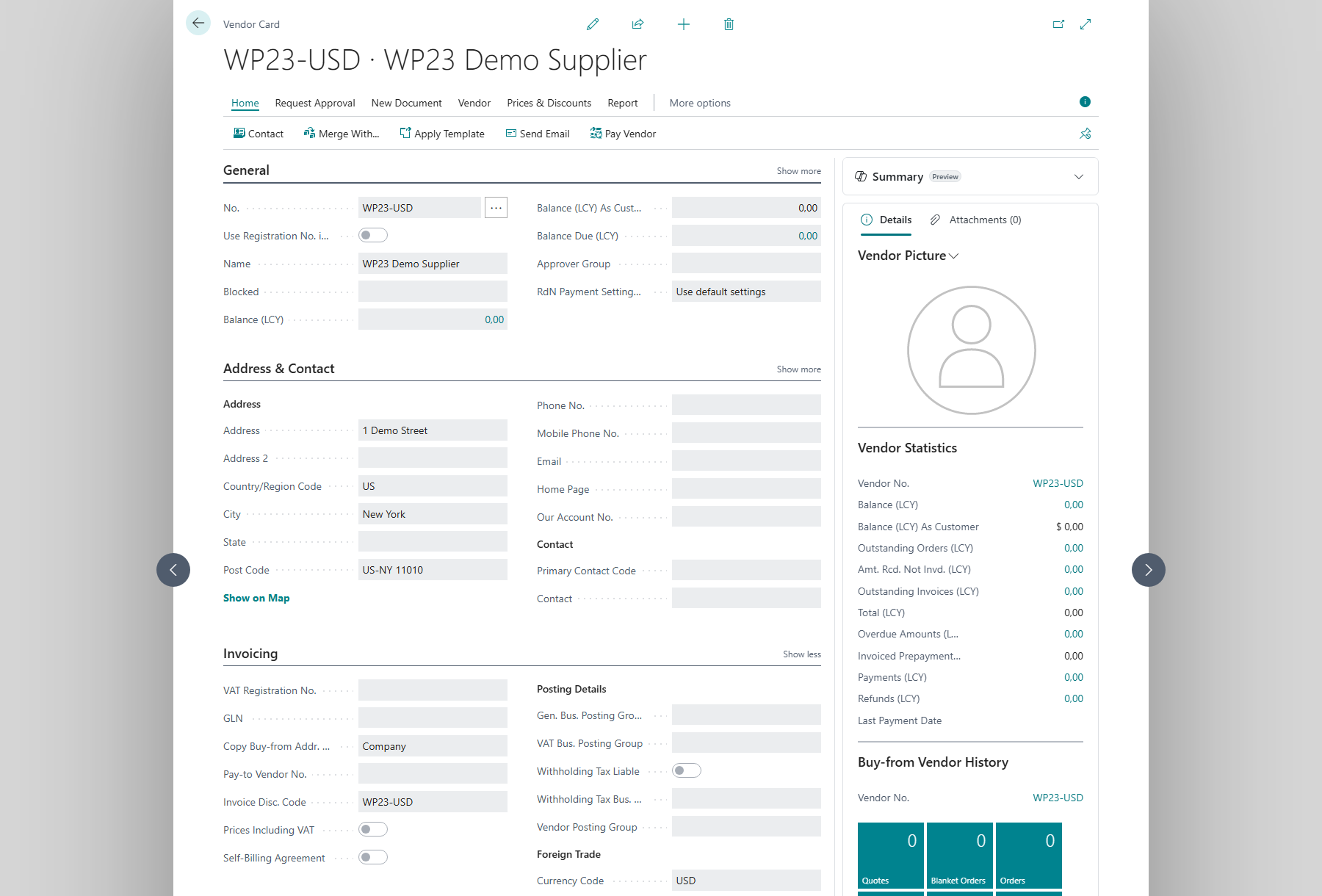
-
The vendor bank account has the bank's name, city, country, SWIFT code and IBAN. Without them the system rejects the payment.
-
If the bank should send the vendor a receipt, the vendor bank account needs an email address and Send Receipt By Email must be on in the payment setup.
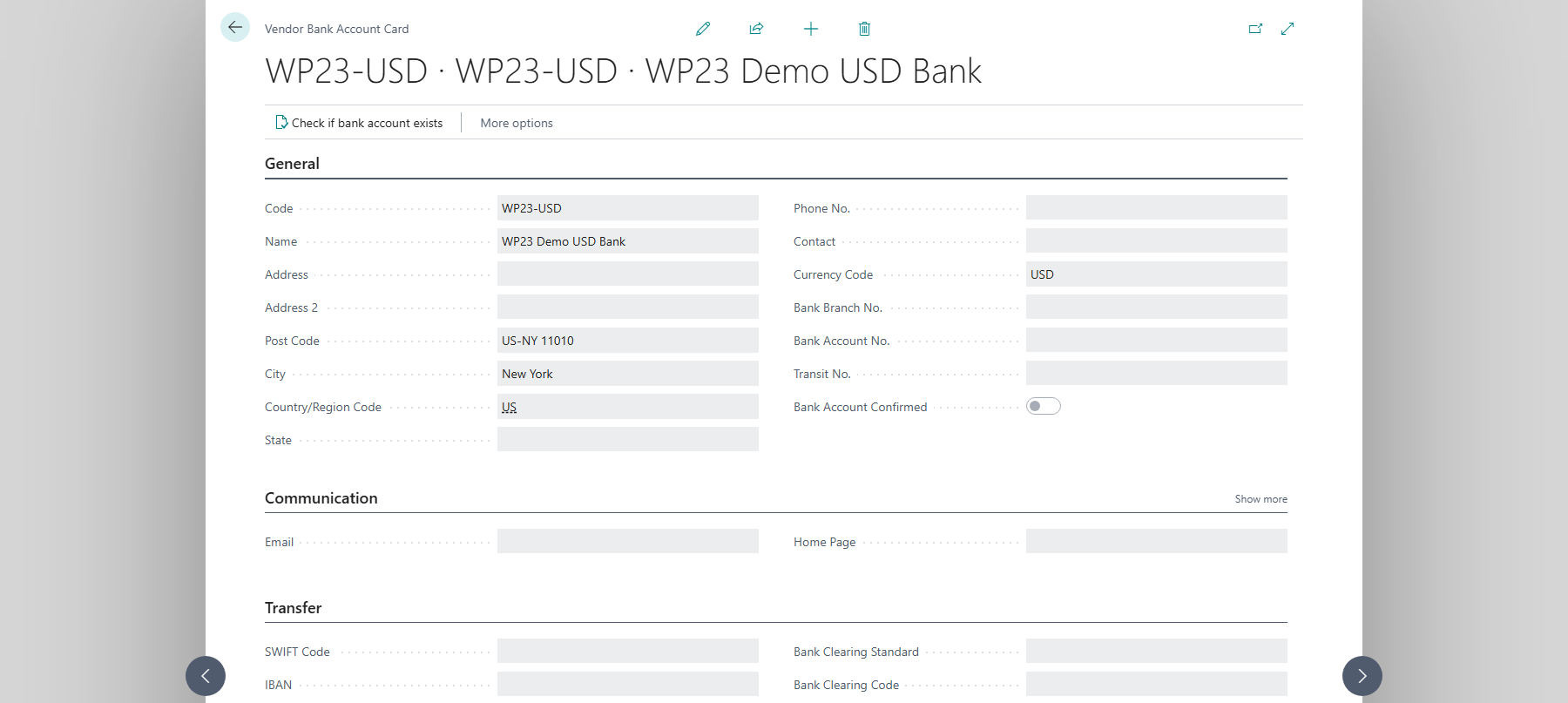
Complete SWIFT Code and IBAN under Transfer before sending a payment. These fields are still blank in the screenshot, and Bank Account Confirmed is off.
-
Banks only accept foreign payments at certain times of day. Check the cut-off times with your bank.


Walkthrough
-
Open RdN Payment Journal and select a batch that's only used for foreign payments.
-
Choose Suggest Vendor Payments and filter on the vendor or the currency.

The same action is used for domestic and foreign payments. Select the foreign-payment batch before running the suggestion.
-
Review the lines. Payment Category gets the default foreign payment category from the setup. You can change it on the line or in Payment Information under Wire Transaction (Foreign).
-
If the payment should be an express payment, select Express Payment, either on the line or in Payment Information. It's the same field. Express payment only applies to foreign payments and the bank charges for it according to its price list.
-
Choose Send to Bank. The lines get the status Sent to bank.

-
Choose Check Status until the lines are Confirmed from bank. The amount in local currency is then updated with the exchange rate the bank used.
-
If Fetch Foreign Payment Cost is on, the system adds two cost lines for each payment, to the cost account and the bank account from the setup.
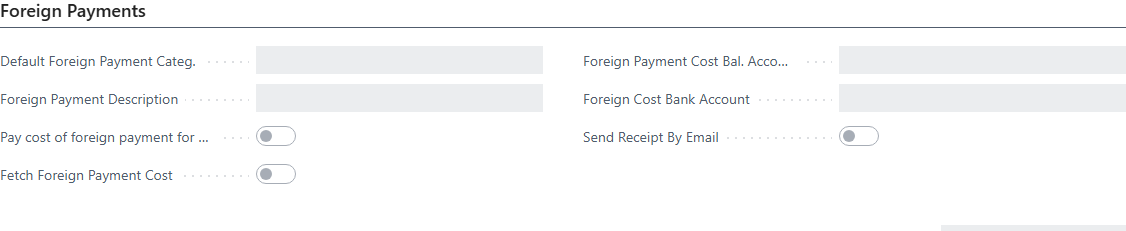
-
Choose Post.


Result
The payment is posted at the exchange rate the bank used and applied to the purchase invoice. The bank's cost is posted to the cost account if the system fetched it.
Next, pay vendors.
What can go wrong
- If payment is in a foreign currency nothing in the journal can be ISK The journal mixes foreign and domestic payments. Move the domestic payments to another batch.
- The journal must be in ... and not ... The first line in the journal is in local currency but another line is in a foreign currency. Split the payments into two batches.
- If the bank rejects a payment, the line gets the status Error and the reason is in the Error field. Most often the SWIFT code or IBAN is missing on the vendor bank account.
All messages are in Help.