
Update a claim
After a claim has been sent to the bank, you can change its final due date and send the update. The change doesn't reach the bank until the operation has been performed. The due date can't be changed after the claim has been sent.
Scenario
Prófun hf. has agreed with Dæmi ehf. on a two-week extension on a claim. The collections officer moves the final due date 14 days later, so the late fee and penalty interest don't start until then.
Before you start
- The claim has Communication Status Sent. You change an unsent claim directly in the batch.
- If the claim amount must change because of a payment or credit memo, use Operation suggestions. They compare the claim with the customer ledger entries.
Walkthrough
-
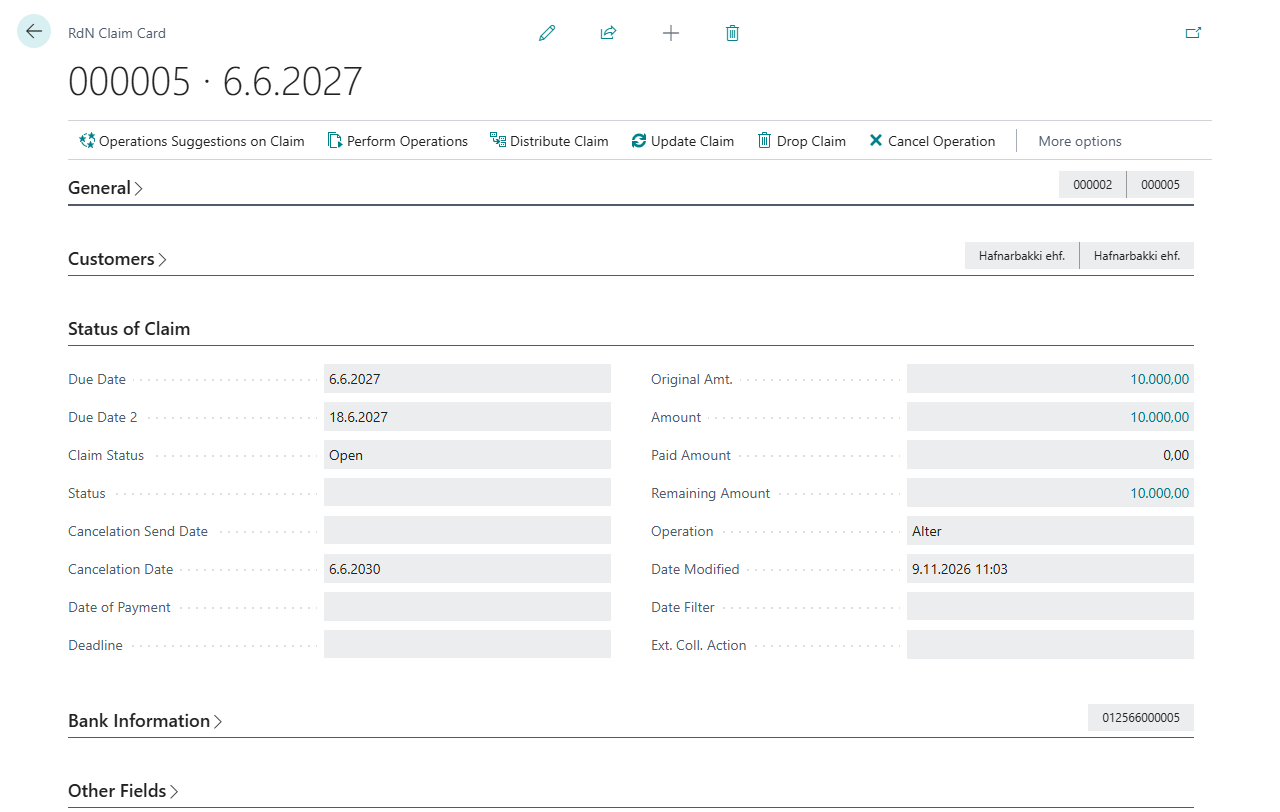
Open the claim on the RdN Claim Card.
-
Change Due Date 2 (the final due date) on the Status of Claim FastTab.
-
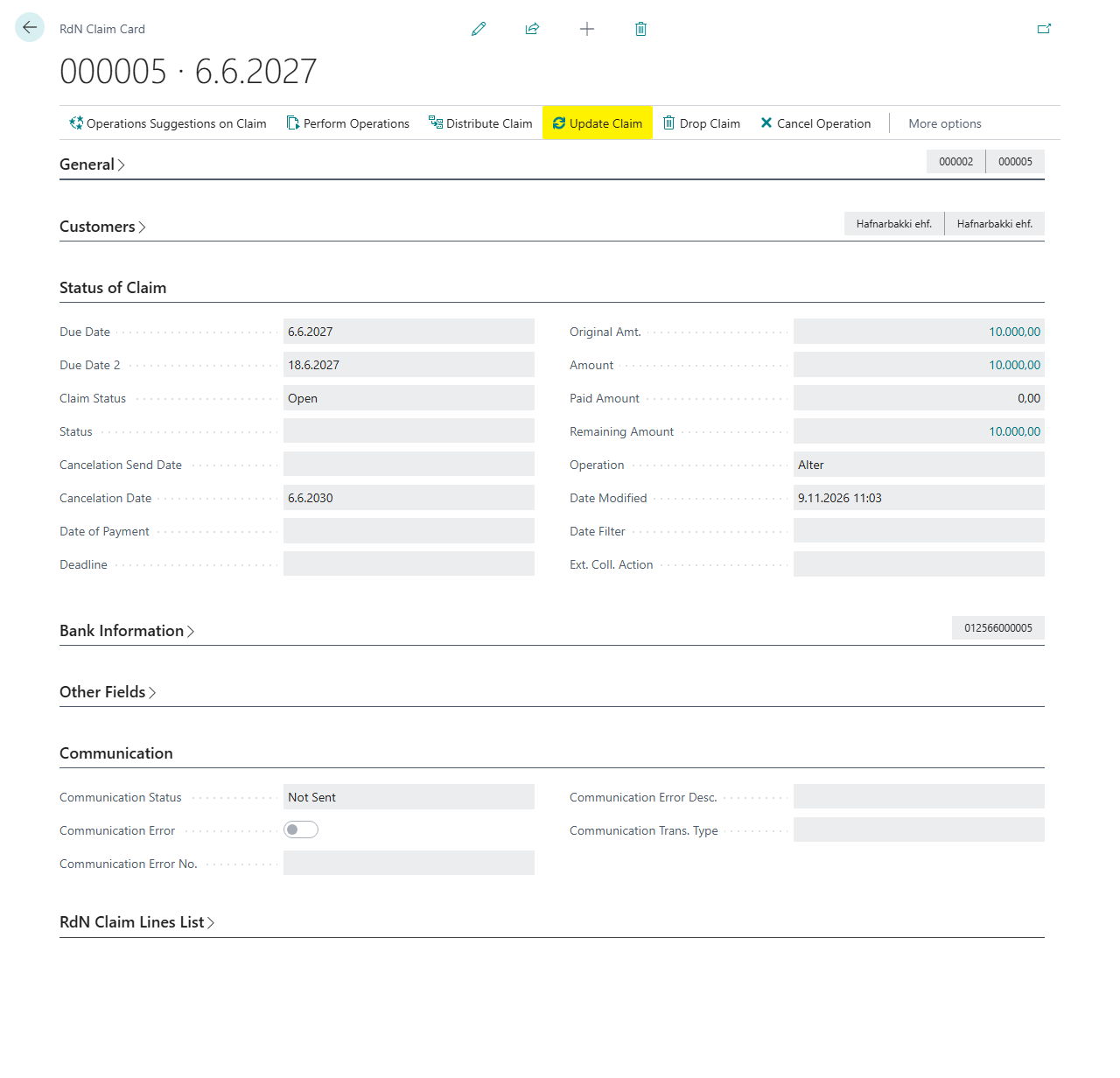
Choose Update Claim. If the system asks Do you want to update the claim?, answer Yes. The claim's Operation becomes Alter.
-
Choose Perform Operations to send the update to the bank. If Execute Operation Instantly is on in the claim setup, it is sent right away and you skip this step.


To update several claims at once, select them in the claim batch and choose Update Selected Claims, or on the RdN Worksheet choose Update Claims.
Result
The bank has the new final due date, and the customer sees it in the online bank. The claim's Operation is empty again and Communication Status is Sent.
If you chose an operation by mistake, choose Cancel Operation on the claim card, or Cancel Selected Operations in the batch, before the operation is sent. Nothing changes in the bank.
Next, follow up on the claim.
What can go wrong
- Due Date can not be changed when claim is sent to bank. Please cancel the claim first. The due date is fixed once the claim has been sent. Change the final due date instead, or cancel the claim and create a new one.
- First operation the claim has to be Create The claim hasn't been sent to the bank. Send it first with Perform Operations.
All messages are in Help.