
Create claims and send them to the bank
A claim (krafa) is created for an open customer ledger entry, such as a posted sales invoice, and sent to the bank. The bank shows it in the customer's online bank, and when the customer pays, the payment comes back into Business Central as a claim payment. This page shows how to create claims in a claim batch and send them.
Scenario
Dæmi ehf. has posted a sales invoice to Prófun hf. for ISK 120,000, due in 14 days. The collections officer wants the claim to show up in Prófun hf.'s online bank today.
Before you start
- Claims are set up: number series for claims and claim batches, and a default Default Collector.
- The bank account that receives the payments is set up for Banking with a collection identifier from the bank.
- It helps to use a separate payment method for claims and put it on the customer card. It is then copied to the invoices, and you can filter on it when you create claims.
- If claims should be created when the invoice is posted, create claims automatically instead.
Walkthrough
-
Post the sales invoice as usual. This creates an open customer ledger entry with a remaining amount.
-
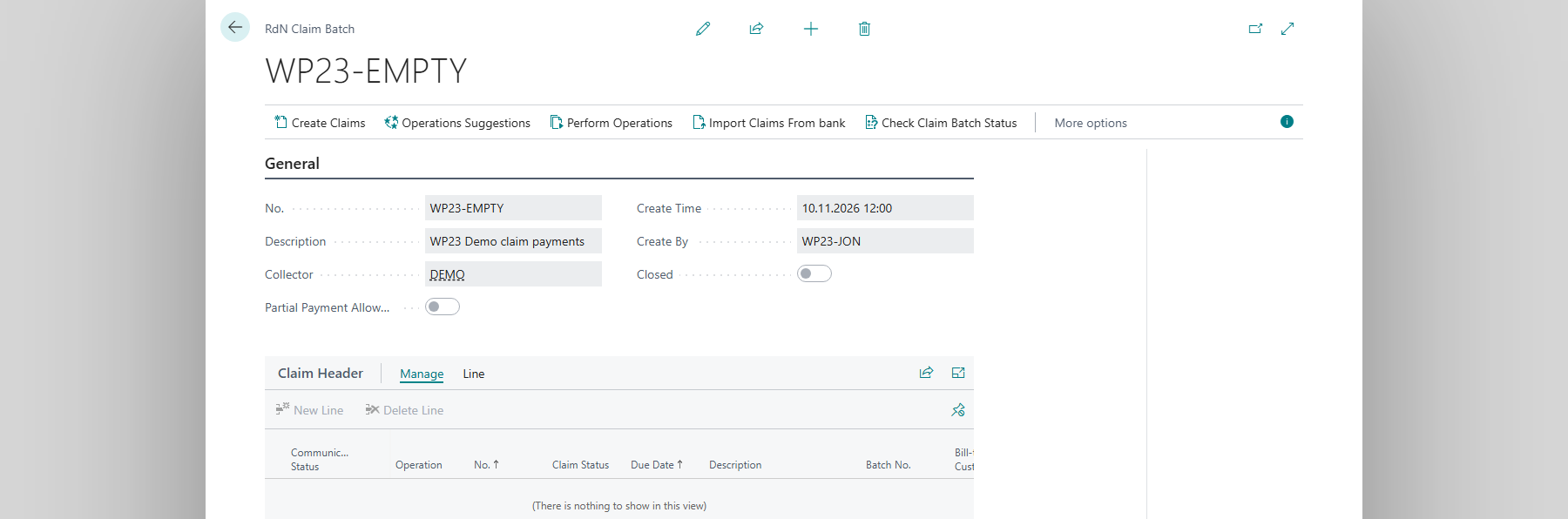
Search for RdN Claim Batch List and choose New. The system numbers the batch. Enter a description and check that the collector is the bank account that should collect the payments.
-
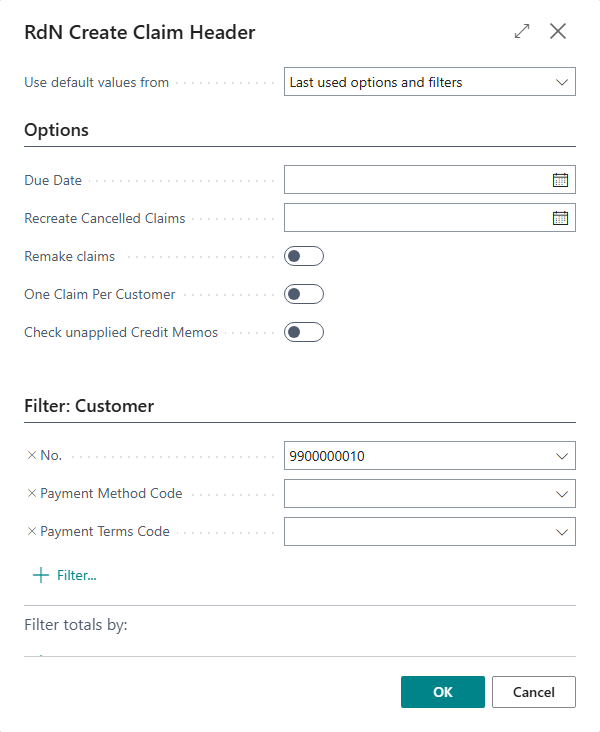
Choose Create Claims. With no filters, the system creates claims for all open entries of type invoice. To create a claim for one customer, filter on the customer number. You can also filter on payment method, payment terms and posting date.
-
Under Options you can choose One Claim Per Customer to combine all of a customer's open entries into one claim. This can make it harder to match payments to invoices later. Check unapplied Credit Memos warns you if a credit memo hasn't been applied to an invoice.
-
Review the claims in the batch. Each new claim has Communication Status Not Sent and Operation Create. While the claim is not sent, you can change or delete it and start over, because nothing has gone to the bank.
-
Choose Perform Operations. The system sends the claims to the bank.

-
If the customer should get a paper payment slip, choose Print Payment slips on the batch, or Print Payment Slip on a line for one claim. The slip prints on pre-printed payment slip forms.


Note: You can also create claims with a job queue. Create a job queue entry that runs codeunit 10041509 (RdN Create Claims JOB). It uses an open claim batch with today's date as its description, or creates an automatic batch with the Default Collector from RdN Claim Setup, and creates claims for all customers that aren't blocked, one claim per invoice and without a due date filter. It doesn't send the claims. To send them, choose Perform Operations or let a job queue do it, see Send claims automatically with a job queue. How it differs from creating claims on posting is in Create claims automatically on posting.
Result
The claim's Communication Status becomes Sent, and the claim shows up in the customer's online bank. The claim number is stored on the customer ledger entry, and selecting it opens the RdN Claim Card. The card shows the due date, final due date, amount and remaining amount, and the lines at the bottom show which invoices the claim is based on. Check Claim Batch Status shows whether the bank accepted every claim in the batch. Next, get the claim payments when the customer pays.
What can go wrong
- No claim was created. A claim is only created if the entry's remaining amount is at least the Minimum Claim Amount and no claim exists for the entry yet.
- First operation on every claim must be Create, claim no. %1 You tried to send another operation on a claim that hasn't been created in the bank. Send the creation first.
- The batch will be split before claims are created. Use Ctrl+Shift+S to split the batch now. The batch holds more claims than Claim Batch Max Size allows. Choose Split batch or let the system split it.
- A claim has an error. Open the claim card, read Communication Error Desc., fix the cause and choose Perform Operations again.
All messages are in Help.