
Set up BankDocs
BankDocs is an optional add-on to Banking. With it, you send the invoices and payment slips behind claims to the bank as PDF documents, and the bank shows them in the payer's online bank.
Purpose
After setup, you can send documents from a claim batch with an action, or have them sent automatically as soon as the claims are created at the bank.
Prerequisites
- BankDocs is installed in Business Central.
- The bank has activated PDF submission for the ID number (kennitala) that sends the documents. The bank passes the request on to Reiknistofa bankanna (RB), which runs the system that shows the documents in online banking.
- The bank account that is the Collector on the claim batch is
set up for Banking and connected to a
bank service of type
li,isb,arionorkvikathat uses Use Fjarhagstengingar Cloud.
Permissions
You need permission to change bank accounts, RdN Claim Setup and customer cards.
Steps
Check the bank account
- Open the bank account card and choose RdN Banking Setup.
- Check that SSN is the ID number the bank activated. It's used as the sender's ID number and must be 10 digits.
- Check that Bank Service Setup points to the right bank service.

Choose automation
-
Search for RdN Claim Setup and open the page.
-
Fill in the Automation FastTab:
Field What it does Send Invoices With Claims (Claim Invoices To Bank) The invoices behind the claims are sent to the bank as soon as the claims are created at the bank. Download Sent Invoice Zip The zip file sent to the bank is also downloaded to your computer. Zip File Max Size How many documents go in each zip file. If the field is empty, it's 50. Applies to both invoices and payment slips. Send Payment Slips With Claims (Claim Payment Slips To Bank) The claims' payment slips are sent to the bank as soon as the claims are created at the bank. Download Sent PaySlip Zip The zip file with the payment slips is also downloaded to your computer. 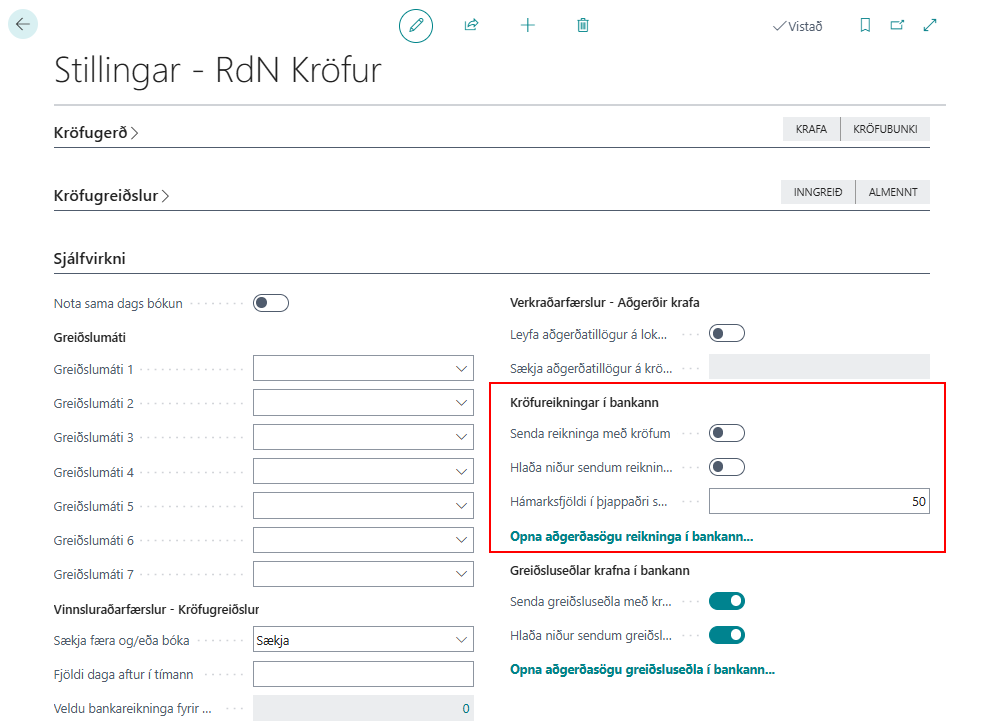
If automatic sending fails, the claims are still created. The log shows which documents weren't sent.

Leave out individual customers
- Open the customer card.
- On the General FastTab, select Skip Claim Invoice to Bank, Skip Claim PaySlip to Bank or both.
The fields apply to the customer in Bill-to Customer No. on the claim.
Verify
- On a claim batch where the Collector is set up correctly, you see the actions Send Invoices To Bank and Send Payment Slips To Bank.
- On the Automation FastTab, Open "Invoice to bank" log... opens the log.