
Register mappings for incoming documents
This page is for those who receive electronic invoices from vendors. With the right mappings, the system converts incoming documents to BC without manual corrections.
Purpose
A mapping tells the system what a value in an electronic document means in BC: the vendor's item number becomes an item, G/L account, fixed asset or item charge, a unit of measure becomes a BC unit of measure, and accounting cost values become dimensions. Without a mapping for an item, the document stops at Check Document.
Prerequisites
- Electronic documents are set up.
- The vendor exists in BC and is set up for electronic documents.
Permissions
The user needs the EDOCS permission set.
Steps
-
Open an electronic document from the vendor and choose Mappings. eDoc Mappings opens, filtered on the vendor's registration number. If the document has no sender, you get Supplier not provided. You can also reach the mappings with eDoc Mappings on the vendor card.
-
Create a line for each item:
Field Value eDoc Partner The vendor's registration number. Filled in automatically when the list is opened from a document. eDoc Type Item eDoc Map.Value The vendor's item number as it appears in the document. Can be a filter, see Filter item mappings. eDoc Type 2 / eDoc Map.Value 2 Optional. Accounting Cost, Additional Document Reference or Item Property and the value, if the same item should go to different places depending on that value. Tax Category Optional. The mapping then only applies to lines in that tax category, see Tax categories. BC Type Item, G/L Account, Fixed Asset or Charge (Item). BC Id 1 The number in BC. 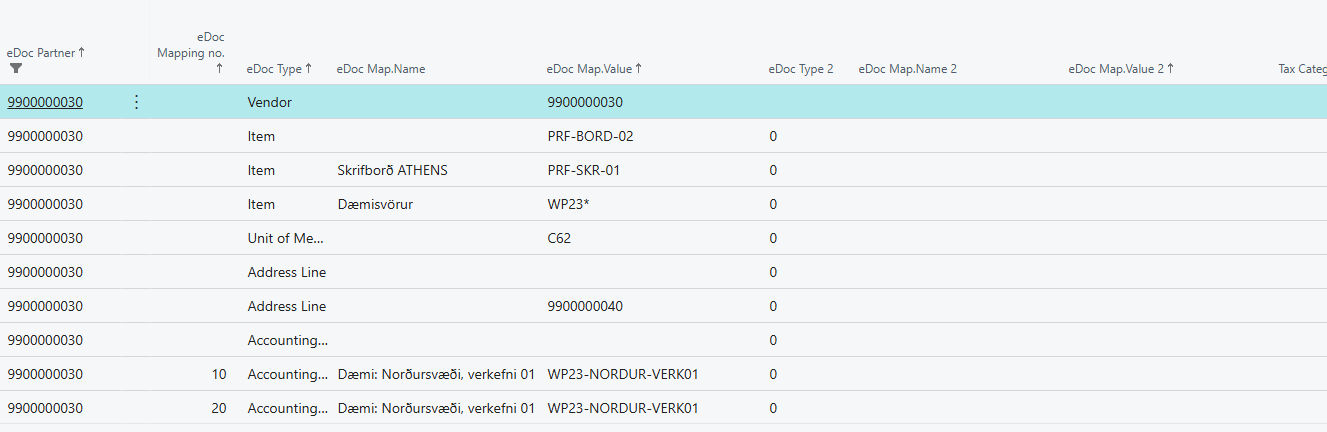
-
If the vendor sends units of measure that don't exist in BC, add a line with eDoc Type Unit of Measure, see Units of measure.
-
To map accounting cost values to dimensions, see Map more than one dimension.
-
Post VAT on BC Id 1 is only for a mapping to a G/L account without VAT. The line is then posted to the G/L account including VAT, and the VAT percentage isn't compared. On any other G/L account you get an error, and the system asks whether VAT should always be posted to the account.
The order the system looks up mappings in
For purchase invoices and purchase credit memos, the system only looks in the vendor's mappings (by registration number) with eDoc Type Item:
- Mappings from Unimaze Approvals, if enabled.
- Item with the line's accounting cost in eDoc Map.Value 2.
- Item with an additional document reference.
- Item with an item property.
- Item only (empty eDoc Map.Value 2).
- Filters in eDoc Map.Value.
In steps 2 and 4–6, lines with the same Tax Category as the document line are chosen first, then lines with an empty Tax Category.
If no mapping is found, the system tries to create one. It looks for an item with the same vendor item number on the item card, on the item's vendors or on a stockkeeping unit, and if Shared Item Nos. is selected on the vendor, for an item with the same number. If nothing is found, you get Unable to map item %1 (%2). No Item exists with matching Vendor Item No. or Unable to map item %1 (%2). No Item exists with matching No. Mapping lines that the system creates automatically are marked System Created Entry.
For incoming orders from customers (Order -in and ReturnOrder -in), the order is different: the partner's mapping, the partner's item classification, a global mapping (empty eDoc Partner), the global item classification and finally the partner's filters. Global mappings and Conditional only apply here.
Create mappings from earlier purchase lines
Create mappings on eDoc Setup creates a mapping for each open purchase line that has a vendor item number, to an item or G/L account. At the end you get A total of %1 mappings were created. The lines are registered on the vendor number in eDoc Partner, but the lookup uses the registration number. Review eDoc Partner on the new lines.
Verify
- Choose Check Document on the electronic document. Mapping is missing for eDoc Item: %1 or Unable to map item shouldn't appear.
- Choose Convert to BC Document and check that the lines go to the right items or accounts.
- If something stops, see Help.