
Register an electronic document in BC
When a received electronic document has been checked and has no errors, you convert it into a BC document for review and posting. This page shows how to register one document or many at once and which BC document is created.
Scenario
Dæmi ehf. receives electronic invoices from suppliers and electronic orders from customers, for example Prófun hf. The accountant wants to register all of the day's checked documents in BC and then review them.
Before you start
- The document has been fetched and checked; see Receive an electronic purchase invoice.
- The vendor or customer and all items and units of measure are mapped.
- In the eDoc setup you can select:
- Link Attachments so that the electronic document's attachments follow the BC document.
- Use Address from eDoc to use the address from the electronic document instead of the address on the card.
- Skip Converting On Status Error so that bulk registration skips documents with the status Checked with Errors!
Walkthrough
-
Open the electronic document and choose Convert to BC Document (
F11). The system checks the document again first; if errors are found, no BC document is created. -
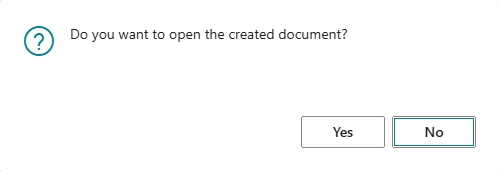
Answer yes to Do you want to open the created document? to open the BC document.
-
To register many documents at once, open the eDoc Worksheet and choose Convert to BC Documents. The system shows Number of documents created: and the number. The job queue does the same after each fetch.
-
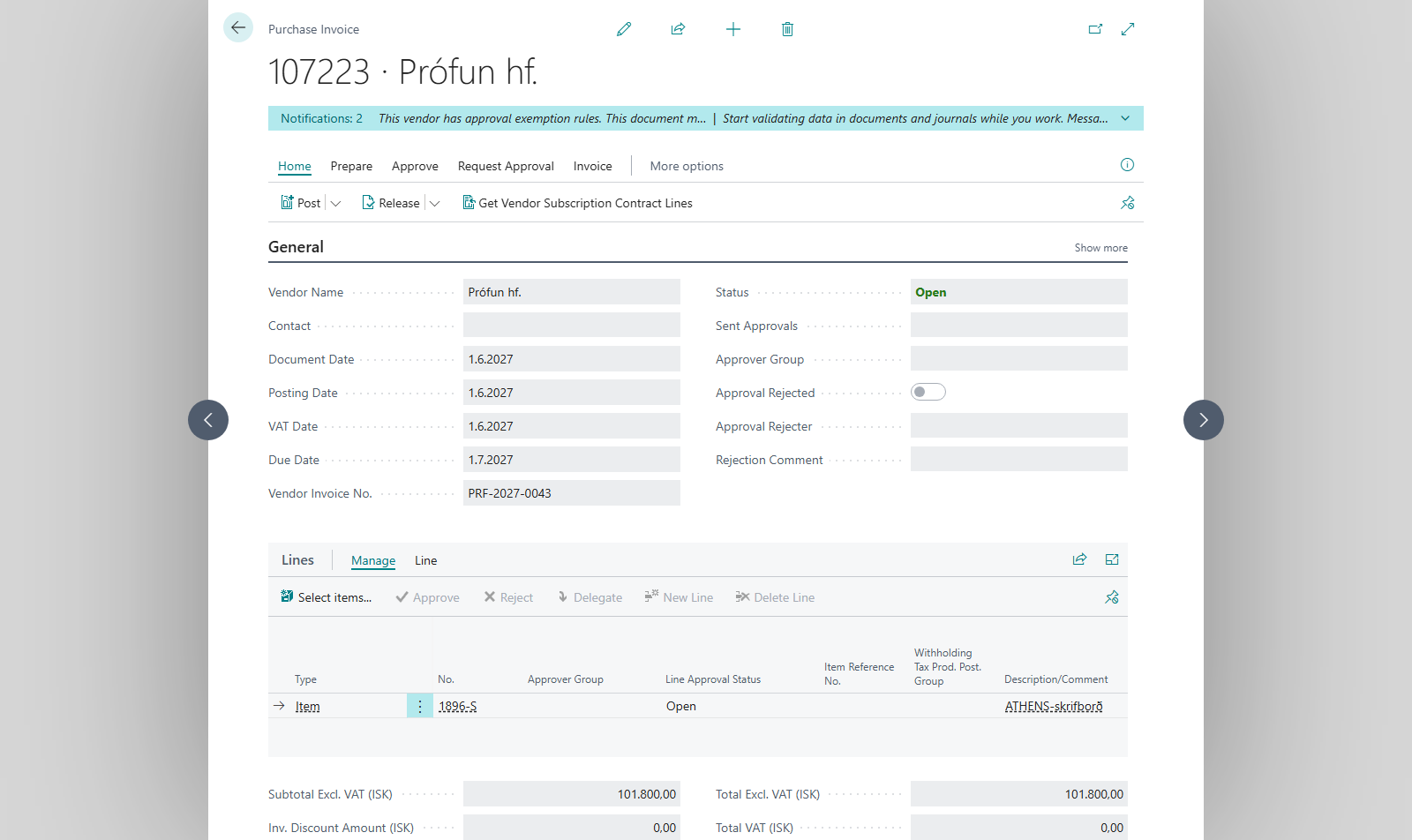
Review the BC document. Each type of electronic document becomes:
Electronic document BC document Posting date Invoice -in Purchase invoice The electronic document's issue date Creditnote -in Purchase credit memo The electronic document's issue date Order -in Sales order Today ReturnOrder -in Sales return order Today On purchase documents the vendor invoice number (or credit memo number) is the electronic document's number. If the amounts including VAT don't match, the system adds a line on the Invoice Rounding Account. If the invoice refers to a purchase order, there are links between the documents.
-
Post the BC document. If the amount including VAT differs from the electronic document by more than Maximum Invoice Rounding Amnt., the system asks whether you want to cancel:
- Purchase invoices and credit memos: Purchase header amount: %1 and eDocs amount: %2 differ, do you want to cancel the current action?
- Sales return orders: Sales Header amount: %1 and eDocs amount: %2 differ, do you want to cancel the current action?
Choose Yes to cancel and correct, or No to post anyway.


Result
The electronic document's status is Converted to BC Document and BC Document refers to the new document. After posting, the electronic document refers to the posted document. On the worksheet you can see which documents were registered.
What can go wrong
If registration fails, the document gets the status Checked with Errors! and the error is saved on it. Common causes:
- Invoice rounding of %1 is too much. The difference in amounts is more than Maximum Invoice Rounding Amnt.. Review the lines or select Skip Invoice Rounding Check on the card.
- Mapping is missing for eDoc Item: %1 An item has no mapping. Add it in Register mappings.
- Item Unit of measure code %1 missing for item no %2 The unit of measure doesn't exist on the item. Add it to the item or map it to another one.
- Unable to map party … to Customer. The customer on the order isn't found. Create a mapping or a customer with the same kennitala.
- Nothing happens with Convert to BC Documents: the documents have errors and Skip Converting On Status Error is selected. Resolve the errors first.
All messages are in Help.