
Fill in the eDoc Setup card
An administrator goes through the setup card to decide how electronic documents are sent, received and posted.
Purpose
eDoc Setup holds the core settings that apply to all electronic documents in the company: how customers and vendors are found by registration number (SSN), where rounding is posted, which posting text is used, which BII standard is sent and how errors are reported. The connection to the message broker isn't here; it's on the delivery site.
Assisted setup fills in some of these fields. This page describes the whole card.
Prerequisites
- Registration No. in Company Information contains the company's registration number. See identifiers in master data.
- A G/L account for rounding exists in the chart of accounts.
Permissions
The user needs the EDOCS permission set. When the page opens, it checks that the company has eDocs access in App Center.
Steps
-
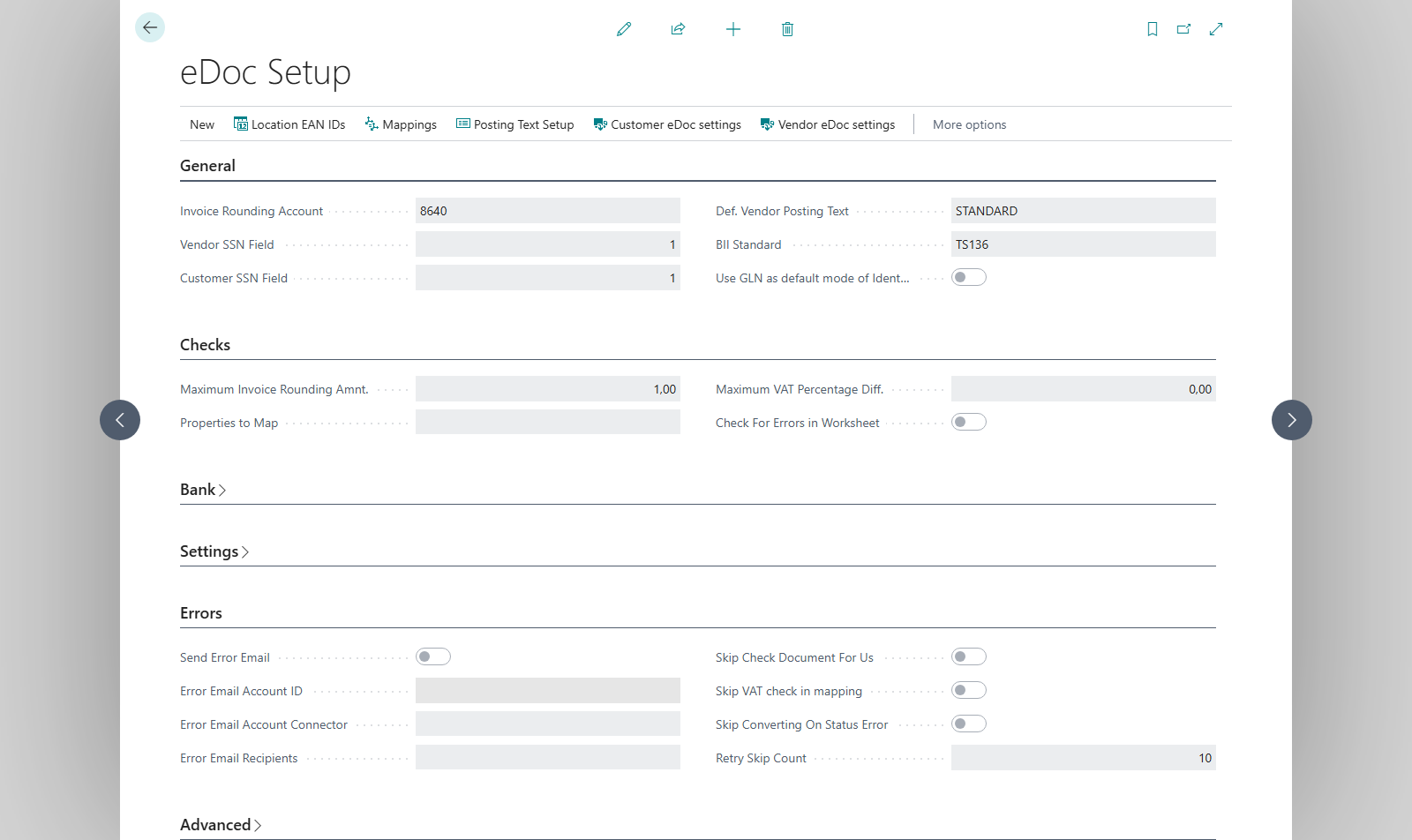
Search for eDoc Setup and open the page.
-
On the General FastTab, set Customer SSN Field and Vendor SSN Field first. The default is 1, which is the No. field. If the registration number is stored in another field, for example Registration No. (field 25), enter that field's number. Otherwise customers and vendors aren't found by registration number.
-
Choose Invoice Rounding Account and Def. Vendor Posting Text. The default posting text is empty after the extension is installed. Choose, for example,
STANDARD; otherwise converting a purchase invoice stops for vendors that have no posting text of their own. See posting text setup. -
Choose the BII Standard and decide whether Use GLN as default mode of Identification should be selected.
-
Go through the other FastTabs. The fields are described in the tables below.
-
Create a delivery site and assign it to customers and vendors. The core settings alone don't send documents.

Example: Dæmi ehf. stores customer registration numbers in Registration No. The administrator sets Customer SSN Field = 25, chooses a rounding account and STANDARD as the posting text. An order from Prófun hf. then finds the right customer by registration number.
General
| Field | Effect |
|---|---|
| Invoice Rounding Account | The account that the difference between the electronic invoice amount and the purchase document is posted to, as a separate line. |
| Vendor SSN Field | The number of the vendor card field that holds the registration number. Default 1 (No.). |
| Customer SSN Field | The number of the customer card field that holds the registration number. Default 1 (No.). |
| Def. Vendor Posting Text | The posting description used when a vendor has no RdN Posting Text Setup of its own. |
| BII Standard | TS236 (default) is the newest standard, TS136 the older one. When you switch to TS236, the tax categories are checked for a missing exemption reason; see tax categories. |
| Use GLN as default mode of Identification | In TS236 documents, the company's GLN is used as its identifier towards the message broker instead of the registration number. |
Checks
| Field | Effect |
|---|---|
| Maximum Invoice Rounding Amnt. | If a rounding line would be larger than this, converting the purchase document stops with an error. When posting, you're also asked whether to cancel if the BC document and the electronic document differ by more than this. 0 turns the posting check off. |
| Properties to Map | Comma-separated item property names that are used for mapping to department and project. |
| Maximum VAT Percentage Diff. | The allowed difference between the VAT percentage on the electronic line and the purchase line. |
| Check For Errors in Worksheet | Checks documents for errors when the eDoc worksheet opens. |
Bank
Bank Branch, Bank Account Type and Bank Account are written to the payment details of outgoing invoices so that the recipient can pay into the account.
Settings
| Field | Effect |
|---|---|
| Link Attachments | Attachments on the electronic document are linked to the BC document that's created. |
| Item Charge Assignment | How item charges are assigned to lines: Equally, By Amount, By Weight or By Volume. |
| Extra Decimal Places in BII | More decimal places are written to outgoing BII documents. |
| Disable Strict Amount Decimals | Amounts are formatted the legacy way. Use only if the new formatting causes problems. |
| Strict Incoming Price Discount | A discount on an incoming line is only applied as a line discount if it's a real discount. |
| Invoice Nos., Posted Invoice Nos., Credit Memo Nos., Posted Credit Memo Nos. | Separate number series for purchase documents created from electronic documents. If they're empty, the normal number series are used. |
| Use Address from eDoc | The address from the electronic document is put on the BC document. |
| eDoc Line Description Source | Where the purchase line description comes from. See the table below. |
| Use Unimaze Approvals Accounting Cost | Creates item-to-G/L account mappings automatically when accounting cost is on the header or line. See Unimaze Approvals. |
| Use External Dimensions | Turns on external dimensions. Unimaze Status From Date, Automatically Send For Approval and a link to the external dimension setup then appear. |
| Use Lot No. and Expiration | Lot number and expiration date are added to item lines. |
| Create new Vendor | A new vendor is created automatically on receipt, using the Default Vendor Template. |
| Get Unimaze External Attachments | External attachments from Unimaze are fetched and attached to the electronic document. |
eDoc Line Description Source applies to all vendors. A value other than Default on the vendor card takes precedence.
| Option | Purchase line description |
|---|---|
| Description from Mapping (default) | The incoming text isn't used. The description comes from the BC record, or from the mapping if it maps to a G/L account and has a description. |
| Default | The line description, then the name, then the line's accounting cost. |
| Description | The line description. |
| Name | The line name. |
| Description + Name, Name + Description | Both values in that order. |
If the chosen fields are empty, the same as Default is used.
Errors
| Field | Effect |
|---|---|
| Send Error Email | An email is sent automatically when an error occurs, from Error Email Account ID and Error Email Account Connector to Error Email Recipients. |
| Skip Check Document For Us | Received documents aren't checked for being addressed to the company. |
| Skip VAT check in mapping | The VAT percentage of incoming lines isn't compared with the mapping. |
| Skip Converting On Status Error | Only documents with the status Loaded or Checked OK are converted automatically. |
| Retry Skip Count | How many times to skip retrying after a send error. A lower number means more frequent retries. |
Advanced and EDI
| Field | Effect |
|---|---|
| Integrate with LS Central | Turns on the integration with LS Central. |
| X400 PostBox | The company's X400 postbox in EDI documents. |
| EDI Distributor | The distributor of EDI documents. |
| Use eDocItem Barcode | The item barcode from the electronic document is sent in EDI documents. |
| Use Alternate Order Address | The order address EAN is used as the supplier when EDI purchase orders are sent. |
Storage
See Azure Blob Storage and automatic data cleanup.
Actions
| Action | Effect |
|---|---|
| Create mappings | Creates mappings from historic purchase lines. |
| Run Install Code Manually | Runs the same code as when the extension is installed: reinstalls the data exchange definitions, XSLT files and system posting descriptions. Use it if the error "No Data Exchange Definition for %1" appears, for example after a company has been copied. |
| Test Azure Connection, Migrate Storage | See Azure Blob Storage. |
| Location EAN IDs | Opens location EAN IDs. |
| Mappings | Opens mappings. |
| Posting Text Setup | Opens posting text setup. |
| Customer eDoc settings | Opens customer settings. |
| Vendor eDoc settings | Opens vendor settings. |
Verify
- Open a customer and check that the field that Customer SSN Field points to holds its registration number.
- Check recipients or convert a test document, and check that the right customer or vendor is found and that the posting description is correct.