
Receive an electronic purchase invoice
When a supplier sends an electronic invoice, the system fetches it, finds the vendor and items, checks it and creates a purchase invoice for posting. This page goes through the whole process, from fetching to posting.
Scenario
Dæmi ehf. ordered goods from Prófun hf. with a purchase order. Prófun hf. sends an electronic invoice with the order number. The accountant wants a purchase invoice in BC that is linked to the order, with the right items and an amount that matches.
Before you start
- A delivery site for receiving is set up. To fetch automatically, Automatic Processing must be selected and a job queue entry must exist.
- In the eDoc setup:
- Create new Vendor and Default Vendor Template if new vendors should be created automatically.
- Maximum Invoice Rounding Amnt. and Invoice Rounding Account for differences in amounts.
- If invoices should refer to a purchase order, select Check Order No. in the vendor eDoc settings.
- The supplier's items have a vendor item number, or there are mappings for the supplier's item numbers.
Walkthrough
-
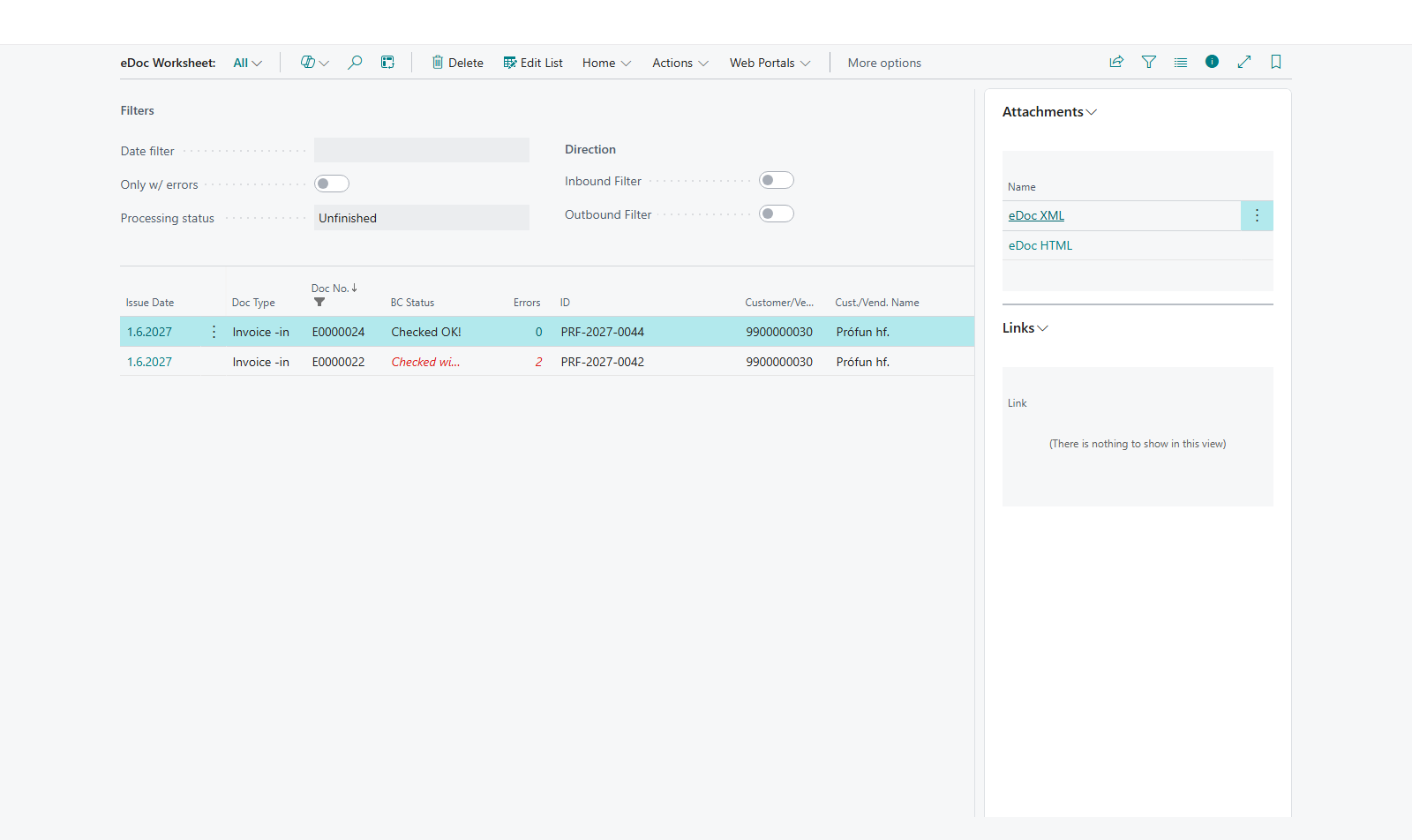
Fetch. The job queue fetches invoices automatically. To fetch now, open the eDoc Worksheet and choose Fetch files for all Delivery Sites, or choose Fetch Files on the delivery site. The invoice shows as Invoice -in with the status Loaded.
-
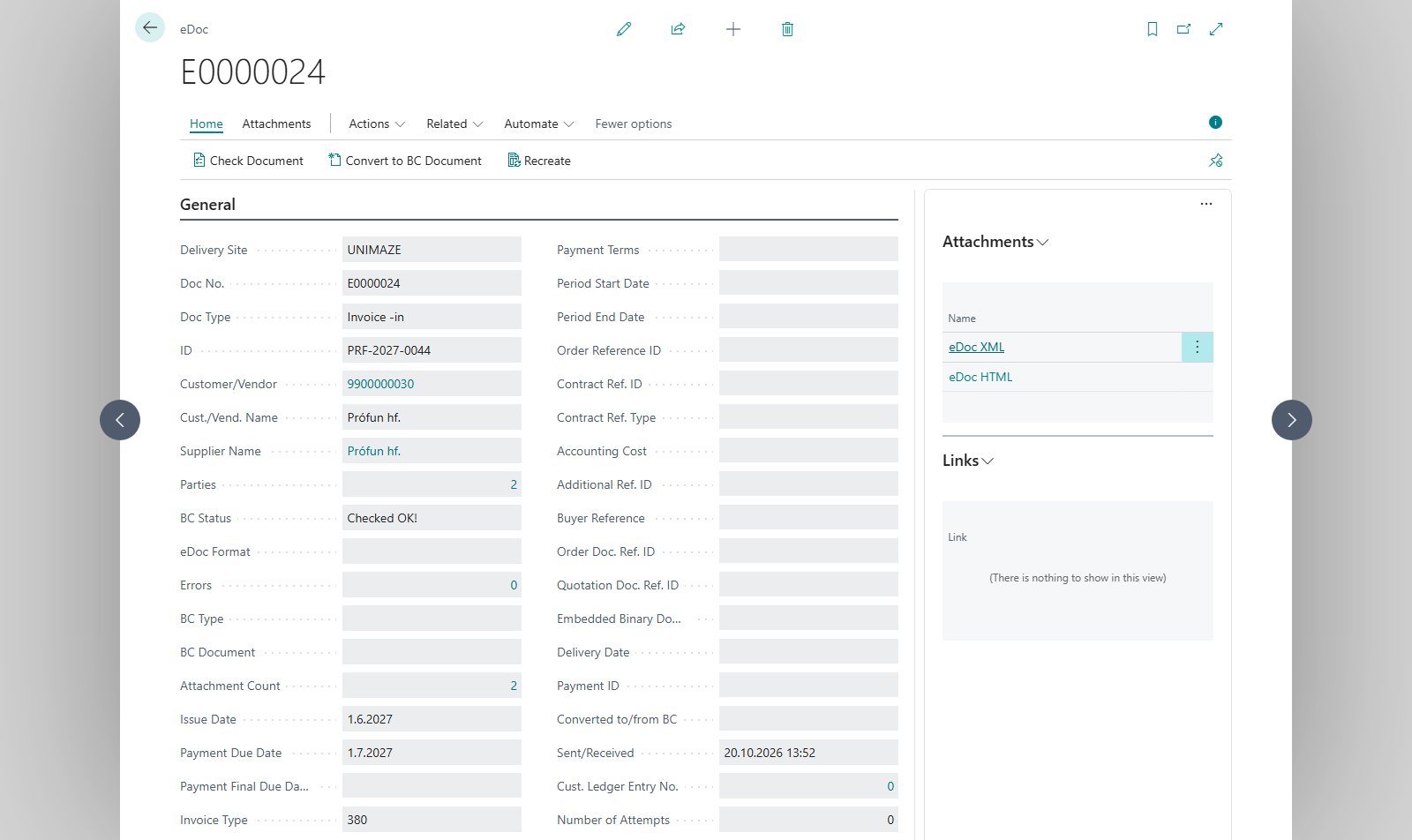
Check. Open the invoice and choose Check Document (
F9), or Check Documents on the worksheet. Among other things, the system checks:- Vendor. The system looks for a mapping for the supplier's kennitala, and then for a vendor with the kennitala as its number or registration number. If none is found and Create new Vendor is selected, a vendor is created from the template. You can also choose Create Vendor on the card.
- Items. If there is no mapping, the system looks for an item where the vendor and vendor item number match the supplier's item number, then in the item vendor catalog and stockkeeping units. If an item is found, the system creates a mapping itself.
- Purchase order. If Check Order No. is selected on the vendor and the invoice has an Order Reference ID, a purchase order with that number must exist.
- Recipient. The kennitala of the customer on the invoice must be the company's kennitala.
- VAT. The VAT percentage of each line must match the VAT setup of the item or G/L account.
-
If the status is Checked with Errors!, resolve the errors and check again. If the invoice refers to an order that you don't want to link, you can select Skip Order Reference Check on the card.
-
Register. When the status is Checked OK!, choose Convert to BC Document (
F11) and answer yes to Do you want to open the created document? For details, see Register an electronic document in BC. -
Post. Review the purchase invoice and post it. If the amount including VAT on the invoice differs from the electronic invoice by more than Maximum Invoice Rounding Amnt., the system asks Purchase header amount: %1 and eDocs amount: %2 differ, do you want to cancel the current action? Choose Yes to cancel and correct, or No to post anyway.


Result
A purchase invoice exists, where the vendor invoice number is the electronic invoice's number and the posting date is its issue date. If the invoice referred to a purchase order, there are links between the invoice and the order, but the lines aren't merged with the order. The electronic document's status is Converted to BC Document, and after posting it refers to the posted invoice.
What can go wrong
- Referenced order X does not exist. The order number on the invoice doesn't match any purchase order. Correct Order Reference ID on the card or select Skip Order Reference Check.
- Unable to map item %1 (%2). No Item exists with matching Vendor Item No. Add the supplier's item number to the item or create a mapping.
- Unable to map party … to Vendor. No vendor was found with the supplier's kennitala. Create the vendor with Create Vendor, or select Create new Vendor in the setup.
- Unable to map party … to Vendor because vendor does not exist. A mapping points to a vendor number that doesn't exist. Correct the mapping.
- This document (AccountingCustomer=…) is not intended for this company (Reg.No=…)! The invoice is addressed to another company. If it still belongs here, select Skip Check Document For Us.
- Mismatch in VAT%. Incoming value is %1 instead of %2 Check the item's VAT group or select Skip VAT Percentage Check if the difference is correct.
- Invoice rounding of %1 is too much. The difference in amounts is more than Maximum Invoice Rounding Amnt.. Review the lines or select Skip Invoice Rounding Check.
More errors and fixes are in Resolve errors and Help.