
Send an electronic purchase order or return order
When a vendor has a delivery site, releasing a purchase order or purchase return order creates an outbound electronic document. This page shows how to prepare the vendor, release the order and send the electronic document.
Scenario
Dæmi ehf. regularly orders goods from Prófun hf. The purchaser wants orders and return orders to reach Prófun hf. electronically as soon as they're released.
Before you start
- The vendor has a Delivery Site in the vendor eDoc settings. eDoc Standard follows the delivery site.
- If the vendor wants orders in the base unit of measure, select Use Base UOM on the vendor card.
Walkthrough
-
Create a purchase order for Prófun hf. Leave Vendor Invoice No. empty; if it's filled in, the system assumes an invoice has already arrived and doesn't create an electronic order.
-
In the eDoc group on the General FastTab, make sure Skip sending eDoc isn't selected. The group only shows when the vendor has a delivery site.

-
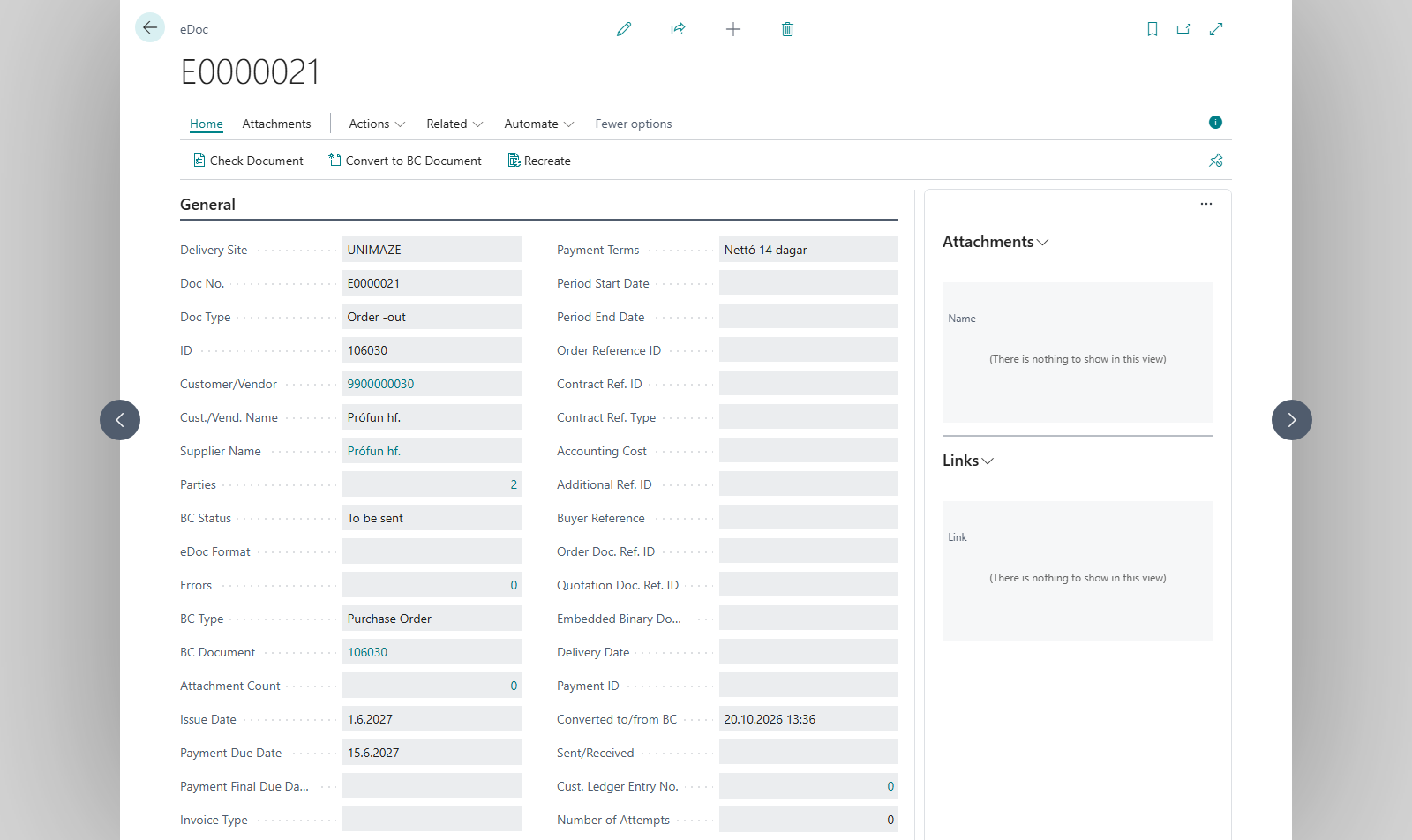
Choose Release. The system creates an electronic document of type Order -out with the status To be sent. This only happens once for each order.
-
Choose eDoc on the order to open the document and review lines, units and quantities.
-
Choose Send on the electronic document, or send many documents at once with Send files for all Delivery Sites on the eDoc Worksheet.


Purchase return order
The same applies to a purchase return order: leave Vendor Cr. Memo No. empty and release the return order. The system creates a document of type ReturnOrder -out. The return order has no field to skip sending, so an electronic document is always created when the vendor has a delivery site.
Orders released earlier
If the delivery site was assigned to the vendor after orders were released, open the vendor card and choose Create eDocs. In From Posting Date, choose the first posting date. The system creates electronic documents for the vendor's purchase orders that don't have one and shows Created %1 eDocs from Purchase Orders.
Result
When sending succeeds, Done. is shown and the document's status becomes Sent OK!. If you change the order after releasing it but before it's sent, you can choose Update All Outgoing Documents on the worksheet to rebuild the document from the order.
Next, track the Unimaze message status.
What can go wrong
- No electronic document was created on release: the vendor has no delivery site, Vendor Invoice No. (or Vendor Cr. Memo No.) is filled in, Skip sending eDoc is selected, or an electronic document already exists for the order.
- The document is not ready to be sent. The document doesn't have the status To be sent, for example because it has already been sent.
- The operation was not completed The delivery site didn't send the document. Check the delivery site and the document's errors.
All messages are in Help.