
Check recipients and assign a delivery site
Before you send electronic documents to customers, it's good to know who can receive them. The check asks Unimaze whether each customer can receive invoices, credit notes and orders, and from the results you can assign a delivery site to many customers at once.
Scenario
Dæmi ehf. is starting to use electronic invoices and has several hundred customers without a delivery site. The accountant wants to find those that can receive electronic documents, including Prófun hf., and assign a delivery site to all of them at once.
Before you start
- There is a Unimaze delivery site that uses Document Payload (REST) or JSON Metadata (REST) and a standard that isn't EDI. Only such delivery sites support the check.
- The customers have a kennitala or GLN. The check uses the identifier
0196:kennitalaor0088:GLN.
Walkthrough
-
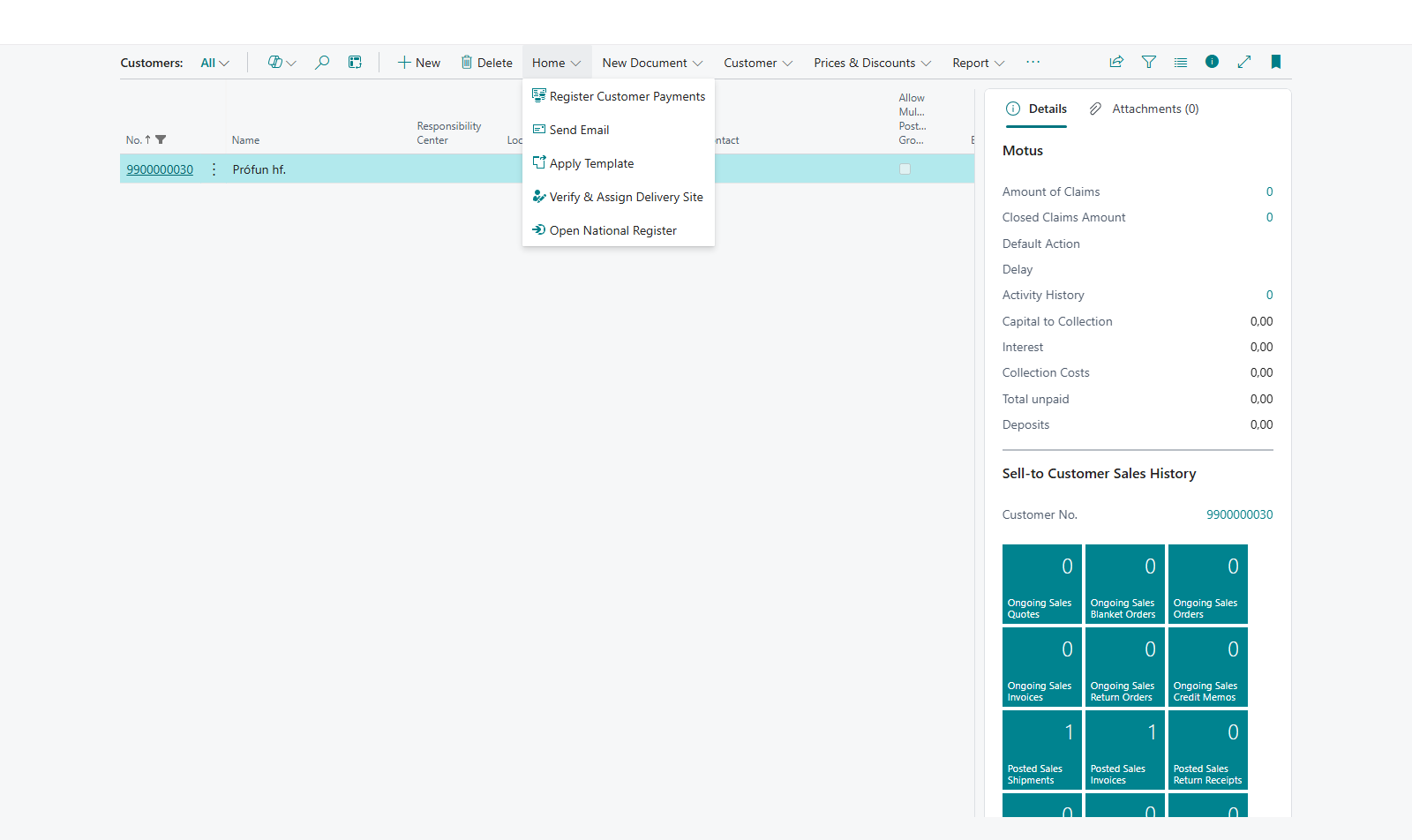
Open the customer list and choose Verify & Assign Delivery Site. If more than one delivery site supports the check, choose the one to use. You can also open the delivery site and choose Verify Recipients there.
-
The eDoc Recipient Verification page opens and checks the customers. The header shows the delivery site, the standard and whether a Fallback E-Mail is required.
-
To check a different group of customers, choose Change Customer Selection and then All Customers, Customers Without Delivery Site, Custom Selection or Custom Filter. The system then checks the new group.
-
Look at Receive Invoice, Receive Credit Note, Receive Order and Support Level for each customer:
- Full: can receive all three document types.
- Partial: can receive at least one of them.
- E-mail Only: can't receive electronic documents, but the documents go to the fallback e-mail.
- None: can't receive documents.
- If "(E-mail Missing)" or "(Missing)" is added, the delivery site needs a fallback e-mail that the customer doesn't have.
-
If the delivery site uses JSON Metadata (REST), enter an address in Fallback E-Mail where it's missing. The change is saved to Fallback E-Mail on the customer. Filter with Missing Fallback E-Mail to see who is missing one.
-
Filter the results, for example with Support Level and Site Assignment. Then choose Assign Delivery Site to assign to all customers in the filter, or select lines and choose Assign to Selected. Choose the delivery site and confirm Assign delivery site %1 to %2 customer(s) in the filter?
-
You can also change one customer's delivery site directly in their line.

Result
The system shows Delivery site assigned to %1 customer(s) of which %2 were updated. and the delivery site is saved on the customer cards. The next time you post an invoice for these customers, an electronic document is created; see Send an electronic sales invoice. For invoices that are already posted, create electronic documents.
To remove a delivery site, choose Remove Delivery Site and then All Customers In Filter or Selected Customers. If any of them can still receive documents, the system warns you (The following selected customers can still receive documents: … Continue anyway?). Finally Delivery site removed from %1 customer(s). is shown.
What can go wrong
- No delivery site with recipient verification support was found. There is no Unimaze delivery site with a REST transfer mode and a non-EDI standard. Set up such a delivery site.
- Unimaze processing timed out. Try again later using Refresh Pending. Unimaze hadn't answered yet. Choose Refresh and Refresh Pending later. Refresh All checks everyone again.
- Customer identifier is missing (no valid GLN or kennitala found). Add a kennitala or GLN to the customer and refresh.
- The status Error: read Error Text in the line. Filter with Errors to see all errors.
- Currently in test mode. Checking for eligibility of customers requires a live connection to the Unimaze web service. Results shown are based on dummy data. The results aren't real answers from Unimaze.
- Customer %1 (%2) cannot receive electronic documents. Please remove the delivery site. You set a delivery site on the customer card, but the customer can't receive documents. Send their invoices another way.
- %1 cannot receive document Sending was stopped because the recipient can't receive the document. Check the customer again and remove the delivery site if needed.
All messages are in Help.