
Track Unimaze message status
For those who send electronic documents through Unimaze and want to know whether they arrived: this page shows where the status appears, what it means and how it's updated.
Purpose
When an electronic document has been sent through Unimaze, you can follow whether it has reached the recipient. The status is fetched from Unimaze and saved on the electronic document.
Prerequisites
- The document was sent through a delivery site of type Sendill WS that uses REST, not SOAP. Only then does the document get a message ID that the status is fetched by.
Steps
-
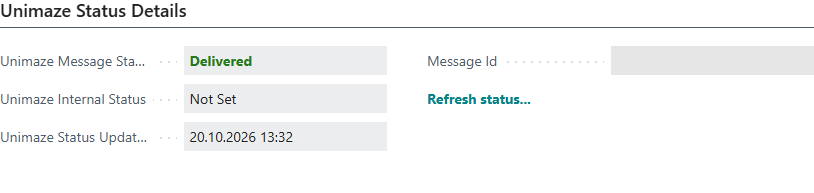
Open the electronic document. When the document has a message ID, Unimaze Status shows in the header together with the Unimaze Status Details group with Unimaze Message Status, Unimaze Internal Status, Unimaze Status Updated and Message Id.
-
Choose Update Unimaze Status, or select Refresh status... in the group, to fetch the latest status. The system shows Done.
-
Read Unimaze Status:
Status Meaning New Unimaze has received the document but hasn't started processing it. In Process Unimaze is processing the document. Parked Unimaze has put the document on hold. Delivered The document was delivered to the recipient. Failed Delivery failed. Other Unimaze returned another status. See Unimaze Internal Status. -
To update statuses automatically, set up a job queue entry with the parameter
unimazestatus, or with no parameter to fetch, send and update statuses in the same run. -
To limit the automatic update to recent documents, set Unimaze Status From Date in the eDoc setup.

Result
Unimaze Status and Unimaze Status Updated show the latest status. The job queue only updates documents that aren't yet Delivered or Failed, on delivery sites with Automatic Processing.
For example, Dæmi ehf. sends an invoice to Prófun hf. At first the status is In Process, and after the next job queue run it's Delivered.
What can go wrong
- No Unimaze status shows: the document has no message ID, for example because it was sent through SOAP or hasn't been sent.
- Update Unimaze Status changes nothing: the delivery site isn't Sendill WS in REST mode.
- The status is Failed: look at Unimaze Internal Status and the document's errors, fix the cause and send the document again.
- Invalid parameter: %1. Supported parameters are: … The parameter on the job queue entry is
wrong. Use
unimazestatus.
All messages are in Help.