
Send an electronic sales invoice
When you post a sales document for a customer with a delivery site, the system creates an outbound electronic document. This page shows how to review the document, add attachments, send it and see that it was sent.
Scenario
Dæmi ehf. sells goods to Prófun hf. for ISK 15,000. Prófun hf. receives electronic invoices, and the accountant wants the invoice, with a supporting file, to arrive the same day.
Before you start
- The customer the invoice is billed to (Bill-to Customer No.) has a Delivery Site in the customer eDoc settings. If you don't know whether the customer can receive documents, check recipients first.
- The delivery site is set up. A PDF copy of the invoice is included only if Send Attachments is selected on the delivery site and the customer's standard isn't EDI.
Walkthrough
-
Post the sales invoice as usual. The system creates an electronic document of type Invoice -out with the status To be sent. The same happens when you post a sales credit memo, sales order, sales return order, service invoice or service credit memo.
-
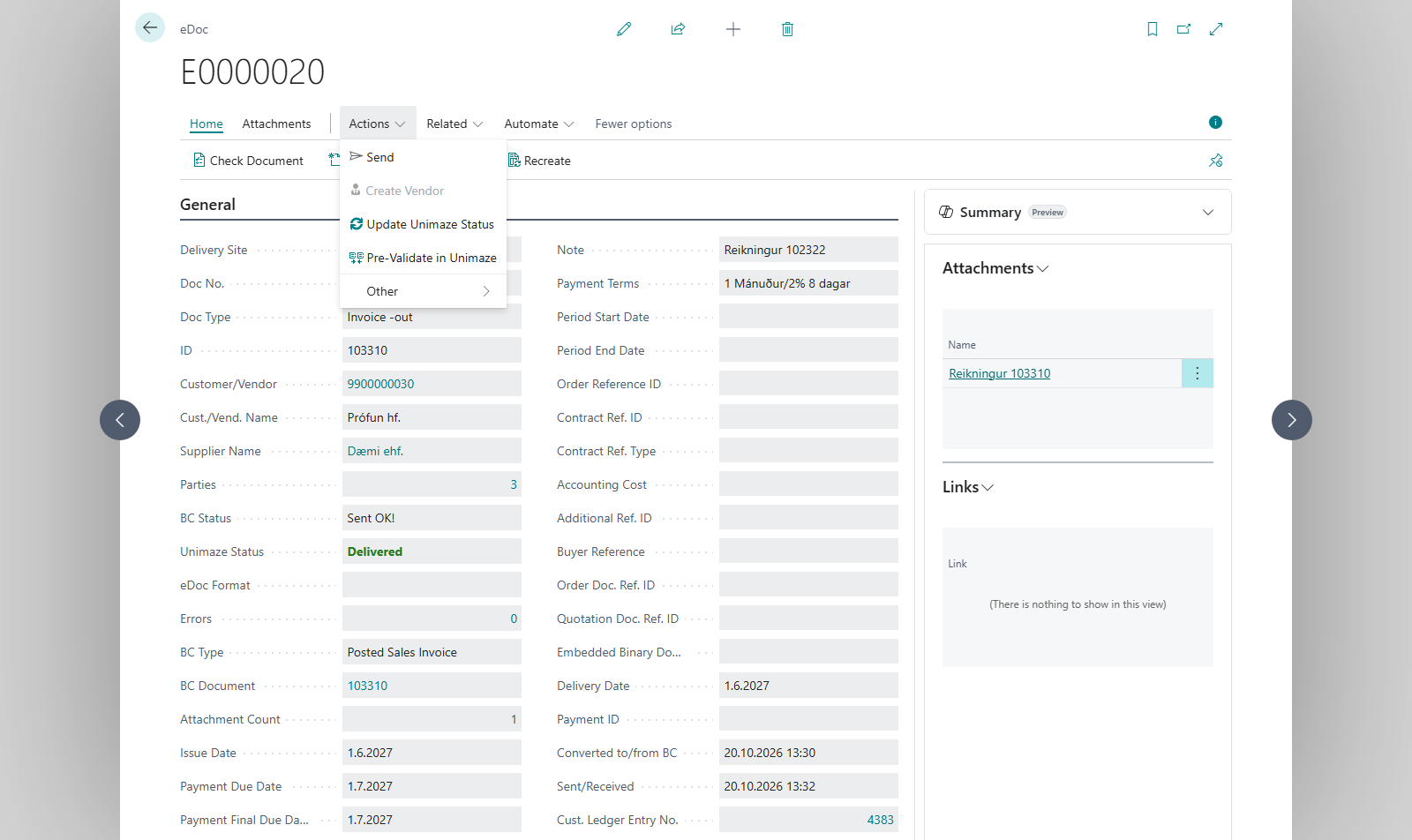
Open the posted invoice and choose eDoc to open the document. You can also find it on the eDoc Worksheet.
-
Review the recipient, lines and amounts. If you changed the customer's settings after posting, choose Update All Outgoing Documents on the worksheet. All documents with the status To be sent are then rebuilt from their source documents.
-
The posted invoice's attachments go with the document automatically. To send more supporting files, choose Add Attachment in the attachments part of the card and pick the file. Which file types can be sent is in Attachments on outgoing electronic documents.
-
If the delivery site uses JSON Metadata (REST), you can choose Pre-Validate in Unimaze. Unimaze checks the document without sending it and shows Pre-validation completed. Check the Errors factbox for any validation warnings. or Pre-validation failed. Check the Errors factbox for details.
-
Choose Send. When the document is sent, Done. is shown.
-
To send many documents at once, choose Send files for all Delivery Sites on the worksheet. It sends documents on the delivery sites that have Automatic Processing selected. To send on a schedule, run sending in the job queue.

Result
The status of the electronic document becomes Sent OK!. If the delivery site is a Unimaze site, you can track whether the document was delivered. With Create a local Copy you can download a copy of the sent document.
What can go wrong
- No electronic document was created on posting. The customer had no delivery site when the invoice was posted. Add the delivery site and create the document from the posted invoice.
- This Invoice already exists as an electronic document. Do you want to open it? You chose Create electronic document on an invoice that already has one. The system doesn't create another; answer Yes to open the existing one.
- The document is not ready to be sent. The document doesn't have the status To be sent, for example because it has already been sent.
- You can only send outgoing Documents. You chose Send on an inbound document.
- The operation was not completed The delivery site didn't send the document. Check the delivery site and try again.
- Customer %1 no longer has a delivery site. Document was not updated. The delivery site was removed from the customer after posting. Add it again or delete the document.
- No Report selected exists for usage %1 There is no report selection for the invoice, so the PDF copy can't be created. Set up a report selection for sales invoices.
- Attachments can only be added to outgoing documents that have not been sent. The document is inbound or has already been sent.
All messages are in Help.