
Open and review an electronic document
For sales and purchasing staff who need to see the electronic document behind an invoice or order: this page shows how to open it and what you can review.
Purpose
Open the electronic document linked to a BC document to see its status, errors and linked BC document before you continue. These actions only open a document that already exists; they don't create one.
Prerequisites
- An electronic document exists for the document, for example a posted sales invoice, a purchase order or a purchase invoice that was registered from an electronic document.
Steps
-
Open the BC document, for example a posted sales invoice to Prófun hf.
-
Choose eDoc (
Ctrl+E). The eDoc card opens for the linked document.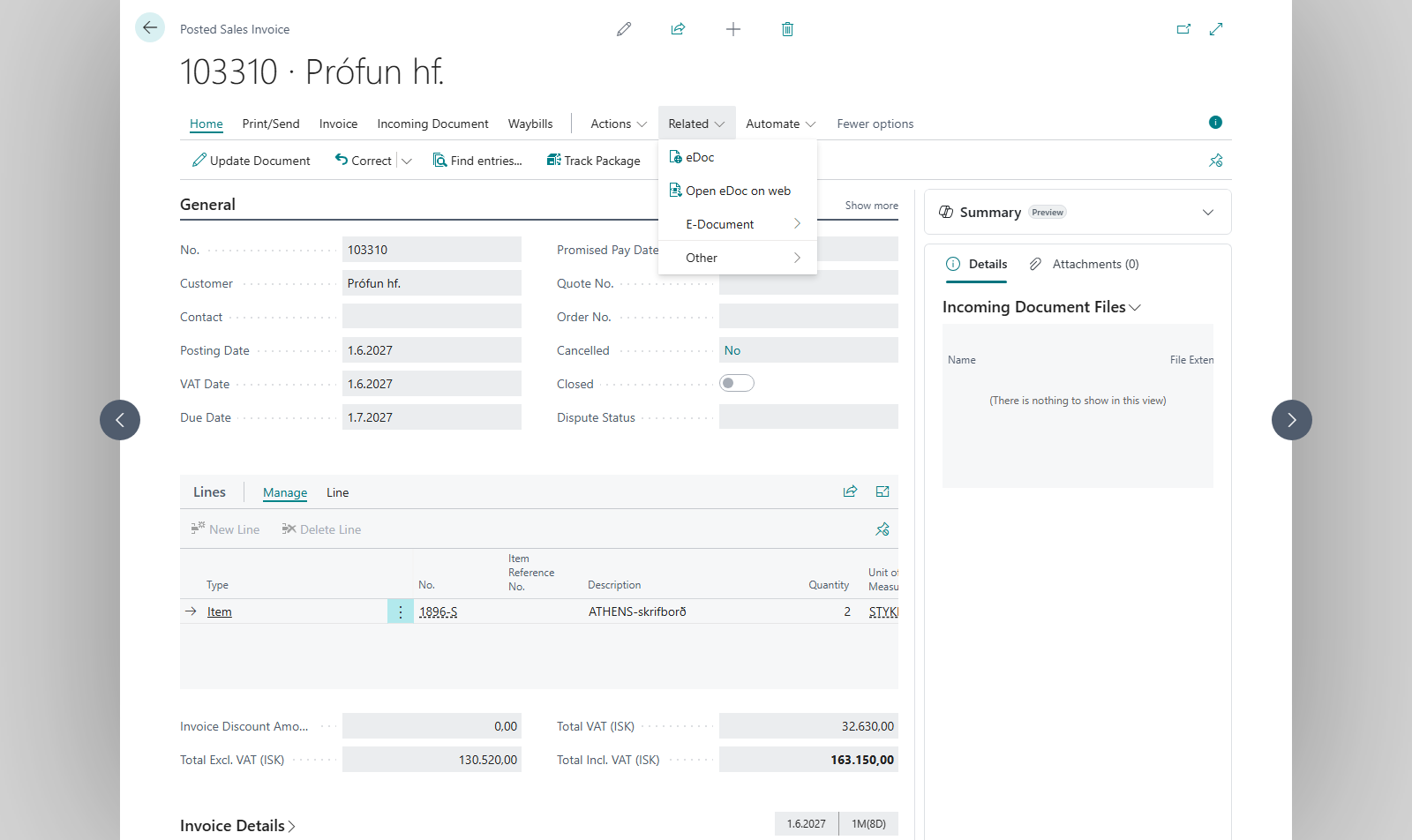
-
Compare Doc No., Doc Type, BC Status and BC Document with the BC document. Errors shows the number of errors; if it's more than zero, resolve the errors.
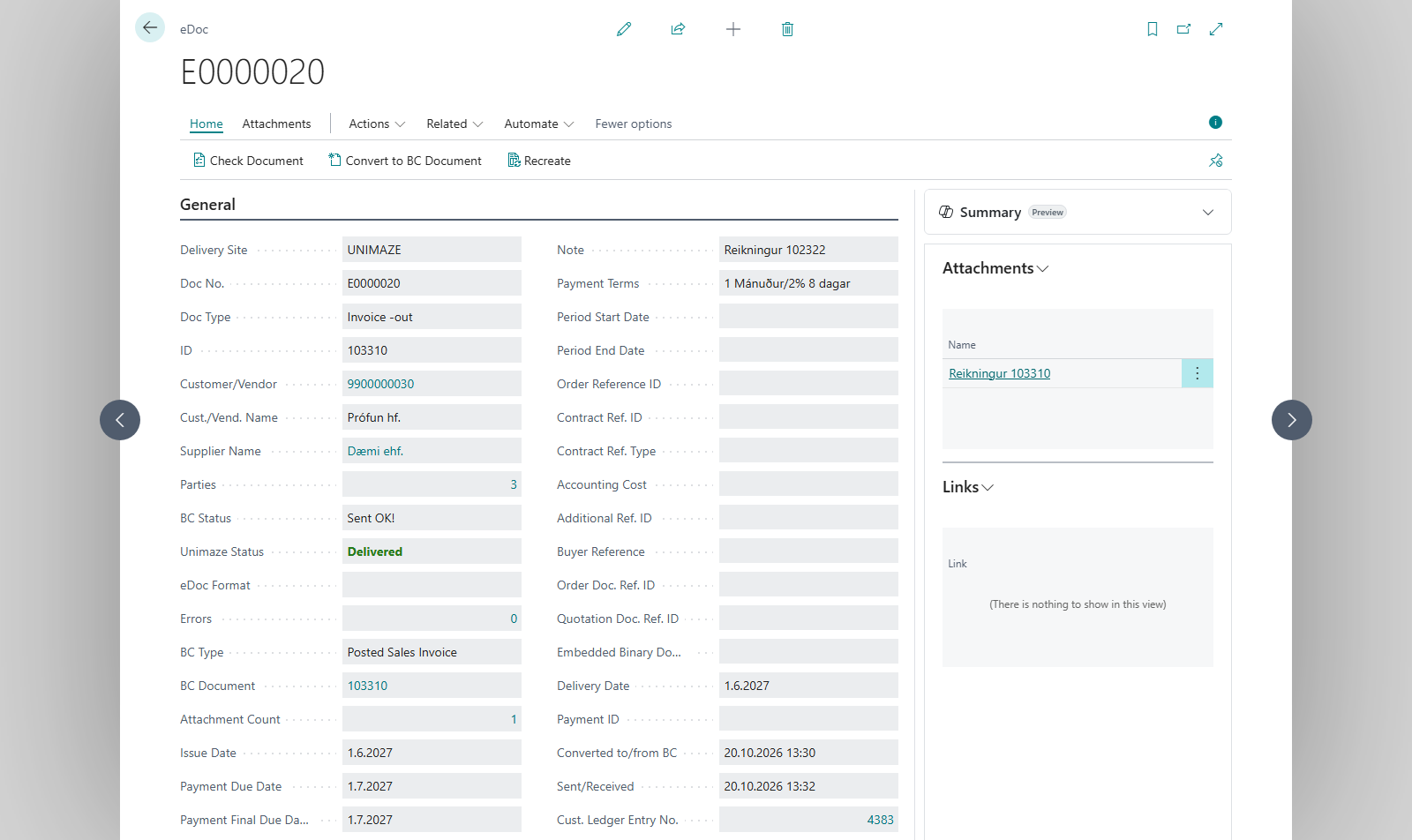
-
To download an HTML copy of the document, choose Open eDoc on web (
Ctrl+Shift+E) on the BC document, or Show in Browser (Ctrl+Shift+E) on the card. -
On the card you can also choose:
- Show Original File to see the file that was received (inbound documents only).
- Create a local Copy to save a copy of the file (outbound documents only).


All documents for a customer or vendor
On the customer card and vendor card, eDocs opens a list of all electronic documents for that party. To see all documents, regardless of party, open the eDoc Worksheet and filter on Processing status or Only w/ errors.
Result
You see the electronic document, its status and its link to the BC document. From there you can register an inbound document in BC, send an invoice or resolve errors.
What can go wrong
| Message | What to do |
|---|---|
| No eDoc for %1 %2 | No electronic document is linked to the document. Check that you chose the right document. For a posted sales invoice you can create an electronic document. |
| No document was found to show in browser | The electronic document has no HTML attachment, so there's nothing to show. Look at Attachments on the card, or use Show Original File for inbound documents. |
| No original file found | The original file wasn't saved with the document. |
| Only outbound document copies can be exported | Create a local Copy only works for outbound documents. Use Show Original File for inbound documents. |
All messages are in Help.