
Choose Azure Blob Storage and migrate documents
An administrator who wants to store documents outside the database sets up Azure Blob Storage here and migrates older content.
Purpose
Attachments and raw content of electronic documents are stored in the database by default. You can store new content in Azure Blob Storage instead and migrate older content separately. Storage Provider defaults to Database. Changing it doesn't move existing content.
Prerequisites
- An Azure storage account and blob container.
- Either a shared access key or a SAS token for the container. The SAS token needs read, write, delete and list rights.
- eDoc Setup exists.
Permissions
The user needs the EDOCS permission set. To run a migration in the job queue, the user also needs permission to schedule job queue entries.
Steps
Configure Azure storage
-
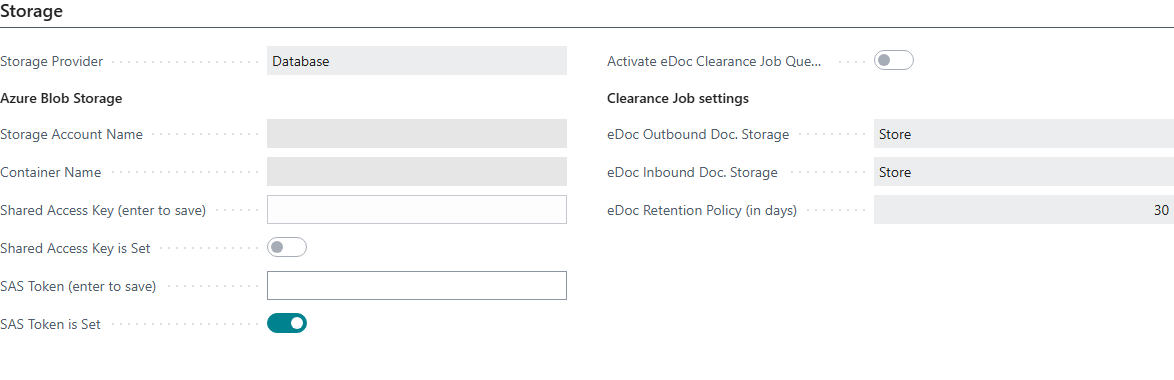
Open eDoc Setup and go to the Storage FastTab.
-
Fill in Storage Account Name and Container Name.
-
Enter either Shared Access Key (enter to save) or SAS Token (enter to save). The value is saved when you enter it and is never shown again. Shared Access Key is Set or SAS Token is Set shows that it was saved. When one is set, the other can't be entered.
-
To delete a key or token, clear the "is Set" field and confirm.
-
Choose Azure Blob Storage in Storage Provider. New attachments and raw content are then stored in Azure.
-
Choose Test Azure Connection. The action is visible when Azure is chosen and tests access to the container.

Older attachments and BLOBs are still read from the provider they were saved in.
Example: Dæmi ehf. chooses Azure for new documents but keeps older documents in the database until a migration is planned. Invoices from Prófun hf. that arrive after the change are stored in Azure.
Migrate older content
- In eDoc Setup, choose Migrate Storage. eDoc Storage Migration opens. Target Provider is the current Storage Provider and Source Provider is the other one. If Storage Provider is Azure Blob Storage, content is therefore moved from the database to Azure. Check both values before you continue.
- Set Max Records (0 = all) to a small number to test the migration. 0 means all records. The limit applies to attachments and BLOBs separately, not to the total of both.
- Choose Migrate and confirm the direction.
- Review Results for both Attachments and Blobs: Migrated, Already in Target, Skipped (No Content) and Failed. Select the count of attachments without content to view them.
- If the test went well, run the migration again with Max Records (0 = all) = 0.
When content is migrated, it's written to the target and removed from the source after the target has confirmed it. If the content is already in the target, the record counts as Already in Target and the content may be removed from the source. Take a backup before you run a large migration.
Migrate in the background
Choose Create Job Queue Entry on the migration page and confirm the direction. The system creates an entry and tries to schedule it. The background job migrates all records regardless of Max Records (0 = all). See job queue entry.
Automatic data cleanup is a separate task for retention of older data. It doesn't replace migration.
Verify
- Test Azure Connection shows "Connection to Azure Blob Storage is working correctly."
- After migration, Failed is 0 and you can open the attachments of older documents.
- Skipped (No Content) means no content was found in the source. Check whether the record should have had content.
- Already in Target isn't a new migration. Test reading the documents before you disconnect the source.
| Message | What to do |
|---|---|
| Azure Blob Storage is selected as the storage provider but has not been configured fully yet. Please set up the Azure Blob Storage credentials and container name in eDoc Setup under Storage. | Appears when the provider is changed. Fill in the Storage FastTab before you migrate content. |
| Azure Blob Storage configuration is incomplete. Please set up %1 in eDoc Setup. | Fill in the missing field in Storage. |
| Connection test failed: %1 | Enter the key or SAS token again. Check that the container exists and that the SAS token is valid and has read, write, delete and list rights. |
| Azure Blob Storage operation failed for blob "%1": %2 | Reading or writing a file failed. Look at the Azure error (%2) and choose Test Azure Connection. |
| Source and target storage providers cannot be the same (both are %1). | Choose two different providers. |
| The migration job queue entry was created but could not be scheduled, likely because of missing permissions. The entry has to be restarted by an administrator for it to be scheduled properly. Do you want to view the job queue entry now? | If the entry can't be scheduled, an administrator must restart it. |
| You can only use this field to delete the key by unchecking it, not to set a new key. To set a new key, enter it in the "Shared Access Key" field above. | Enter the key in Shared Access Key (enter to save). The same applies to the SAS token. |
| Are you sure you want to delete the Shared Access Key? | Answer Yes to delete the key. Azure storage doesn't work without a key or SAS token. |