
Set up automatic data cleanup
This page is for administrators who want to keep the database small. You set how long the files of electronic documents are kept, and the system then deletes them automatically.
Purpose
The stored files behind electronic documents take up space in the database long after the documents have been processed. With the clearance job, the system deletes these files automatically once a day, after a retention period you choose. The electronic documents and the BC documents stay.
Prerequisites
- Electronic documents are set up.
- You've decided how long the files should be kept.
Permissions
The user needs the EDOCS permission set and permission to create and schedule job queue
entries in BC. Without it, the entry is created but doesn't start.
Steps
-
Open eDoc Setup and go to the Storage group.
-
Under Clearance Job settings, set:
Field Effect eDoc Outbound Doc. Storage Delete: the files of outgoing documents with status Sent OK! are deleted. Store: they aren't deleted. eDoc Inbound Doc. Storage Delete: the files of incoming documents are deleted if the document has status Converted to BC Document and the BC document has been posted. Store: they aren't deleted. eDoc Retention Policy (in days) Only files older than this number of days are deleted. 0 means nothing is deleted by retention. If both storage settings are Store or the retention period is 0, you see Please note that nothing will be deleted with the current Clearance Job settings.
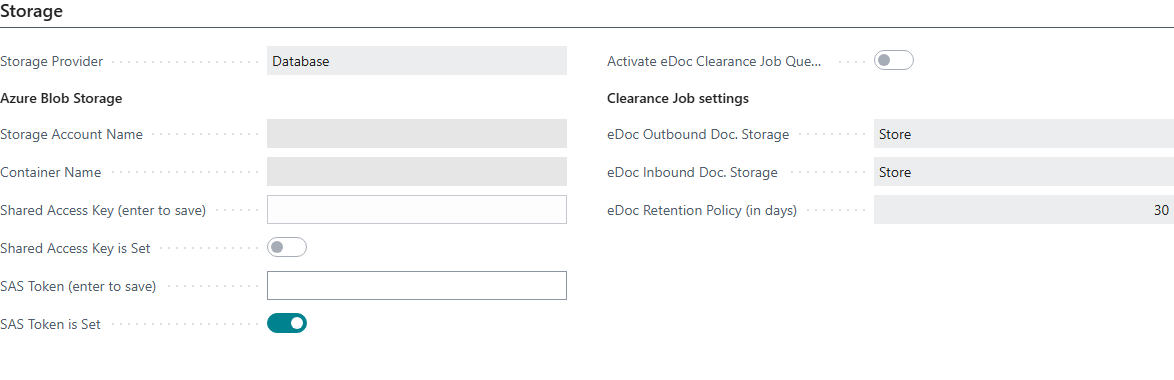
-
Select Activate eDoc Clearance Job Queue Entry. The system asks: You are activating the eDoc Clearance job queue. Redundant data of electronic documents will be removed from the database according to Clearance Job settings. Do you want to proceed? Answer Yes.
-
The system creates a job queue entry with the parameter
CLEAR. It runs every day, first at 00:01 the next day, with up to 10 attempts and 60 seconds between them. The entry is created on hold and then scheduled. You then get one of these questions:- The clean up job queue entry was created and scheduled successfully. Do you want to view the job queue entry now?
- The clean up job queue entry was created but could not be scheduled, likely because of missing permissions. The entry has to be restarted by an administrator for it to be scheduled properly. Do you want to view the job queue entry now? The entry is then still on hold. A user with permission needs to restart it.

Regardless of the settings in step 2, the job always deletes document data that belongs to no electronic document.
To turn cleanup off, clear Activate eDoc Clearance Job Queue Entry. The system then deletes the job queue entry.
Verify
- In Storage, eDoc Clearance Job Status shows Ready. Scheduled. in green when the job is set up correctly. Not ready. or Not scheduled. in red means the entry isn't running.
- Choose Click here to open the eDoc Clearance job queue entry.. to open the entry and see the last run and any errors.
- If something stops, see Help.